
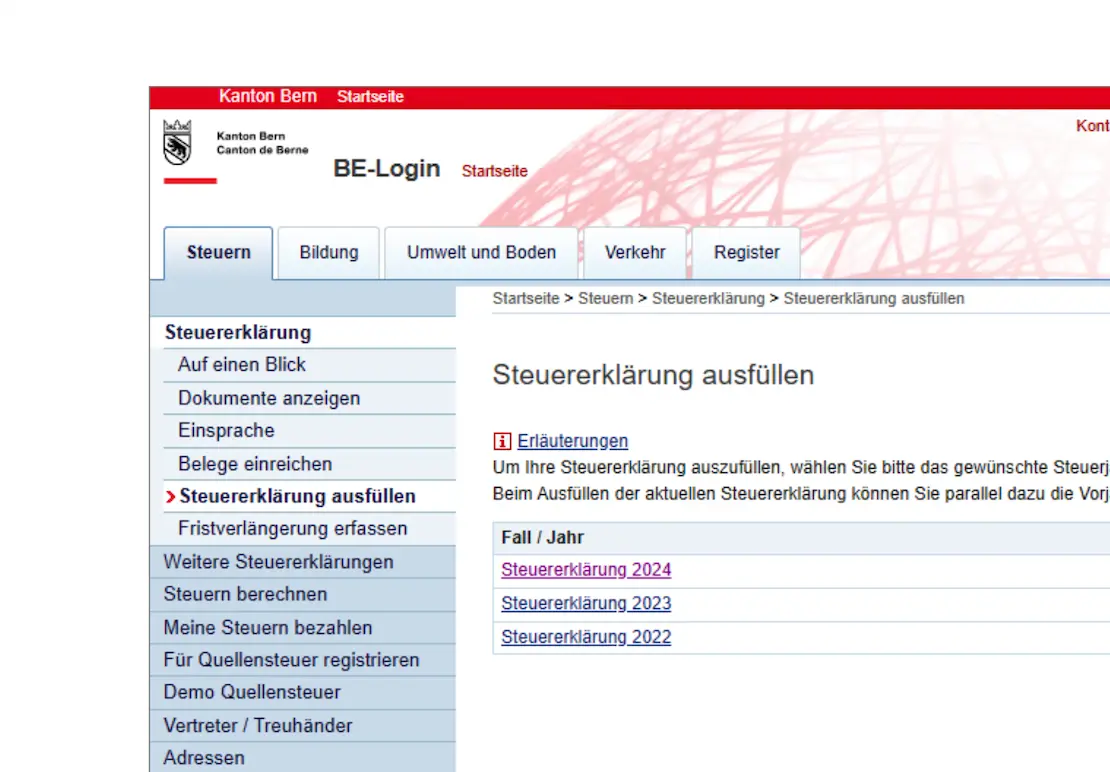
It’s that time again: at the beginning of the year, the tax authorities send you a letter with the access data for your tax return. Don’t panic, TaxMe-Online makes it surprisingly easy. And with a few tips, you can save yourself a lot of trouble (and maybe even a little tax).
Step 1: Access TaxMe-Online
Here you’ll find the TaxMe-Online login page.
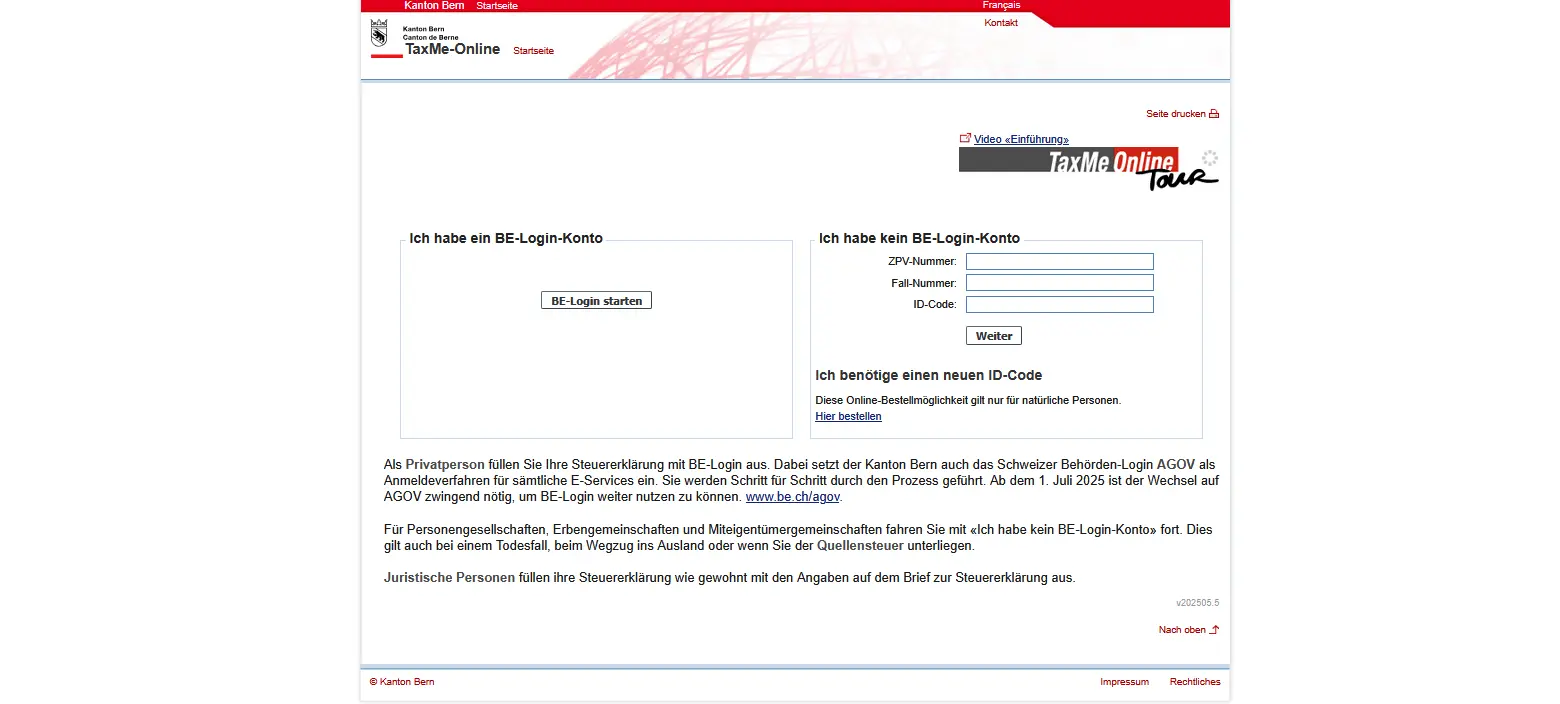
TaxMe-Online homepage in the canton of Bern with BE-Login and input fields for ZPV number, case number and ID code
Create a new BE-Login or log in with your existing login data from the tax administration letter.
Note that since 01.07.2025, switching to AGOV Login is required to continue using BE-Login. See be.ch/agov for more information.
Start the app, scan the QR code with your smartphone and you’re in.
Tip: make sure you keep the AGOV recovery code. You’ll be able to restore your account at any time if you lose access.
Step 2: Previous year’s data and saving
If you’ve already filled in your details online the previous year, some entries, such as bank accounts, are already pre-registered. All you have to do is check and complete them.
You can stop processing your tax return as often as you like. Your entries are automatically saved.
Not sure about certain steps? You’ll find help in the electronic guide linked to the red “i” symbol on each page.
Step 3: “Taxable persons” form
When you start your tax return, you’ll automatically be taken to the page with your basic personal data. Some information, such as name and address, is already pre-filled. It’s worth checking them carefully and filling in any missing information.
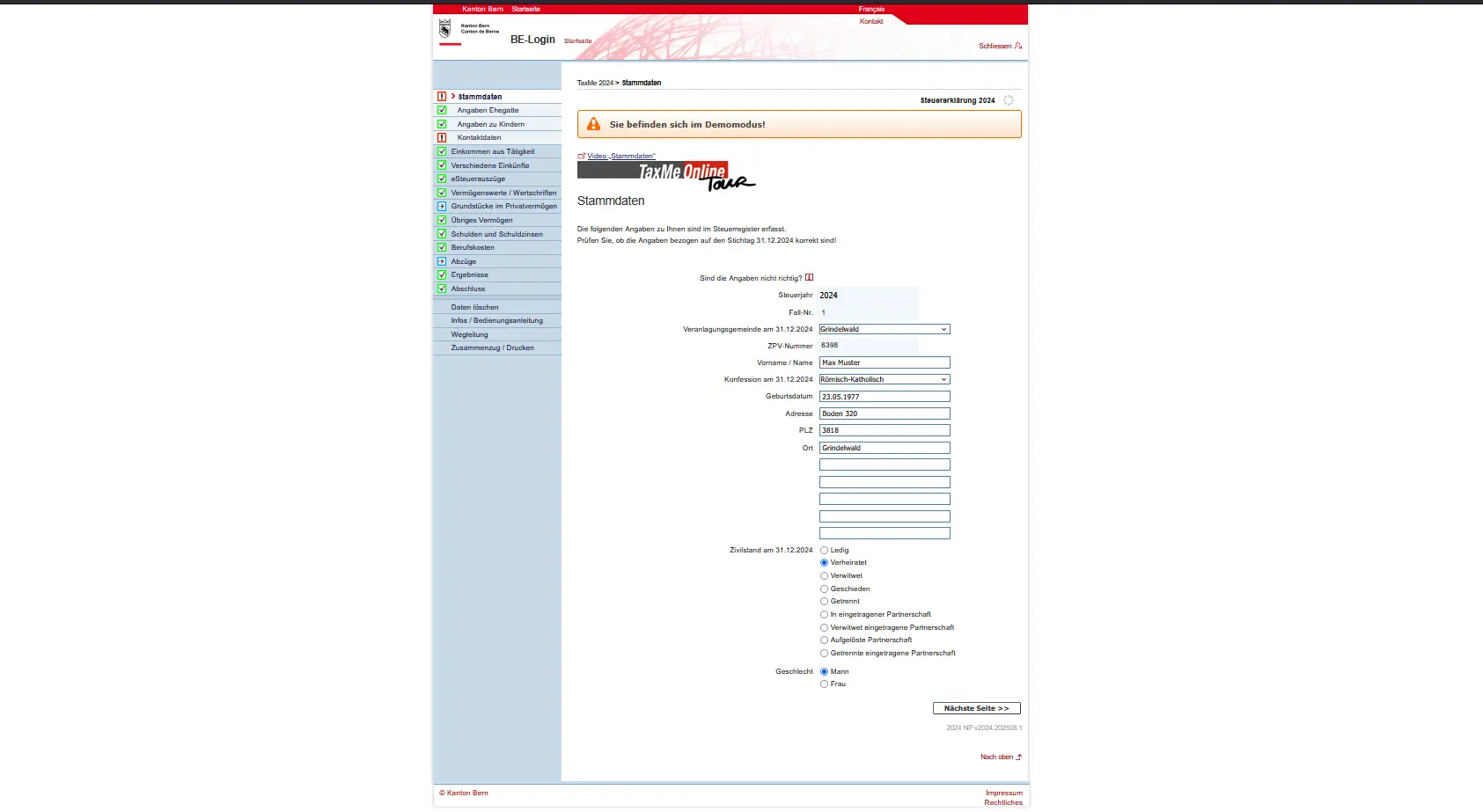
Overview of basic data in TaxMe-Online with personal information for the tax return in the canton of Bern
If your marital status is married or in a registered partnership, you will be asked on the next page to enter your partner’s details as well. This ensures that your joint income and assets are correctly recorded.
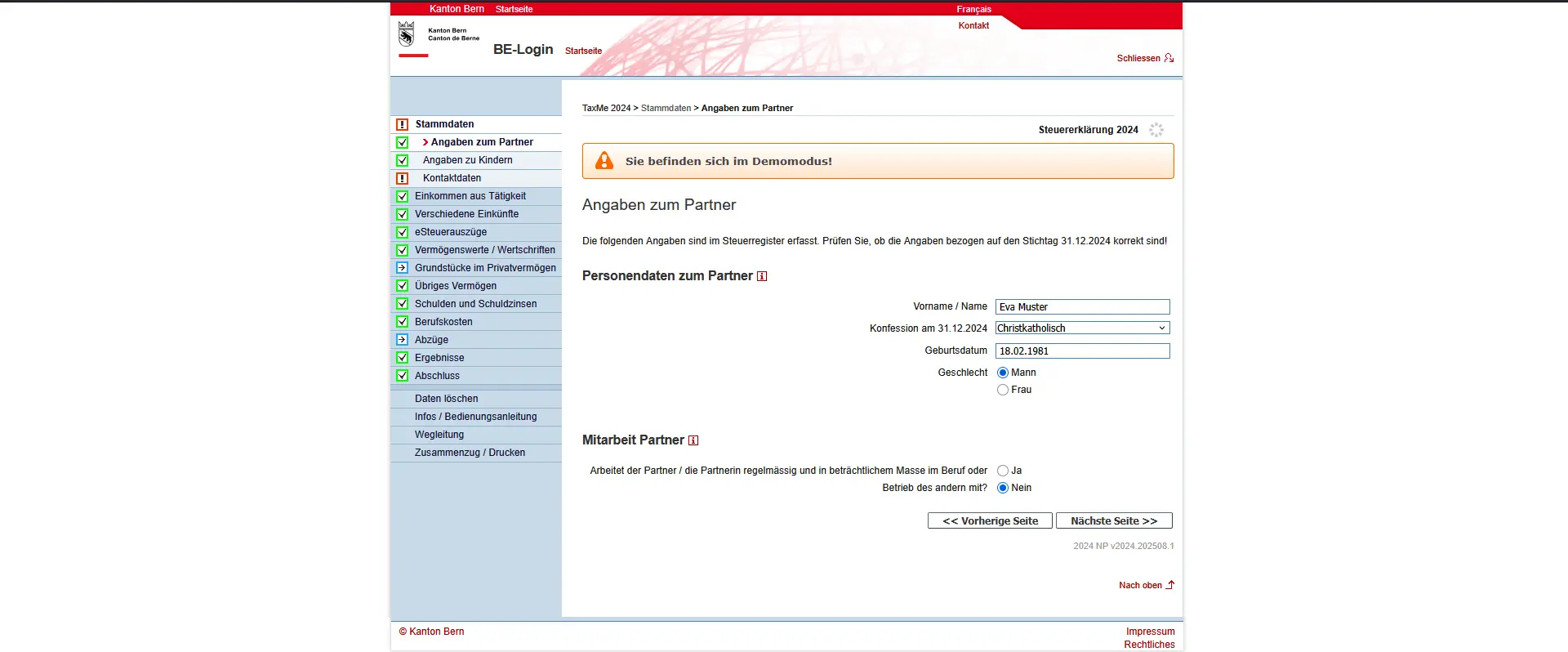
Mask 'Partner data' in TaxMe-Online with personal data and information on spouse's professional activity
The navigation on the left-hand side of the screen will help you find your way around. The various symbols have the following meaning:
- Pencil: modify entry (complete / correct)
- Trash: delete entry
- Arrow: form is still being processed
- Green tick: form completed
- Grey box: form has not been activated due to your data
- Exclamation mark: form cannot be completed due to incorrect/missing entry
- Question mark: an unusual input has been detected on this form. However, this message is only an indication; you can still complete your tax return.
Children
In this table, only children whose maintenance or education you are responsible for should be entered. Complete or correct the table if any information is missing or no longer valid.
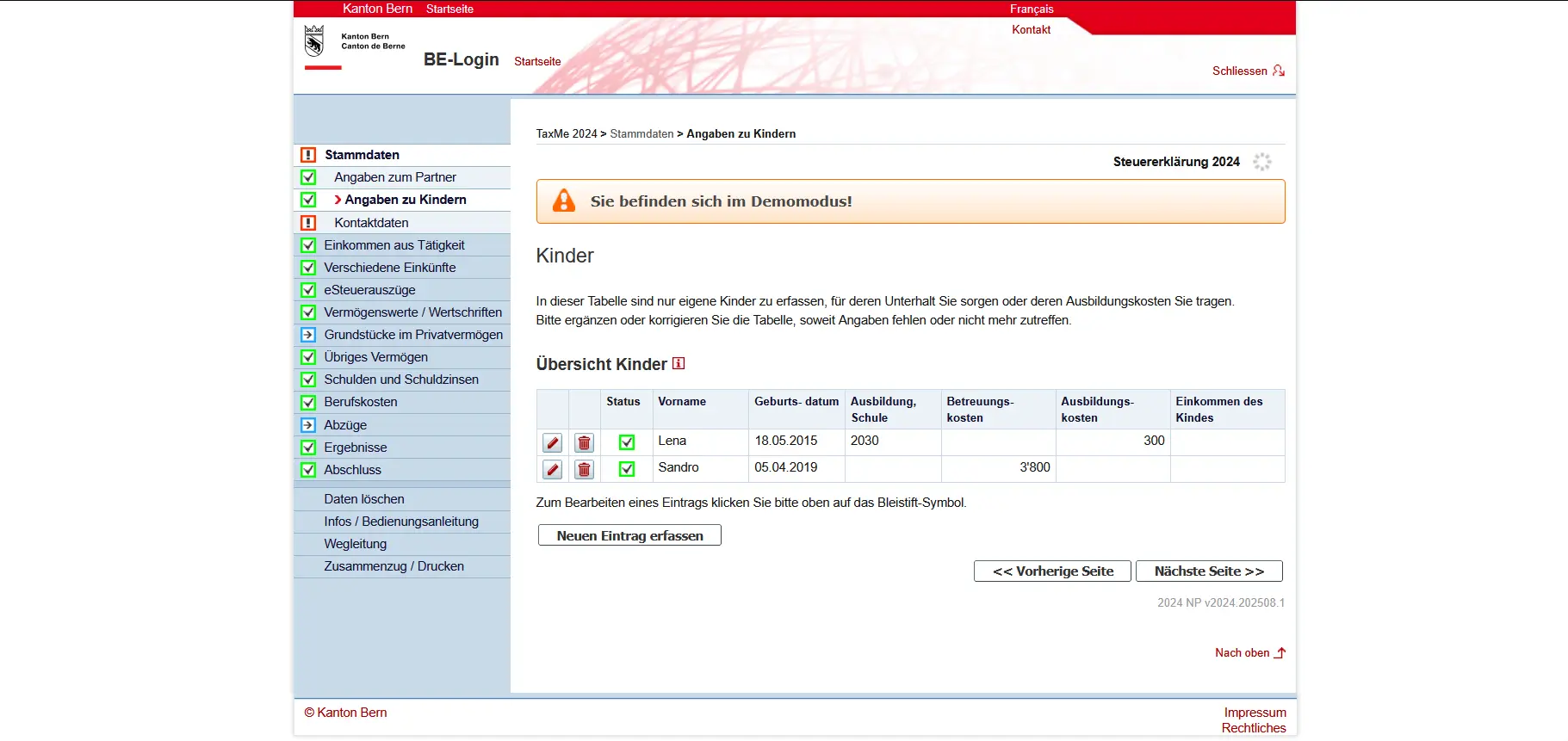
Overview of children's information in TaxMe-Online, including date of birth, childcare and education costs
In addition to the basic data on your children, you can also enter the costs of third-party childcare, the child’s income and training costs.
You must also enter your deduction here.
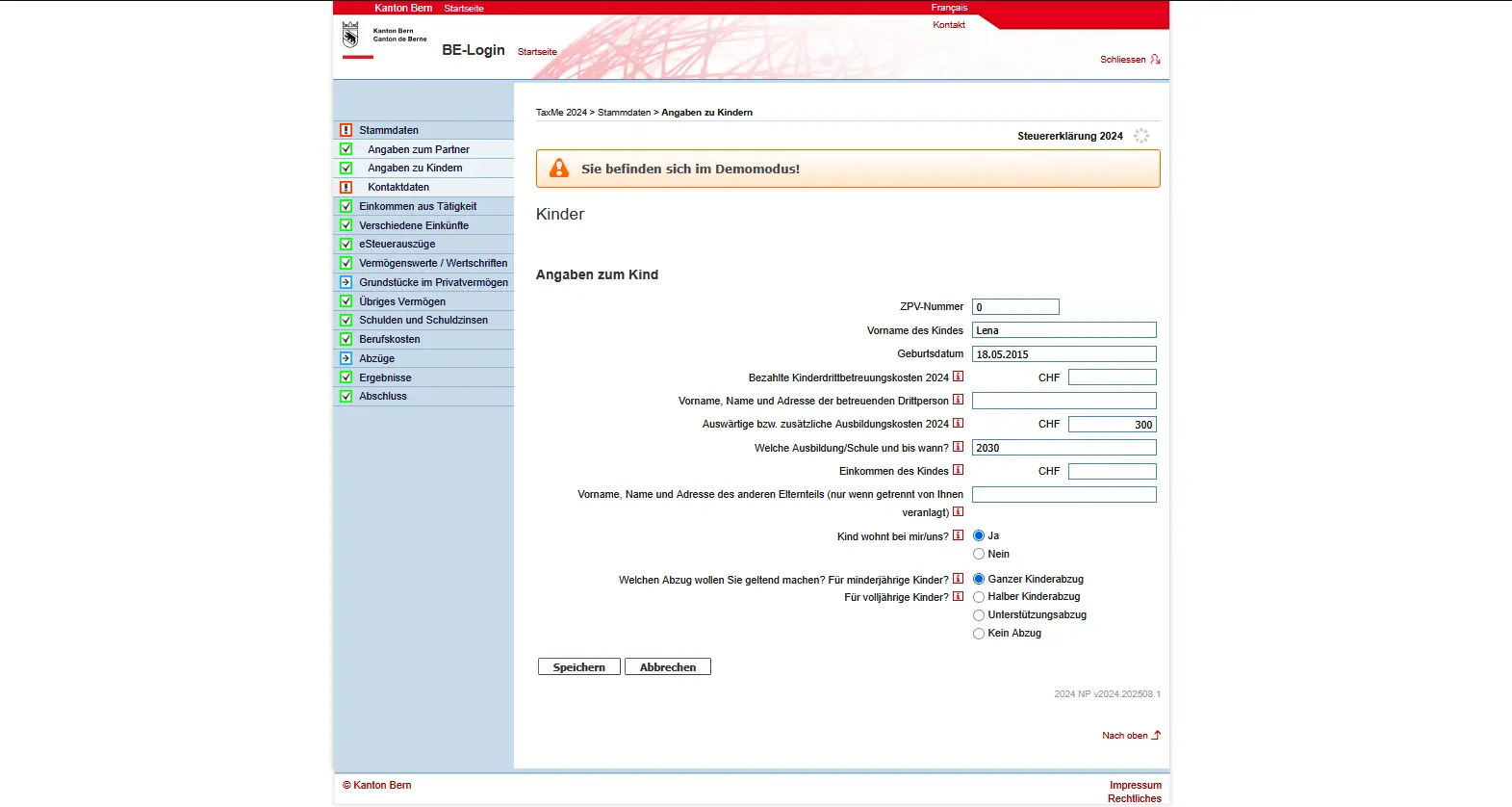
Detailed form for entering a child in TaxMe-Online with training period, childcare costs and child deduction
Contact details
Fill in your contact details on this page so that we can send you any questions you may have.
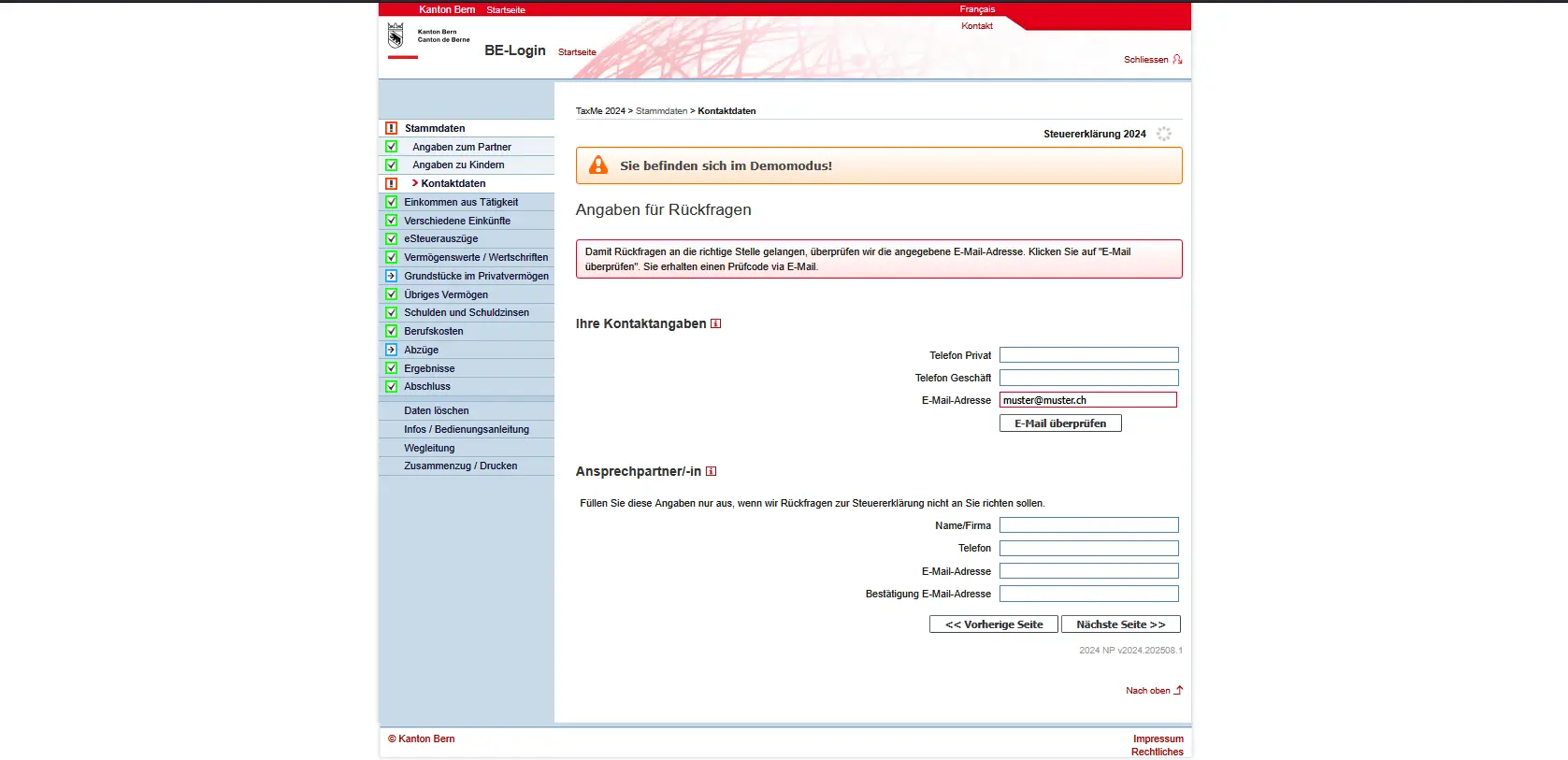
TaxMe-Online contact details for tax returns with e-mail validation for questions from the tax authorities
Step 4: Income
Once you’ve entered your personal details, you can move on to the income stage. In this section, you declare all the income you and your partner have generated during the fiscal year.
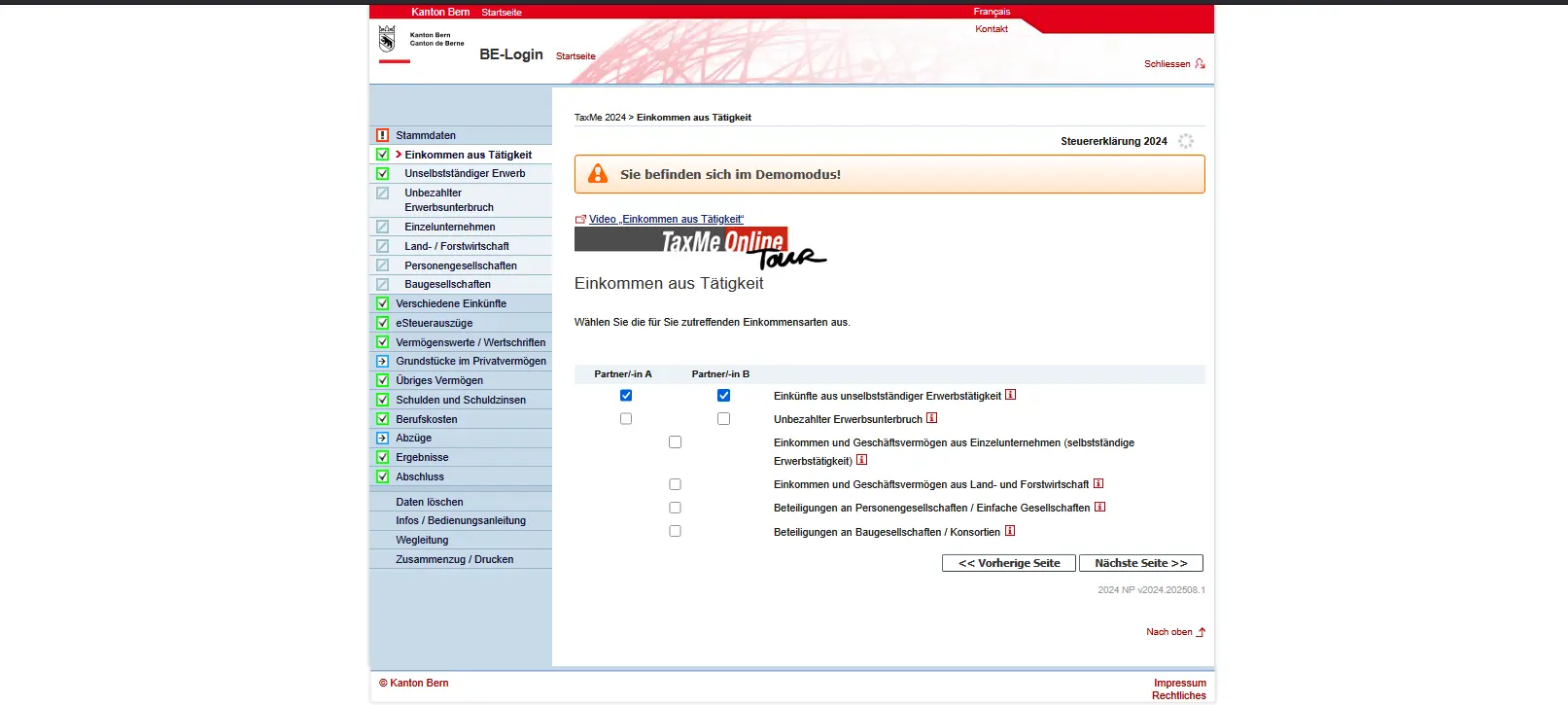
In the left-hand navigation menu, you’ll see the “Income” group. Here you can select the different types of income:
- Salaried activity: this is the official term for income from salaried employment. You’ll find this information on your salary certificate, particularly in figure 11 (net salary). Contributions to AHV, pension funds and family allowances are already taken into account.
- Unpaid work interruptions: this is where you enter the periods during which you did not work, such as unemployment, unpaid leave or long-term illness.
- Self-employment: if you run your own business or have a secondary activity, you must enter your income and accounts here.
- Other fields cover special cases, such as income from agriculture, partnerships or construction consortiums.
Important: you can switch from the Partner A form to the Partner B form at the top. This ensures that both incomes are entered correctly.
If you have already worked with TaxMe-Online in the previous year, many of the data will be transferred automatically. All you have to do is confirm or, if necessary, correct them.
Salaried activity
Under “Dependent income”, you enter the data from your salary certificate. In our example, we see the entries for both partners:
- Partner A works at Raiffeisen Bank, with a net salary of CHF 72,000.
- Partner B is employed by UBS, also with a net salary of CHF 72,000.
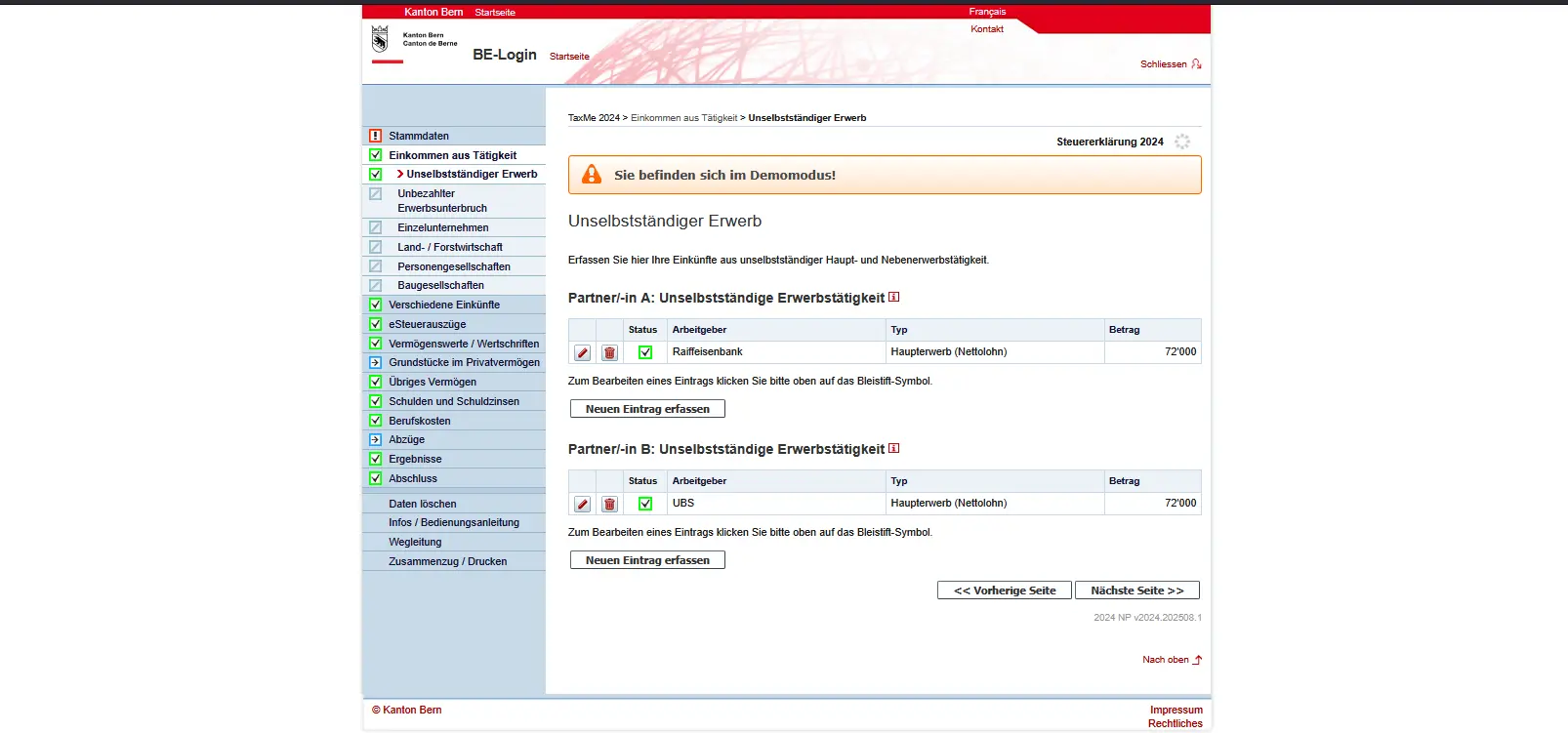
Entry is simple:
- Click on “Enter new entry” and enter the employer, the type of activity (main or secondary) and the amount according to the salary certificate
- If you have more than one job, you can add more entries
- You can make changes by clicking on the pencil icon, or delete an entry by clicking on the trashcan icon
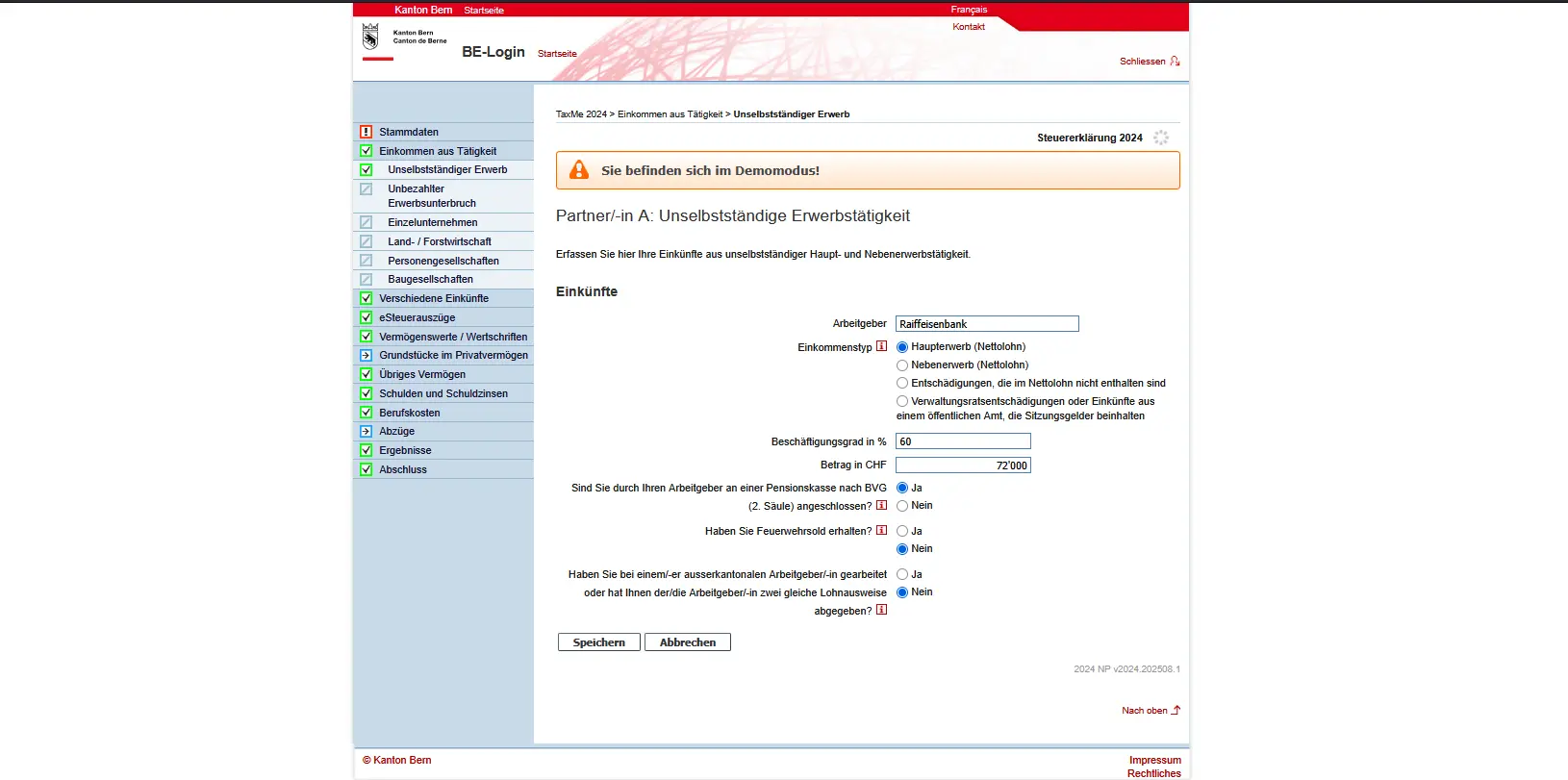
Detailed view for entering salary income in TaxMe-Online with occupancy rate, BVG affiliation and net salary
This ensures that all your earnings are entered correctly and match the official wage certificates.
Step 5: Different types of income
In addition to salary, other types of income may be relevant. You enter them under “Miscellaneous income”.
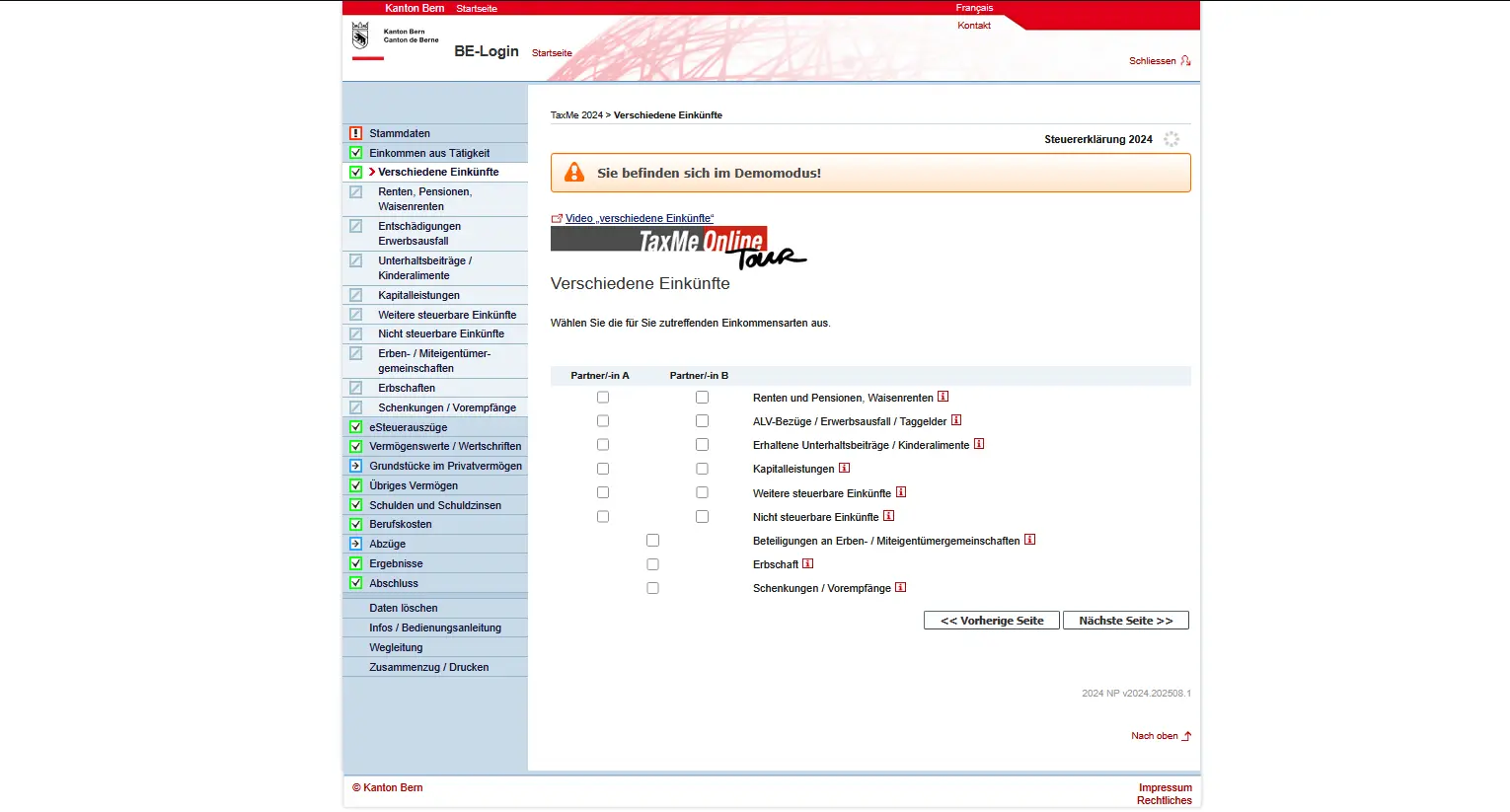
TaxMe-Online 'Miscellaneous income' selection mask for annuities, alimony, inheritances and capital benefits
Here you select the appropriate category, e.g. “Other income”:
- Pensions → AHV, IV or pension fund pensions
- CA benefits / daily allowances → unemployment benefits, daily sickness allowances, daily accident allowances
- Maintenance contributions / child support → payments received must be entered here
- Lump-sum benefits → e.g. payments from pension accounts or life insurance policies
- Other taxable income → includes various special cases
- Non-taxable income → is recorded but has no tax implications
- Inheritances and gifts → must also be declared, although they are often treated separately for tax purposes
Once again, you can make separate declarations for partner A and partner B.
Step 6: Electronic tax statements
A particularly useful feature of TaxMe-Online Bern is the ability to download electronic tax statements. You receive them directly from your bank, if it offers this service. The electronic tax statement already contains all the important information on bank accounts, securities, debts and charges. Instead of entering each item individually, you can download the PDF file and the data will be automatically integrated into your tax return. This saves a lot of time, especially if you have several accounts or a large securities portfolio.
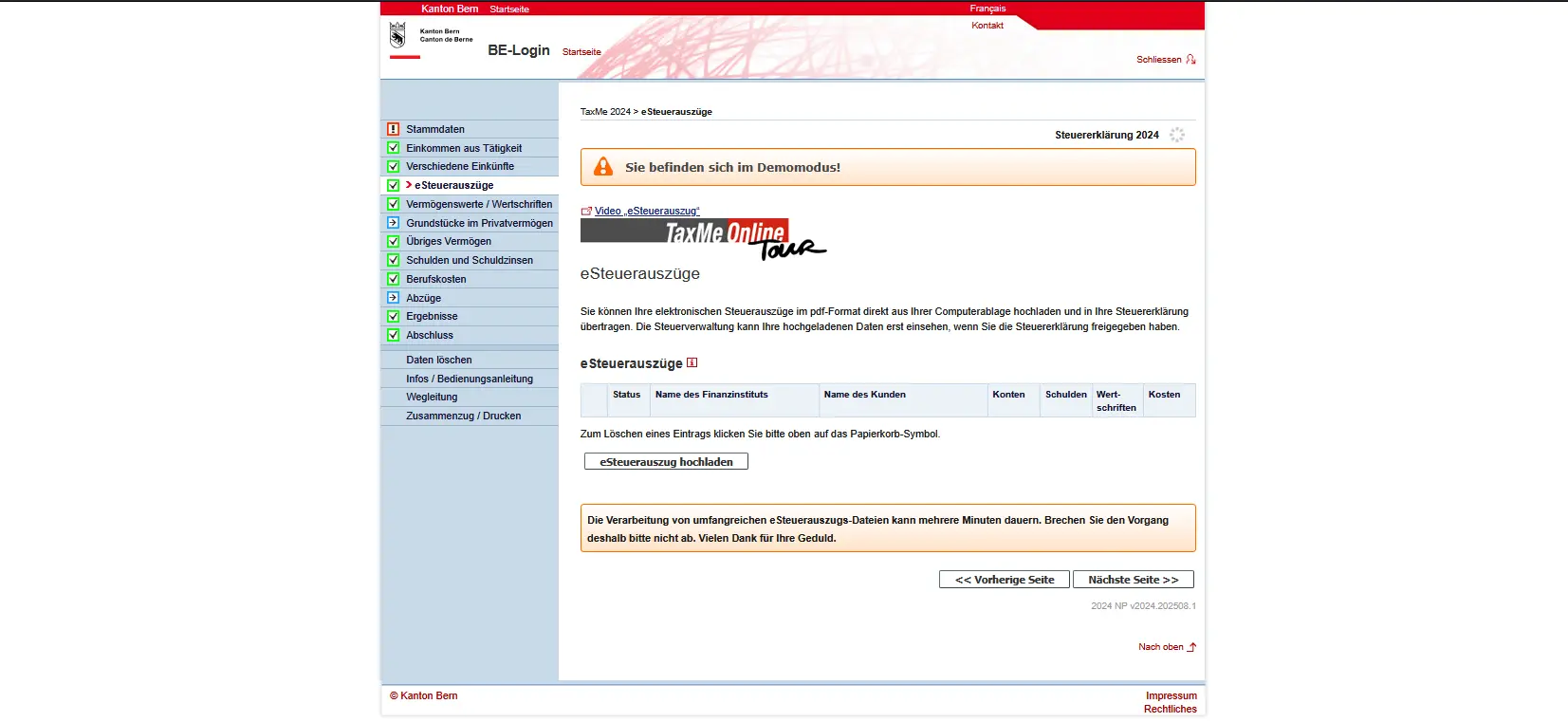
Overview of electronic tax statements in TaxMe Online in the Canton of Bern with download option for electronic tax documents
The time has come when you also have to justify your data. Fortunately, uploading to TaxMe-Online is easy. Click on “Add receipt” and you’ll have two options.
The most convenient is to already have your documents in digital form, for example as PDF or image files. You then select them directly from your computer and upload them.
If you still have paper documents, that’s no problem either: just scan the QR code displayed, take a picture of the documents with your smartphone and upload them that way.
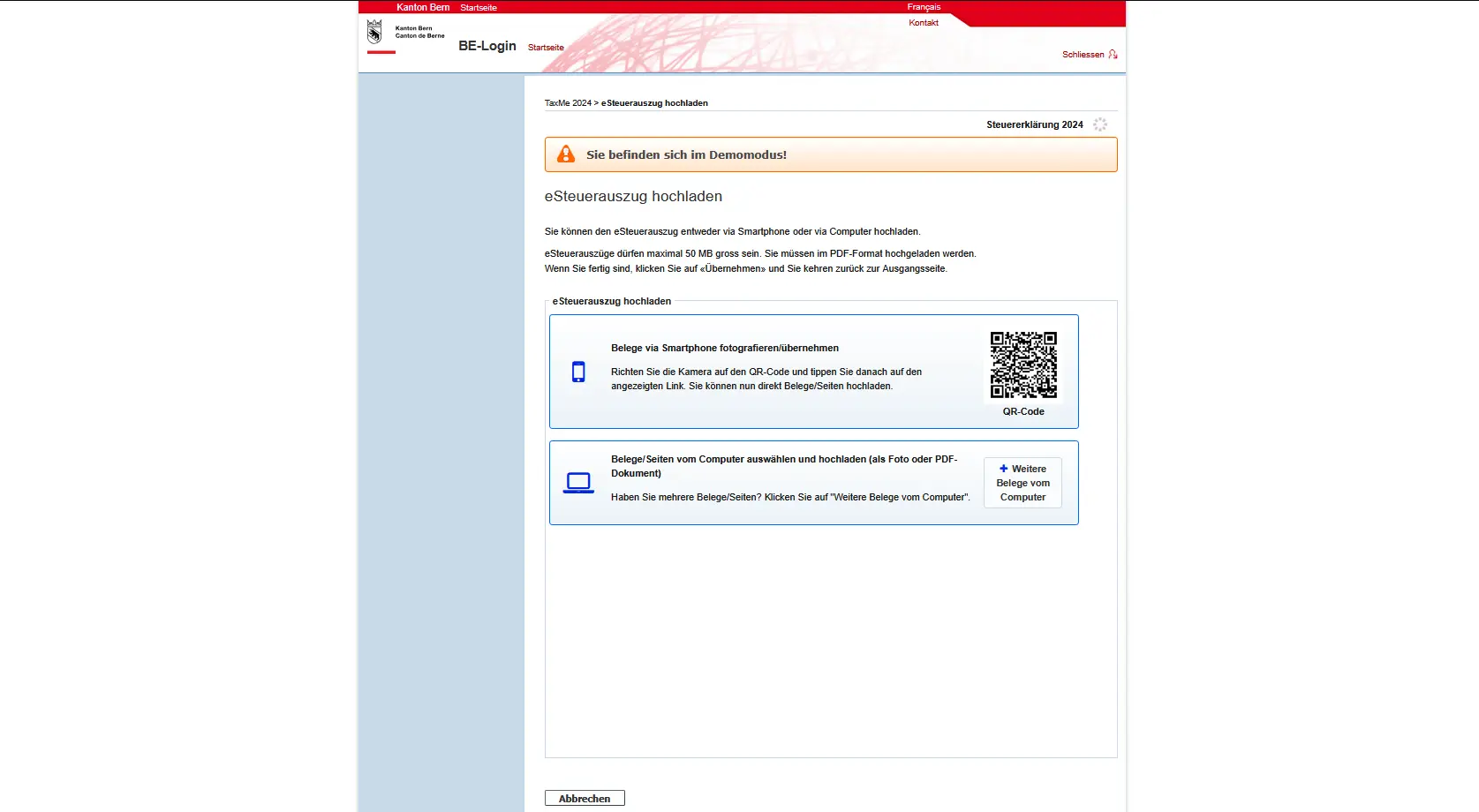
Download an electronic tax statement in TaxMe Online by QR code or by computer for the tax return in the canton of Bern
Important:
- Don’t forget to click “Apply” at the end, otherwise the receipts will disappear again.
- Importing may take a few minutes, depending on the size of the document. So be patient and don’t interrupt the process.
- After uploading, you should check the data, as the responsibility for accuracy always lies with you, not the bank.
Next step
With this, you’ve entered the basics and your income. If you’re salaried like me, these first steps were pretty straightforward.
In part 2 of our Bern TaxMe-Online tutorial, we’ll discuss the following sections:
- Bank accounts
- Securities (especially the ETF VT with form DA-1)
And if I’ve missed any tax-saving opportunities in the screenshots above (or if you have any questions), let me know in the comments area below.