

In the second part of the GeTax guide, we have completed the following sections of our Swiss tax return (for the canton of Geneva): bank accounts, statement of securities, and e-tax statements.
Let’s move on to the rest of the categories, including the interesting real estate section!
Step 1: Real Estate
If you only rent your home, you already dealt with it in one of the previous chapters by simply declaring how much you pay in annual rent. So you can skip this paragraph entirely.
And if you’re a homeowner living in your own property, or you’re renting out real estate: both have to be dealt with in this section.

GeTax's 'Real Estate' section presenting the different types of real estate to be declared (occupied, rental, commercial, condominiums, low-income housing)
First, you have to specify what kind of property you have in order to fill in the according data. I have chosen the examples below:
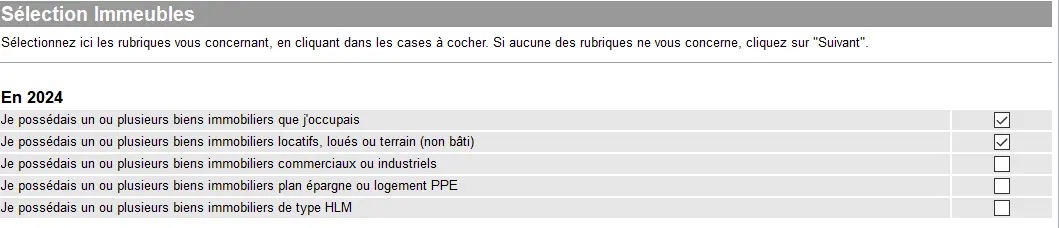
Check the types of real estate owned (occupied, rental, commercial, condominium, low-income housing)
Homeowner, aka living in your own property
After you have clicked on “Suivant” the next screen appears, dealing with living in your property:
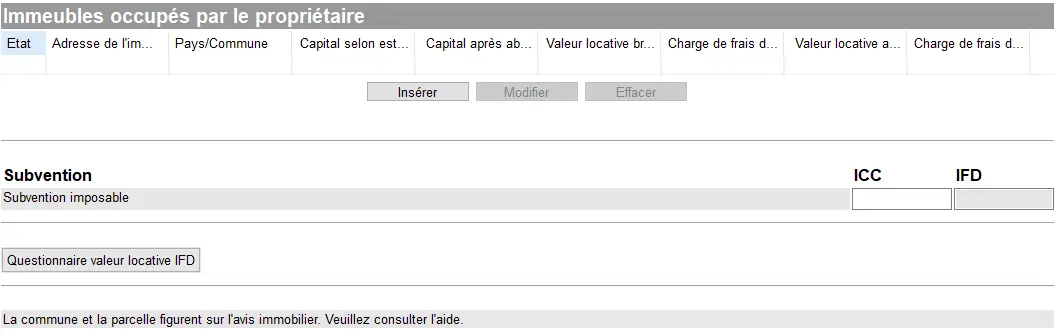
GeTax's 'Owner-occupied buildings' screen for entering occupied housing, with taxable subsidy fields and IFD rental value questionnaire
The procedure is similar for adding securities. You have to press “Insérer” and include your property according to the screen below:
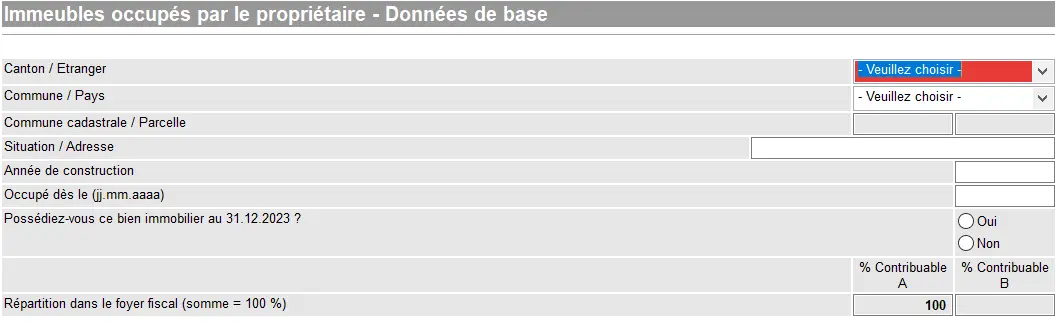
The value to input as “Capital selon estimation” for your property in Geneva (screen below) is the purchase price plus costs, for instance re-enlargement of your house (i.e. everything that would increase the value of your home, except repairs or maintenance).
Furthermore, you should have received information from your tax office which you have to include into the current form. The ‘Revenu’ consists of a theoretical income only (the famous “valeur locative”), and is a must to include:
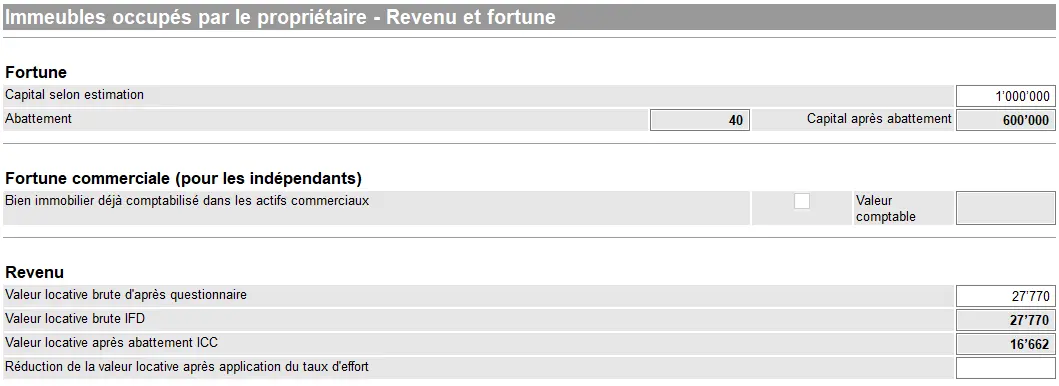
Estimated real estate capital, applicable deductions, and calculation of taxable rental value (ICC and IFD)
For your property you are allowed to deduct maintenance charges, which you can either enter as a lump sum (i.e. ‘Forfait’) in ICC (communal and cantonal) and IFD (federal):

Or, should the sum you’ve spent be higher than the lump sum, you can enter those real estate expenses as exact amount. GeTax provides you with a whole list of items you are allowed, which you have to justify with invoices:

The above sum is the total of the CHF 600 and the CHF 1'000 of the below two input screens:
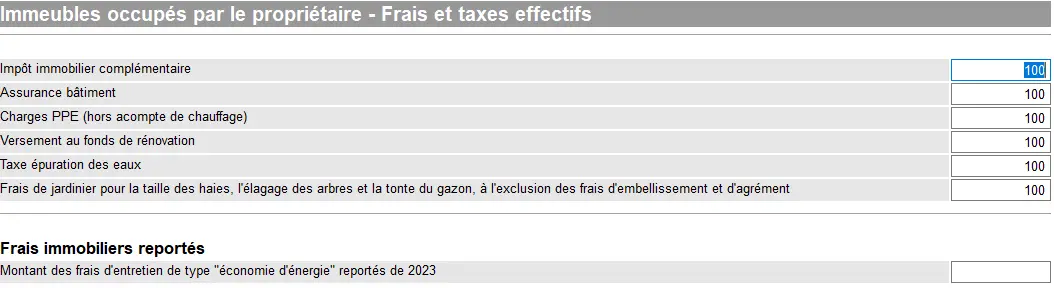
GeTax screen 'Owner-occupied buildings – Actual fees and taxes' with entry of property taxes, insurance, condominium fees, renovation funds, and gardening costs
In addition you have to work through the below screens per individual item not fitting in the above classification, so this is very specific:
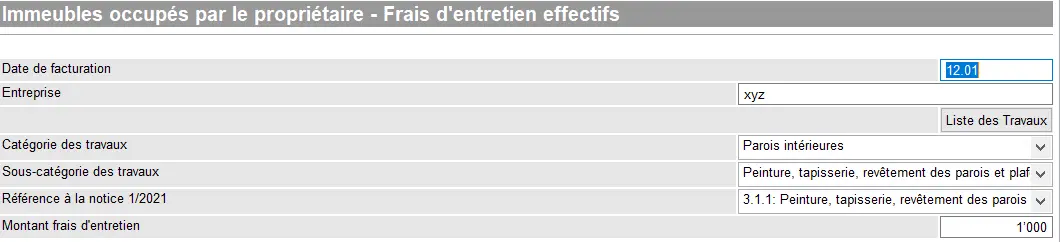
Billing date, company, category and subcategory of work (painting/interior walls) and amount of maintenance costs
Rental property
Inputting data for this category follows a similar principle as living in your own property.
First, you insert your rented out property:
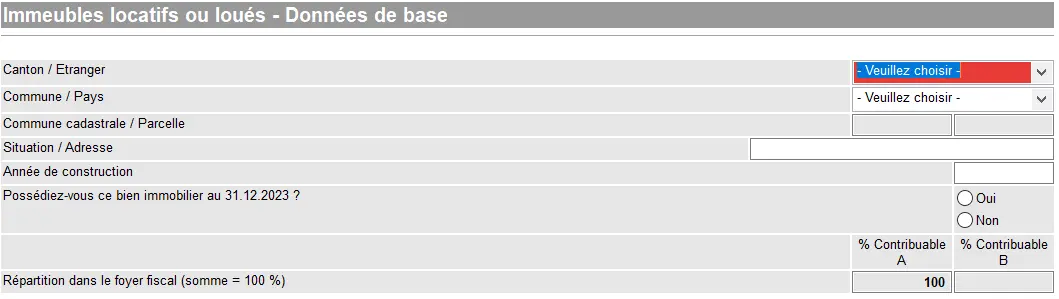
GeTax screen 'Rental or leased properties – Basic data' with canton/municipality, address, year of construction, ownership as of December 31, and distribution of the tax household
Then you have to input the value of the property and the received income:

Specifying the type of building, the taxable assets of the leased property, and the rent received (ICC/IFD)
And the procedure for expenditures is similar to a self occupied property.
Step 2: Debts and interest
You can indicate your debts in this section:

GeTax 'Interest and Debt Selection' screen for declaring debts (unsecured, mortgage) and interest as of 31.12
And as always you have to specify them in detail, one by one.
For instance, if you say that you have a mortgage in the screen above, then you’ll have to add it via this form:

Step 3: Other revenues and assets
This section allows you to declare income from subletting your flat for instance, or assets such as your car, or if you had an inheritance, etc.

GeTax screen 'Select other income and assets' allowing you to specify allowances, incidental gains, cash, other assets, and undivided inheritances
Step 4: Deductions
Before submitting my tax return, I always go through the same checklist to avoid costly oversights. I detail all my Swiss tax deductions here, with concrete real-life examples:
My Swiss tax deductions: real-life example and checklist (2026)
You have to select your deductions before being able to provide more details about them:
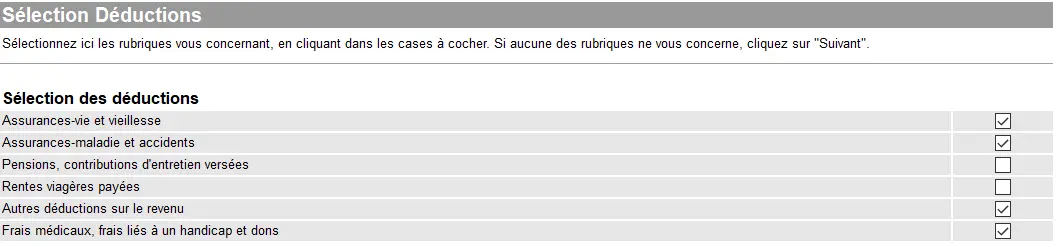
GeTax 'Deduction Selection' screen where you check the deduction categories (life and retirement insurance, health and accident insurance, other income deductions, medical expenses and donations, etc.)
Life and retirement insurance
In case you have a life insurance classified as pillar 3b, you can deduct the yearly contributions up to a maximum of CHF 2'200. You have to input the buy back value of the insurance which will be treated as part of your wealth and taxed accordingly.
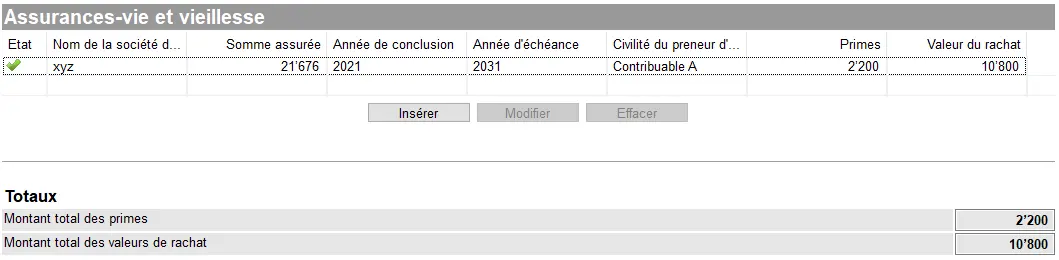
GeTax's 'Life and Old Age Insurance' screen displaying a policy entered (insurer, sum insured, years, policyholder), with the totals of premiums paid and surrender value
And if you’ve been ripped off by a crooked “financial advisor” who sold you a mixed pillar 3a linked to a life insurance policy, then I recommend you take a break from your tax return and read this article: “Close your pillar 3a life insurance without further delay!”
Health and accident insurance
Include the contributions for basic and complementary health insurances here. Your health insurance will provide you with the amounts. Include only the contributions and nothing else. Whatever you have paid on top, such as the franchise, will be treated elsewhere.
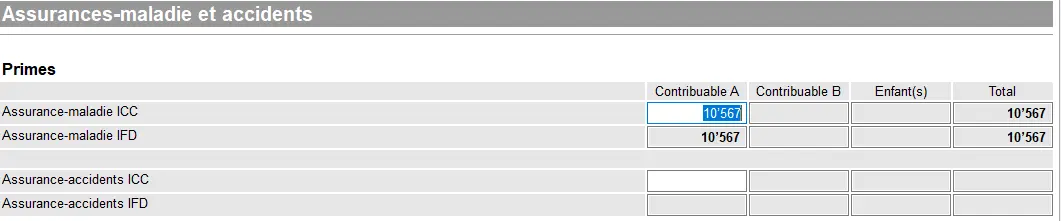
GeTax 'Health and accident insurance' screen showing the entry of premiums (ICC and IFD) per taxpayer, with the total health insurance premiums declared
Other deductions
Section “Autres déduction sur le revenu” contains a variety of cases such as:
- AVS contributions for persons not in employment
- Contributions for unemployed persons into 2nd pillar having reached at least 58 years of age
- Expenses for work related training including retraining
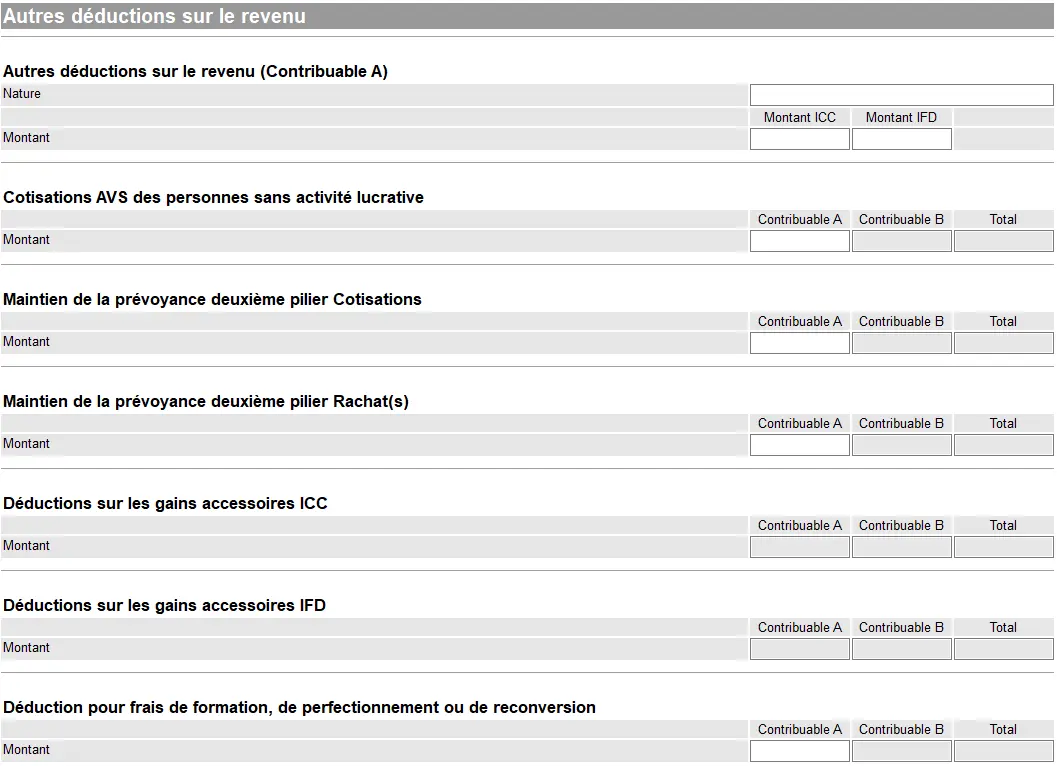
Entering non-gainful employment AHV contributions, second pillar maintenance, incidental earnings, and training expenses
Medical expenses and donations
Remaining medical costs, disability related expenses and donations can also be deducted in this section:
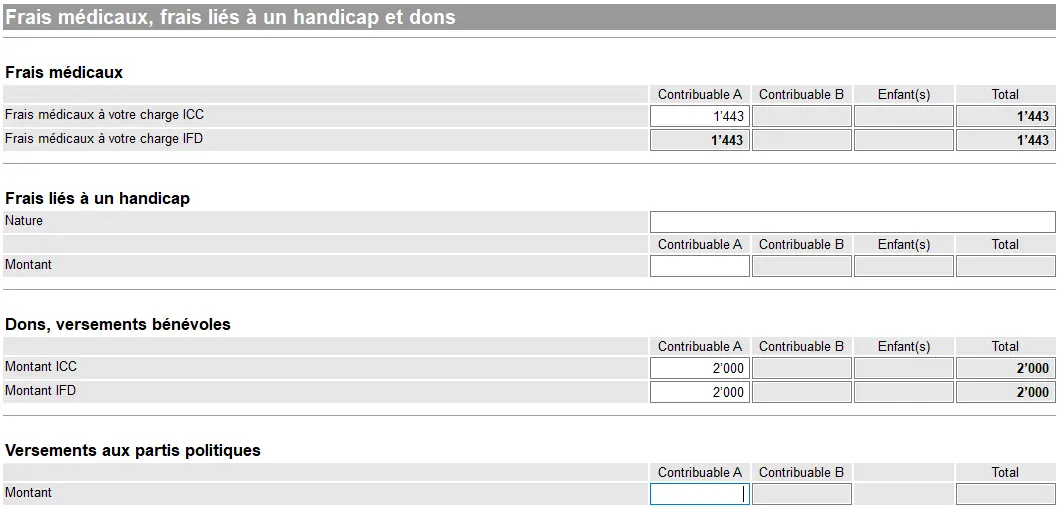
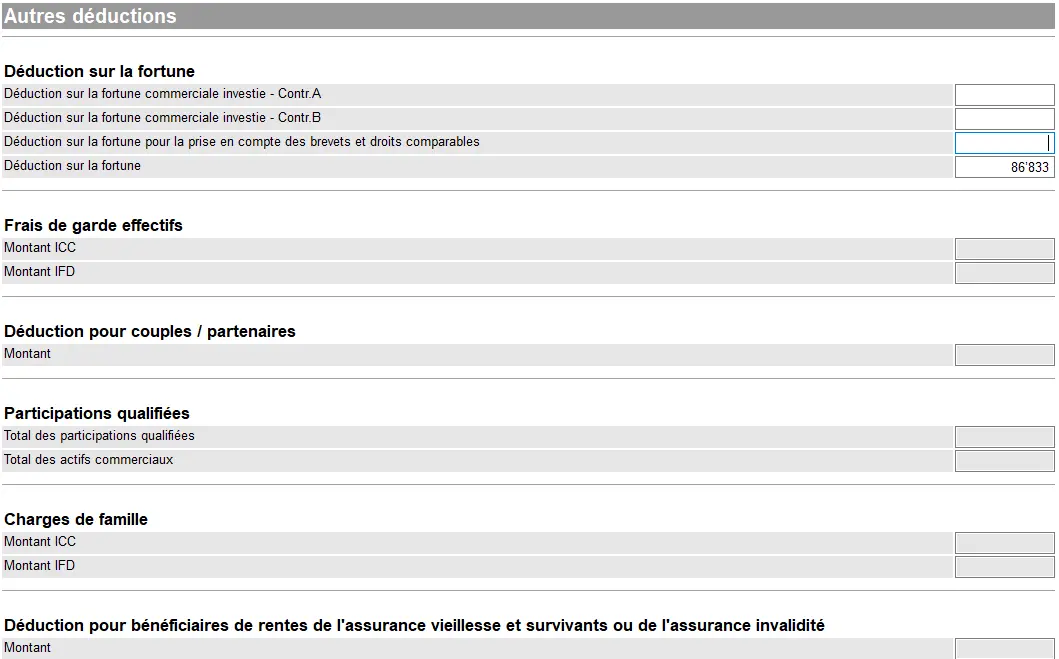
Wealth deduction
The next screen mainly shows deductions relating to items treated in previous sections of GeTax.
And you can also use certain rules such as in case your fortune is say CHF 500'000 of wealth, then tax has to be paid on CHF 500'000 minus CHF 87'000.
Step 5: Summary
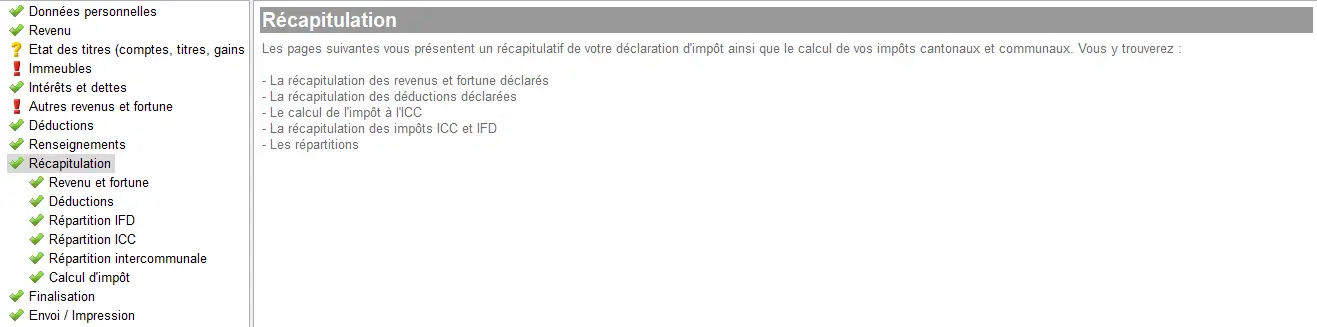
At the end, GeTax provides you with an overview which is quite useful. It shows you the result of what you have input as well as the taxes (on revenue and wealth) that you will have to pay, should there be no problem in your declaration:
Methods of payment
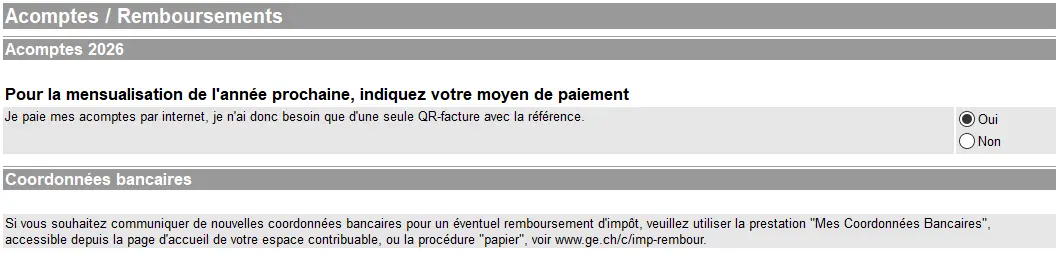
The program then asks for information regarding method of payment. You can choose between:
- eBill
- Invoices with QR codes
Uploading of supporting documents
In case GeTax is asking for a number of documents to be uploaded, the program itself explains this here:
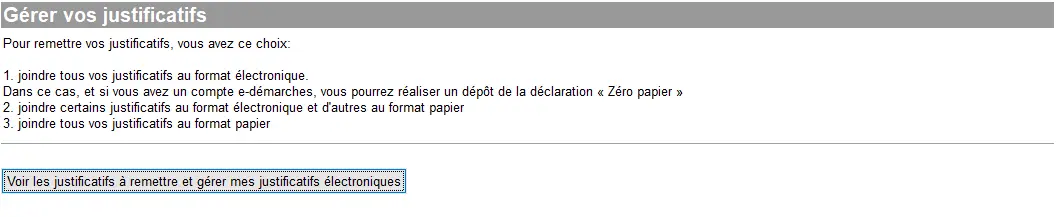
List of options for sending supporting documents (electronic, paper, or mixed) and access to electronic supporting document management
The below screenshot is the pop-up which appears if you click on “Voir les justificatifs à remettre et gérer mes justificatifs électroniques”:
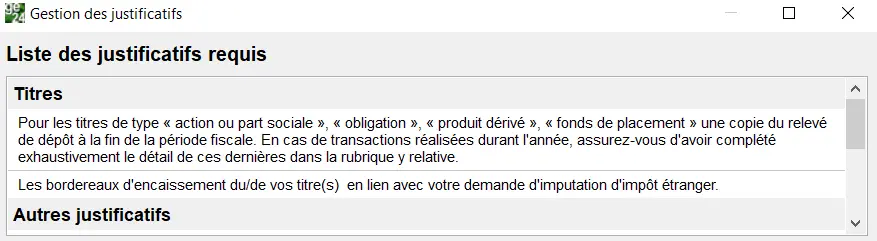
List of the documents required to finish your tax return (e.g. for securities (stocks, bonds, derivatives, investment funds), it means the end-of-period statement and slips related to foreign tax allocation)

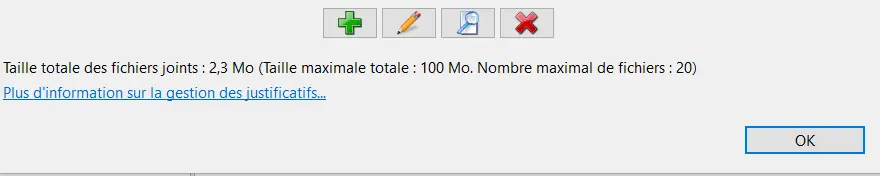
To manage your documents, all you have to do is to use the symbol to upload, re-name or delete what you have uploaded previously:
Submitting your tax return
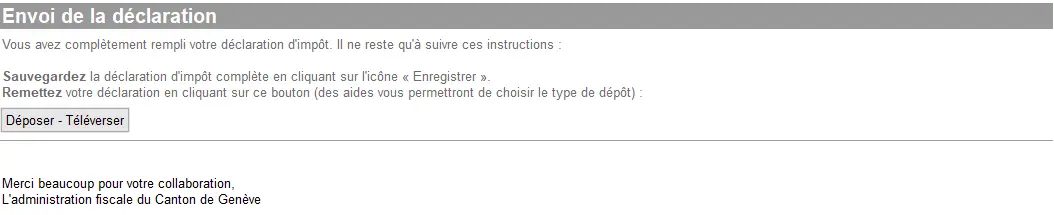
Once you are happy with what you have input and uploaded and then also have saved it (don’t forget it!), your last step is to send it:
And that’s all, you’re done! Congratulations!
I hope this GeTax complete guide helped you.
As usual, if you see something missing, or another tax optimization possibility, just let me know via the comments’ section below.