
In the first part of the GeTax guide, we completed the first three parts of our Swiss tax return (for the canton of Geneva), namely: personal data, kids information, and salaried activities.
Now let’s move on to the rest of the categories, including the most interesting part, our stock market investments!
Step 1: Bank accounts
After having answered the questions below:
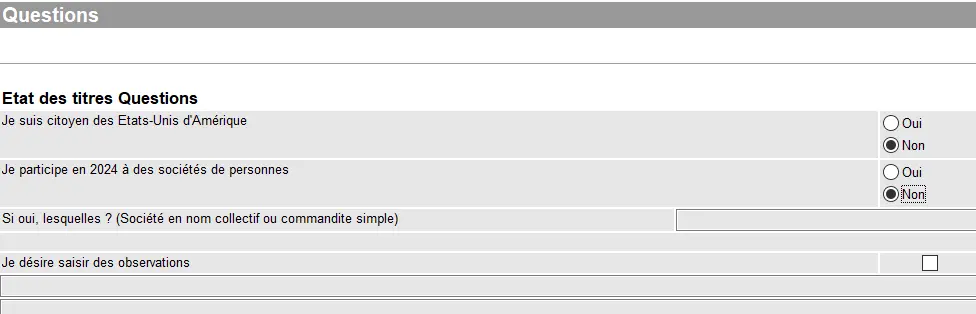
Questions related to the status of securities in GeTax with U.S. citizenship, holdings in companies, and additional comments
This is where the fun begins:
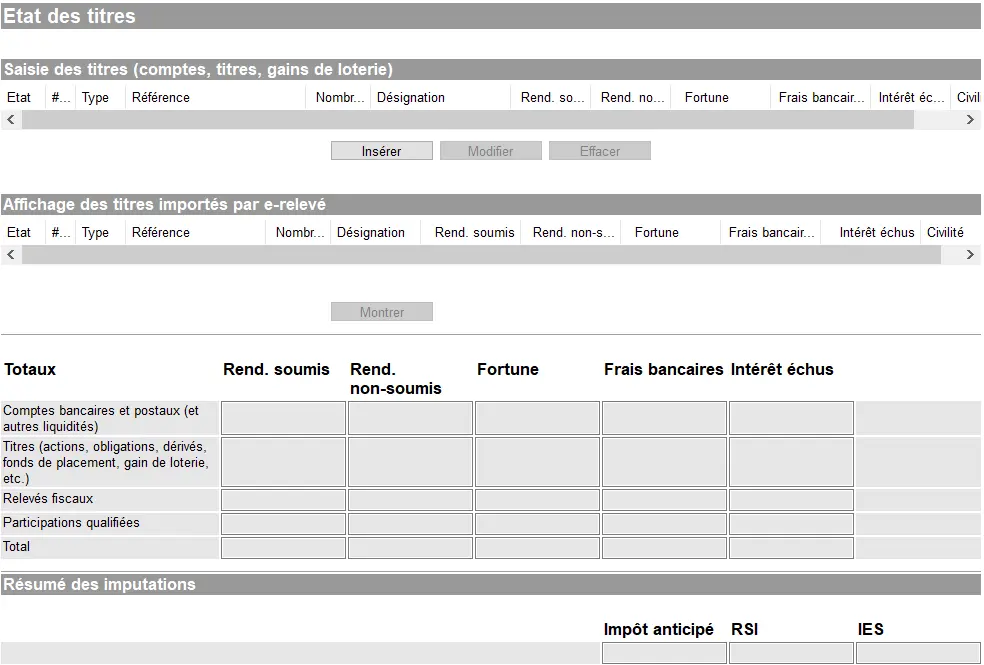
Overview of securities status in GeTax with manual entry, securities imported via e-statement, and summary of returns and assets
Let’s start with the accounts you have. All accounts, be it checking or savings — including rental guarantee accounts, but excluding 3a pillar accounts — need to be registered. Whether they are in Switzerland or abroad.
In principle, you only declare your share (often 50%). Details are explained in the general FAQ here: FAQ Swiss tax return (2026).
Choose “Insérer” for each new account, and then “Compte bancaire ou postal”. Then, you need to specify:
- Who is the owner of the account (“Contribuable A” or “Contribuable B”, the couple or children)
- IBAN
- Name of the bank
- Did the account already exist in your previous tax declaration, or was it newly opened or closed (the last two options also require an opening or closing date)
- Interests received (always use the gross amount, but specify if you were already charged withholding tax or not). Should the interest earned by account exceed CHF 200, the bank will automatically deduct withholding tax (and some banks do that also for interest amounts below CHF 200, so it is a case by case item). The yearly tax statement you receive from your bank will specify the revenue amounts.
- The account balance at the end of the year needs to go into the “Fortune” column, as wealth tax will be calculated based on it.
- Account fees such as “Frais bancaires” need to be input as positive values, and they will be deducted automatically.
Confirm each position with “OK” at the left end of the screen and continue either by clicking on “Insérer” with the next position or the next tax subject.
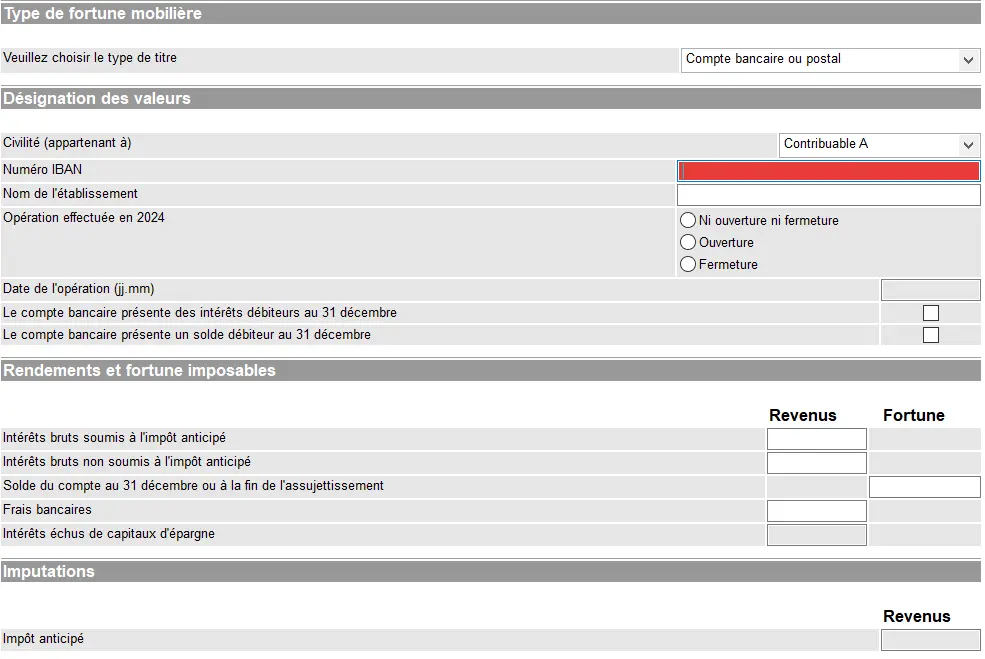
Declaration of a bank or postal account in GeTax with entry of IBAN, institution, and taxable interest
In case you already have imported data from a previous year’s declaration, you only have to fill in interest, year end, and such values. Indeed, GeTax will have already pre-populated static data such as IBAN, name, etc. for you. Also, here you have to confirm each completed position with “OK”.
Step 2: Securities (incl. ETFs and stocks)
If you invest in ETFs or stocks (US, Europe, Ireland), the tax side quickly gets confusing: dividends, withholding tax, DA-1, R-US 164, etc. I’ve put everything together in a clear, jargon-free guide, with concrete examples from my own tax returns:
Swiss Investor Tax Guide 2026: US, Europe, Ireland ETFs
Securities have to be input according to their nature meaning shares as “Action ou part sociale”, bonds as “Obligation”, and mutual funds / ETF as “Fonds de placement”.
Important: in case you have chosen the type “Action ou part sociale” and try to input an ISIN of an ETF (aka “Fonds de placement”), the program will not find the security.
Declaring our VT ETF
Let’s go through an example of a manual input of a mutual fund. Again, go via “Insérer” > “Fonds de placement”. Then choose “Titre quoté” (aka “Quoted security”), and then insert the ISIN or valor number and press “Rechercher ce titre”.
It should come up with the name of the fund. In my example, I have typed in the ISIN “US 922 042 742 4” (our famous VT ETF’s ISIN) and the program automatically changes that into a valor number, so don’t get confused.
I have then included a starting number of units, say 100 and then I want to include a transaction “Achat, vente ou autre operation”. GeTax automatically then adds “Détail des transactions” where I then have to press “Insérer”:
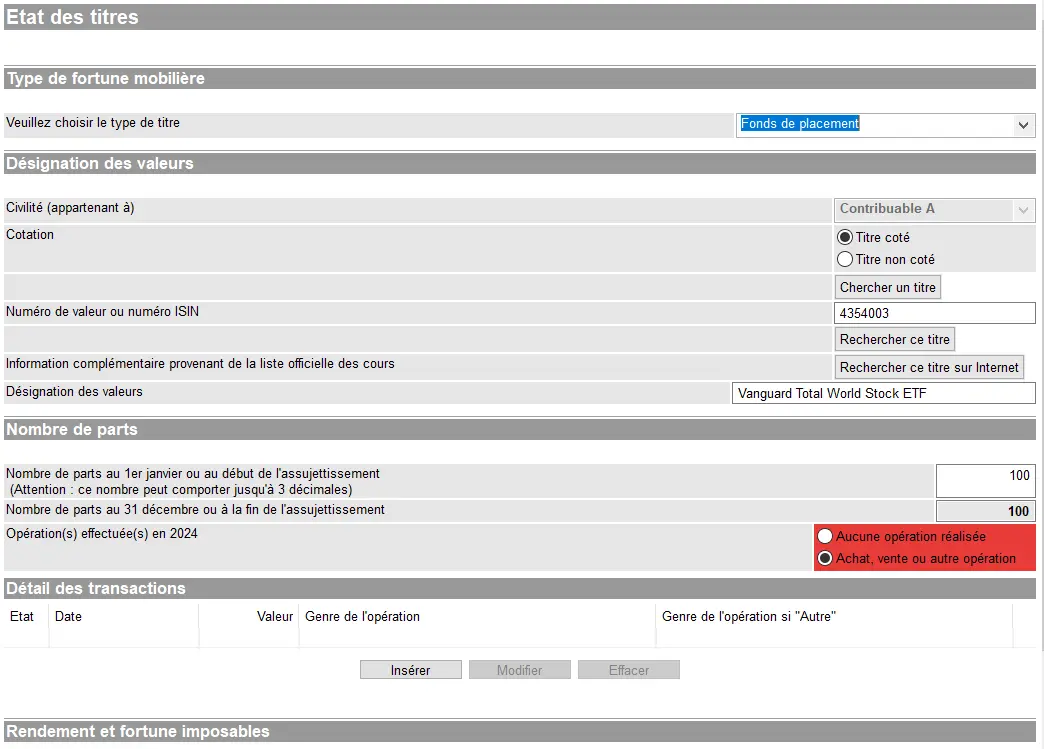
Declaration of an investment fund in GeTax with search for the title, number of shares held, and transactions carried out during the previous fiscal year
And the below mask appears, asking for the date of the operation, the number units traded, and then what kind of operation. I have chosen “Buy 10 units” on the 10th of March, which I then have to confirm with “OK”:
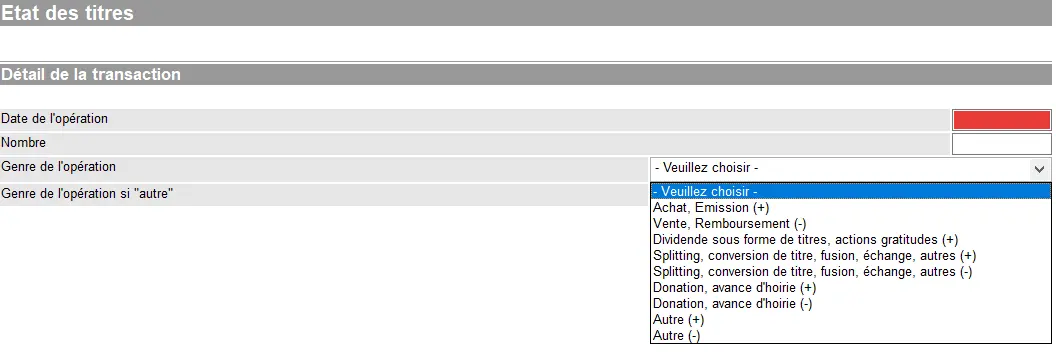
Details of a securities transaction in GeTax with selection of the type of transaction, date, and number of securities involved
This will result in the screenshot below:

Entering the number of shares, transaction details, and calculating taxable returns and assets in GeTax
Because GeTax has all the necessary data, it will show the revenues (if any) for that security.
On the same page you can claim other revenue items below, for instance the DA-1 form-1 for recognition of foreign withholding tax. To explain the subject of withholding tax and forms DA-1/R-US in detail here would go completely beyond the scope, so I refer you to a specific blog post: “Withholding taxes on dividends received, concrete examples”.
For our VT ETF, I select “Demande d’imputation d’impôt étranger (DA-1)” with:
- “Pays d’où provient le revenu sujet à l’IES”: United States
- “Pourcentage d’impôt étranger non récupérable”: 15%
- “Impôt étranger non récupérable”: I leave this blank
I do not check the box “Demande en remboursement de la retenue supplémentaire d’impôt USA (RSI)”, because I use Interactive Brokers, which is a foreign (i.e., non-Swiss) broker with “Qualified Intermediary” status (DEGIRO has the same status by the way). This means that IBKR or DEGIRO will fill out the W8-BEN form for you so that you are only taxed at source on your US ETF dividends at 15% (instead of 30%). If this were not the case (if, for example, I used Saxo Bank), then I would have checked the box in GeTax.
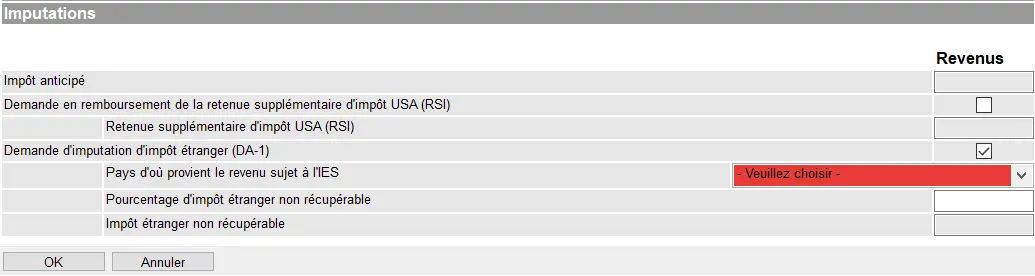
Tax deductions in GeTax with request for refund of US withholding tax and deduction of foreign tax via form DA-1
Declaring a Swiss stock such as the Nestlé one
Then, let’s input a Swiss share of Nestlé. The input of the ISIN produced a valor number as a reply as explained above:
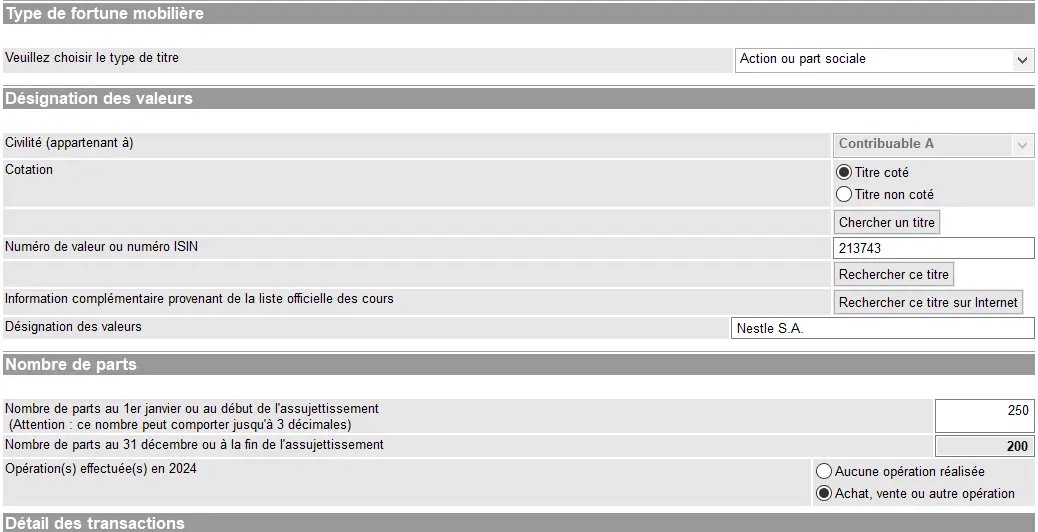
Declaration of a share or stock in GeTax with search for the title, number of shares held, and transactions carried out during the previous fiscal year
I sold 50 shares in December:
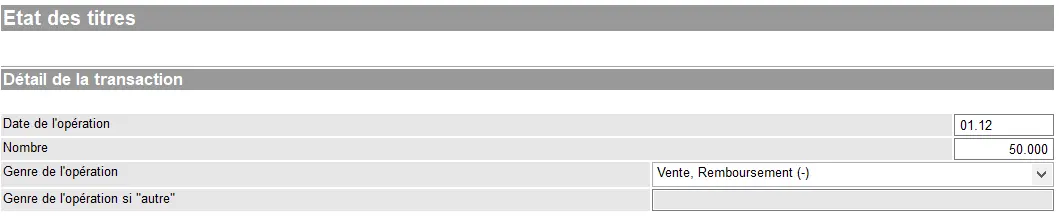
Details of a securities transaction in GeTax with date, number of shares, and sale or redemption during the previous fiscal year
Leading to this result:
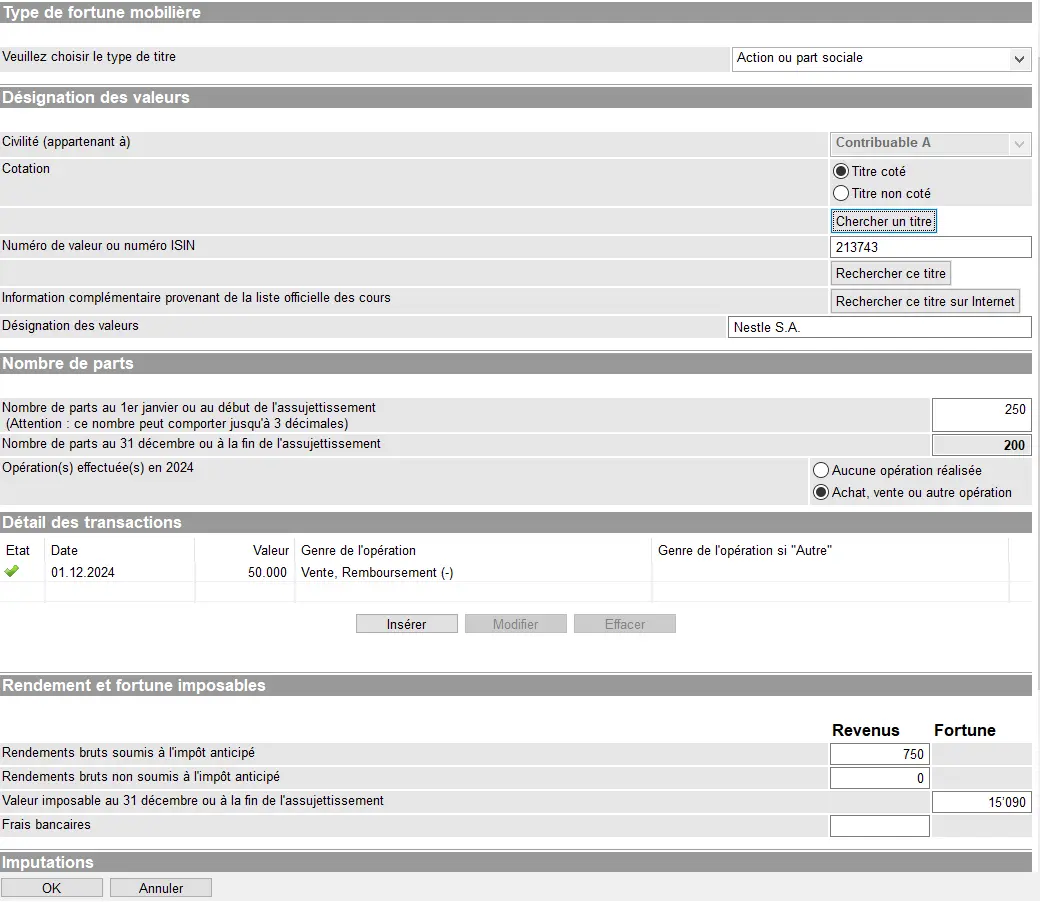
Entering a listed stock (Nestlé S.A.) in GeTax with number of shares, sale during the past year, and calculation of taxable income and wealth
As you can see, GeTax automatically calculates the revenues in form of dividends based on the number of shares held at ex-date.
Step 3: E-tax statement
In case you are dealing with a broker which supplies you with an e-tax statement for the year, your work is much easier.
Indeed, instead of selecting stocks or bonds, you simply choose “e-relevé fiscal”, and can upload your tax statement there.
First, you need to download it from your bank onto your computer, then once you’ve pressed “OK” in the above screen from GeTax, upload it from there by clicking on “Ajouter”:

Ajout d’un e-relevé fiscal électronique (PDF) dans GeTax pour importer automatiquement les données de titres du 'Contribuable A'
It will save you a lot of time, and avoid you any typos!
Positions, transactions as well as banking fees will all be dealt with in no time. You can upload e-statements from various banks / brokers. Be careful regarding cash and securities holdings which you might have already manually indicated, as they will also be included in the upload, so you might have to delete your manual ones in such a case.
Next step
It’s not that complicated to file your Swiss tax return when you’ve the right guide, isn’t it!?
In part 3 of our GeTax tutorial, we’ll talk about the following sections:
- Real estate (own home and rented properties)
- Debts and interests
- Deductions
- Tax calculation
If you find other tax optimization possibilities in the screenshots above (or if you have a question), don’t hesitate to let us know in the comments!