
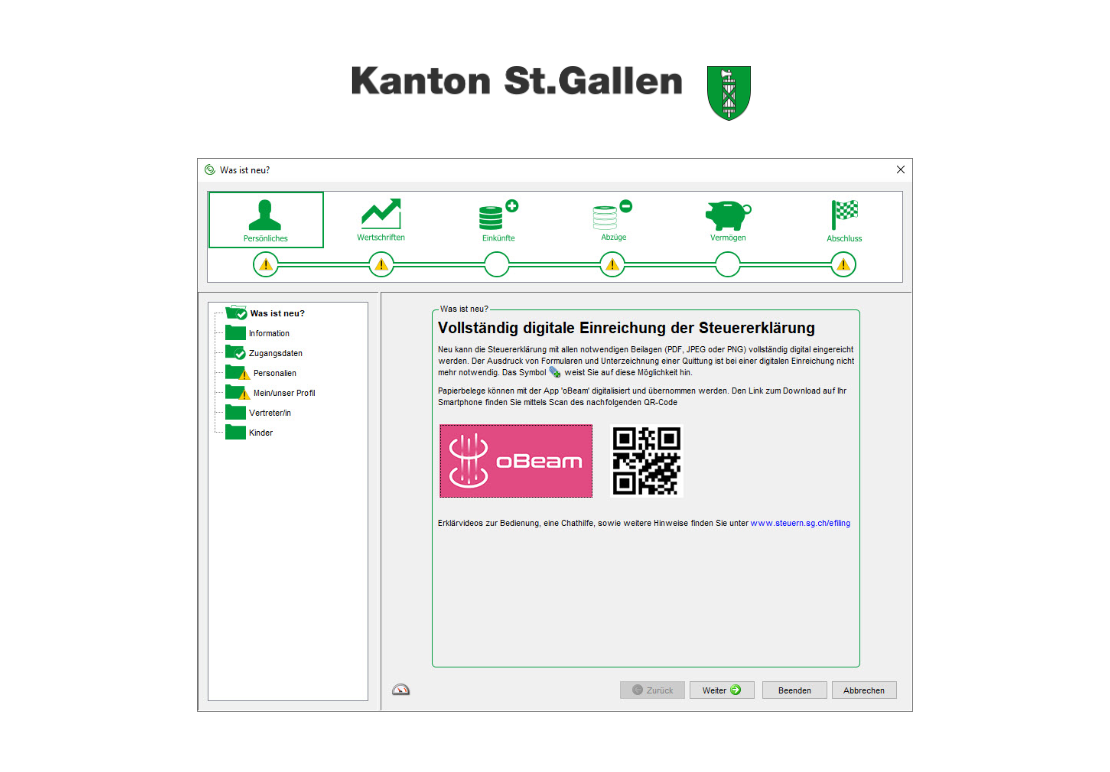
In the second part of the eTaxes guide for the canton of St-Gall, we have completed the following sections of our Swiss tax return: income and deductions.
We’re getting closer and closer to our goal. Let’s go all the way and dig into the final menus!
Net worth
As usual, you can switch from one zone to another on the left.
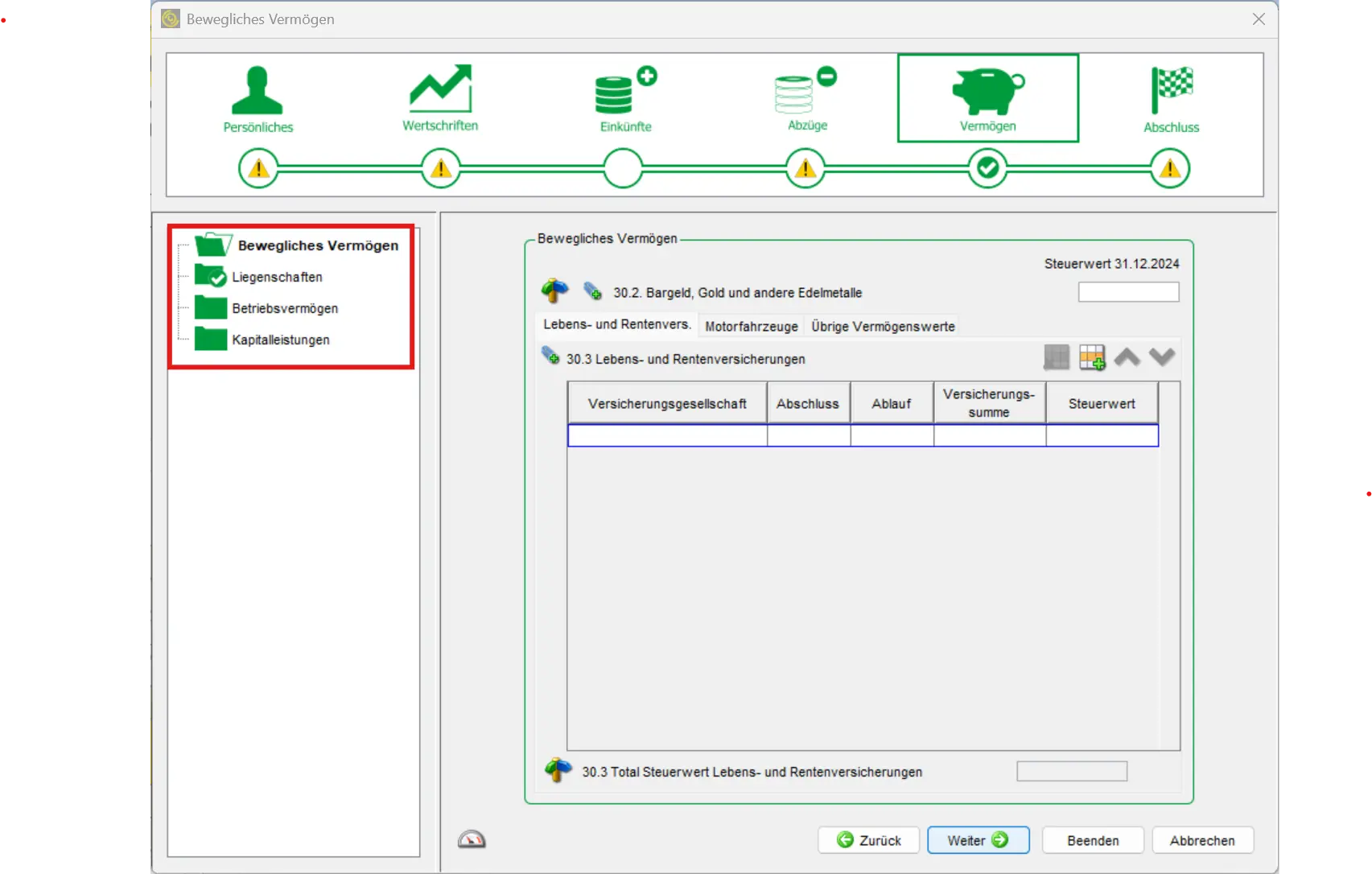
Movable assets
Let’s start with the movables section.
Here you can enter the costs of life and pension insurance, motor vehicles and other stuff. Other assets include other expensive items in your household, such as an art collection or precious jewelry. However, this is only recommended for values of several thousand francs or more.
Real estate
For real estate owners, it’s time to get down to business. Let’s get started:
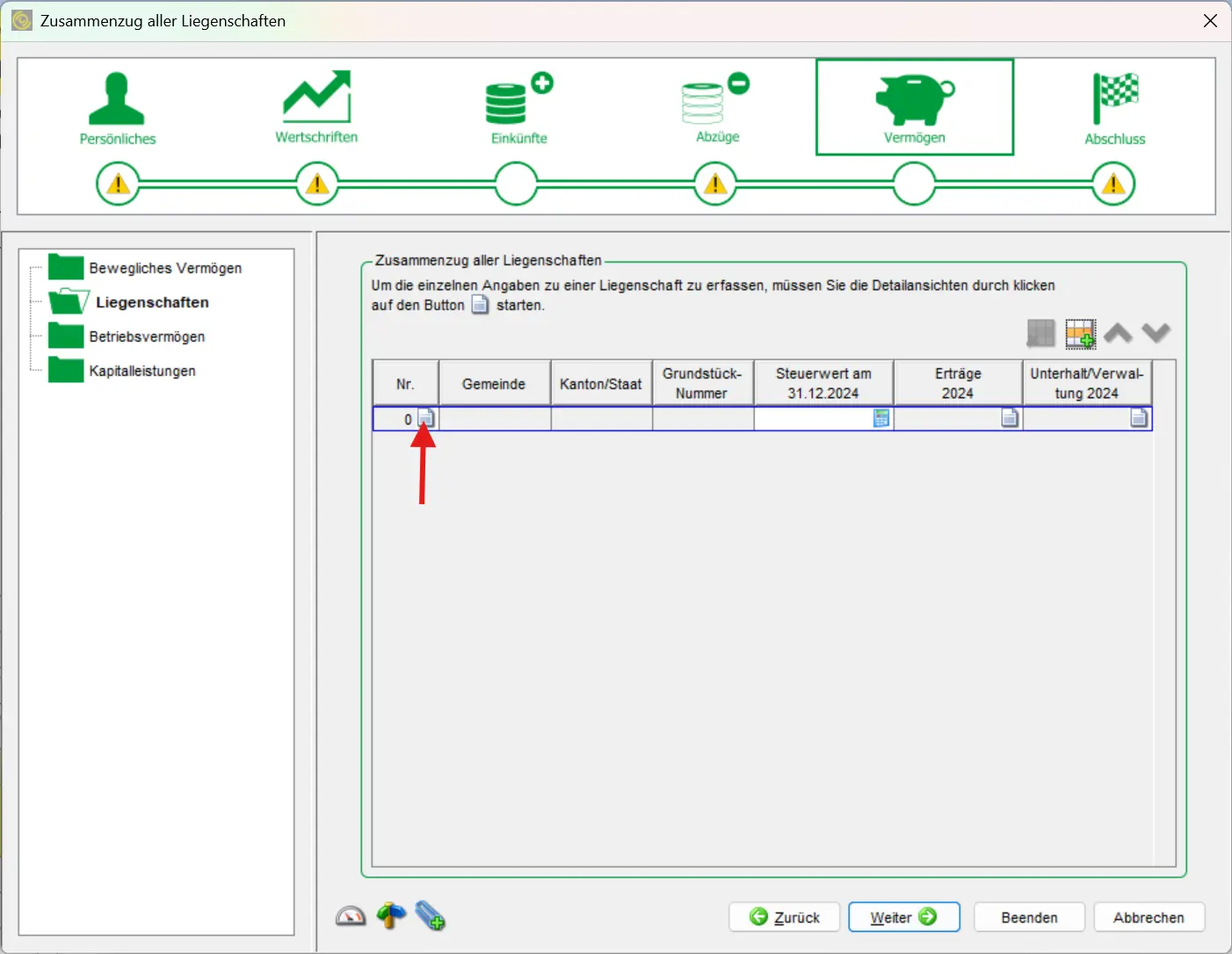
Click on this sign to open this mask:
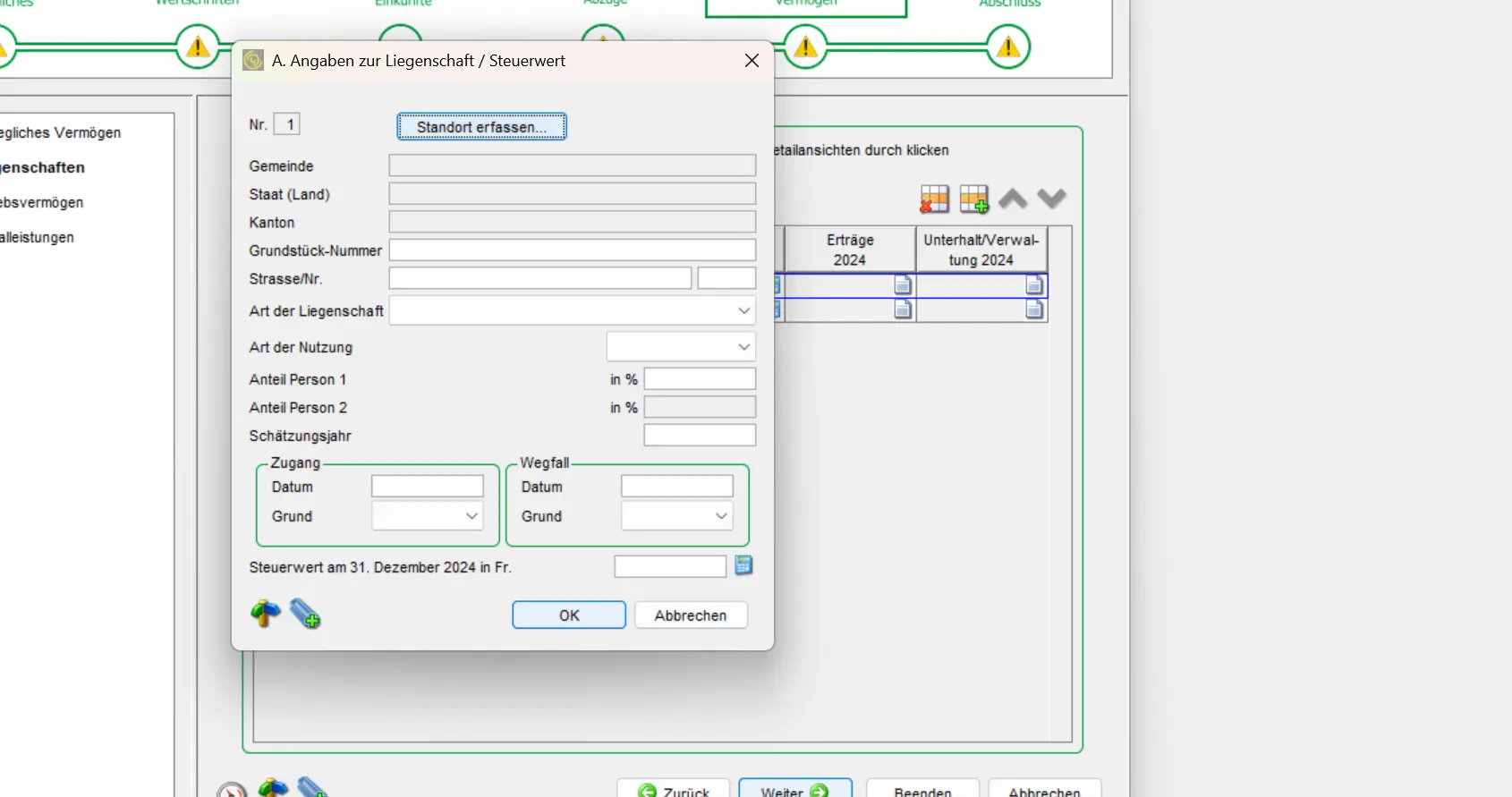
First, you enter the location by clicking on the button and searching for your commune of residence.
Then enter all the necessary data. Red exclamation marks indicate which information is mandatory. Click OK when you’ve filled in all the information.
“Income” and maintenance costs are still missing. You can access these menus by clicking on the corresponding sign in the table.
In the “Income” menu, you need to enter the imputable rental value (for the time being, as this will be abolished in 2028 after the 2025 vote). You should find this information on the latest official estimate. Click on the “minus 30%” box. I don’t understand why this isn’t automatically deducted. No thanks this time, Canton St. Gallen!
Next, you move on to maintenance costs. Here, you can choose between a flat-rate deduction or actual expenses. The flat-rate deduction is 20% of income. If you have actually incurred more expenses, the second box is interesting. But here, you need to be able to justify your expenses. The tax authorities can be pretty fussy about this, so make sure you keep your receipts!
Operating assets
Now that’s done, it’s time to move on to the business assets area. You only need to fill in this form if you’re self-employed.
Capital benefits
The last area is capital benefits. Here you enter all capital benefits from Pillar 3a, your pension fund or other capital benefits. If you’re not retired, you can leave this blank.
Conclusion
The end is near! Depending on how well you’ve scanned your appendices, you’re almost finished.
If you haven’t scanned anything yet, it looks like this:
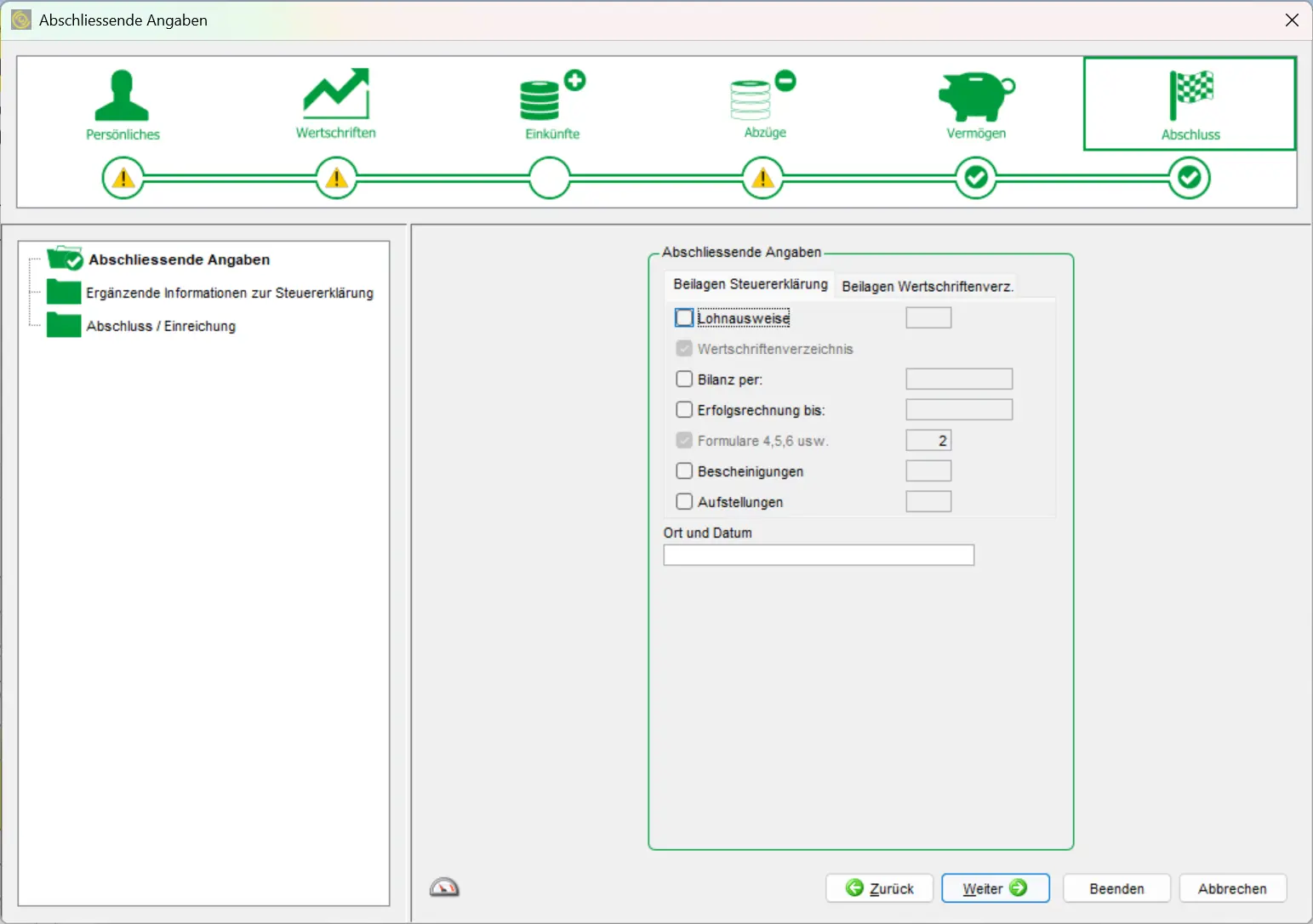
Already grayed out are the statement of securities and forms 4,5,6 etc. The latter two must be presented by everyone. The famous form 4,5,6 etc. is the paper form you received from the tax authorities. You must also present it or scan it.
You can now click on the enclosures you wish to send. In the field on the right, you can enter the number or the date.
In the “Additional information” field, you can enter any information you feel is essential to send to the tax authorities.
You can now enter all appendices under “Closing / Submission”. To do so, simply click on “Add appendices”.
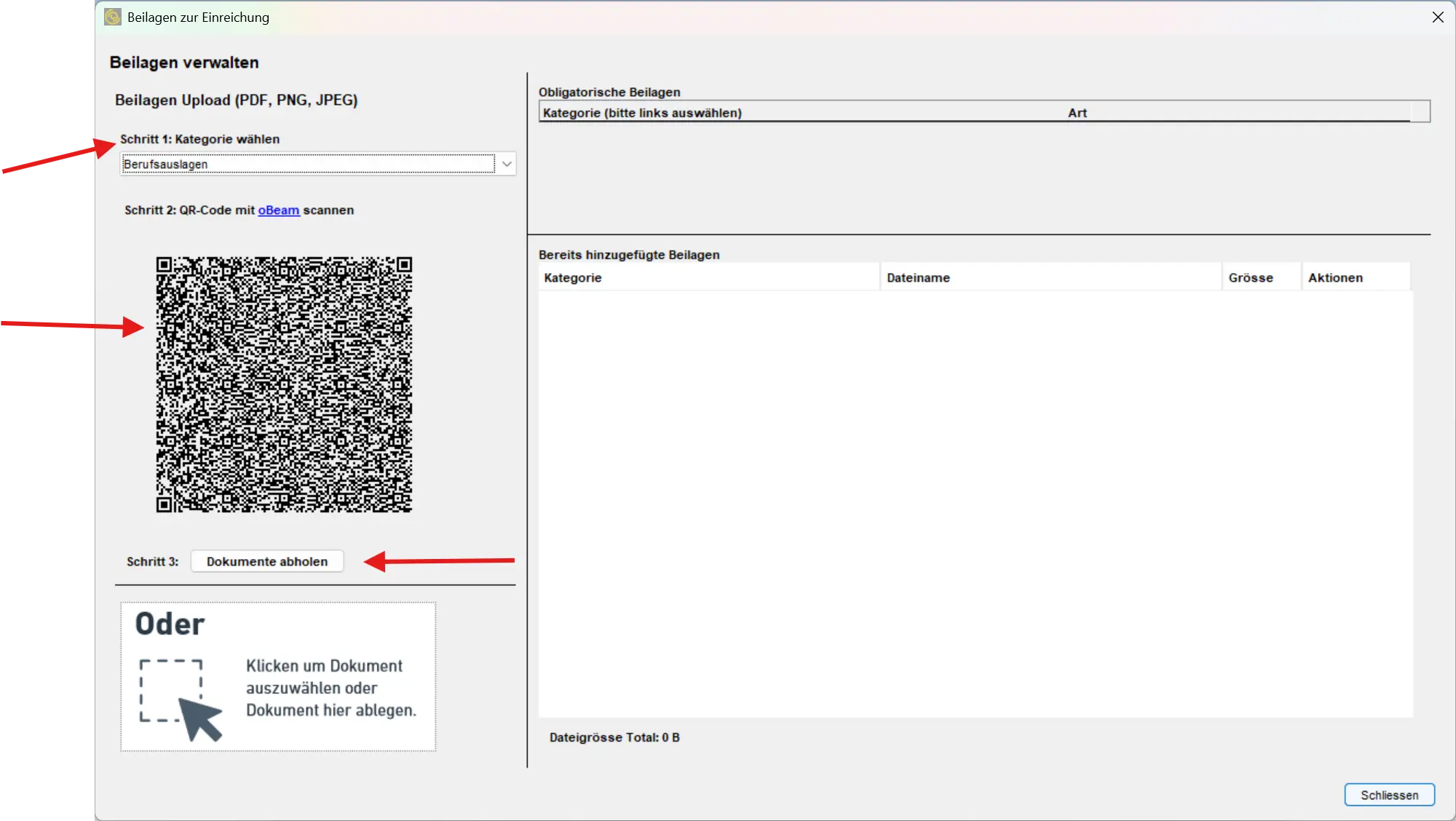
Here:
- In step 1, choose which document you want to scan. Then open the oBeam application and scan the QR code in step 2.
- Finally, scan the desired document and add it to your tax return by clicking on “Retrieve document”.
It’s a bit complicated for many documents, but it saves you going to your commune and you can keep all the original documents with you without having to fight over copies.
Is it done now? The program will tell you:
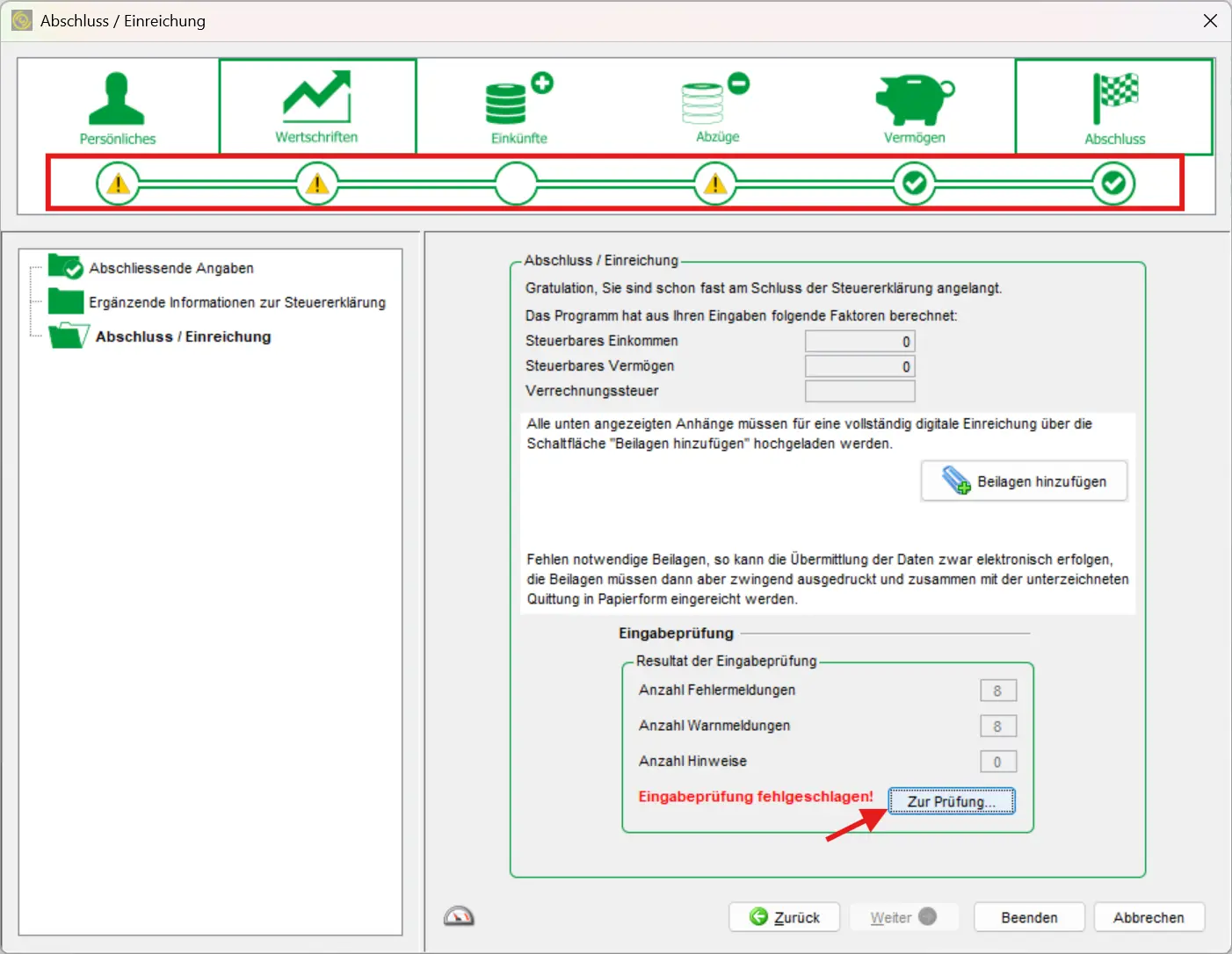
Click on “To verification”. You’ll then know where you left off. The yellow exclamation marks at the top also show you where you still have information to provide. Navigate to these areas and fill them in to complete your tax return. All you have to do is follow the final steps that the tax program will take you through.
Congratulations, you’ve successfully completed your tax return!
You’ve now saved a few hundred francs for the tax consultant, and you’ll be able to complete future tax returns even faster. You’re becoming a real Mustachian!