
In the last article, I covered insurance, pension, and finances (securities, accounts, debts).
Now I continue with property, miscellaneous, and submitting the tax return.
Property, donations, messages, and the final submission: in this last part of the tutorial, I show you the remaining sections of eTax.zug and what to watch out for before clicking “Submit.”
Section 5: Property
If you own real estate, vehicles, or other assets, this is where you declare them. The section covers three categories: real estate, motor vehicles, and other assets. eTax.zug displays them all on an overview page:
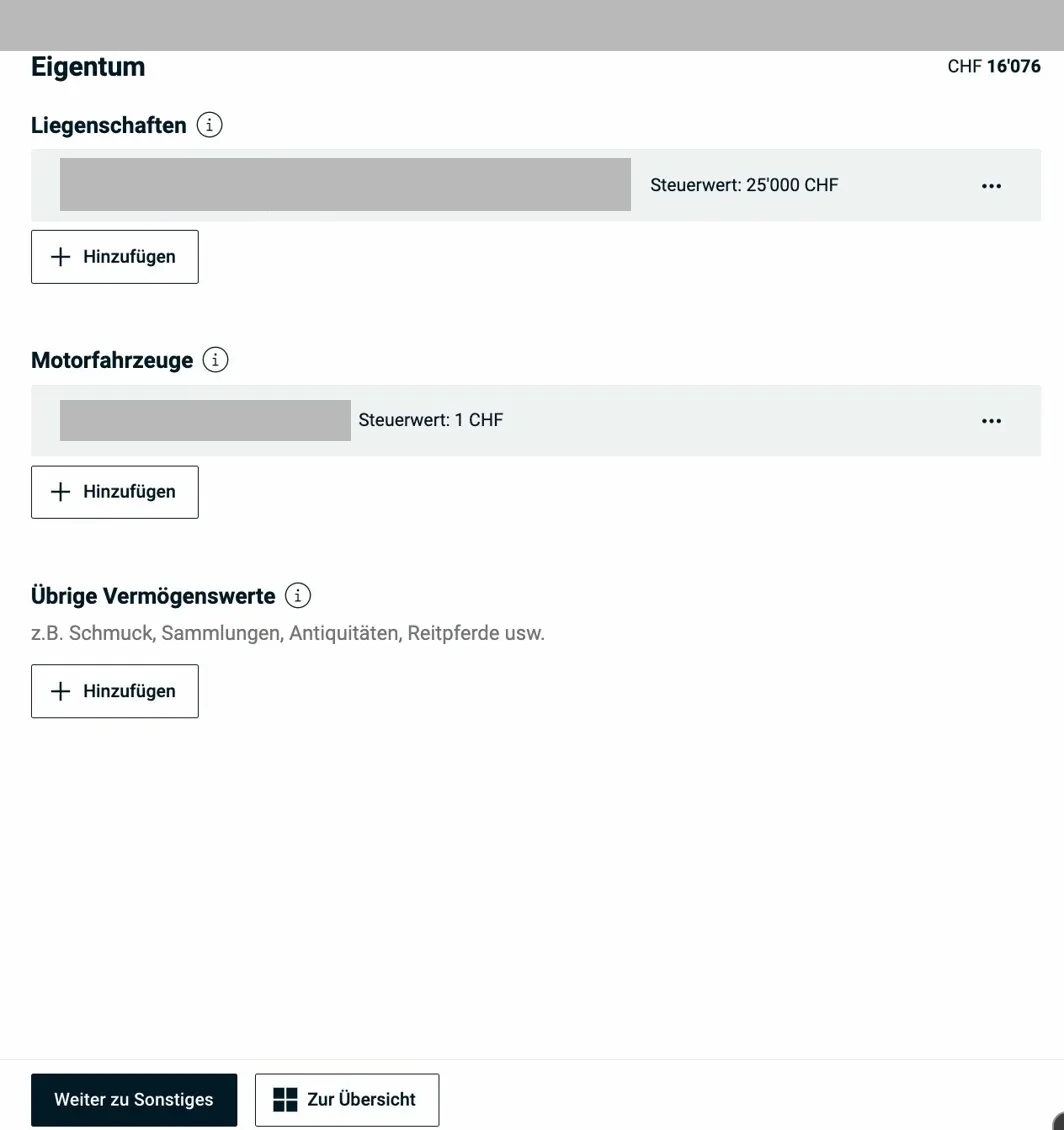
The Property overview page shows real estate (with country and tax value), motor vehicles, and other assets at a glance. Via “+ Add”, you can enter new positions.
5.1 Real estate
Adding a property starts a multi-step form. First, the basic data:
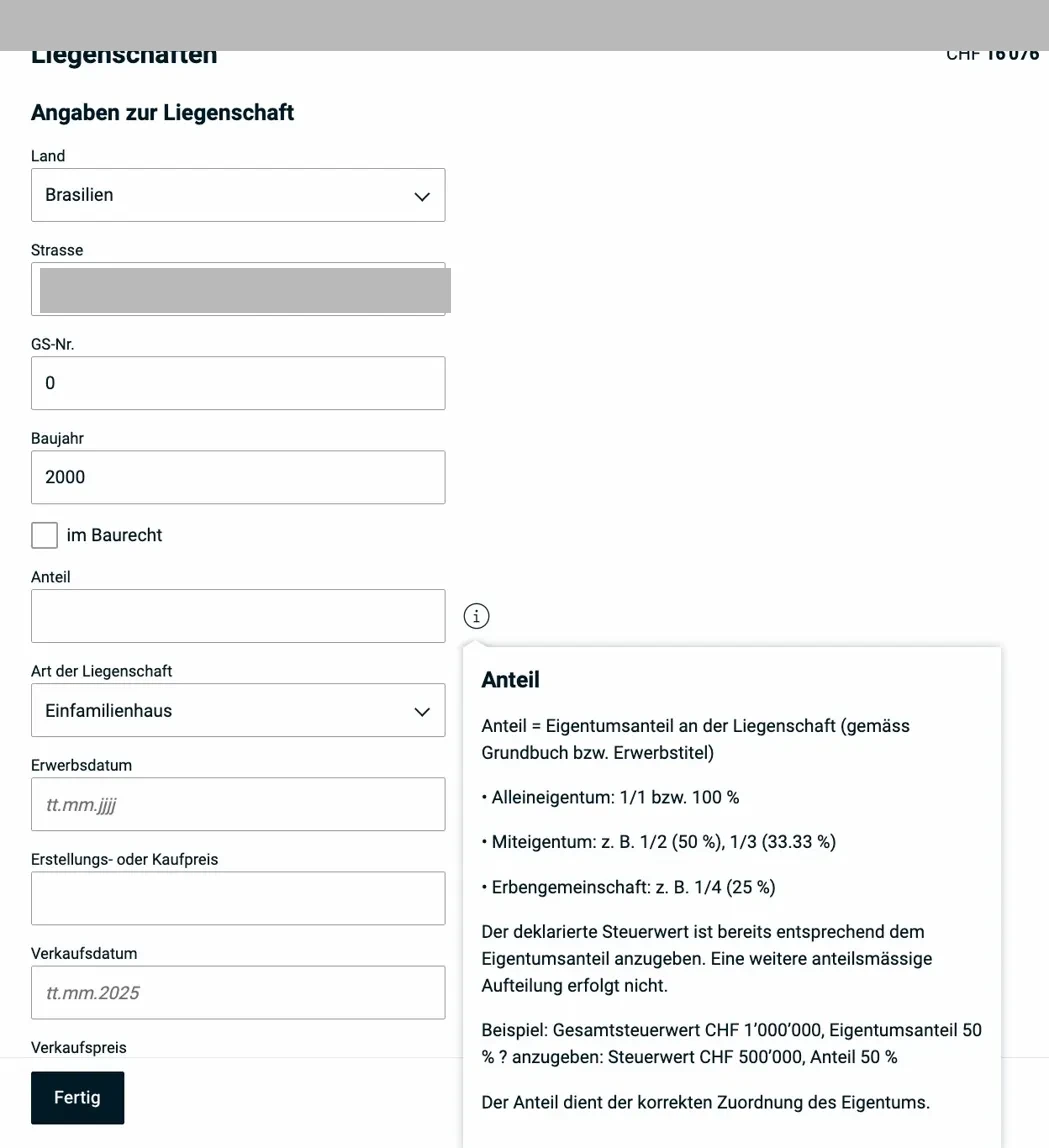
The form: country, address, parcel number, year of construction, type of property, and acquisition date. The info popup explains the “share” (ownership share according to the land register): sole ownership = 1/1 = 100%, co-ownership e.g. 1/2 = 50%. Only enter your own share.
Scrolling further down the form, you’ll find the financial details:
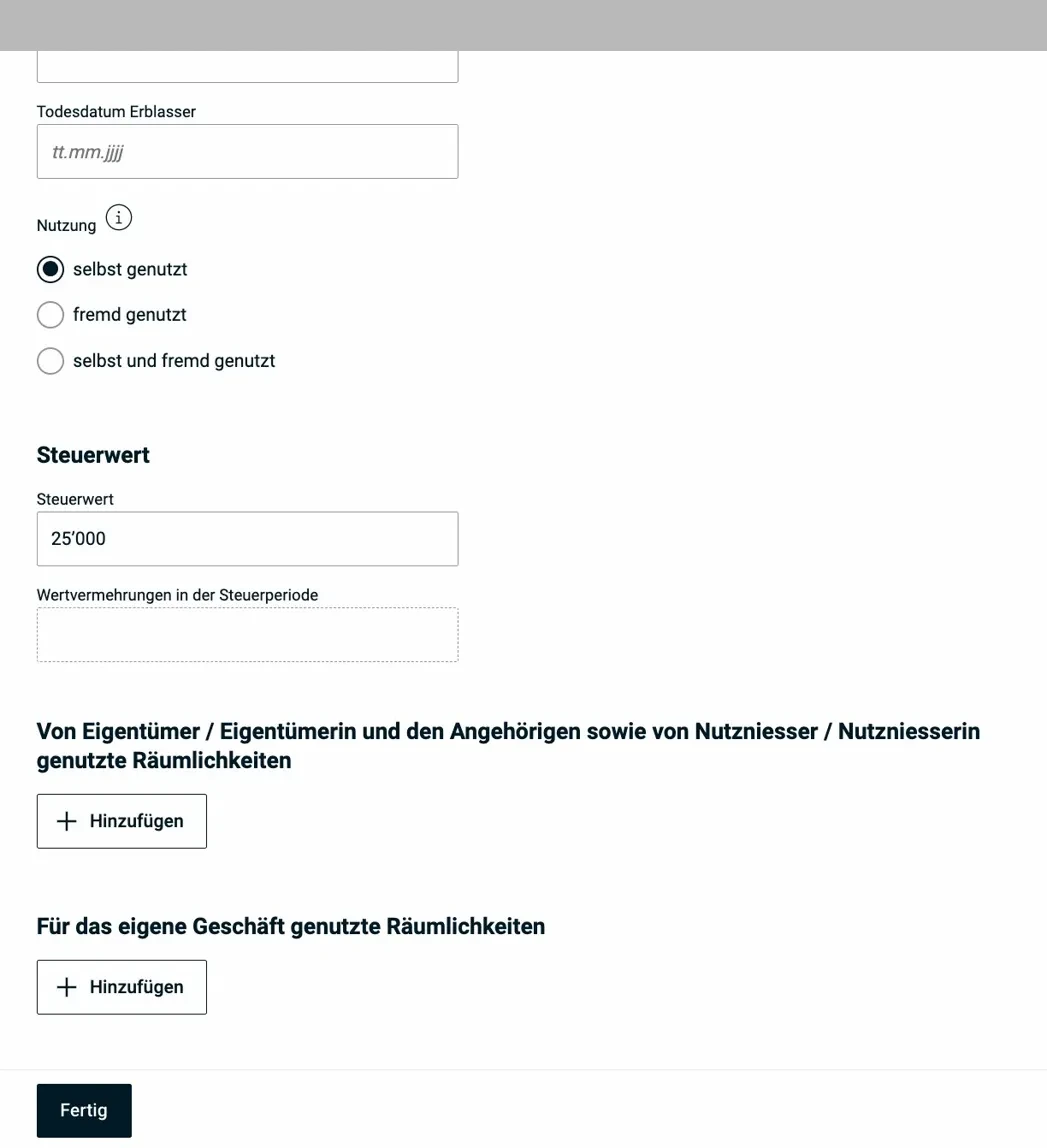
Tax value as of December 31 of the tax year, usage type (owner-occupied / rented / mixed), and whether rooms are used for your own business. For owner-occupied properties, personal use generates a fictitious rental value (imputed rental value).
Imputed rental value, the concept explained:
If you live in your own property, you’re taxed on a fictitious rental income amount (the “imputed rental value”). This sounds strange, but there’s a logic to it: the owner provides themselves with a housing benefit that is taxed like income. In return, mortgage interest and maintenance costs are deductible, with low mortgage rates the net result can be positive (meaning the imputed rental value exceeds the deductions).
Property maintenance costs: The system asks whether you want to claim the flat-rate deduction or actual maintenance costs:
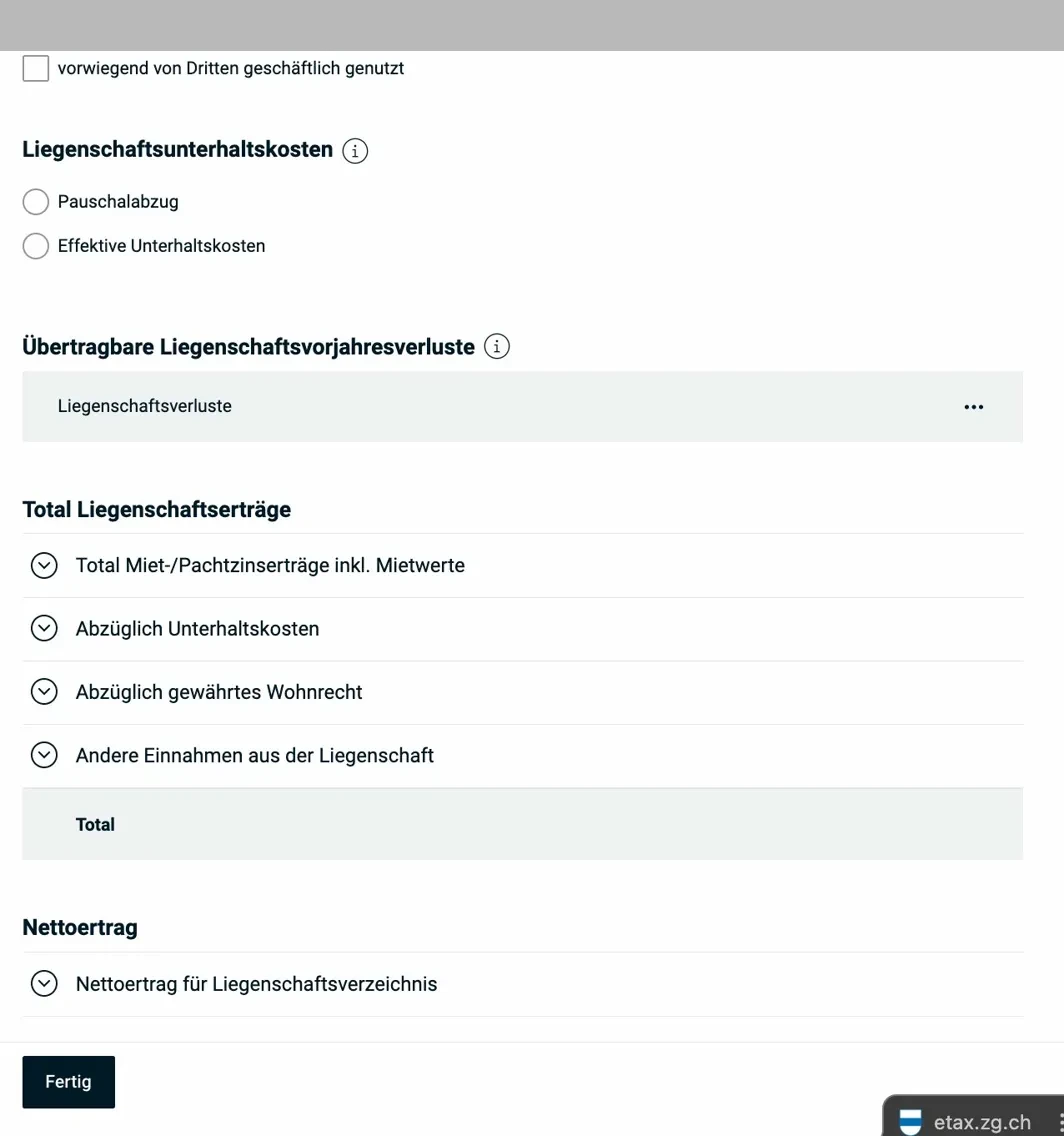
Flat-rate deduction (10% for newer buildings, 20% for older ones) or actual costs with receipts. Below: carryforward property losses from previous years and the summary of property income and costs. Important: value-enhancing renovations are not deductible, only value-maintaining ones.
This is also the view that appears after saving the property entry:
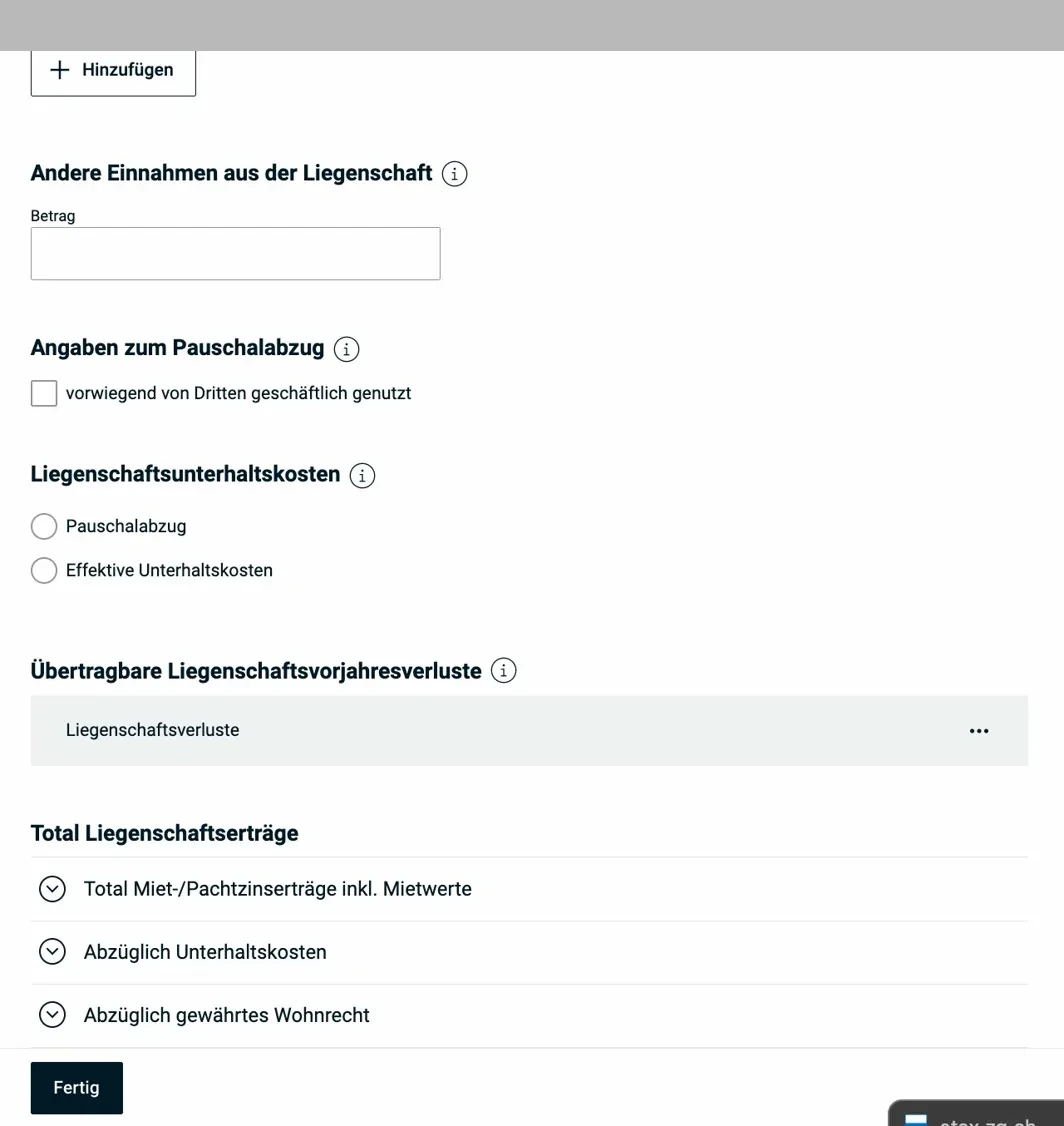
“Other income from the property” covers e.g. parking space rentals or ancillary income. “Flat-rate deduction details” shows the option “primarily used commercially by third parties,” which affects the flat-rate deduction.
5.2 Motor vehicles
Motor vehicles are declared at market value as of December 31 of the tax year. Only privately owned vehicles. Company vehicles (already listed on the salary certificate) are not entered here again.
Bicycles and mopeds with a white license plate (up to 45 km/h) are exempt.
5.3 Other assets
This is for assets not captured elsewhere: jewelry, art, antiques, collections, riding horses, etc. (tax value according to appraisal or insurance value). Regular household items (furniture, electronics, clothing) are explicitly exempt.
Section 6: Miscellaneous
The “Miscellaneous” section is a catch-all for everything that doesn’t fit into the previous categories. It’s shorter than it sounds, most fields stay empty.
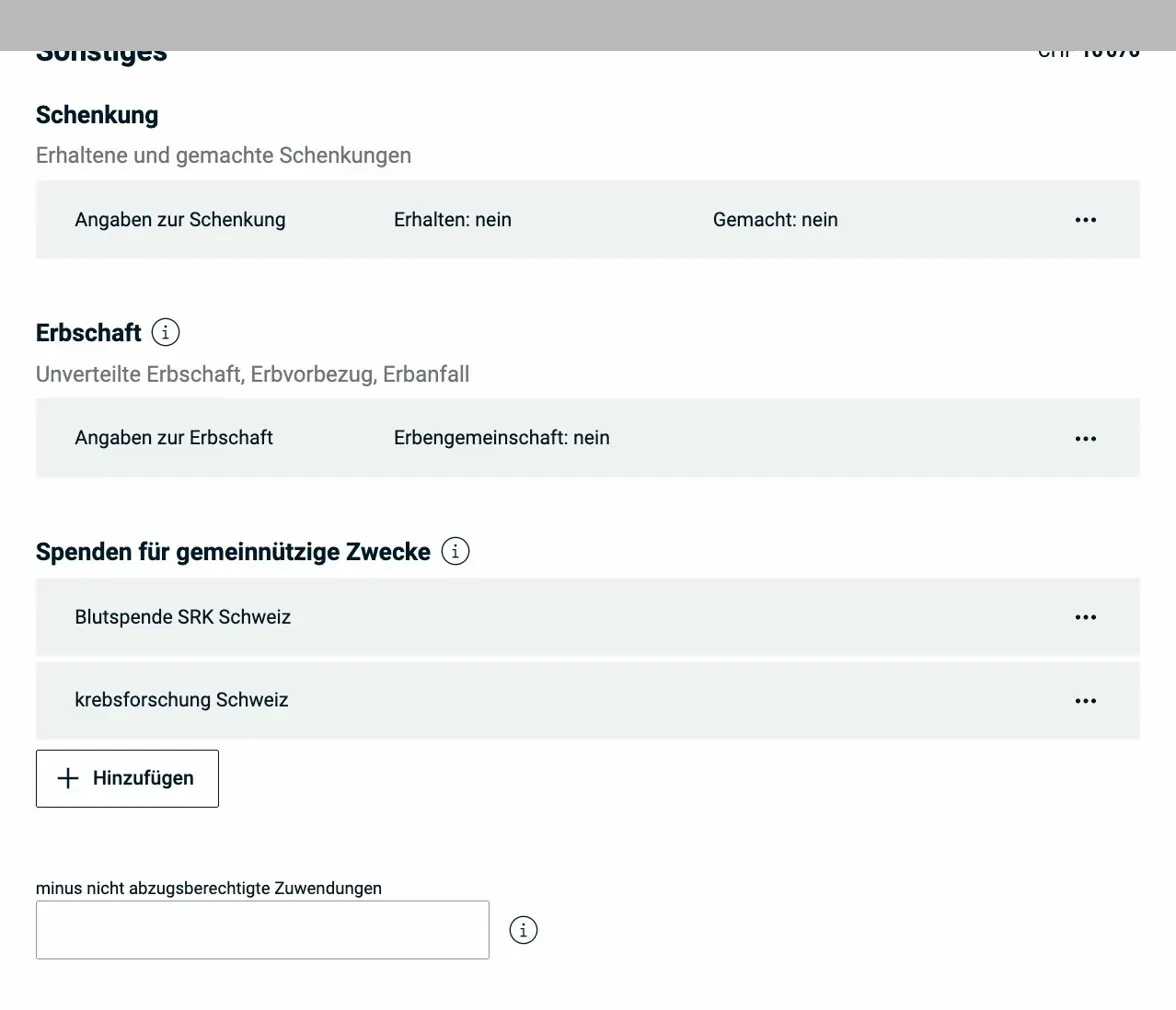
The Miscellaneous overview page: gifts (received and made), inheritances, charitable donations, and below the “minus non-deductible contributions” correction.
6.1 Charitable donations
Donations to charitable organizations based in Switzerland are deductible, up to 20% of net income. The organization must be tax-exempt. Donation receipts should be kept on file.
6.2 Gifts and inheritances
Gifts and inheritances are generally not subject to income tax in the canton of Zug (unless they constitute disguised earned income). The form serves for reporting purposes, not for taxation. For undivided inheritances, the inheritance share is declared proportionally.
6.3 Other income
Occasional income, one-off mandates, lottery winnings over CHF 1'000, and capital returns from life insurance without pension character (pillar 3b benefits) go here:
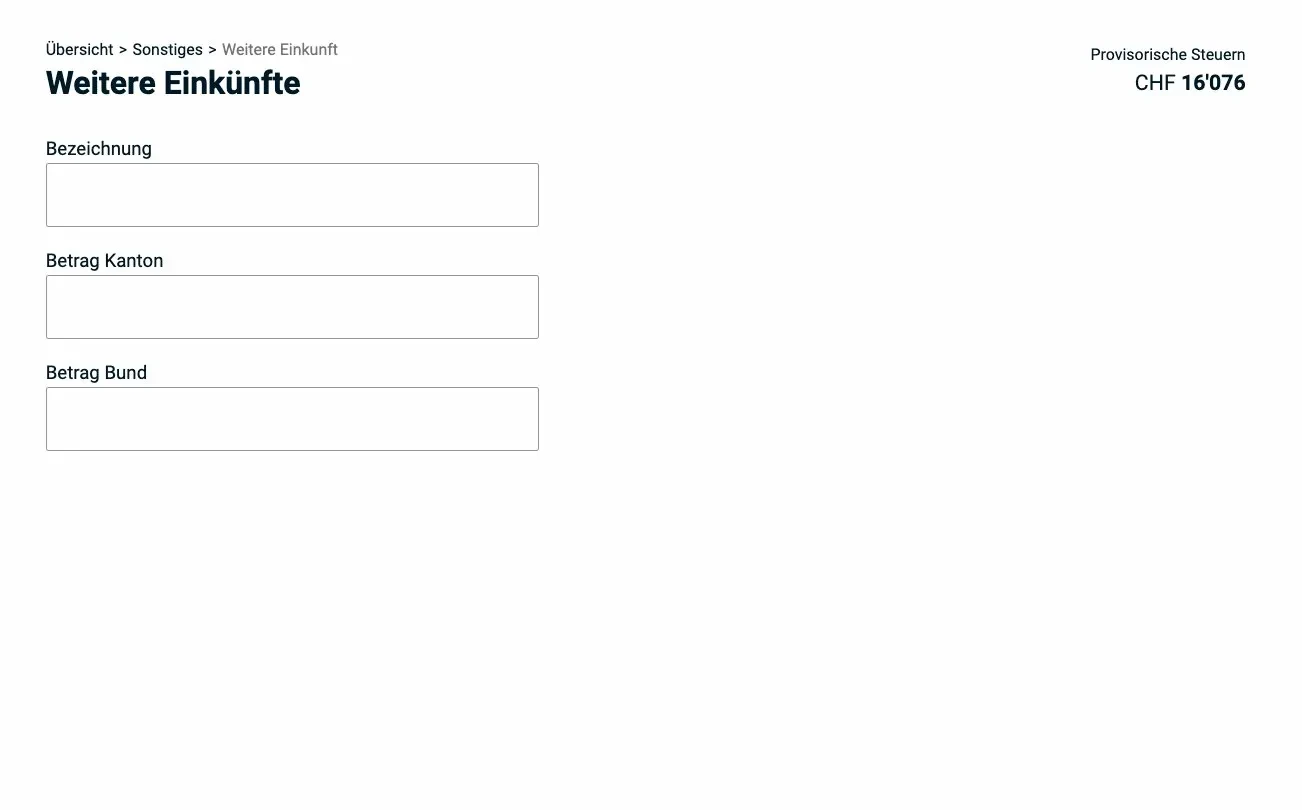
The “Other income” form has only two fields: description and amount (separately for cantonal and federal tax). Ideal for one-off consulting mandates, capital benefits from pillar 3b insurance, or similar occasional income.
Important: This is not the same as self-employment. If you have regular side income, you need to enter it in the “Employment > Self-employment” section. Occasional income refers to earnings that don’t repeat and don’t show a systematic intent to earn.
6.4 Other deductions
The system also offers a “Miscellaneous” area with additional deductions:
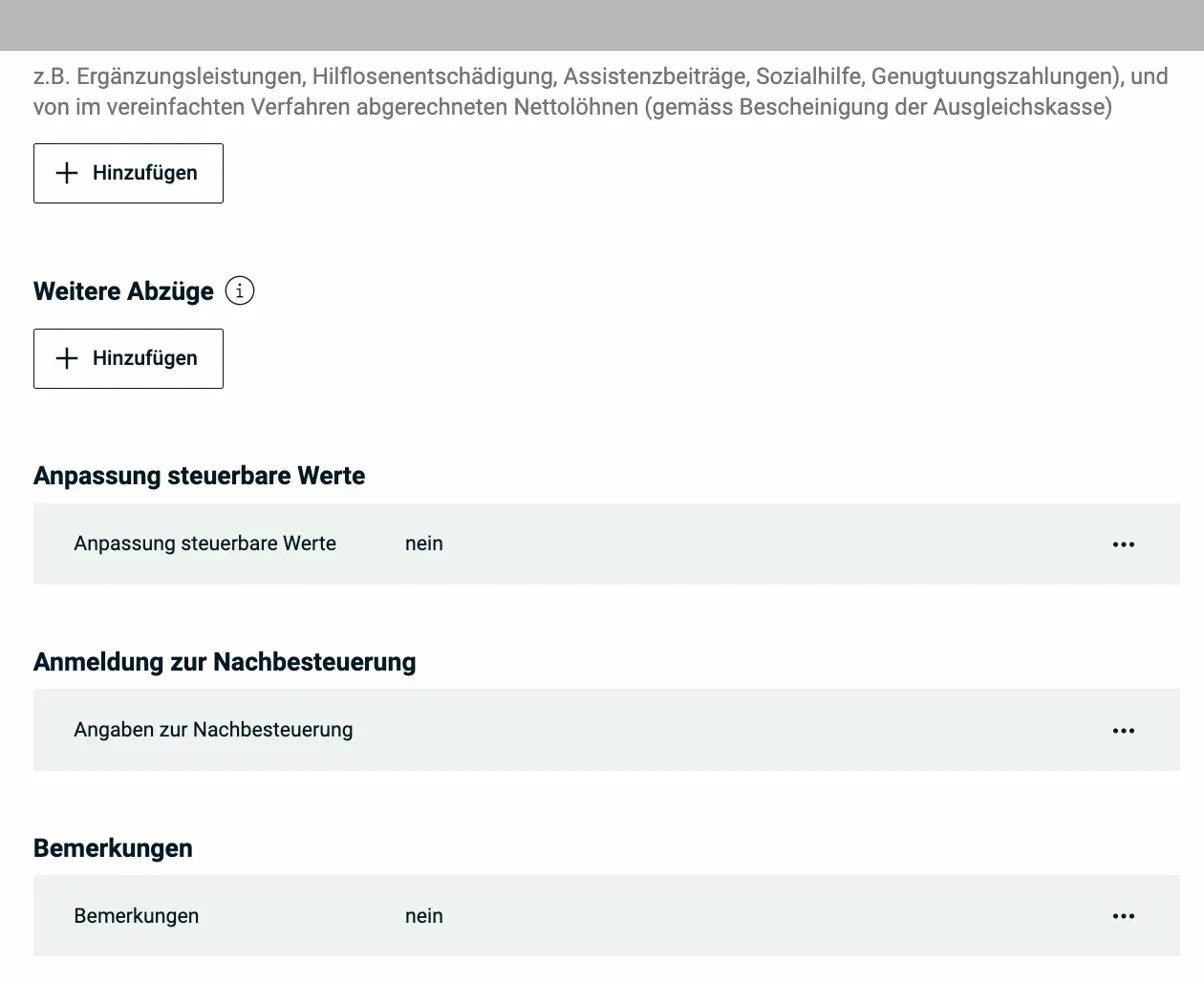
Other deductions (e.g. AHV contributions for non-employed persons), adjustments to taxable values, registration for supplementary taxation, and remarks. Normally, no entries are needed here.
Particularly relevant: continuing education costs (if not sufficiently captured in the professional expenses section). Limits 2025:
- Cantonal tax: max. CHF 12'500
- Direct federal tax: max. CHF 13'000
Only job-related continuing education counts, general education (language courses without professional relevance, hobby courses, etc.) is not deductible.
Section 7: Messages
Before you can submit, eTax.zug shows you a messages page. This is one of the most useful features of the system and protects you from costly mistakes.
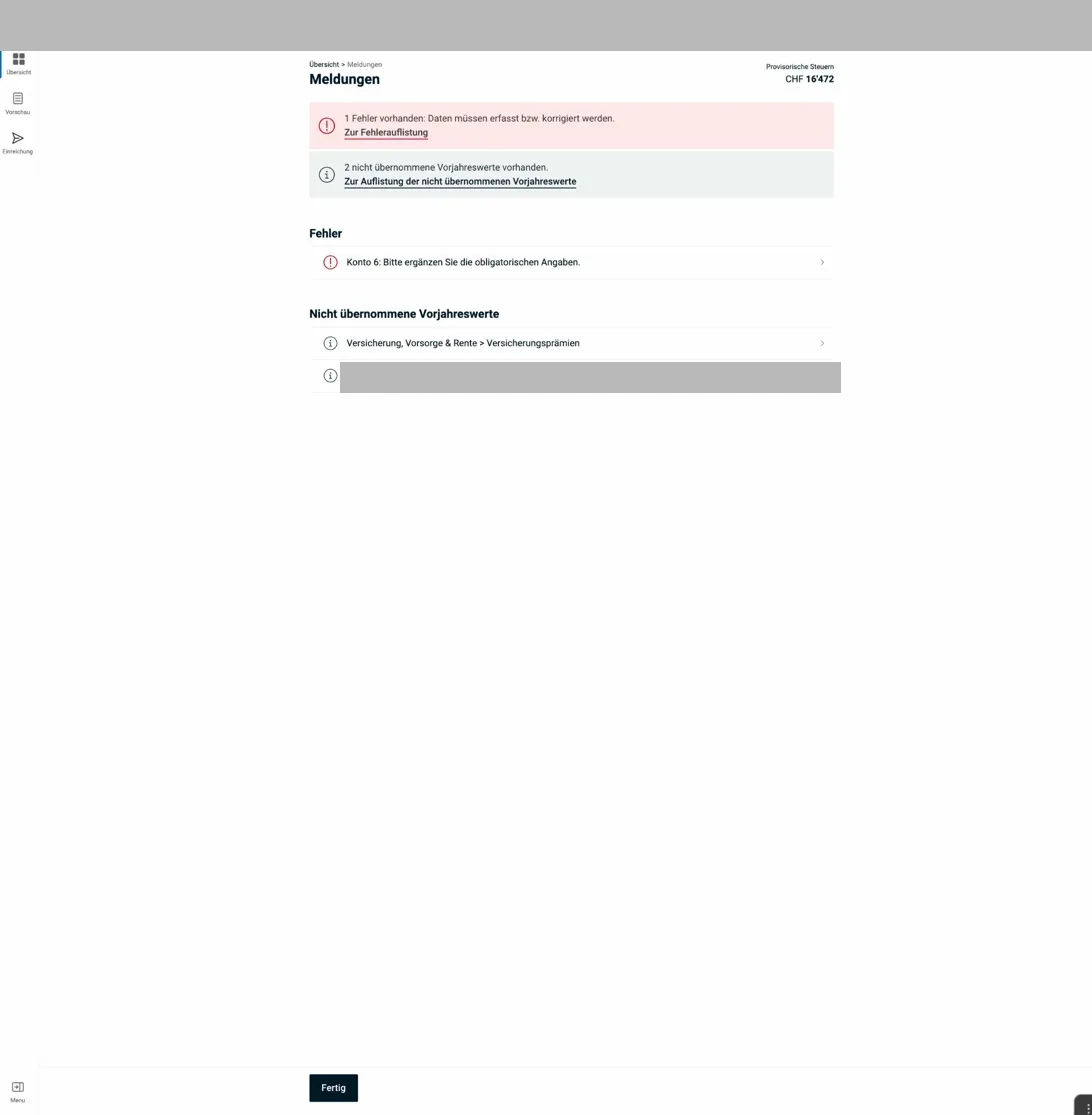
The messages page shows two types of entries: red errors (blocking, must be fixed) and gray prior-year value notices (informational, review and decide).
Red messages = blocking errors. The system won’t allow submission until these are fixed. Click the link in the message, and you’ll be taken directly to the problem area.
Gray messages (prior-year values) = informational notices. The system tells you: “Last year I had a value here that I didn’t carry over.” This can be legitimate (e.g. if you canceled a policy), or an oversight. Review each entry consciously.
Common red errors:
- Salary certificate missing (forgot to upload)
- Required fields for account/IBAN not filled in
- Securities register empty (mandatory since 2024)
Common gray notices:
- Insurance premiums from the previous year not carried over
- Bank accounts from the previous year no longer present
Section 8: Summary & submission
Once all messages are resolved, the summary shows the provisional result:
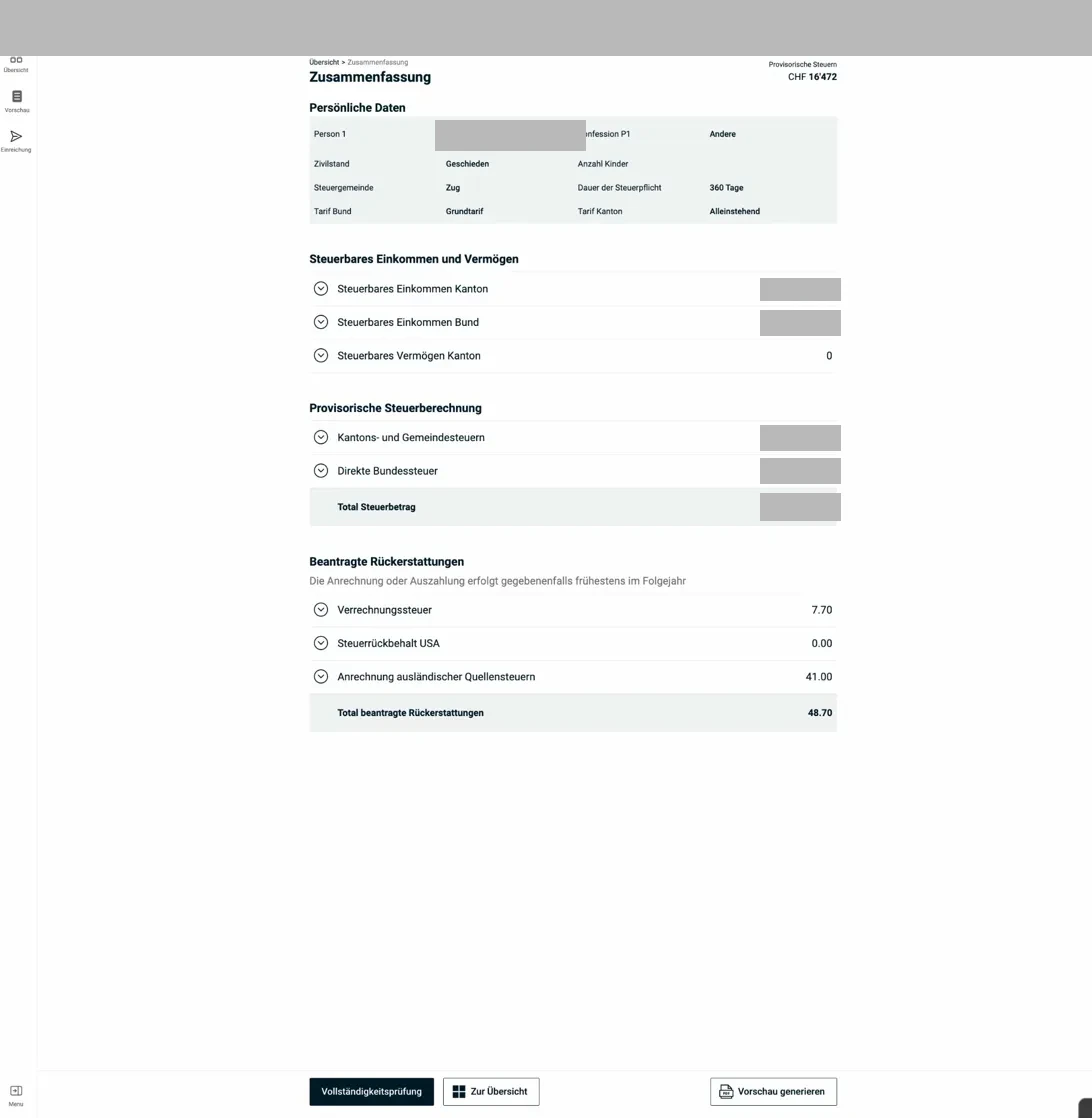
The summary lists: personal data (marital status, tax municipality, rate), taxable income cantonal/federal, taxable assets, the provisional tax calculation (cantonal + municipal taxes + federal tax), and requested refunds (withholding tax, foreign source taxes). At the bottom: “Completeness check” and “Generate preview.”
8.1 Completeness check and PDF preview
Click on “Completeness check”, the system verifies all required fields and logical consistency one more time.
Then: “Generate preview.” This creates a PDF of the complete tax return. Take the time to read it in full, errors often show up that weren’t visible in the form view.
8.2 Submission
Submission is done via the “Submit” button in the left navigation.
Warning, no going back: once you’ve submitted, the tax return is with the tax office. Corrections are only possible through a formal objection process after that.
After submission, you’ll receive a confirmation by email and can track the status in eTax.zug.
8.3 Tax assessment and objection
After processing by the tax office, you’ll receive the tax assessment notice. From the date of receipt, you have 30 days to file an objection if you disagree with the assessment. An objection must be submitted in writing and include reasoning.
Checklist before submission
Before clicking “Submit,” check:
- ☐ Salary certificate(s) uploaded
- ☐ Pillar 3a certificate(s) uploaded
- ☐ All bank accounts entered in the securities register
- ☐ Securities / portfolios complete (including foreign portfolios)
- ☐ Health insurance premiums correct
- ☐ Life insurance surrender value correct (including certificate)
- ☐ Withholding tax income declared (so you can get the refund)
- ☐ All red messages at zero
- ☐ Gray messages consciously reviewed
- ☐ PDF preview read in full
That’s it, the tutorial is done. Good luck with your tax return in the canton of Zug!