
It’s that time again: at the beginning of the year, you’ll receive a letter from the tax authorities, along with the access data for your tax return. Don’t panic, eTax Solothurn makes it surprisingly easy.
Below, you’ll find a practical guide on how to fill in your tax return, without the tedious language of civil servants. I swear :D
Step 1: Log in to eTax Solothurn
You access the eTax online tax return via the official website of the canton of Solothurn. Here you log in with your e-mail address and password.
Here’s the link to the eTax Solothurn login for the canton of Solothurn.
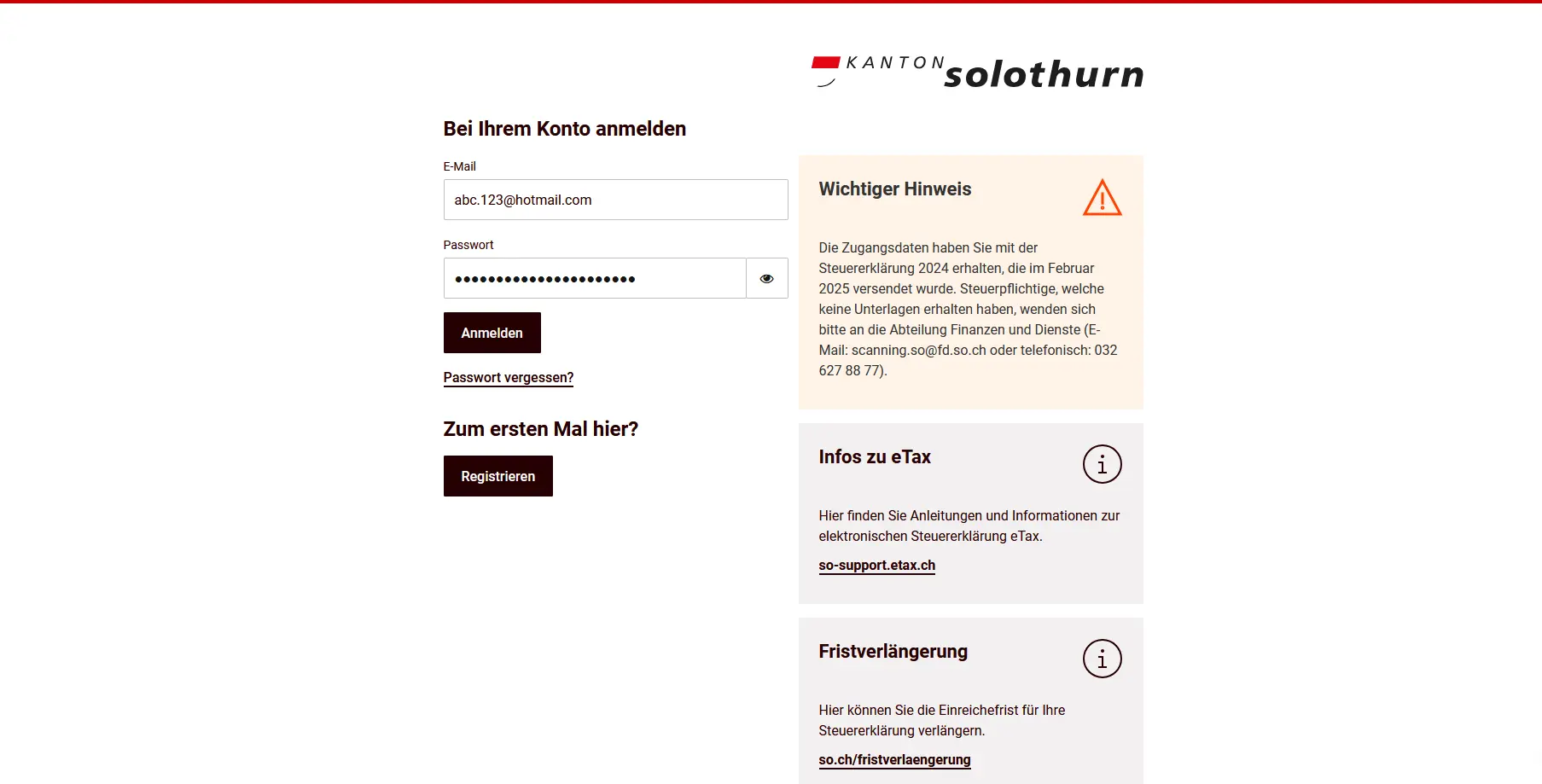
You received your access data together with the tax return documents. If you did not receive any access data, please contact the Finance and Services Department of the Canton of Solothurn.
If you have forgotten your password, you can reset it by clicking on the corresponding link.
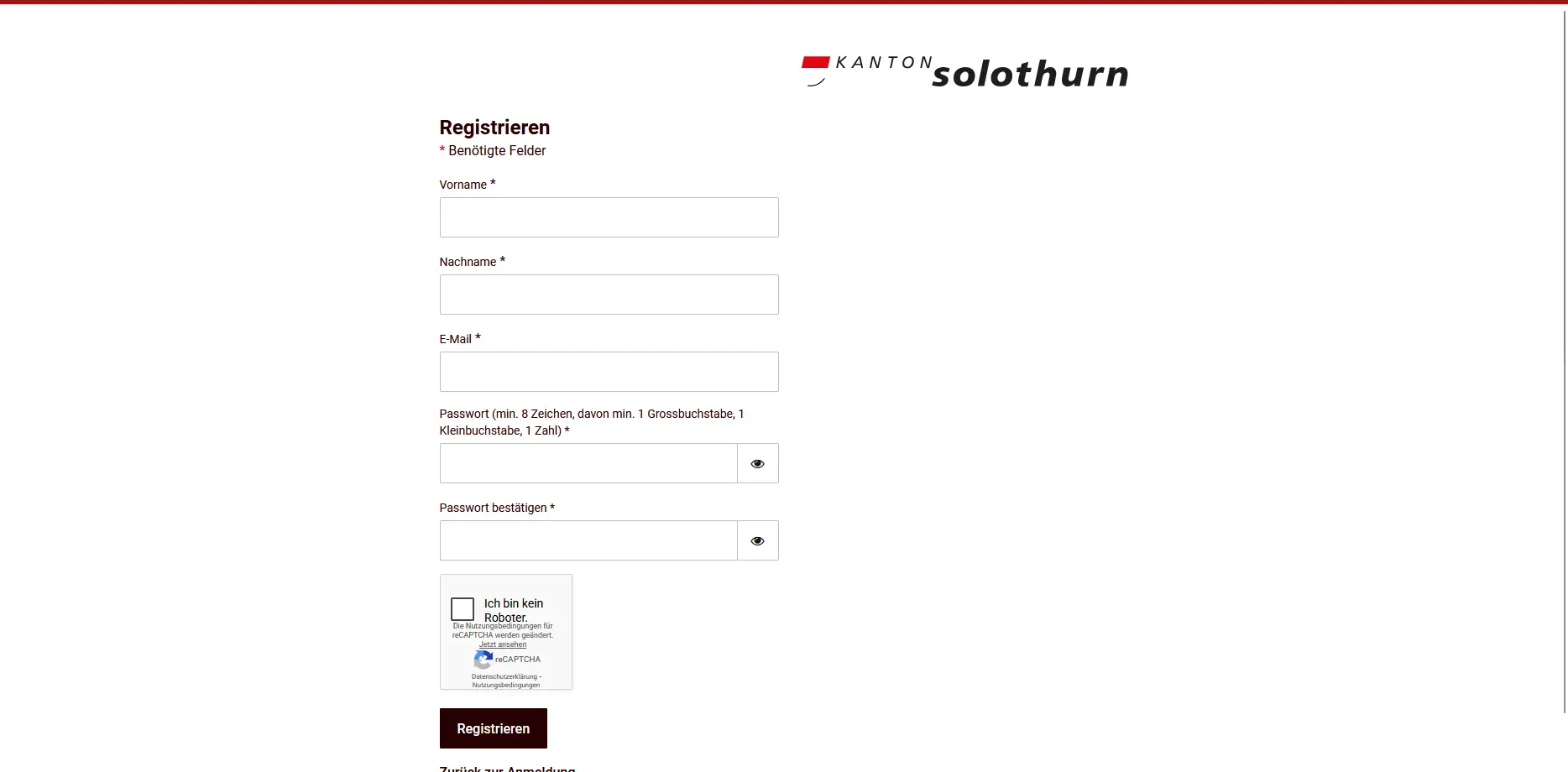
If you’re here for the first time, select “Register” and create your personal eTax account.
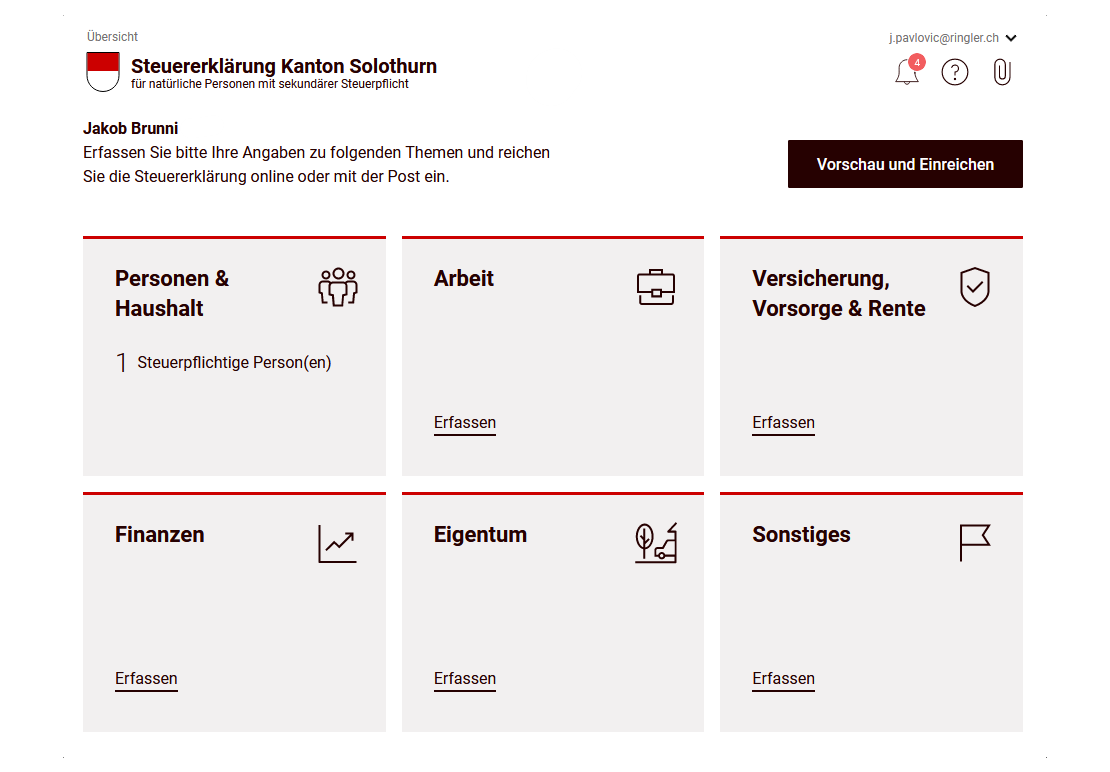
After logging in, you’ll be taken directly to your tax return preview, where you can start filling in your tax return at any time or continue later.
Step 2: Create a new tax return or view your previous one
After logging in, you’ll be taken to your tax return overview. Here you’ll see all the tax returns already submitted or processed in previous years.
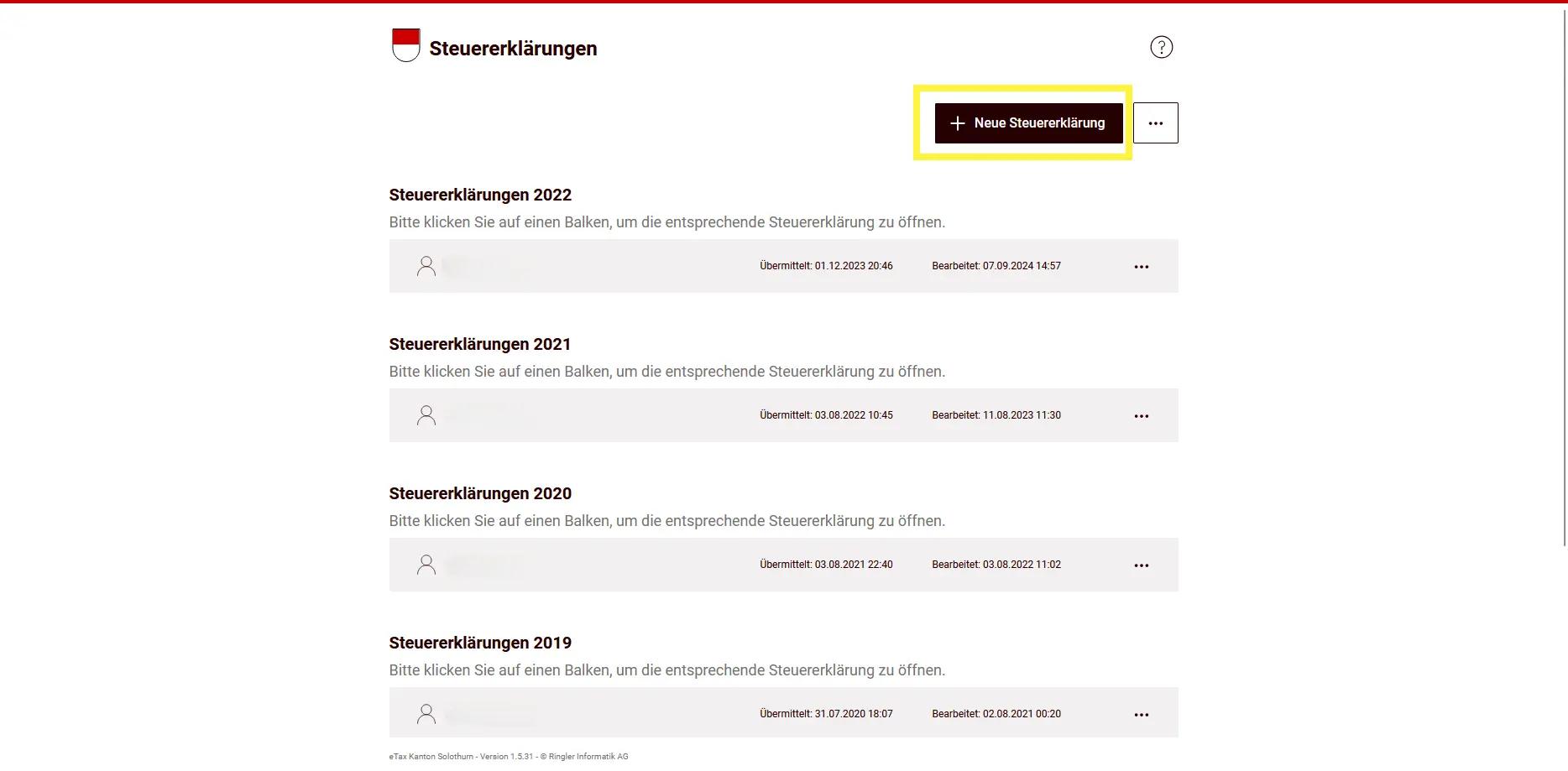
You can click on an existing tax return to view it or, if it’s not yet complete, to continue editing it. The three-point menu offers you additional options depending on the status, such as displaying a transmitted tax return or exporting data.
Create a new tax return
If you wish to enter a new tax return, click on “New tax return” in the top right-hand corner.

On the next page, enter your eTax ID and eTax code. You’ll find these access codes on the letter from the tax authorities at the top left of the first page of the tax return. Once you’ve finished entering them, you can start filling in your new tax return.
Import a tax return
You can also import an existing tax return, for example if you’ve previously worked with another software package, or if you’ve made a backup.
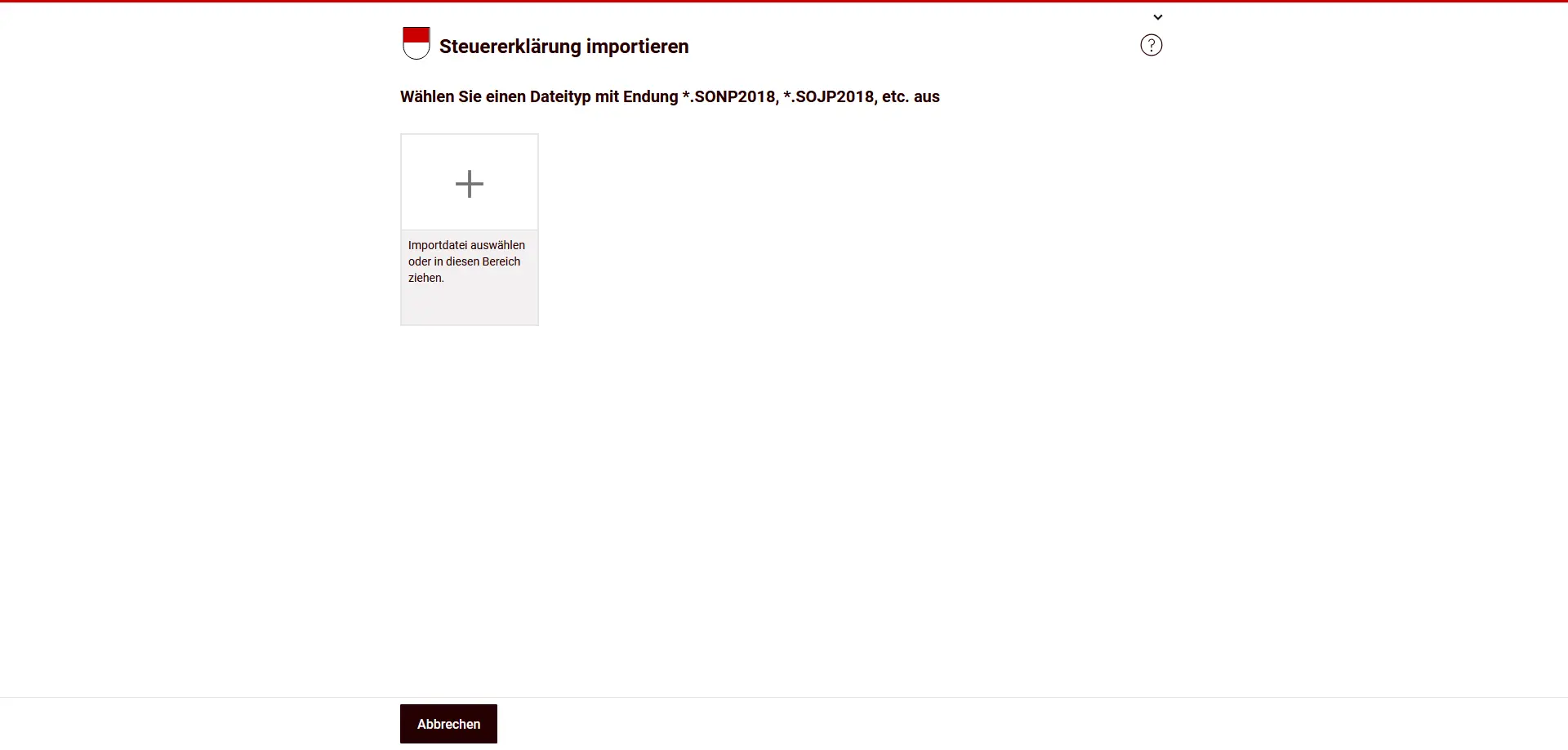
To do this, select the corresponding import file. Files with the extensions predefined by eTax (e.g. *.SONP2018, *.SOJP2018) are supported. Once the import is complete, the data is available for further processing, just like a normally created tax return.
Export tax return
You can also export a tax return via the menu with the three dots.

Exporting is suitable, for example, for saving data or for further processing with other tax software. You can re-import the exported file at a later date.
Step 3: Tax return overview
At the start of the tax return, you arrive at the overview. Here you’ll see all the subject areas that are relevant to your tax return.
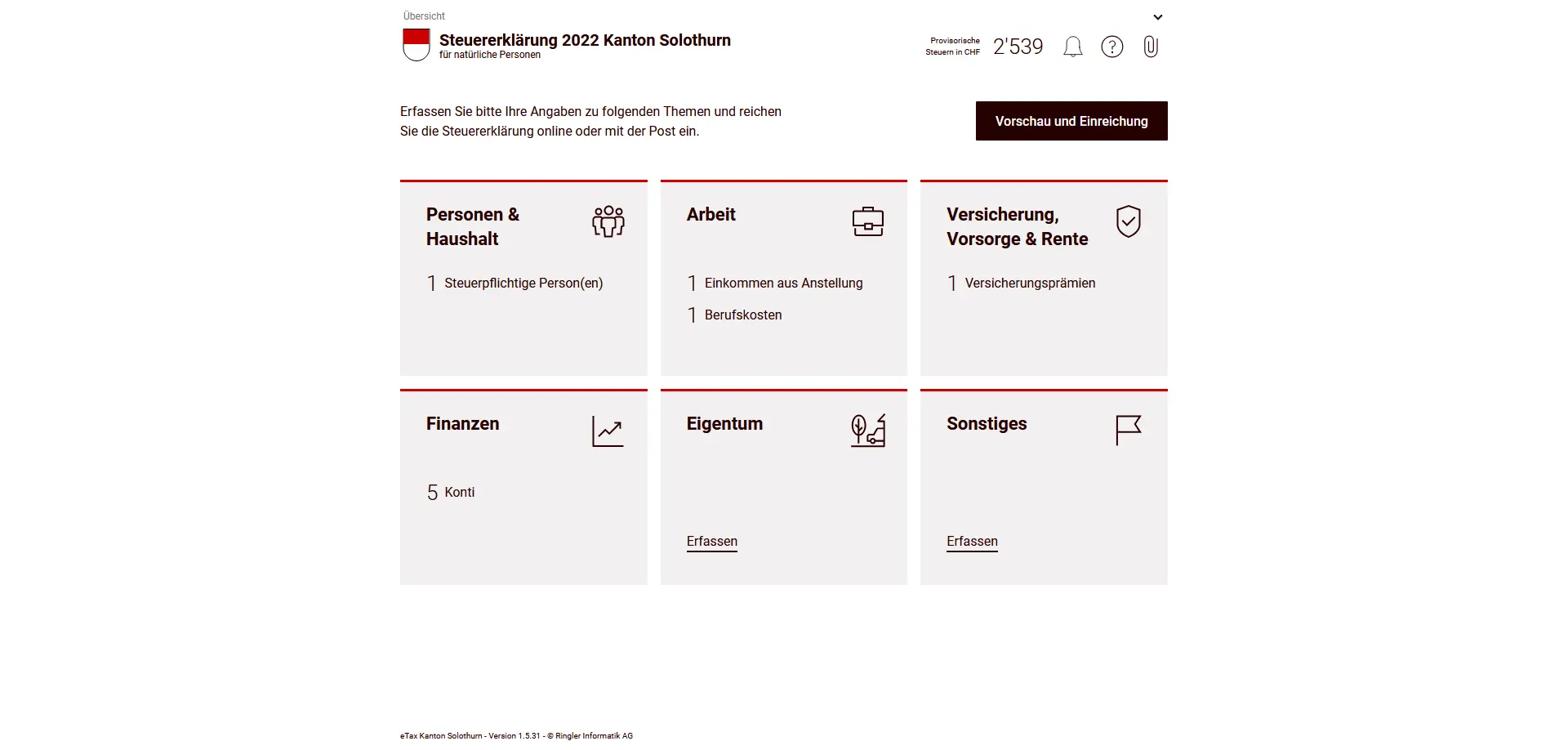
The overview is divided into different tiles, for example “People and household”, “Work”, “Insurance, pensions and retirement”, “Finances”, “Property” and “Other”. Each tile shows you whether and how many entries have already been made.
By clicking on the “Preview and submit” button, you can check at any time what your tax return currently looks like. However, I recommend that you fill in all the relevant sections completely first.
Step 4: People and household
In the “People and household” section, you enter basic information about your family situation.
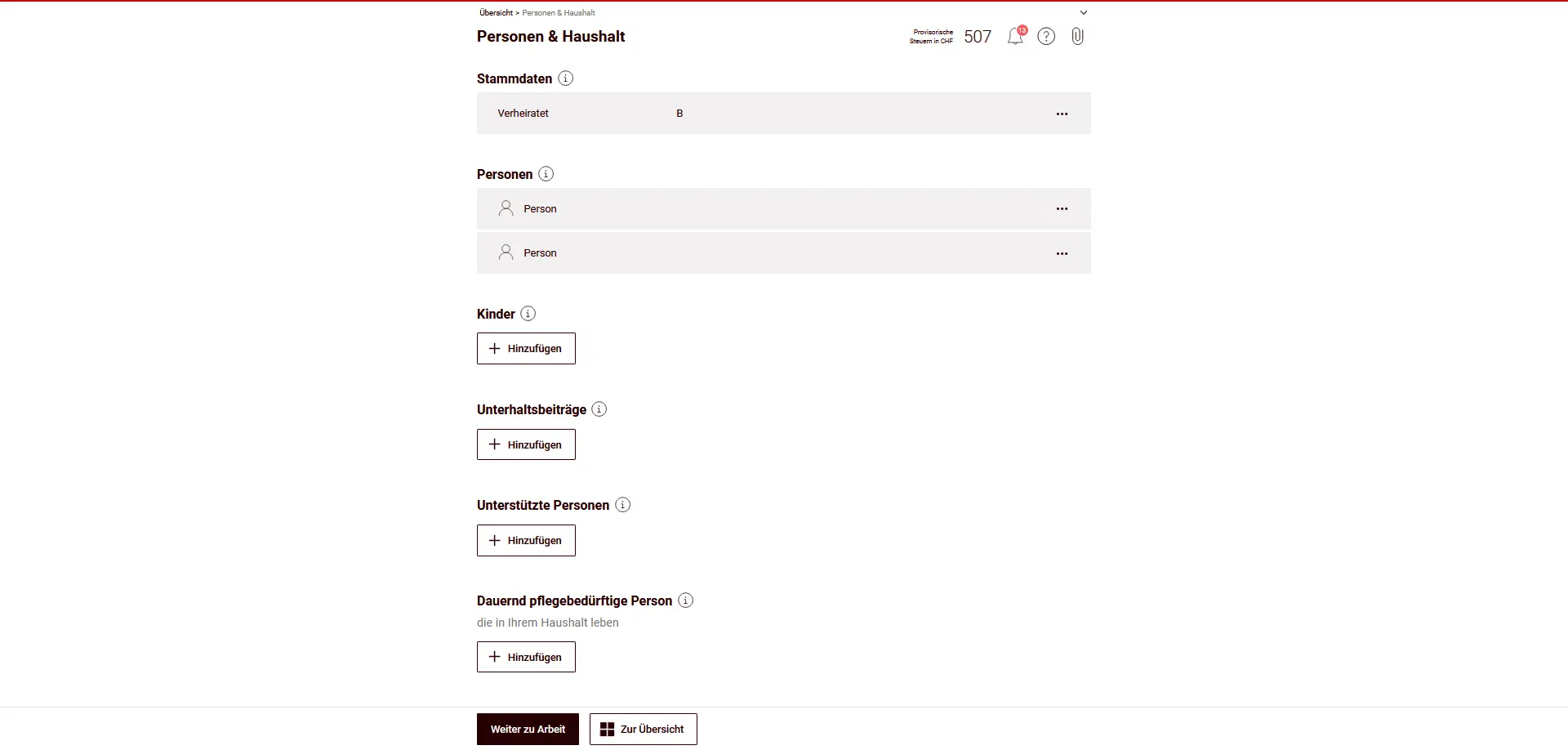
Under basic data, your marital status is recorded. In this example, the marital status is “married”. Consequently, both spouses are taxed together.
In the “Persons” section, the two taxable persons are listed. Personal information such as name, date of birth or address is usually pre-filled and must be carefully checked.
Enter children
If you have children for whom you are responsible, enter them in the “Children” section. To do so, click on “Add”.
Only your own children are entered here. Complete or correct the data if it has changed since the previous year.
Other household information
Depending on your situation, you can also enter the following information:
- Maintenance contributions
- Persons supported
- Persons requiring permanent care who live in your household
This information has an impact on deductions and tax calculations. So enter them completely and correctly.
Enter and check basic data
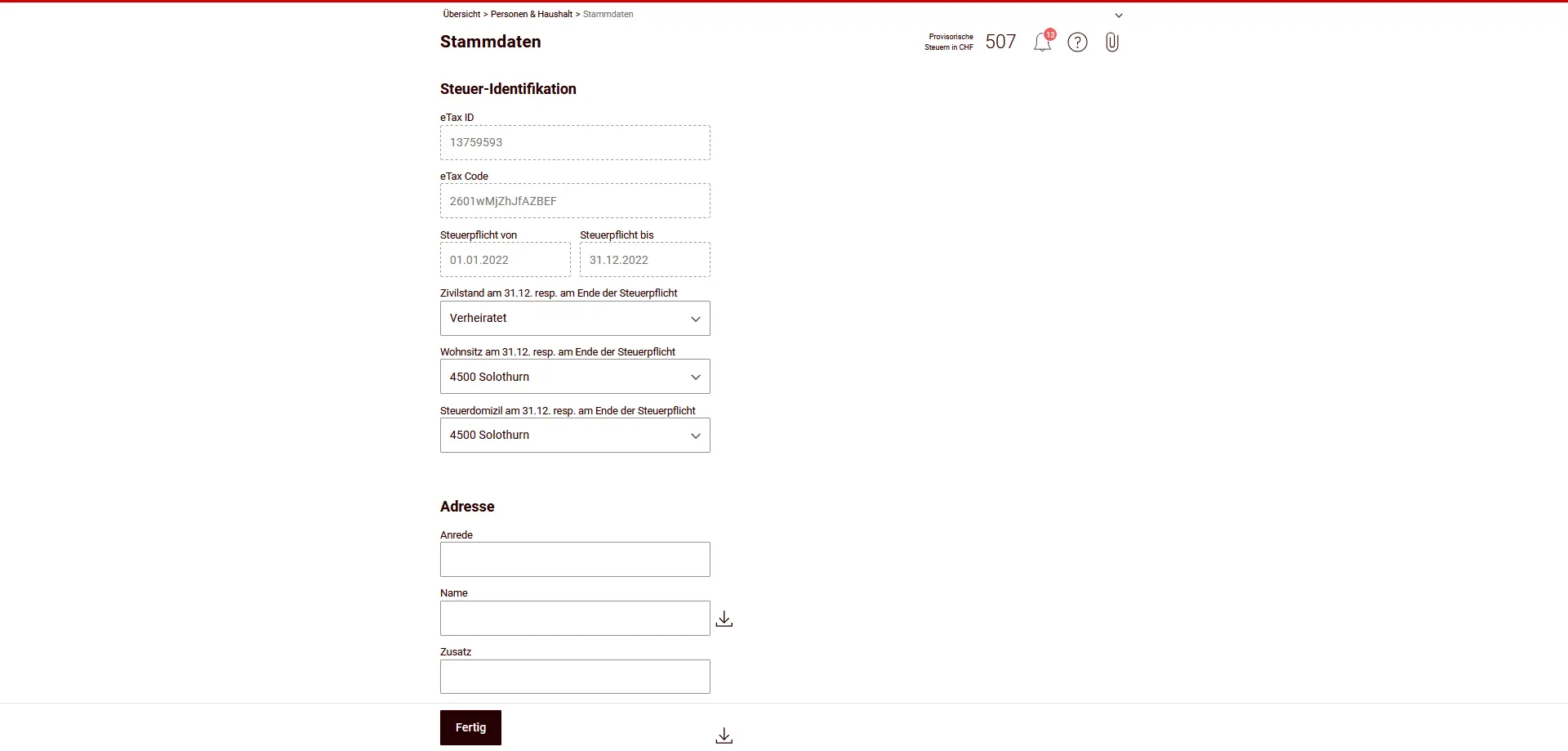
In the “People and household” section, you can access your basic data. This is where you enter basic information about your tax liability and contact details.
Tax identification
Tax identification information (eTax ID, eTax code and start and end of tax liability) is usually pre-filled. These fields are used to identify your tax return and do not normally need to be adapted.
In particular, check your marital status, domicile and tax domicile on December 31 or at the end of your tax liability. This information is decisive for correct taxation.
Address
Check your address details carefully. Complete or correct any missing information if anything has changed since the previous year.
Tax jurisdiction and special cases
In the following section, you’ll find information on tax jurisdiction and special situations.
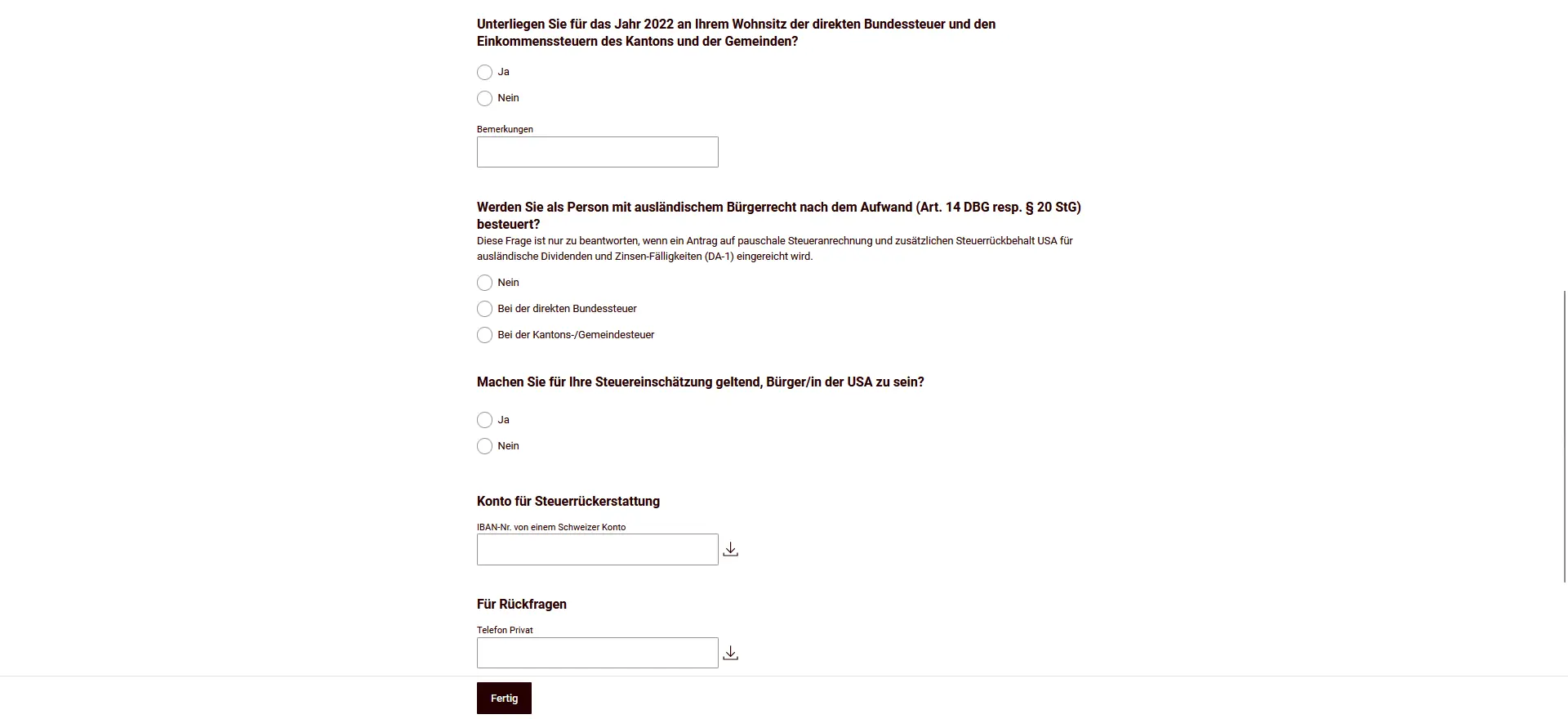
Confirm whether you are liable for direct federal tax and cantonal and communal income tax for the tax year corresponding to your place of residence.
If you are a foreign national who is taxed on the basis of expenditure, or if you are making an application in connection with foreign dividend income (e.g. DA-1), answer the relevant questions according to your personal situation. This information is only relevant if such special cases apply to you.
Refund and contact details
Finally, please indicate your contact details for refunds and queries.
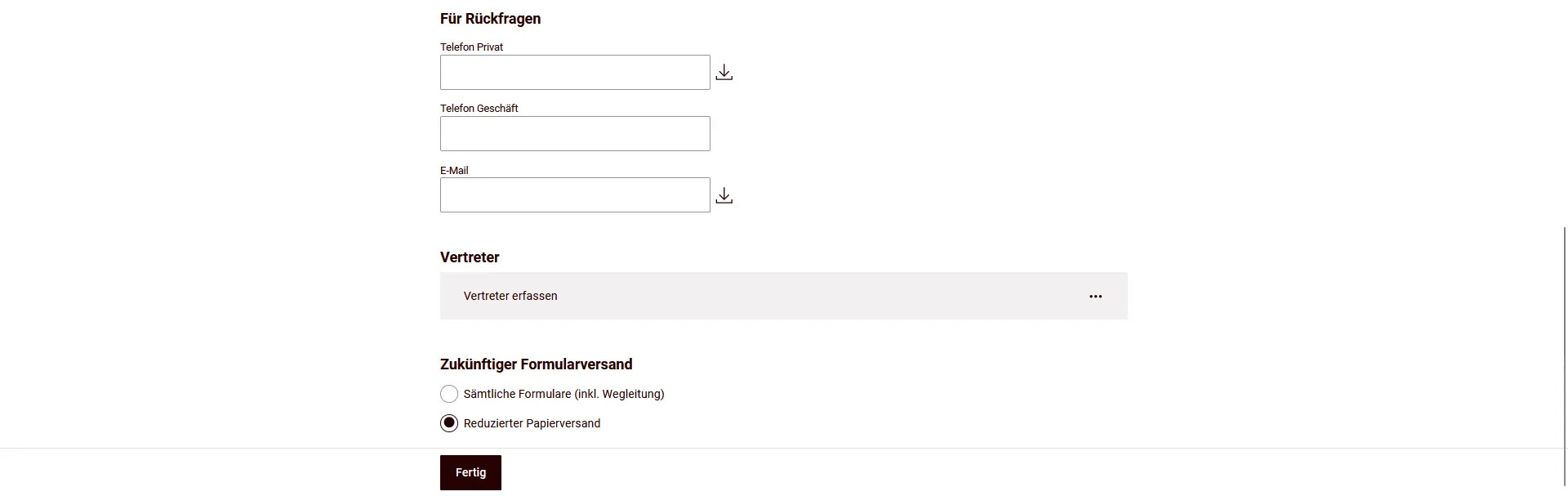
Enter the IBAN of a Swiss account to which any tax refunds are to be paid. You can also provide telephone numbers and an e-mail address so that the tax authorities can contact you if they have any questions.
Optionally, you can enter a representative, for example if your tax return is completed by a third party.
When sending the form in the future, you can choose to continue to receive all documents by post, or prefer the reduced paper version.
If all the data is correct, you complete the basic data by clicking on “Done” and return to the overview.
Personal taxpayer data
In the “Persons and household” section, you enter the personal data of the persons liable for tax.
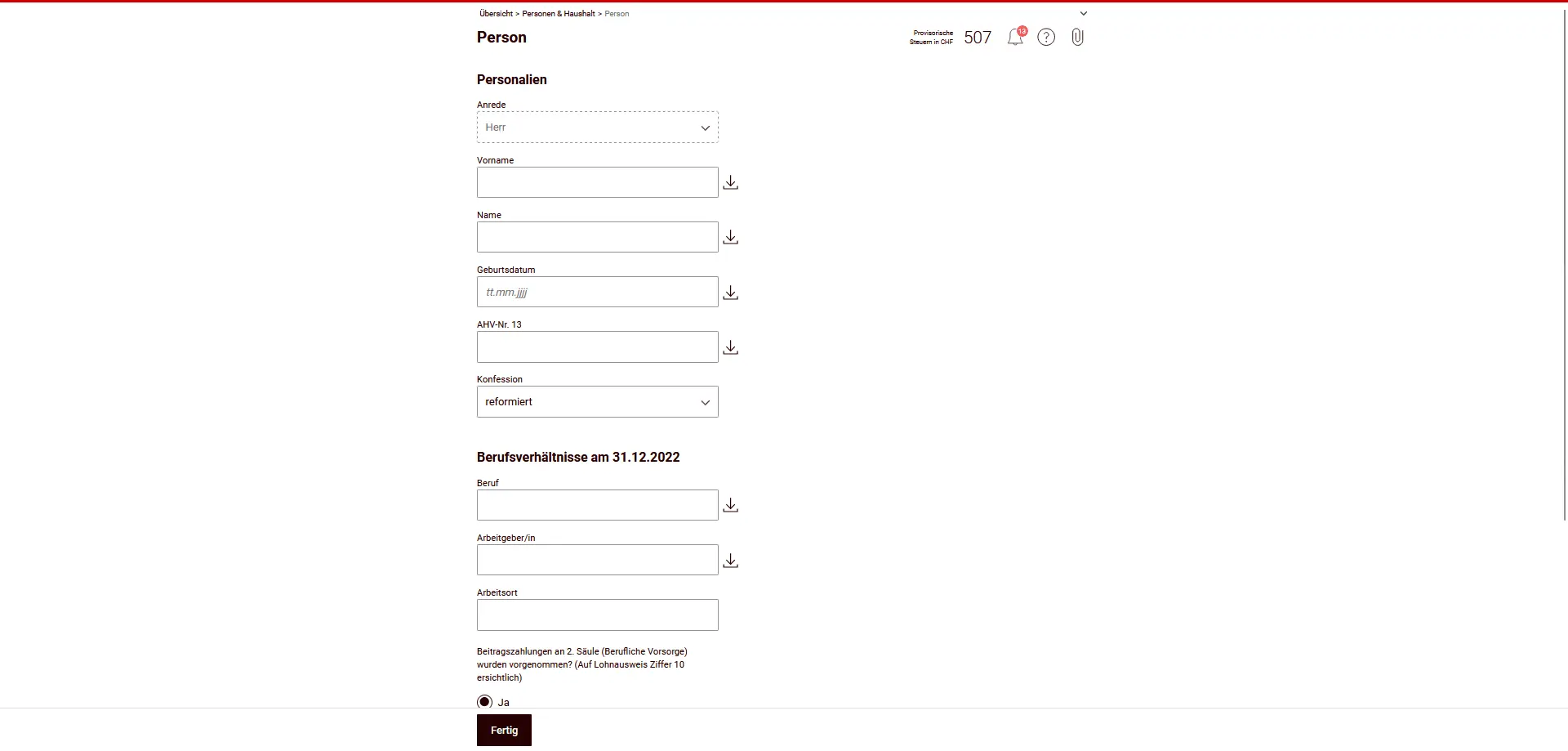
First, check personal information such as the greeting, first and last name, date of birth and AHV number. This information is relevant to the clear allocation of your tax return and must be correct and complete.
In addition, you provide information about your faith. This information is used for church tax purposes and is only relevant if you belong to a church that collects taxes.
Professional information
In the lower part of the form, you indicate your professional situation on December 31 of the tax year. This includes:
- Occupation
- Employer
- Place of work
If 2nd pillar contributions (occupational benefits) are indicated on your salary certificate, please confirm the corresponding question according to the information on your salary certificate.
If all the information is complete, complete the registration by clicking on “Done”.
Children’s information
Children are also entered in the “People and household” section. For each child, you create a separate entry.
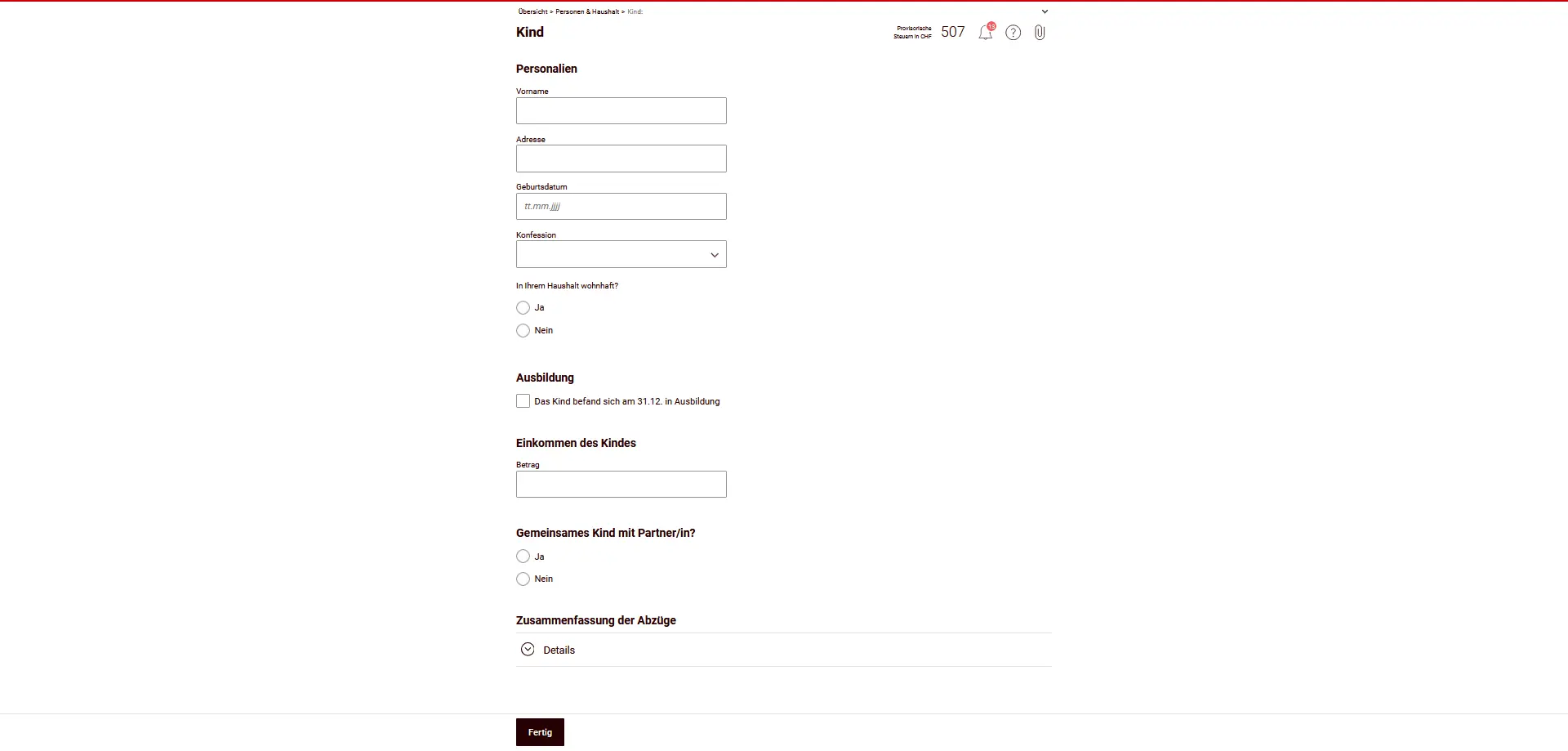
Enter the child’s personal data such as first name, address, date of birth and denomination. Also indicate whether the child lives in your household.
Education and income
If the child was in education on December 31 of the tax year, tick the appropriate option. This information is important for tax deductions.
If the child has earned personal income, enter it in the appropriate field.
Joint child
For married couples or registered partnerships, indicate whether the child is a joint child. This information influences the allocation of deductions.
At the end, you’ll see a summary of the deductions resulting from the information on the child. Check this information and complete the registration by clicking on “Done”.
Once all personal and household information has been entered, you can continue downstairs by clicking on “Continue working” or return to the general overview by clicking on “Overview”.
Step 5: Income and business expenses
In the “Work” section, you enter all income from professional activities and the corresponding business expenses. Entries are made separately for each person.
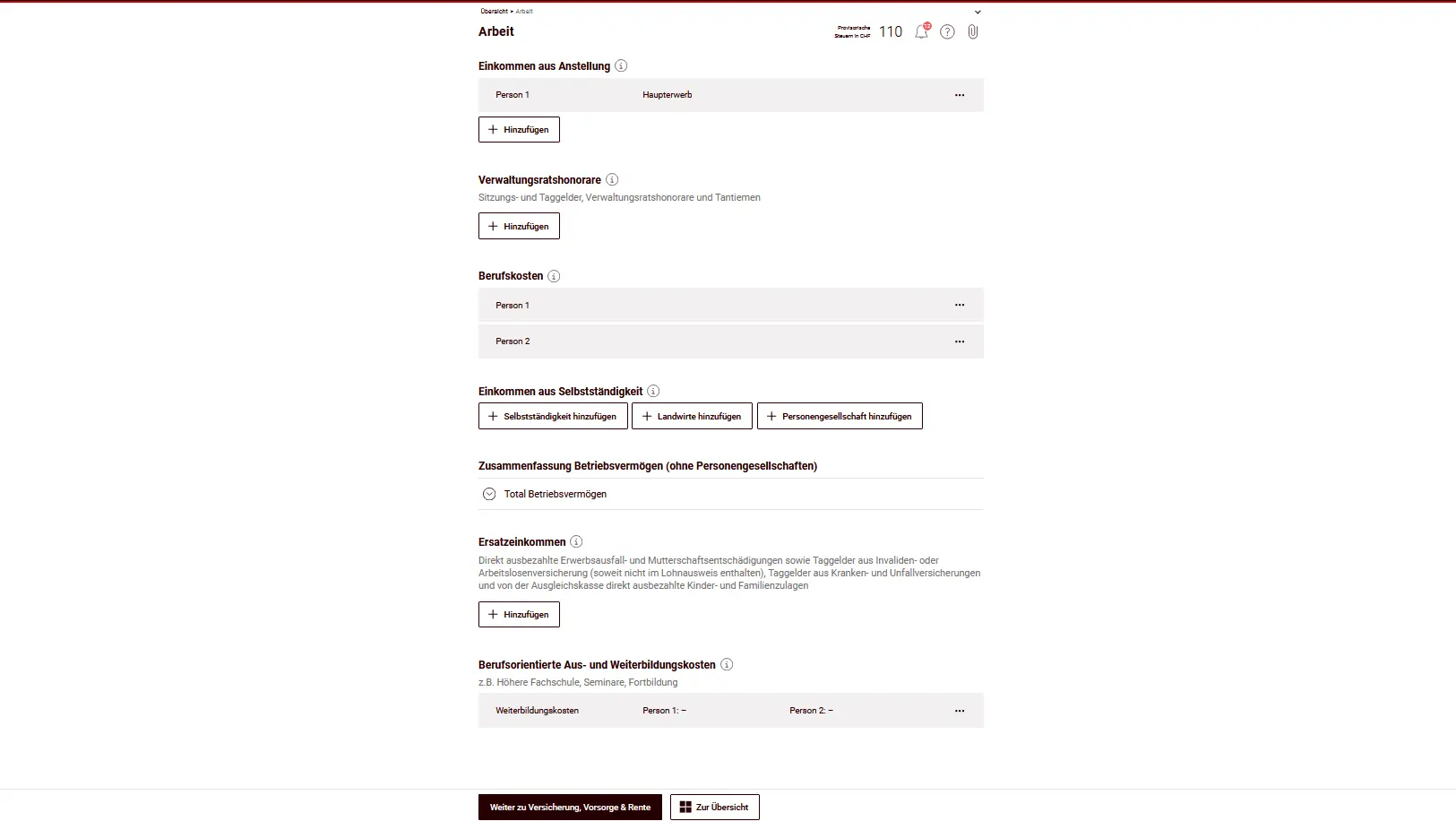
Employment income
Under “Employment income”, you enter the salary for the salaried activity according to the salary certificate.
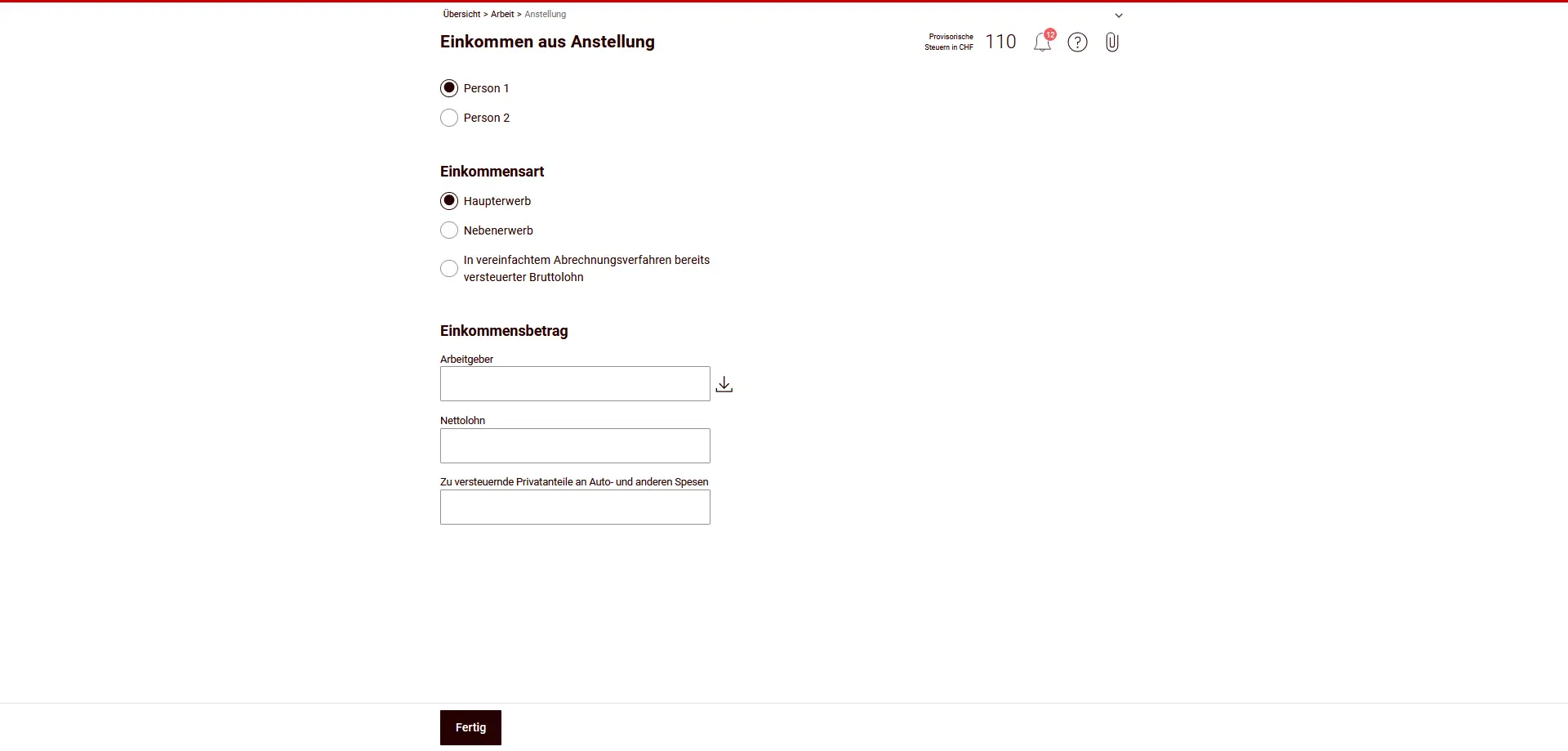
First select the person (e.g. person 1 or person 2). Then indicate the type of income:
- Main activity
- Secondary activity
- Gross salary already taxed as part of the simplified accounting procedure
Then enter your income details:
- Employer
- Net salary
- Taxable private portions of car and other expenses (if available)
Amounts must correspond to those on the salary certificate. If you have more than one employer, please make a separate entry for each job.
Complete the registration by clicking on “Done”.
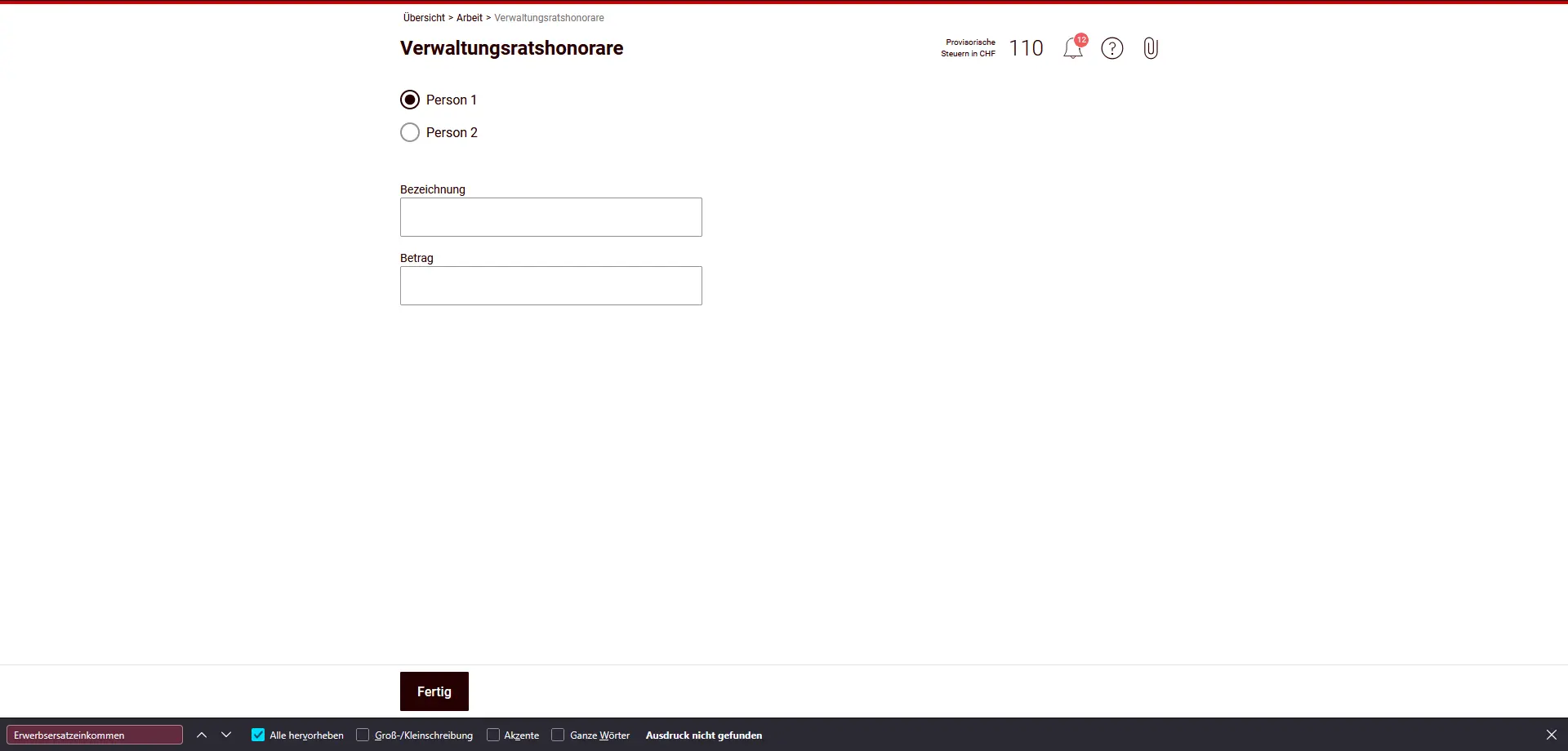
Administrative fees
Meeting and per diem allowances, board fees and directors’ fees must be entered here separately.
Professional expenses
Each employment income has a corresponding business expense. You enter them separately for each person.
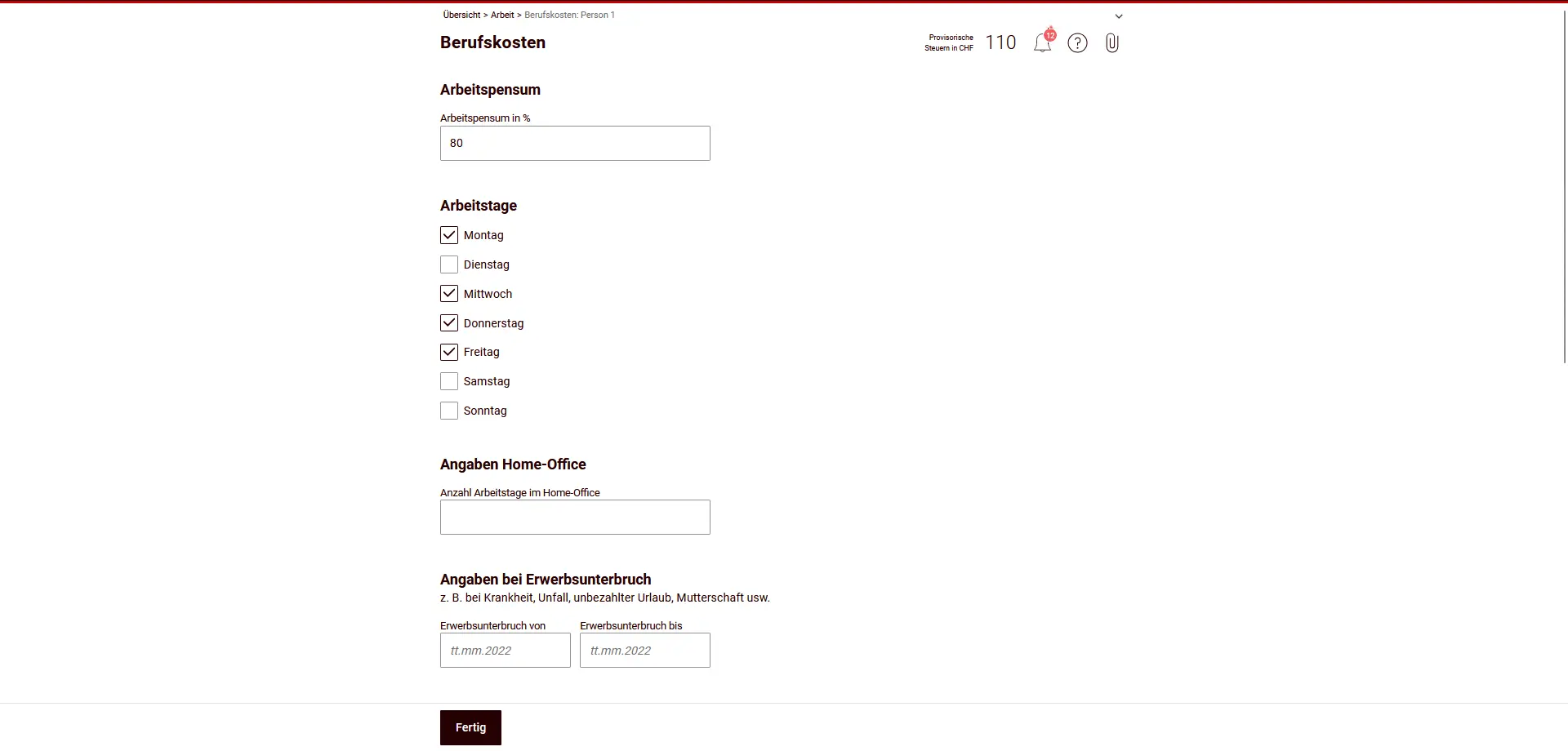
Opens the “Professional expenses” section for the person concerned.
Workload
Indicates the average working time during the fiscal year as a percentage.
In the following example, the occupation rate is 80% (part-time).
Working days
Selects the actual working days per week. This data is relevant for calculating travel expenses, as well as additional expenses for meals taken outside the company.
Home office
If you worked in the home office during the fiscal year, please indicate the number of days you worked in the home office. This will influence the calculation of business expenses.
Interruption of professional activity
If there was an interruption of professional activity during the fiscal year (e.g. illness, accident, unpaid leave or maternity leave), enter the period here. The interruption is taken into account in the calculation.
Additional information and calculation of business expenses
Enter additional business expenses here.
Enter additional business expenses and see the automatic calculation of total business expenses.
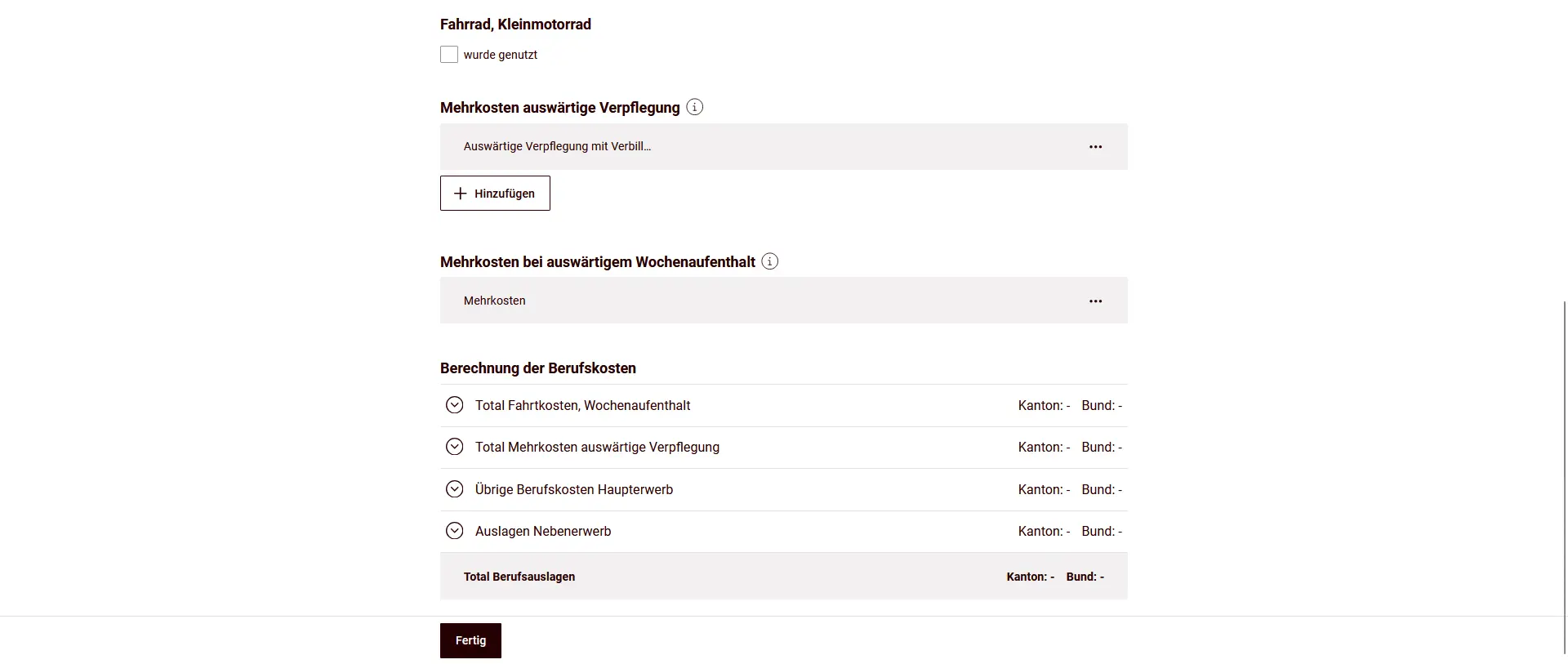
Bicycle / small motorbike
If you used a bicycle or motorcycle to get to work, activate the corresponding option.
Additional costs for meals eaten away from home
Here you enter the additional costs for meals eaten away from home, if it was not possible or reasonable for you to return home at midday. The system automatically takes into account the authorized flat rates.
Additional costs for a weekly stay away
If you had to spend the night away from home during the week for professional reasons, you can enter the corresponding additional costs here.
Calculation of professional expenses
At the end of the form, you’ll see the summary:
- Total travel expenses / weekly stay
- Total additional expenses for meals eaten away from home
- Other professional expenses for the Main activity
- Disbursements Secondary activity
- Total business expenses
Amounts are shown separately for cantonal/municipal and direct federal taxes.
Check the data carefully and complete the section by clicking on “Done”.
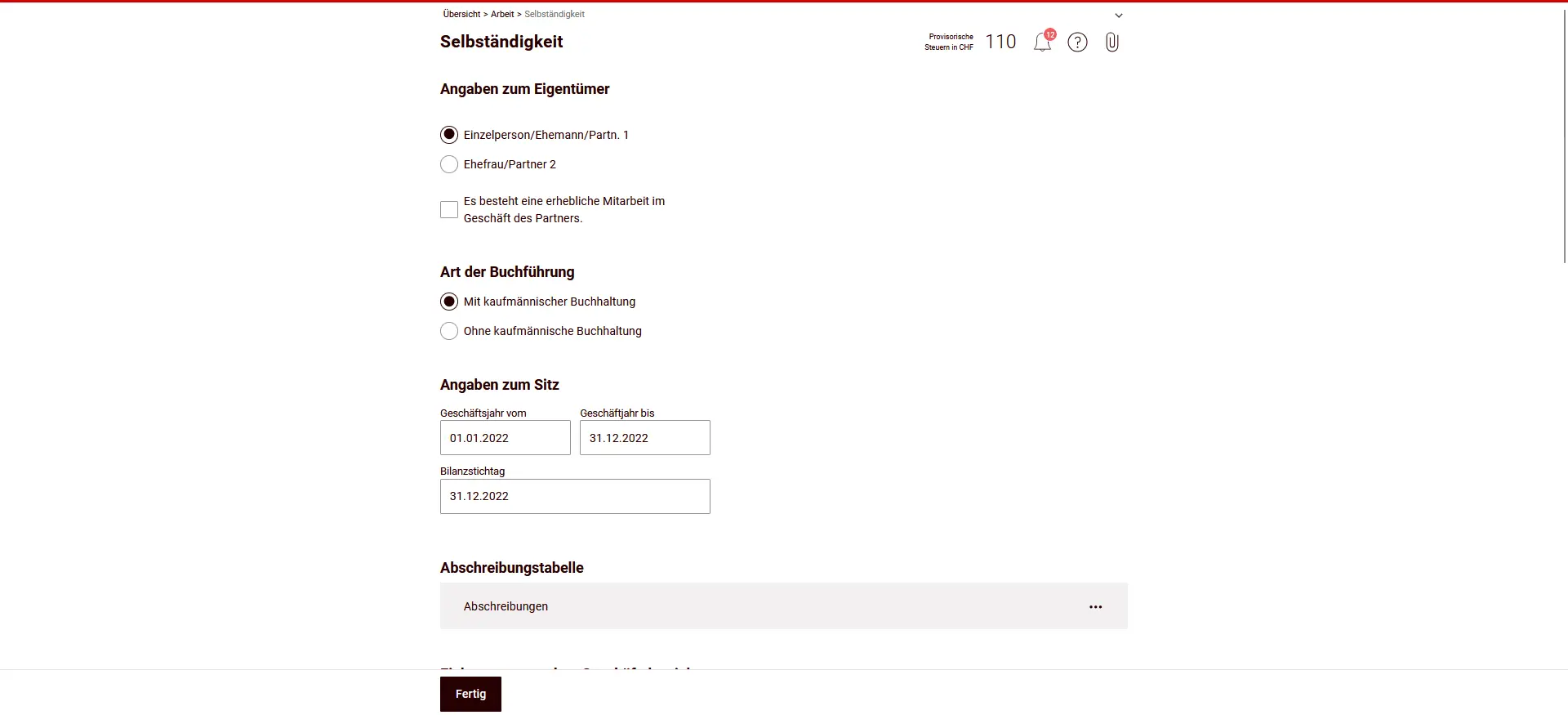
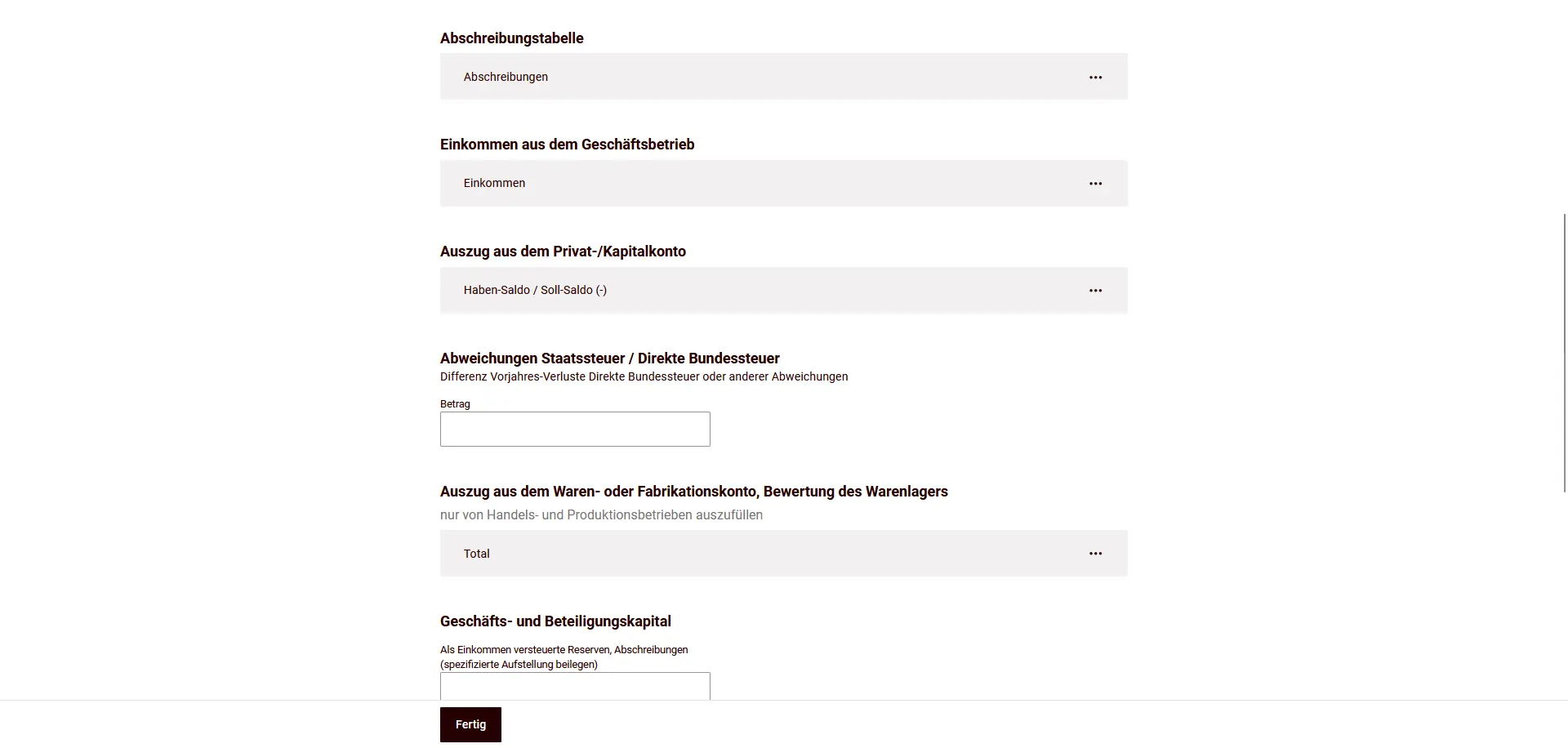
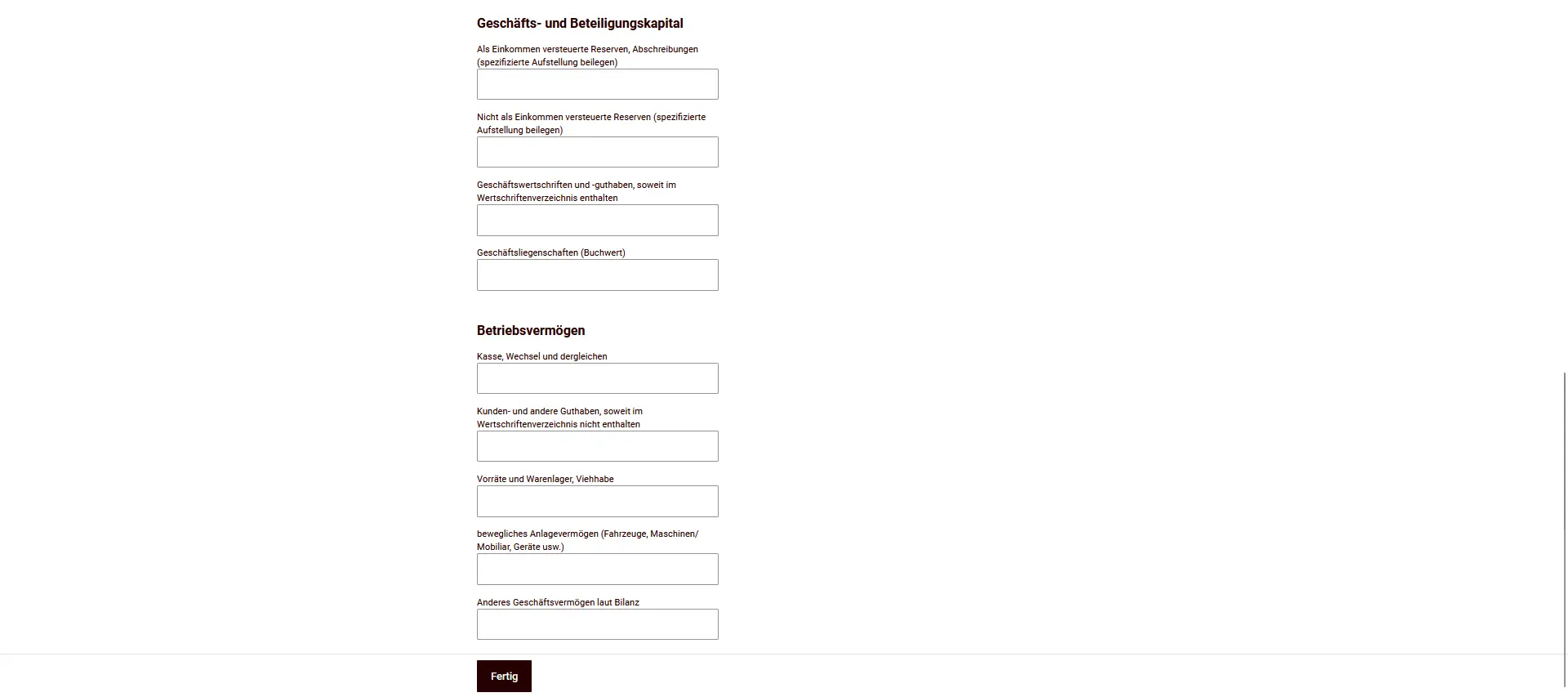
Income from self-employment
If you are self-employed, you can add income from self-employment, farming or partnerships. Separate forms are available for this purpose.
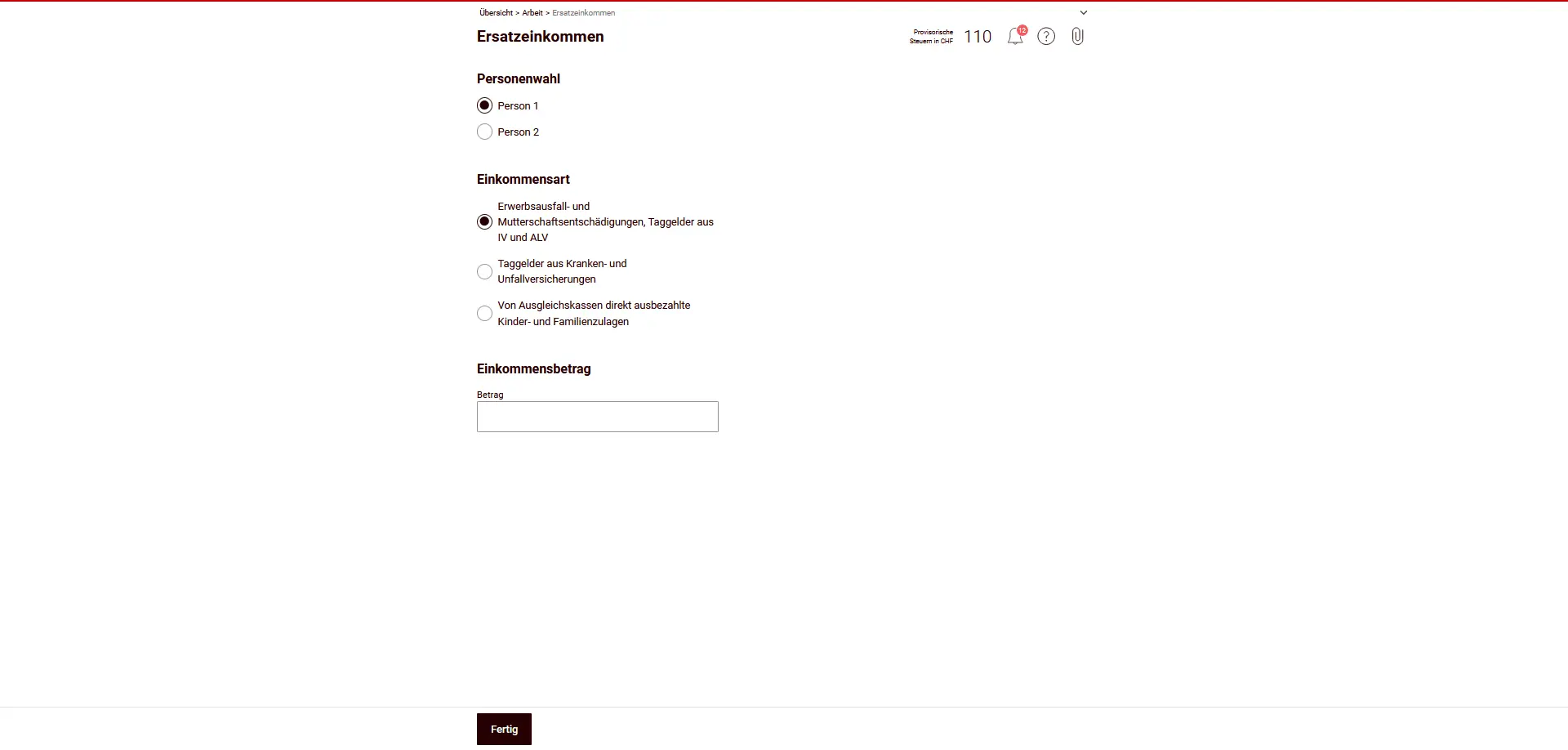
Replacement income
Directly paid loss-of-earnings or maternity benefits, as well as daily allowances from disability, unemployment, sickness or accident insurance must be declared here, if not already included in the salary certificate.
Training and further training costs
Costs of continuing professional training (e.g. courses, seminars or colleges) can be entered here if they meet the legal requirements.

At the bottom, you can either return to the overview or go directly to the next chapter.
Next step
And there you have it, we’ve already done most of the work.
In the second part of my eTax-Solothurn guide, it’s all about insurance, pensions and your finances.