In the last article, we covered the second part of our Swiss tax return with eTAX Aargau, namely income, related deductions, pillar 3a contributions, and pensions and other income.
We now move on to the “Vermögen” (assets), “Weitere Abzüge” (additional deductions), and “Abschluss” (finalization) sections. We won’t explain every single item here, since they’re either self-explanatory or very specific. If you think something is missing, please reach out.
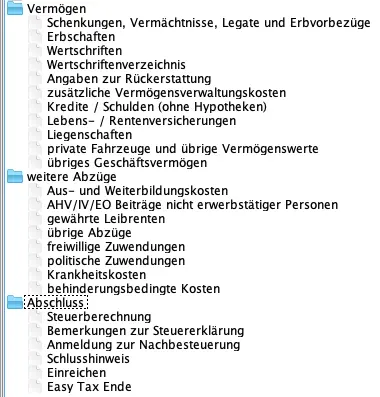
Overview of asset and deduction sections in eTAX Aargau (assets, additional deductions, finalization)
Step 1: Gifts, bequests, legacies, advance inheritances & inheritances
If you received gifts, bequests, legacies, advance inheritances, or inheritances, you’ll find the forms to fill out in the first two entries.
Step 2: Securities and assets register
In the “Wertschriften- und Guthabenverzeichnis” (securities and assets register) section, we enter our securities and assets (this includes all bank/postal accounts). You can upload all the relevant receipts right here and/or use SNAP.SHARE.
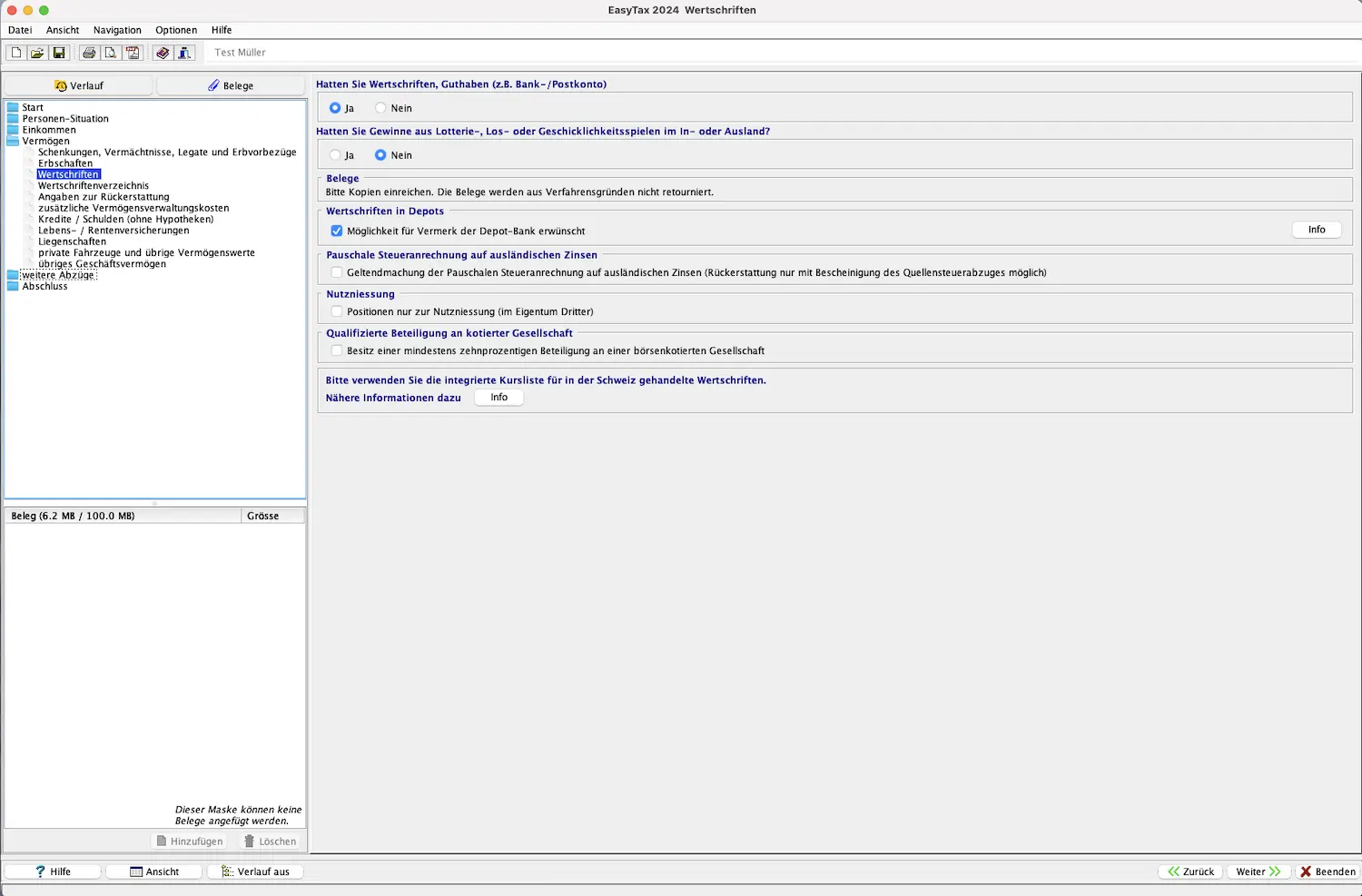
Check with your bank or online broker whether an “eSteuerauszug” (electronic tax statement) is available. You can recognize it by the barcode. Upload the document and the entries are automatically imported into the register!
In principle, you only declare your share (often 50%). Details are explained in the general FAQ here: FAQ Swiss tax return (2026).
Here are the options you can enter:
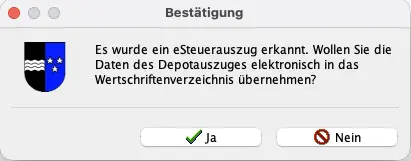
Now let’s get into the details. We’ll enter a bank account and securities together as an example.
Bank/postal account
Fill in all the required fields:
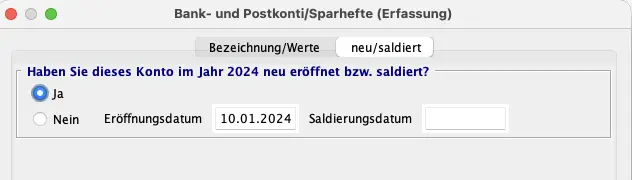
The account now appears in the overview.
Entering securities
Entering securities can be a bit tricky, so let’s do it together. In the top right, click the “Hinzufügen” (add) button to choose what you want to add to the securities register. Then select “Wertpapier (an der Börse gehandelt)” (exchange-traded security).
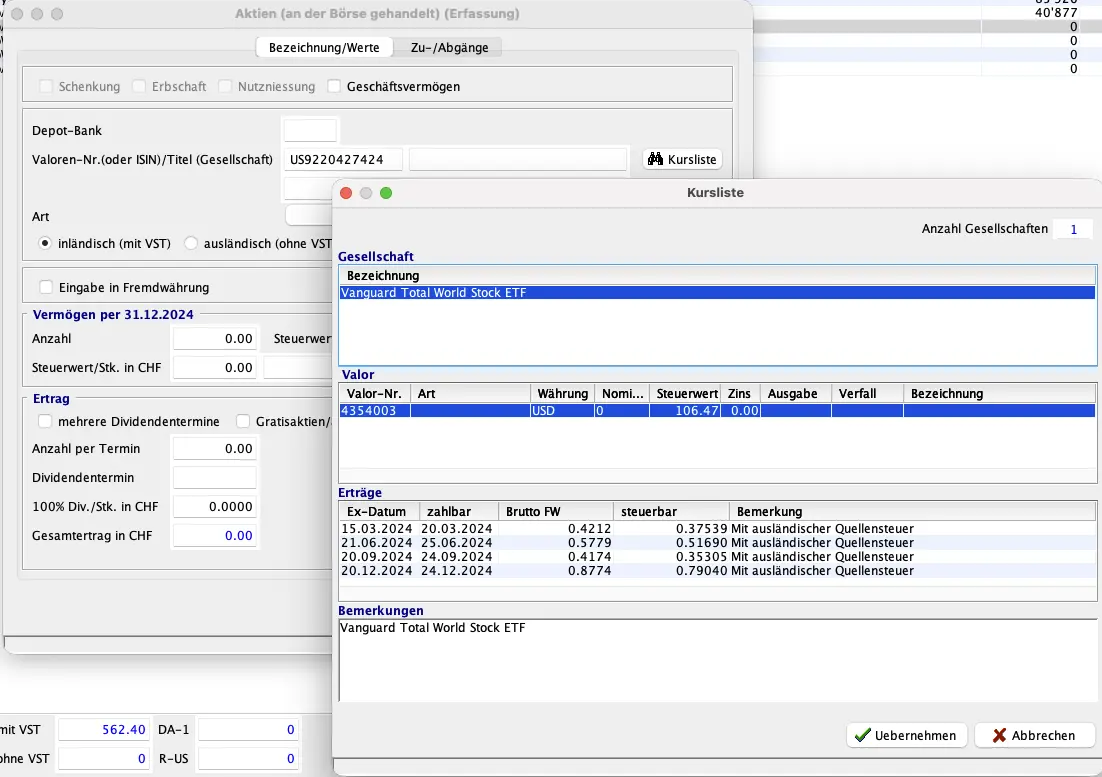
As an example, we’ll use the VT ETF (“Vanguard Total World Stock ETF”) with ISIN US9220427424.
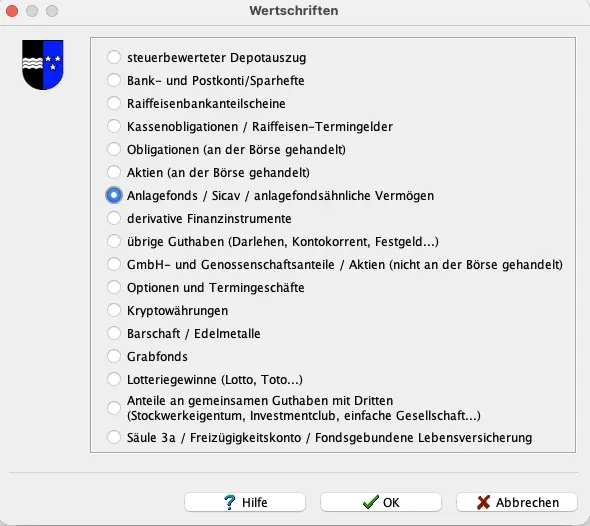
Next, search by ISIN, click “Suchen” (search), and it appears in the list. Select “Bestätigen” (confirm):
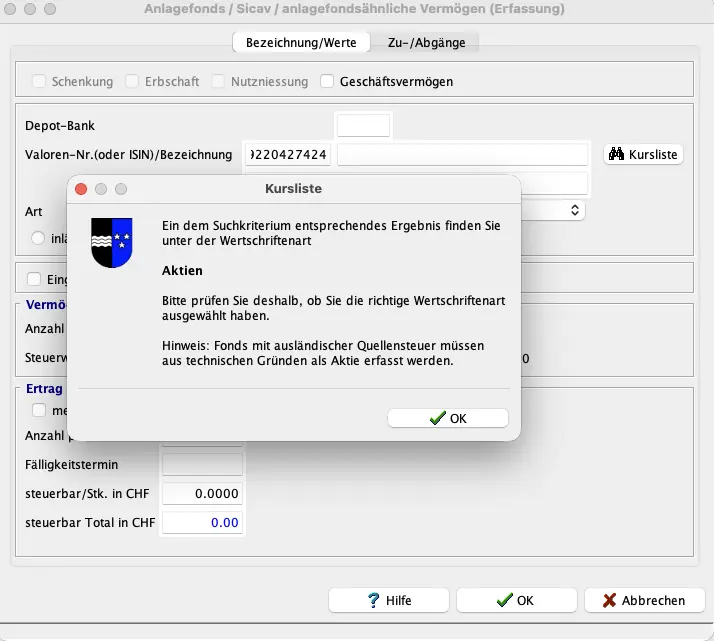
All the key information has already been filled in under “Angaben zum Titel” (security details). Your job now is to enter your purchases and sales under “Anzahl und Transaktionen” (quantity and transactions). In my example, I had 50 shares at the beginning of 2025 and bought 3 more times.
Cryptocurrencies
Cryptocurrencies like Bitcoin also need to be entered here. Select “Kryptowährung” (cryptocurrency) from the list. In our example, we’ll enter Bitcoin (BTC). On the first page, specify which cryptocurrency you want to declare.
Then enter the opening balance from the start of the year and enter each transaction. In my example, we start the new year with 1 Bitcoin and buy 2 more times:
After that, our securities and assets register looks like this:
Step 3: Real estate (and land)
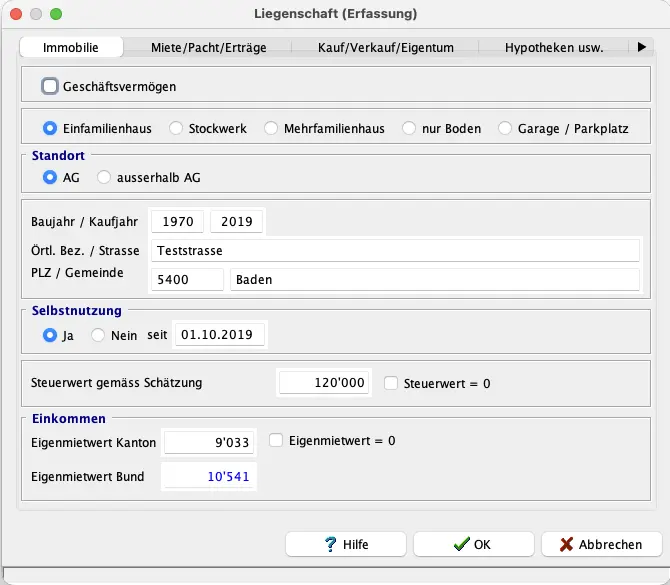
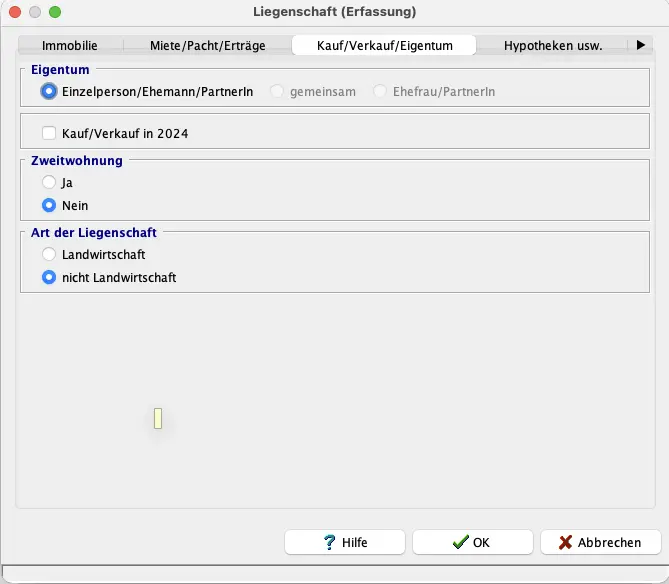
In this step, enter your real estate in Switzerland and abroad. You’ll need the official tax value (provided by AGV) and the imputed rental value details (from the municipality).
As an example, we’ve entered a single-family house in Aarau here.
On the “Steuerwert und Einkünfte” (tax value and income) page, enter the tax value and the imputed rental value.
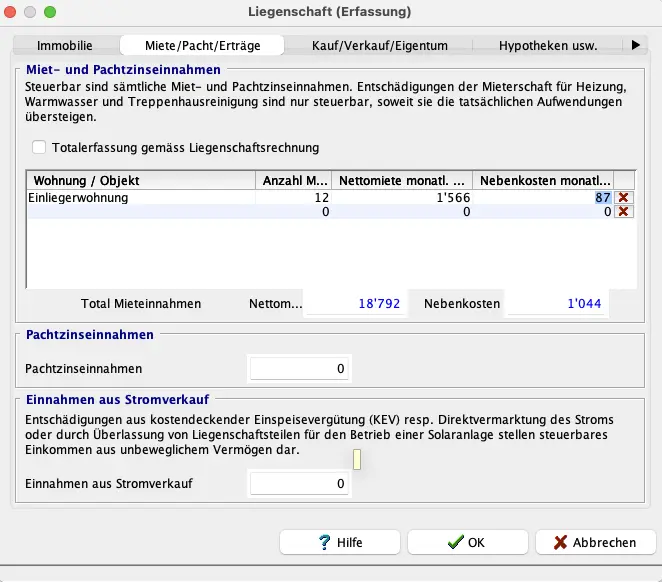
If you rent out this property, the “Einträge aus Vermietung” (rental income) section is important:
Enter each apartment and fill in the corresponding details. Everything is then displayed clearly (visible in the background of the screenshot).
The flat-rate property maintenance deduction is calculated under “Liegenschaftsunterhalt” (property maintenance). If you want to claim actual maintenance costs instead, you can enter everything here.
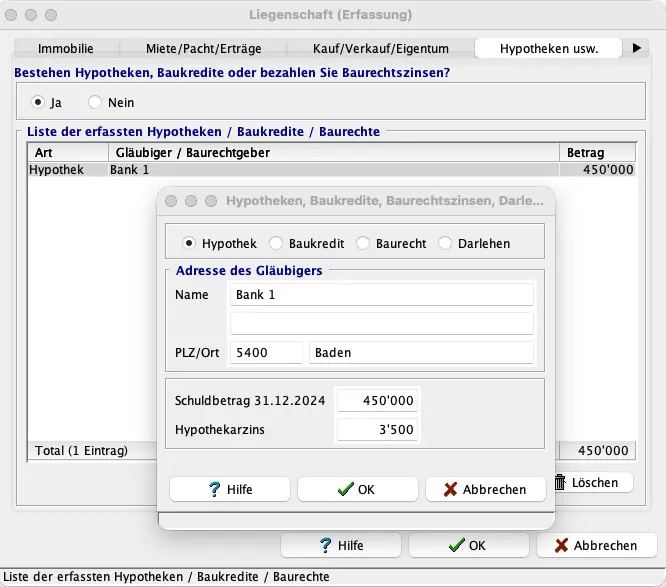
Step 4: Loans / debts / mortgages
If you have loans, debts, or mortgage(s), enter them here:
Step 5: Private vehicles + other assets
Anything you haven’t declared elsewhere can be entered here. This is also where you declare your car(s), motorcycle, etc. The vehicle’s value is calculated automatically. For the first entry, you’ll need the list price (new price).
Step 6: Additional deductions
Before I submit my tax return, I always go through the same checklist to avoid costly oversights. Here I show all tax deductions in Switzerland, with concrete examples from my own tax return:
My Swiss tax deductions: real-life example and checklist (2026)
You’ll find all other deductions here. They’re well described in each entry.
Education and training costs
Under “Aus- und Weiterbildungskosten” (education and training costs), you can enter all your expenses for education and professional development. What can be declared here is detailed in the linked information sheet. The comprehensive PDF describes exactly what can and cannot be claimed. If in doubt, contact your tax office.
Charitable donations
Did you do something good and receive a donation receipt? You can enter it under “freiwillige Zuwendungen” (charitable donations). The same applies to political donations in the corresponding entry.
Medical expenses
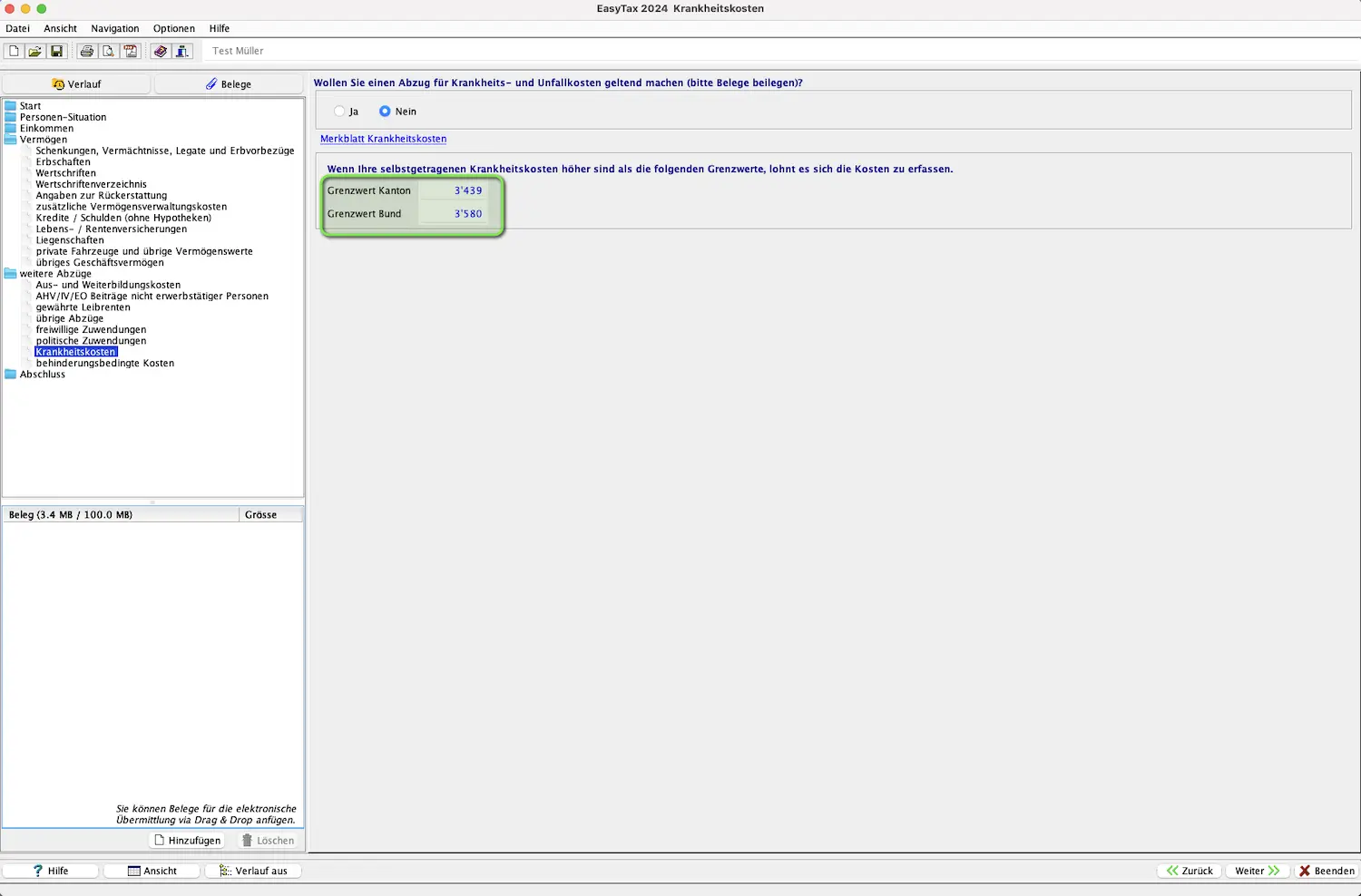
At the start of the new year, your health insurance provider gives you a summary of your medical expenses. If this amount exceeds the applicable threshold (flat-rate deductions), it’s worth entering the costs. Here too, a detailed information sheet is available via the link provided.
Step 7: Finalization
Filing your tax return wasn’t that hard, was it? We’re almost done!
In the “Abschluss” (finalization) folder, under “Steuerberechnung” (tax calculation), you’ll see a summary and the estimated tax liability. You can print the sheet or save it as a PDF. Note that these numbers are not final. The tax office reviews your return and sends either corrections or the OK.
Under “Einreichen” (submit), you’ll see any remaining errors and missing mandatory receipts. If you want to submit some receipts in paper form, you can check the box.
And when you click the “Einreichen” (submit) button in the bottom right, the data is transmitted to the tax office and you’re done for this year!