

There are two things in life you can’t avoid: paying taxes and dying. In the canton of Aargau, tax returns are sent out every spring and must be submitted by March 31. If you need more time, you’ll find instructions on how to request an extension on the form. The access code printed on the form is also important: you need it both for the extension request and for submitting your tax return. Starting from the 2025 tax year, the installable software “EasyTax” has been replaced by the online solution “eTAX AARGAU”. This tutorial walks you through eTAX AARGAU step by step.
I’d recommend gathering all your receipts before you start. Non-digital receipts can be scanned with your phone and a dedicated scanner app. That way, you don’t need to submit any paper. eTAX also now lets you upload paper receipts directly via the SNAP.SHARE app.
Step 1: Accessing eTAX AARGAU
You can find access and information about eTAX AARGAU here.
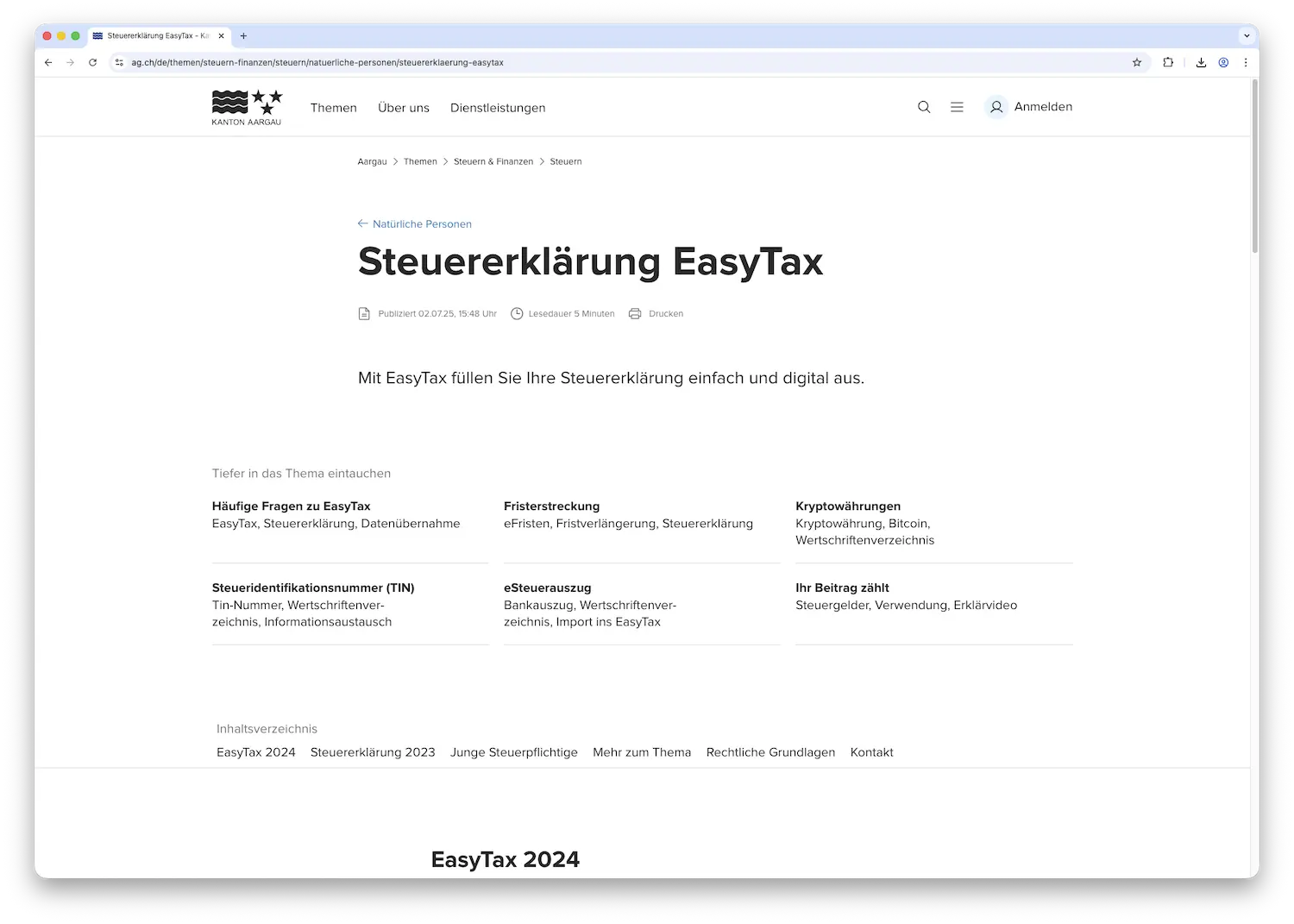
On that page, you’ll find the link to eTAX AARGAU: direct link
To file your tax return via eTAX, you’ll need:
- An iOS or Android smartphone or tablet
- A computer with internet access
- The “AGOV access” app (via Google Play Store or Apple App Store) (a physical security key can also be used as an alternative or in addition to the AGOV Access app)
- A personal email address
- Your tax return form with your access credentials (address number and access code)
If you don’t have an AGOV account yet, you’ll find a detailed step-by-step guide on the website. Further down, you’ll also find the support phone number in case you get stuck.
Ready for your first login? Cool, the home page looks like this. Scan the code with the AGOV app.
After that, you’re logged in and you should see this:
Step 2: Opening the tax return and importing last year’s data
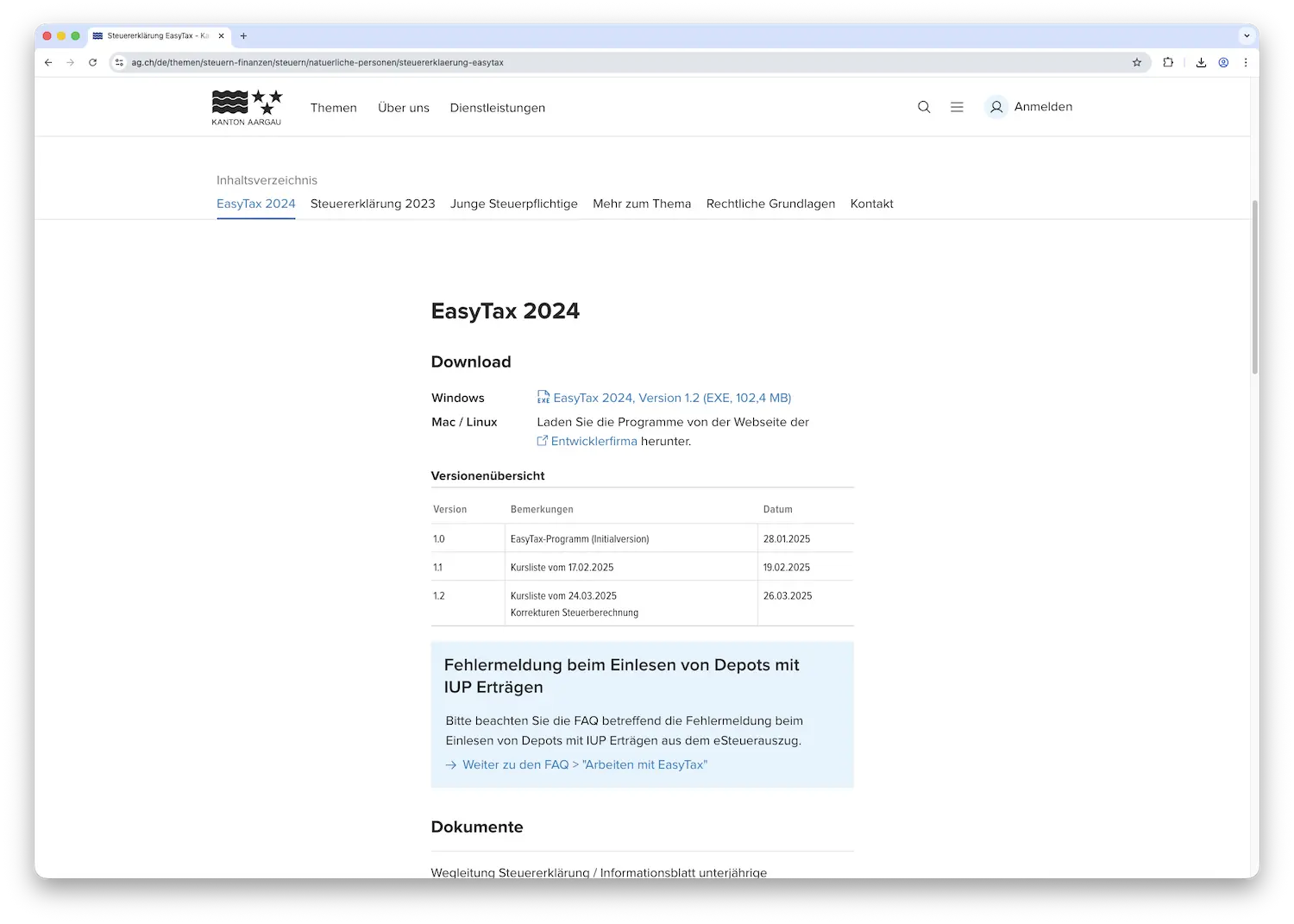
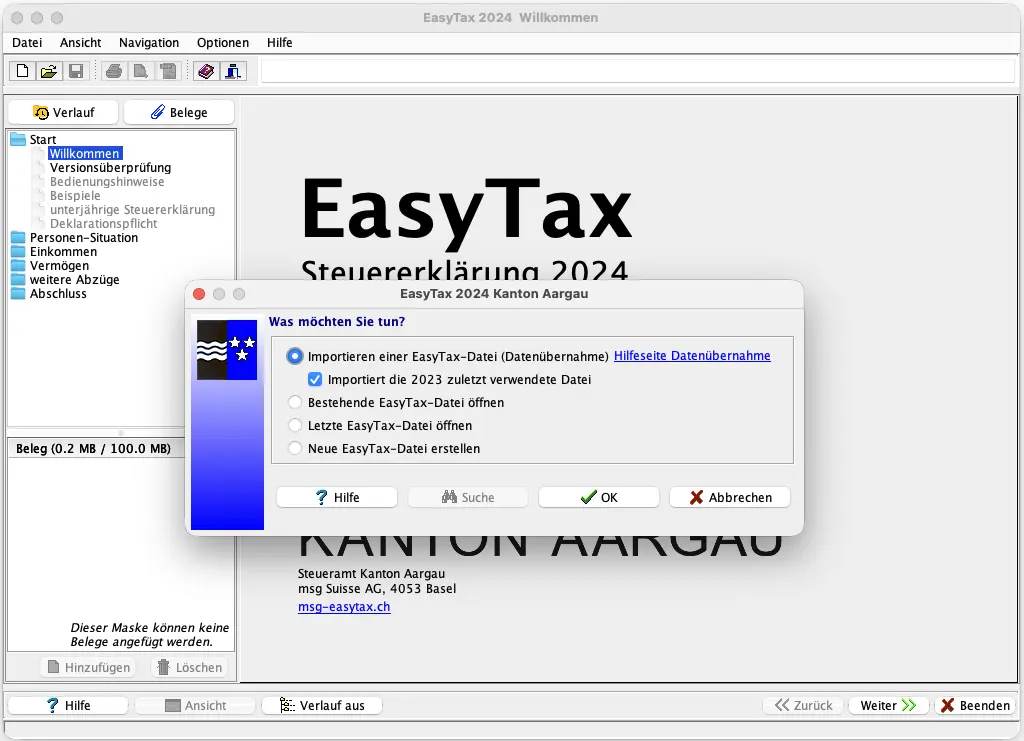
Click the button “Neue Steuererklärung eröffnen” (open a new tax return). The following window appears. Fill in the details from your tax return form here: the address number (at the top) and the access code (roughly middle-left).
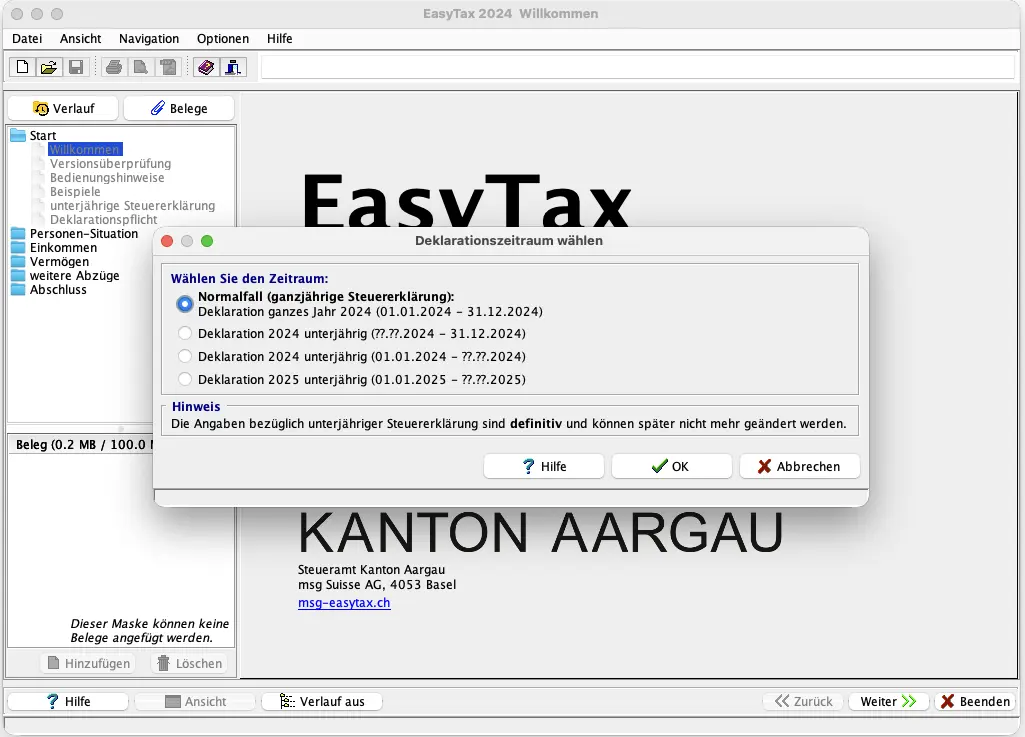
Next, you’ll be asked if you want to import last year’s data. If yes, you need to drag/upload the file with the .a24 extension into the window.
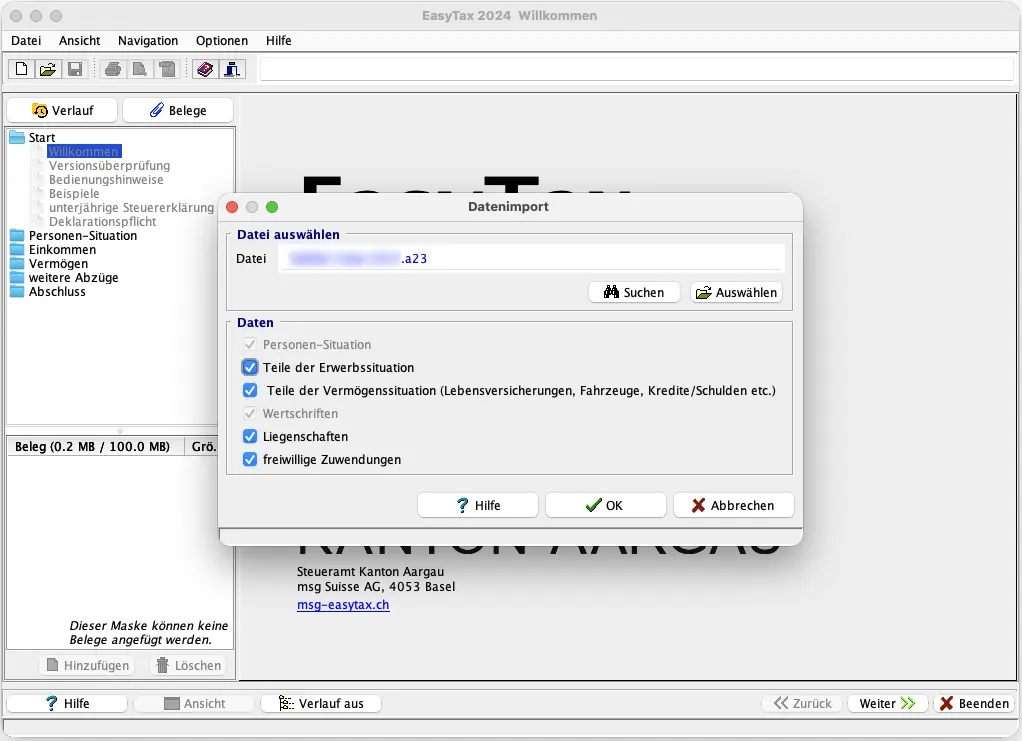
In this example, the screenshots are based on a blank tax return, so we’re going through without an import. Your screen may look slightly different.
Step 3: Starting the wizard / “Personal situation” section
You now see the overview page and we start with the wizard -> Click “Assistent starten” (start wizard) at the very bottom.
If you want to scan and upload paper receipts with the SNAP.SHARE app, download it now. You can of course still submit your receipts by mail with your tax return form to the tax office.
You can now see from the icons whether all information is complete: Green: OK, red: missing information, dashed circle: still to do.
The “Persönliche Situation” (personal situation) section should be self-explanatory and done in a few minutes.
Notes:
- “Angaben zum Steuerfall” (tax case details): Did you get married or separate this year? Make sure to update this here!
- “Angaben zur Rückerstattung” (refund details): Update this if your bank account has changed.
- “Dein Name” (your name): This is where you indicate whether you served in the fire brigade during the relevant year or are not subject to the replacement levy (-> tax savings!).
Next step
Okay, so far it’s been really easy.
In part 2 of my eTAX Aargau tutorial, we cover the following sections:
- Income
- Deductions
- Pillar 3a
- Pensions and other income
And if I missed a tax-saving opportunity in the screenshots above (or you have questions), just drop me a comment below.