
Spring is just around the corner, the birds are chirping, the days are getting longer, and a letter from the tax office lands in your mailbox: it’s the login credentials for your tax return, which is now filed online.
In the canton of Lucerne, we have the comfortable situation that the tax return only needs to be submitted by August 31, 2026. But this deadline comes around fast. Extensions can easily be requested online.
The tax return is now filed exclusively via the web-based online platform. For this, you need a smartphone, a computer and internet access.
Apart from the stiff bureaucratic language, the tax return is relatively simple to fill out. And if you have questions, the extensive help section has you covered. You can also always (and for free!) contact the tax office of your municipality, they have a counter to answer your questions and are usually very helpful. They know well: the more they help you now, the less paperwork later.
Let’s get started…
Step 1: Accessing eSteuern
You can find eSteuern for the canton of Lucerne here:
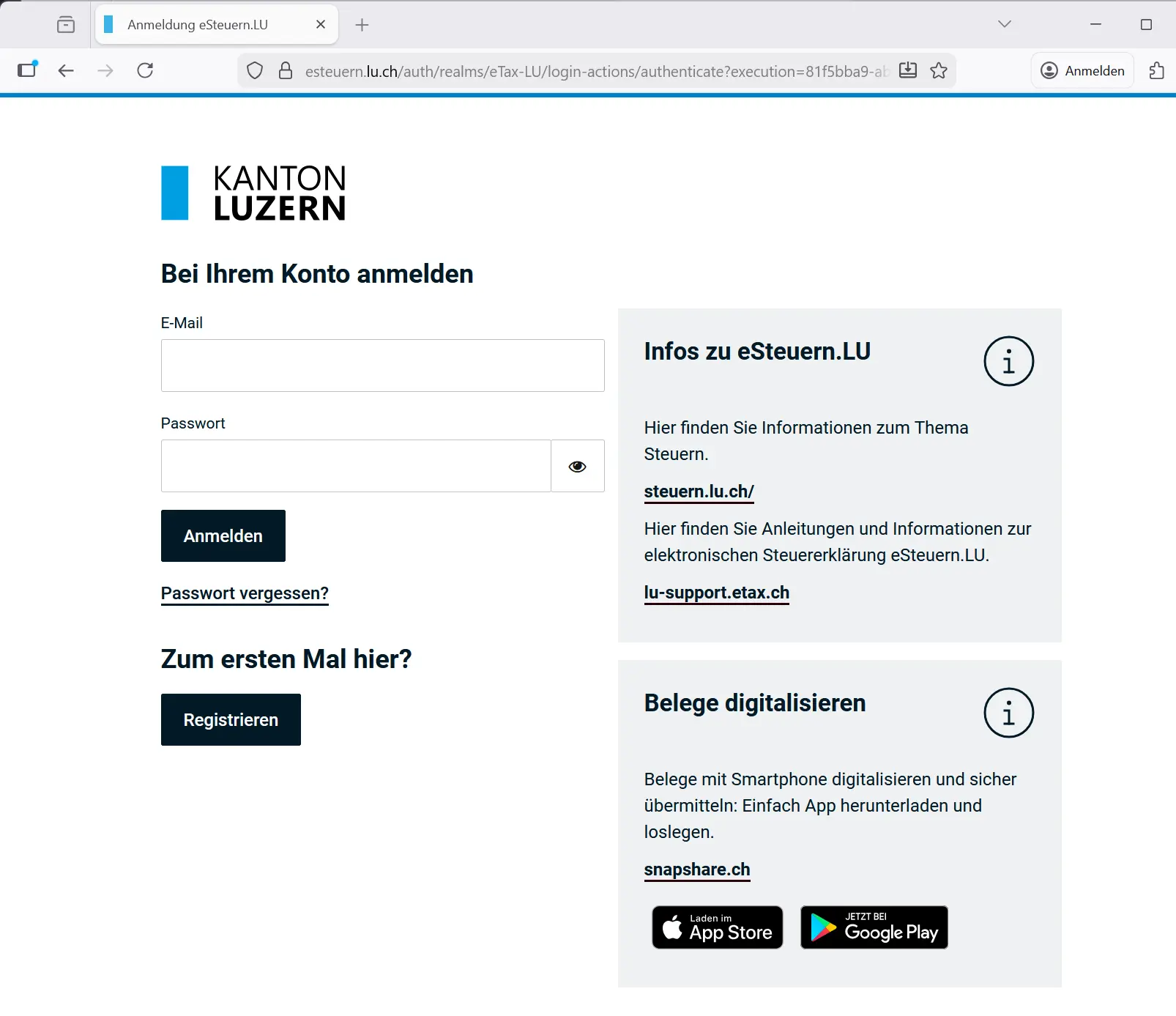
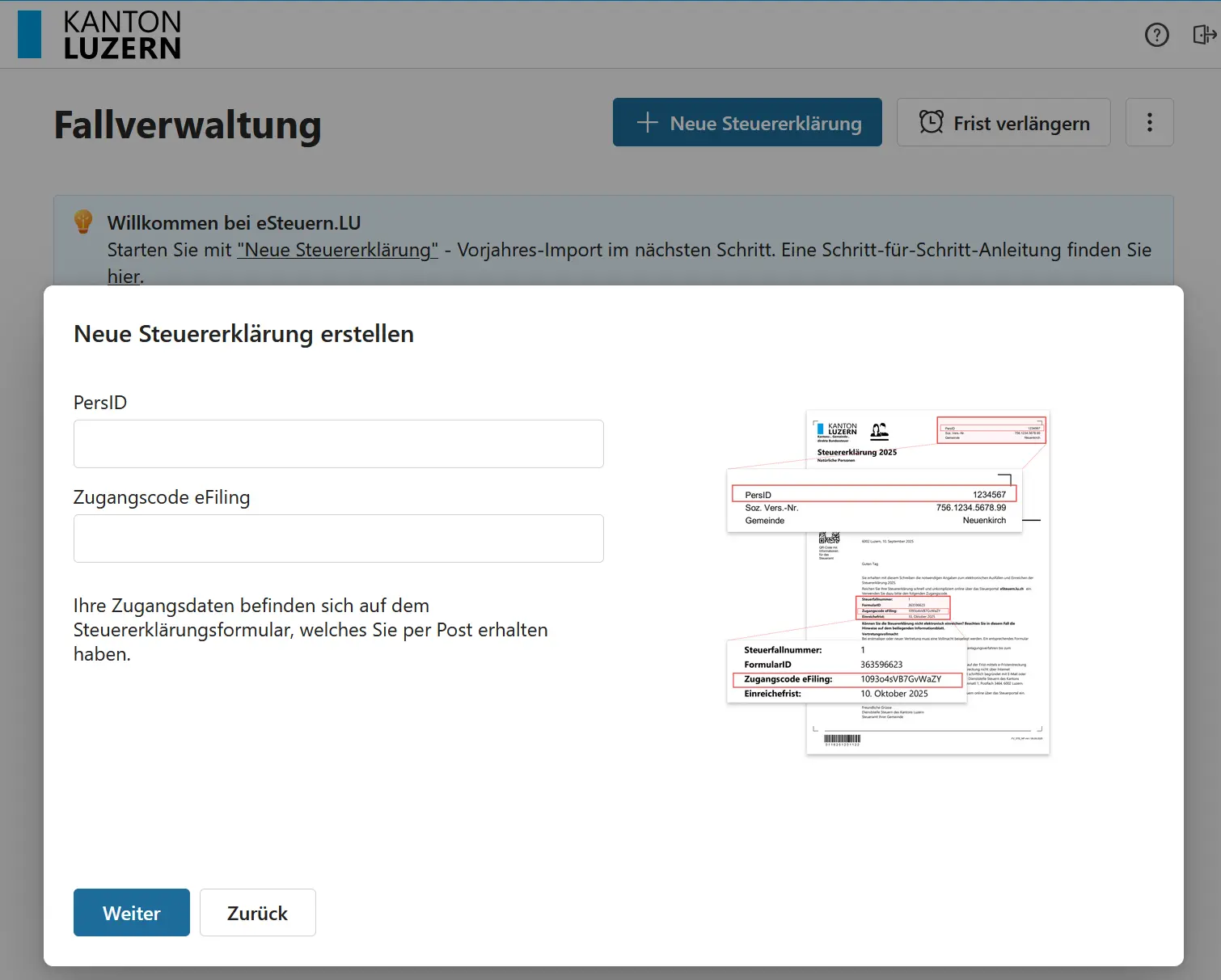
The first time, you need the login credentials from the tax office letter and your mobile phone for SMS code verification.
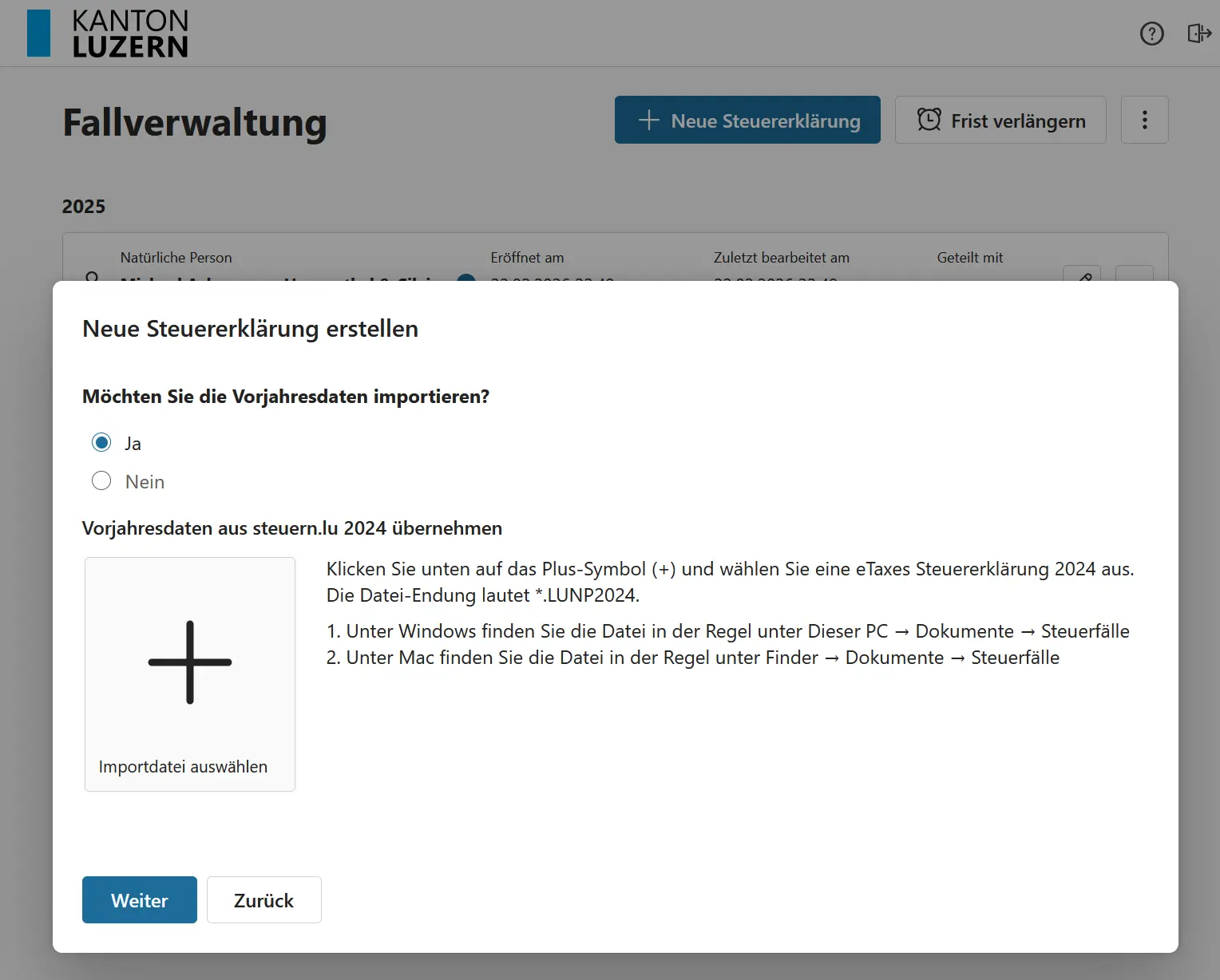
Step 2: Importing Previous Year’s Data
Previously, taxes were filed using the steuern.lu 2024 app. These values can be imported.
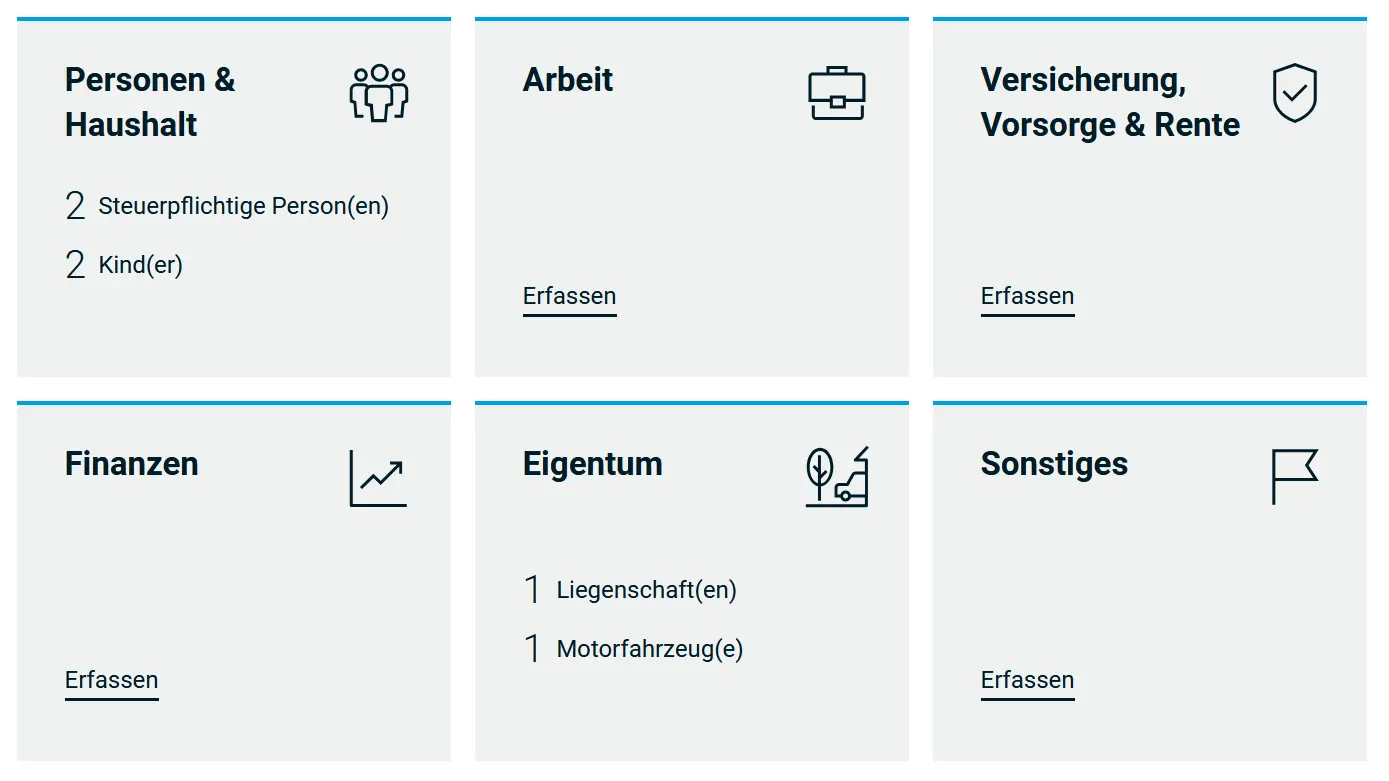
To fill out your tax return, you now go through the various tiles. And you can stop at any time and continue on another day, just log out. The next day, you log back in and pick up where you left off.
In the top right corner, next to the bell icon, you can see how many tasks are still open.

Uploading Supporting Documents
In many sections, you need to provide evidence for your entries (“Pics or it didn’t happen”). Uploading documents is very simple. You do this by:
- clicking on ‘Beleg hinzufügen’ (Add document), or
- adding the document with the Snap.share mobile app
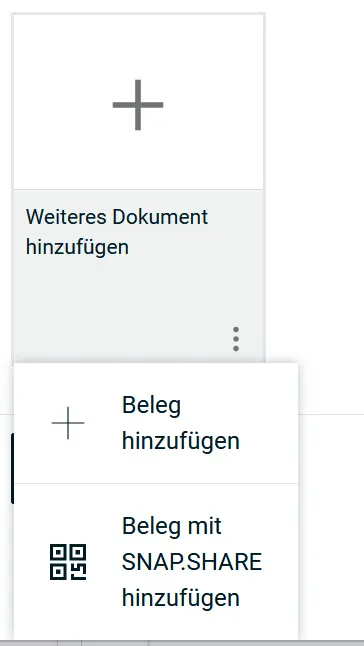
The easiest way is when you already have the documents in digital format, for example as PDF or JPG. Then you can upload the files directly from your computer.
Step 3: No Need to Save
The application automatically saves your data, you don’t need to do it manually and there’s no ‘save’ button anyway.
One exception: securities. The entries there are complex and must be saved explicitly. If you navigate away without saving, the data is gone, so watch out!
Step 4: Persons & Household
Clicking on ‘Persons & Household’ takes you to the corresponding form.
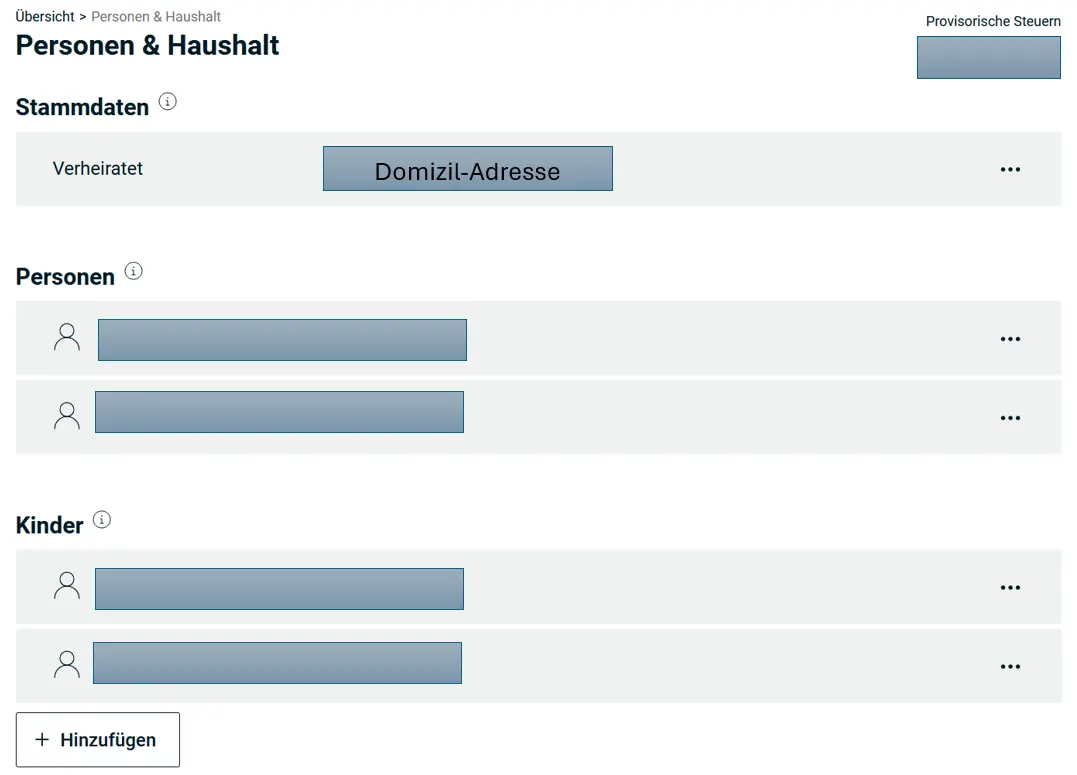
Even though many entries from the last tax return are already there, it’s recommended to verify all entries. So click on <…> for each entry.
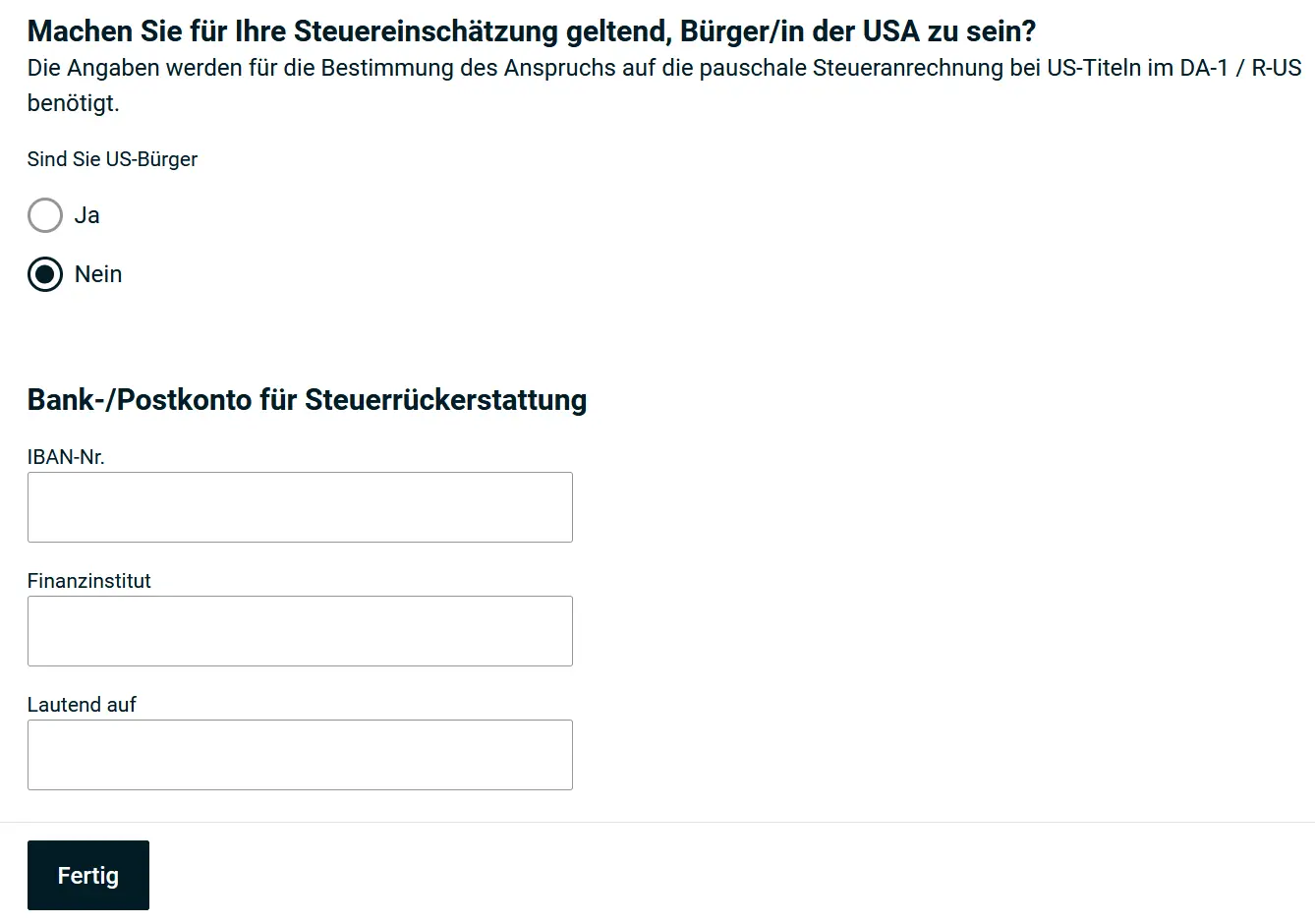
For marital status / residential address, you’re asked among other things whether you’re a US citizen. You can also provide your bank details for refunds.
Supported persons. If you financially support someone, usually parents or relatives in need.
Representative. If someone else is filing your tax return for you. But that’s obviously not the case here.
Persons
Your employment status as of December 31, 2025 is requested under persons.
Very important here: your profession and whether regular pension fund contributions were made. This is the case if your annual salary is at least CHF 22'680 (as of 2025). If in doubt, you’ll find this information on your salary certificate under item 10.1 (Regular contributions).
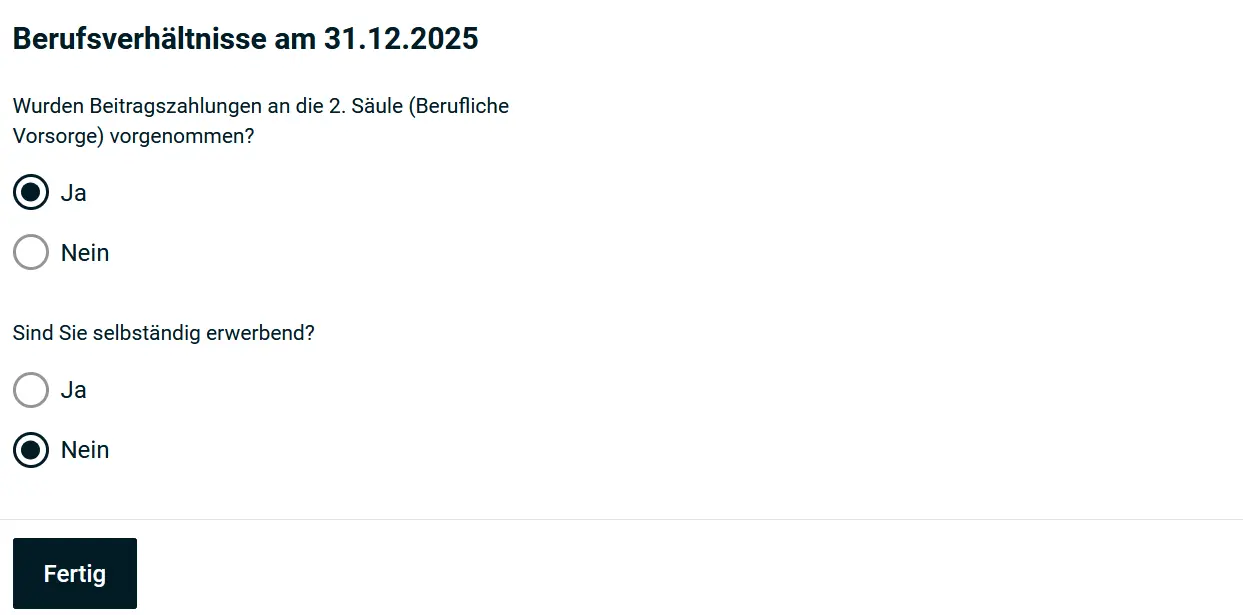
Now you can enter the data for your spouse or partner. The form is the same.
Children
In this form, you must list the children you still support. The form distinguishes between children in the household and those living outside the household.
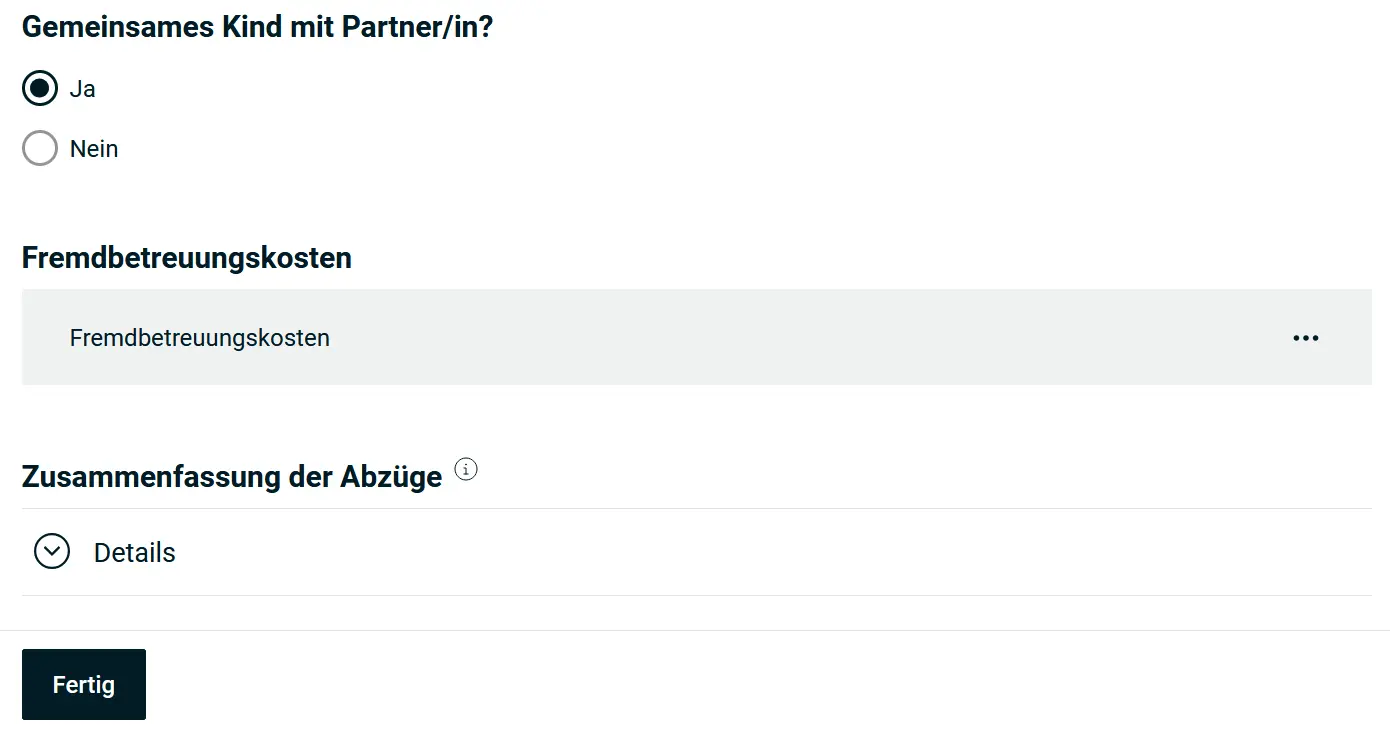
Very important: you can enter external childcare costs here, such as daycare, after-school care and similar services.
Step 5: Employment - Income, Work, Employment Gaps
You’ve completed all the items under Personal details. Now comes the next group: Employment, which covers income, work, employment gaps and professional expenses.
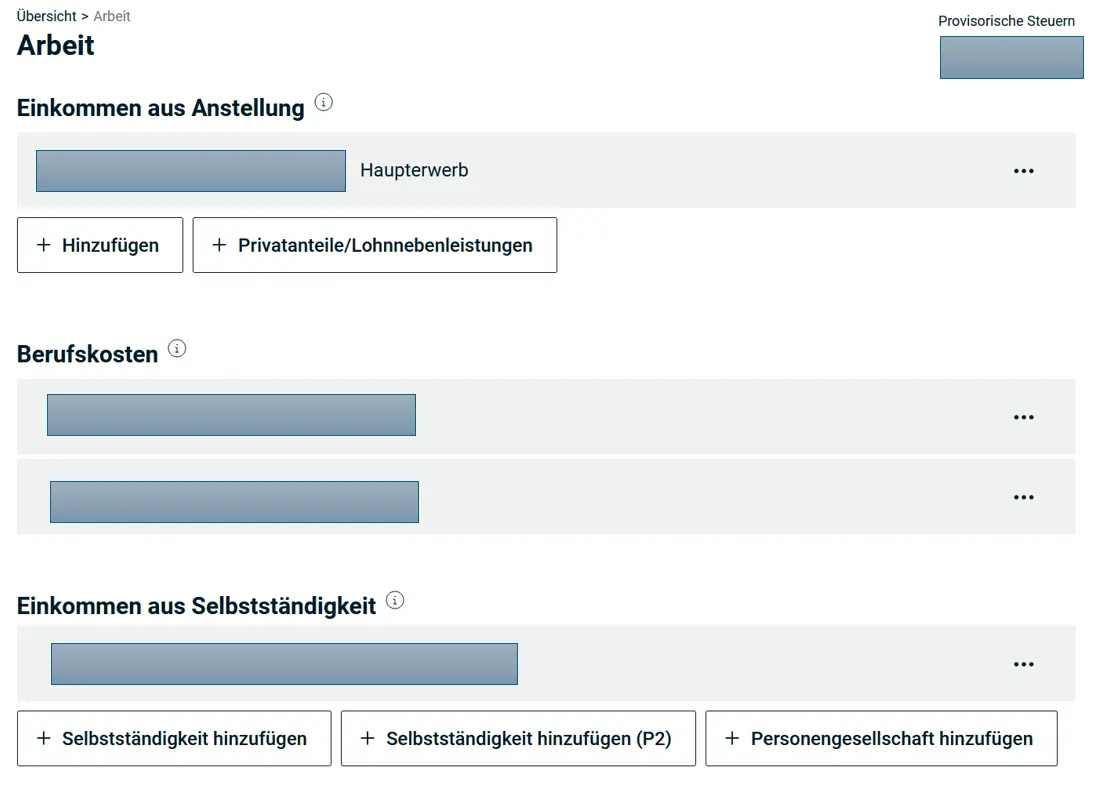
Open the Employment section and go to the employment form. You can declare your income here. And just like with personal data, you have the option at the top to switch between your data and your spouse’s/partner’s.
If previous year’s data exists, you can now confirm, modify, or delete it.
A distinction is made between income from employment and self-employment. Side income is for smaller activities like a blog or mowing lawns for neighbors, usually a low income under CHF 22'680/year.
As an employee, you’ll find the data on your salary certificate. Enter the details of your employment and your net salary (under item 11 of the salary certificate) as stated. This already covers all AHV and pension fund deductions and family allowances.
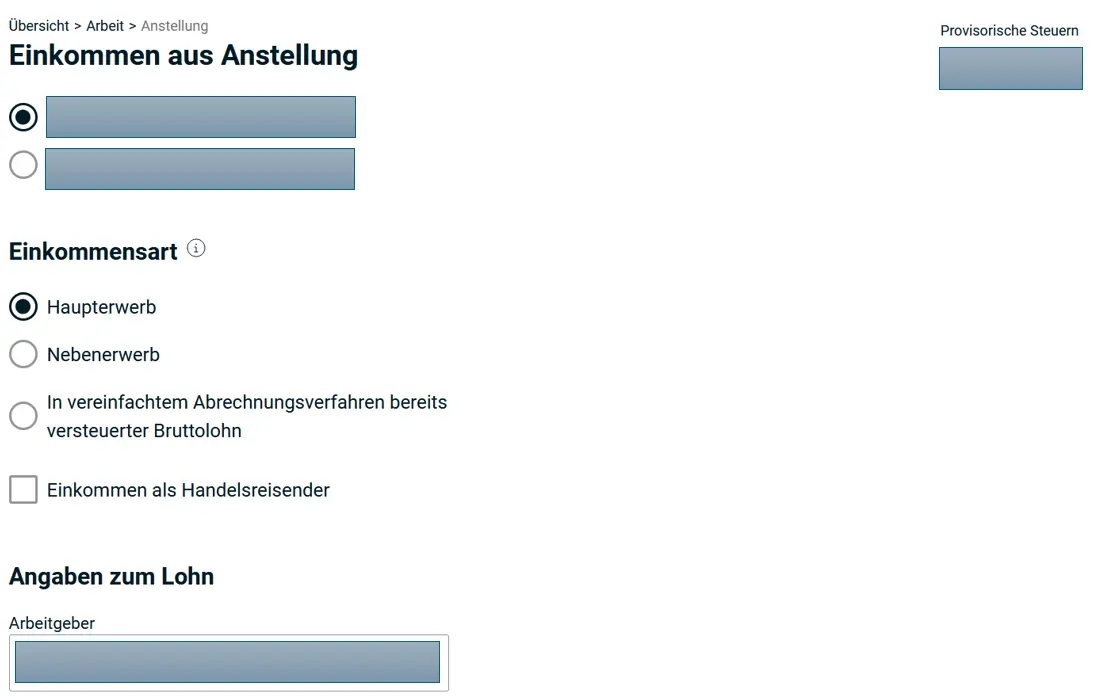
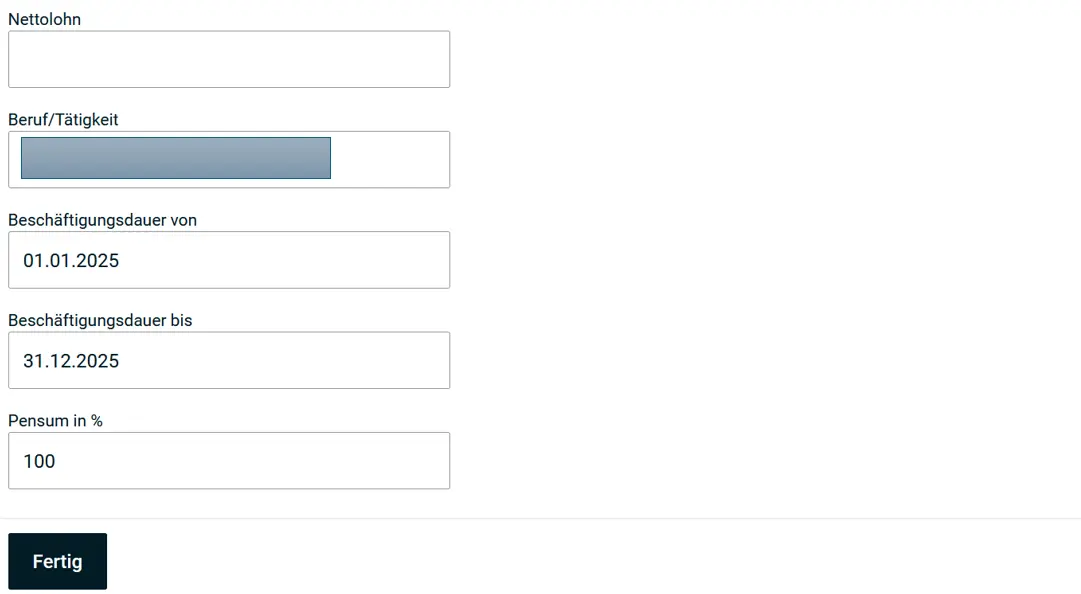
As a self-employed person, you’ll upload your income and accounting here.
If you worked less than 12 months, an additional entry for employment gaps appears automatically. You can enter any unemployment benefits received here. And if you’re already FIRE (congratulations!), you can declare ‘unemployment without compensation’. And don’t forget to register with the AHV authority of the canton of Lucerne and pay the AHV contributions for non-employed persons.
Commuting Costs
Professional expenses can also be entered in detail.
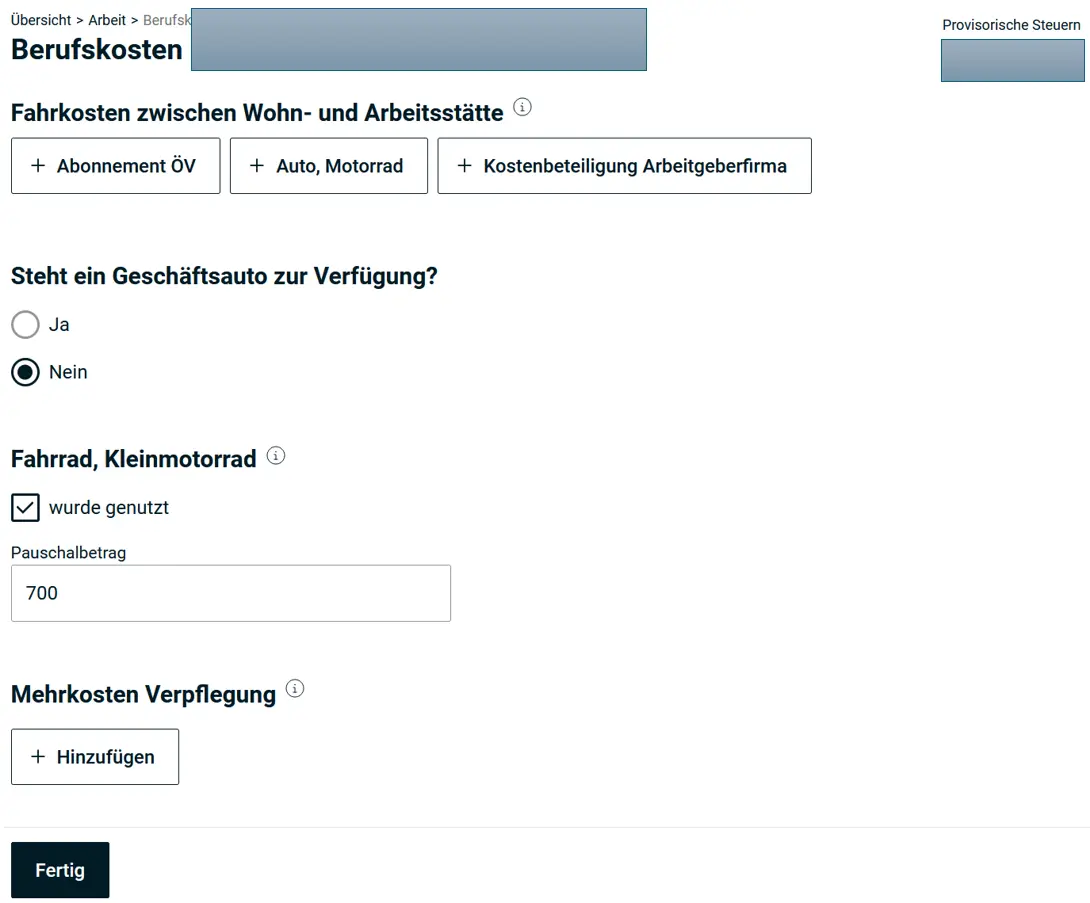
You can deduct commuting costs between your home and workplace. But only if you pay them yourself. If your employer covers the costs, no deduction is possible.
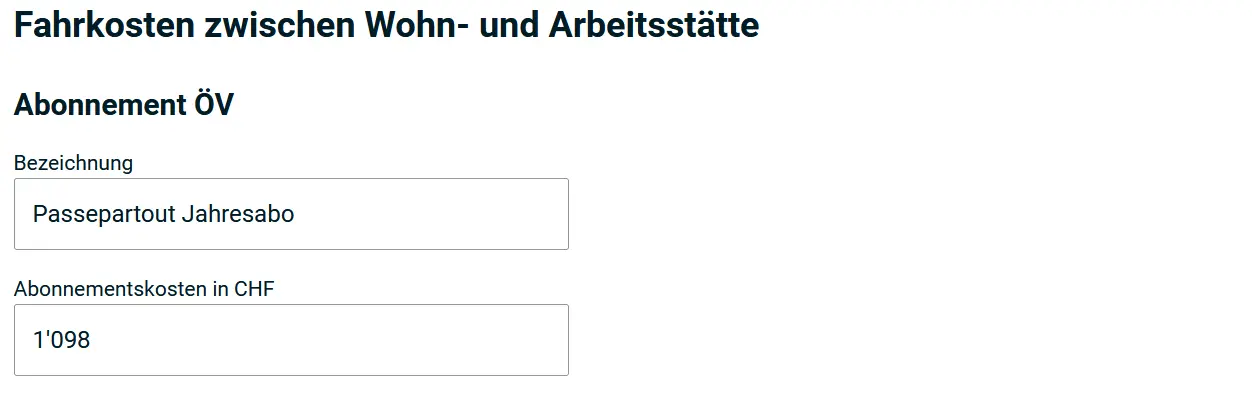
In most cases, you can only deduct public transport costs. The simplest way is to enter the costs for a 2nd class Passepartout annual pass or route pass for the corresponding zones. Pro tip, you still need to get to the bus/train station: so also deduct the flat-rate costs for a bicycle at CHF 700. It’s possible to claim both deductions.
Under certain circumstances, you can deduct costs for a car or motorcycle. In that case, you cannot claim a public transport deduction.
- There is no public transport because the nearest stop is more than 1 km away or because there’s no public transport available during your working hours.
- Your employer requires you to use your private car during working hours. You need an employer’s confirmation for this.
- You save 1 hour by car compared to public transport.
Other Professional Expenses
You can enter your meal costs here. Standard flat rates apply: CHF 3'200/year if you pay the costs yourself, CHF 1'600/year if your employer covers part of the costs (e.g., in a company cafeteria), or CHF 0 if your employer covers all costs. The information is on your salary certificate.

You can also claim other costs, for example if you bought special work clothing or tools, use a private office, or paid professional memberships. By default, a 3% flat-rate deduction is given, so think carefully whether your costs exceed this amount. If you declare actual costs, you should be able to prove them with documents.
If you’re a weekly commuter, you can also deduct the costs for your accommodation and meals (dinner).
If you have multiple jobs with different conditions, you should calculate the deductions pro rata.
The official guide has examples for many cases. Otherwise, you can also ask the tax office of your municipality for help.
Next Step
If you’re an employee like me, these first steps were relatively straightforward.
In the next article, we’ll cover the following sections:
- Insurance and pension (pillar 3a, health and accident costs)
- Securities and accounts (bank accounts, securities portfolios, DA-1)
- Debts and mortgages
And if I missed a tax savings opportunity in the screenshots above (or if you have questions), let me know in the comments section below.