
It’s spring again. The days are getting longer, and with them comes the letter from the tax authorities with the access data for the tax return.
In the canton of Thurgau, tax returns are filed using eFisc2025. Once you have received the access data, we recommend that you first request an extension of the deadline until the end of September (to give yourself some leeway in case you need it).
Step 1: Access eFisc2025 Thurgau
You’ll find the software on the Thurgau tax administration website.
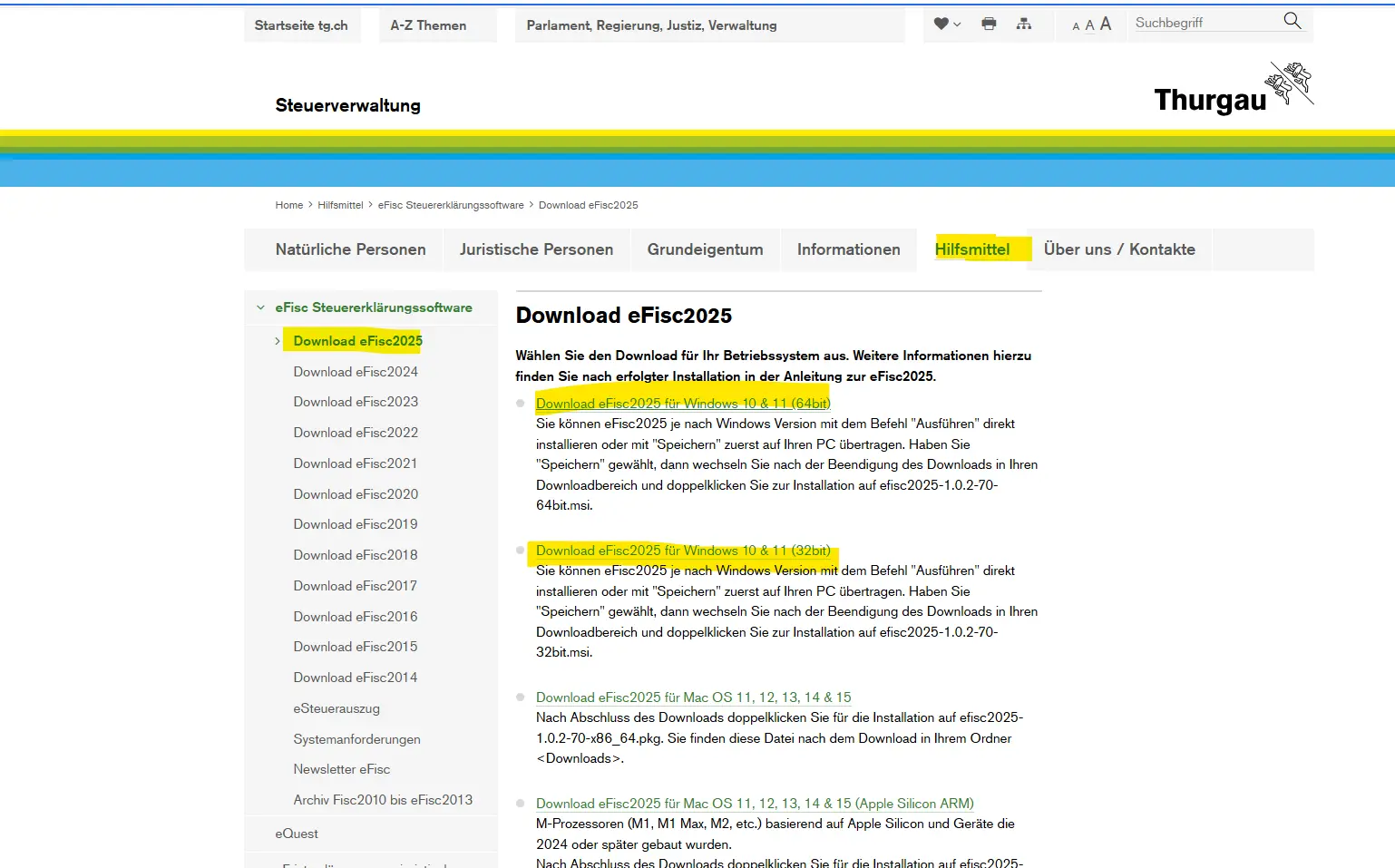
eFisc Thurgau tax return software download page with selection by operating system (Windows and macOS)
First, you need to choose between Windows and Mac, and between 64-bit and 32-bit versions. When you log in for the first time, use the access data given in the letter. After downloading, you can carry out the installation via the Software Center. If you already used eFisc last year, you can log in directly and continue working with your existing data.
Step 2: Transfer data from the previous year
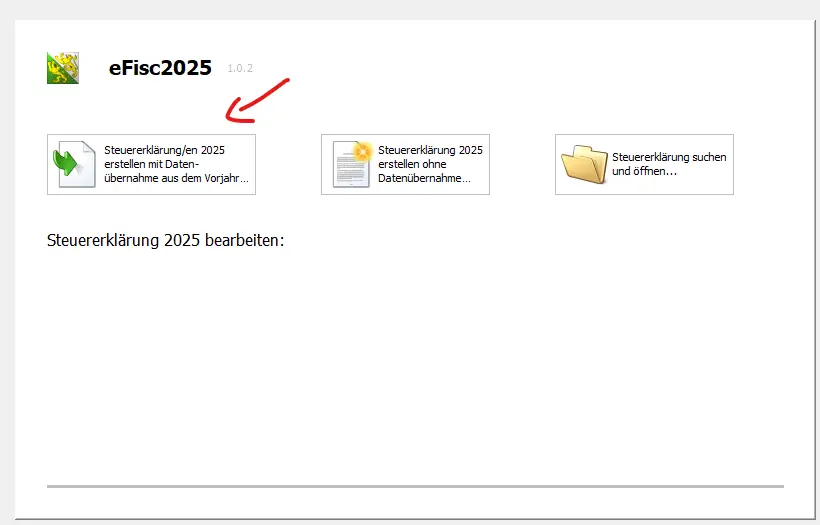
If you used eFisc last year, many data will be automatically transferred. You can confirm or adapt them if necessary. This will save you a lot of time.
In the top right-hand corner, you’ll always find the guide. It explains exactly what is required in the current form.
You can stop the tax return at any time. The data is automatically saved. The next time you log in, you’ll pick up exactly where you left off.
Step 3: Taxable persons
Personal data
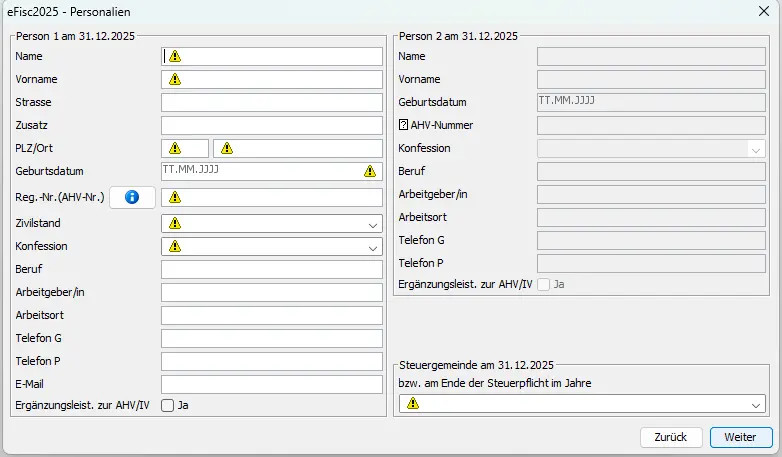
Input mask 'Personal data' in eFisc Thurgau with information on person 1 and person 2 as at 31.12 (name, address, marital status, occupation, AHV number)
In the Taxable persons form, you first enter your personal data. Name, address, marital status and occupation are central.
As you are married in our example, a second person automatically appears. Important: first fill in your own data completely, then move on to your spouse.
This is particularly important:
- Occupation
- Employer
In the bottom right-hand corner, select the tax municipality on the reference date of December 31st and continue.
Step 4: Children
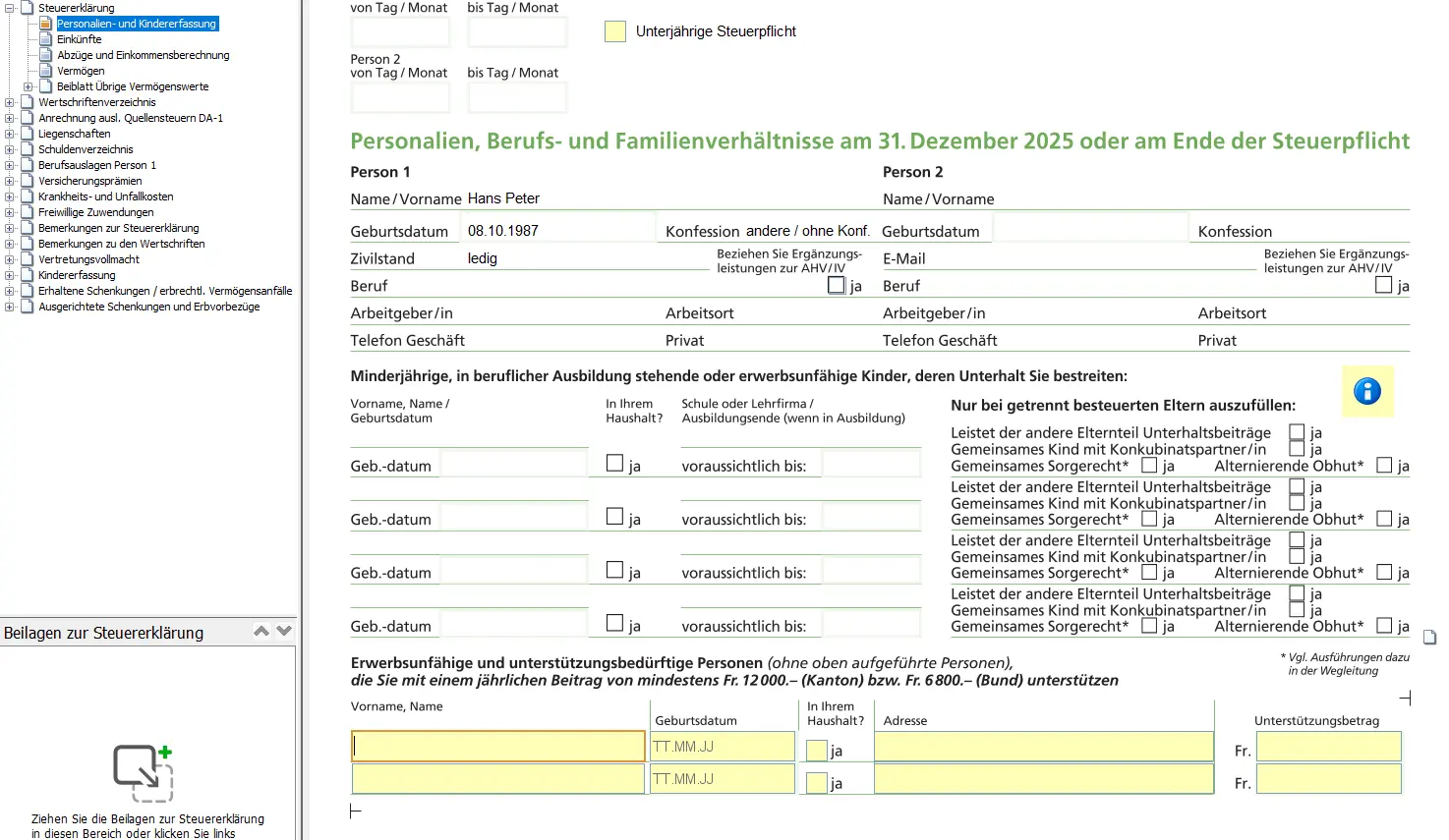
Form 'Identity, work and family situation' in the tax return with information on person 1 and children
Here you enter all the children you support financially. A distinction is made between children in the same household and children outside the household.
This form is very important for outside childcare expenses. This includes
- Kinderkrippe
- Hort
- Day “family” (aka Tagesfamilien)

Overview of social deductions for children, assisted persons and married couples under cantonal and federal law
These expenses can be deducted from taxes and have a significant tax-reducing effect.
Step 5: Bank details for refunds
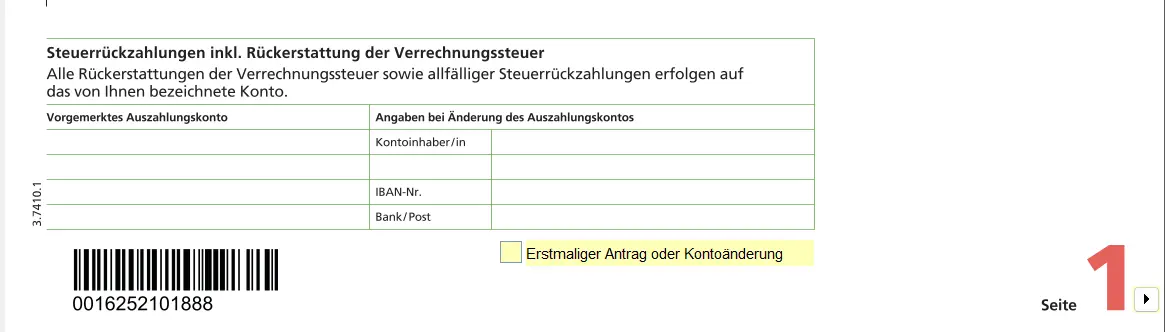
To enable any tax credits to be paid out to you, you must enter your bank details here. Without this information, no refund can be made.
Step 6: Income from professional activity
Dependent activity
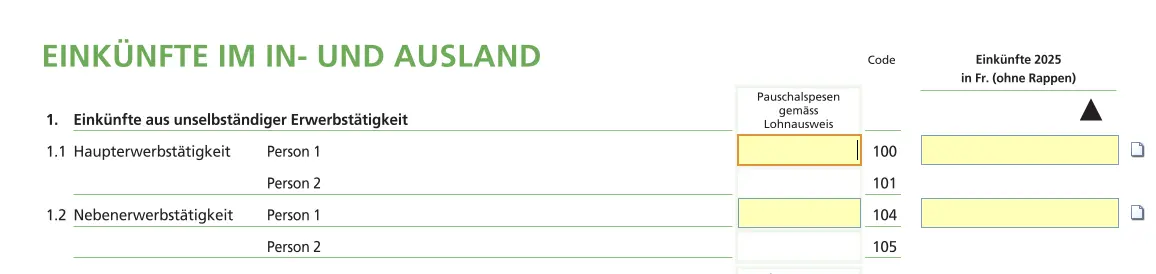
Let’s move on to income. Open the Income section, then Acquisition.
As an employee, you take the data directly from the salary certificate:
- Employer
- Length of employment
- Net salary as per point 11
This amount already includes AHV contributions, CP contributions and family allowances.
Gaps in professional activity
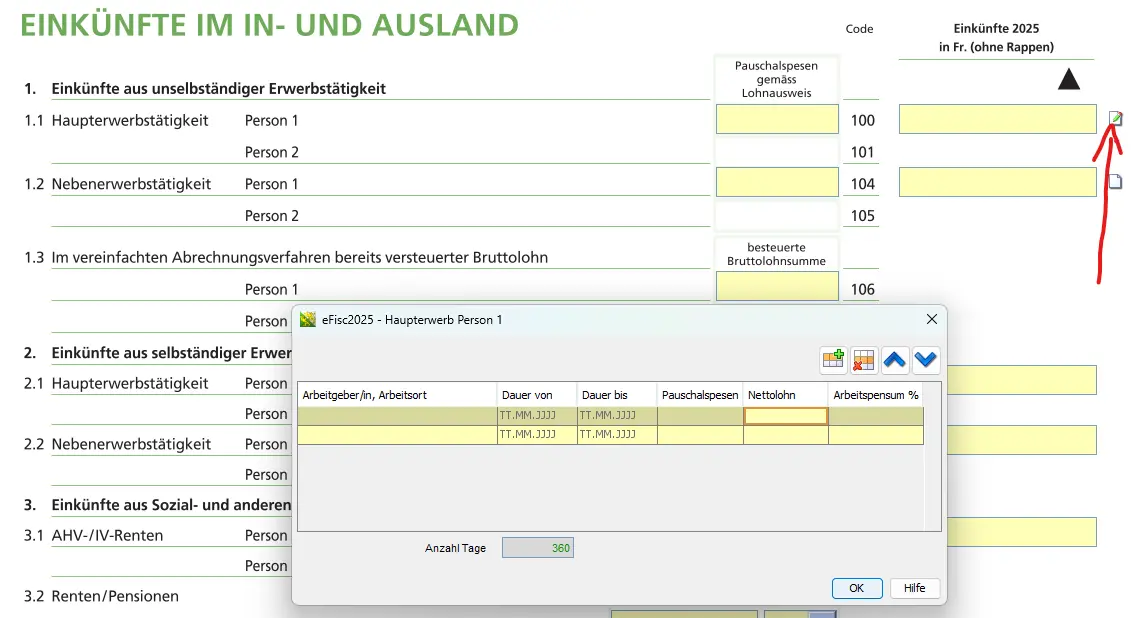
If you haven’t worked for the whole year, the activity gaps area appears automatically. This is where you enter daily unemployment benefits or periods of inactivity.
If you don’t work and don’t receive benefits, you still have to pay AHV contributions. You can claim them later as a deduction.
Download receipts
You should start uploading receipts now at the latest. This works directly in the corresponding form.
You can:
- Download PDF or JPG files from your computer.
- Photograph paper documents with your smartphone
After taking the photo, don’t forget to validate the file. Otherwise, it won’t be saved.
Next step
These first steps were pretty straightforward if you’re an employee like me.
In part 2 of our eFisc-Thurgau tutorial, we’ll discuss the following sections:
- Real estate
- Professional deductions
- Debts
- Pension and insurance
And if I’ve missed any tax-saving opportunities in the screenshots above (or if you have any questions), let me know in the comments below.