
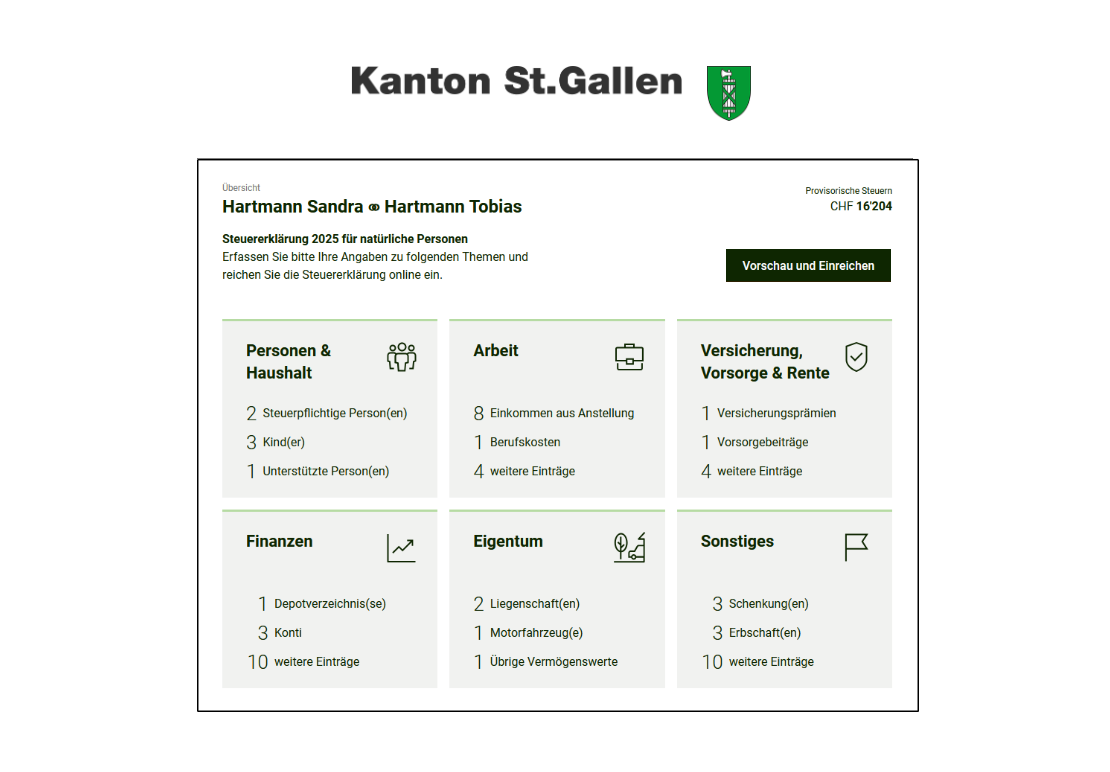
In the second part of the E-Tax SG guide, we filled in the Work, Insurance/Pension/Retirement and Finances tiles. The end is near, only 2 tiles left. We’ve come this far, so let’s wrap it up!
Property
Besides income and assets, the state is also interested in your property. A click on the tile gives you an overview of the three property categories:
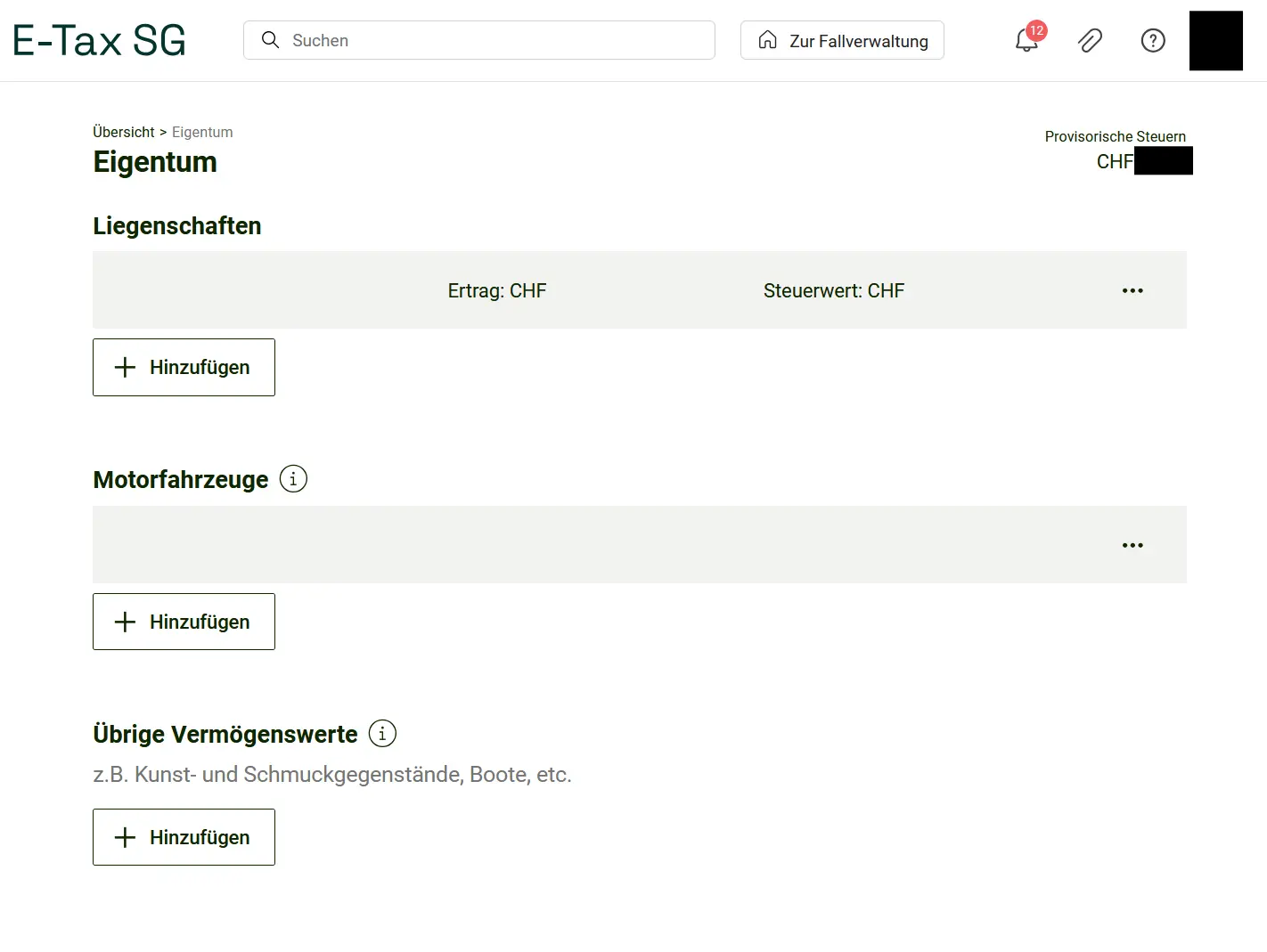
The two lower categories are quick to handle: for motor vehicles, you just need to enter the description, purchase price and year of acquisition. For other assets, only the description and tax value. This includes jewelry, art objects or other items of significant value.
Let’s take a closer look at real estate. Click Add to open the detailed menu. Start by entering some standard data like the address and plot number. Then come the tax value and rental value. You’ll find this information on the latest assessment you received from your municipality. Make sure to transfer the data from that document.
Other important entries are the calculation of actual ancillary costs and property maintenance costs. For ancillary costs, you can simply enter the total for the whole year. If these are unusually high, it’s worth using the button at the very bottom to upload the corresponding invoices.
For property maintenance costs, you can either choose the flat-rate deduction or actual costs. If you go with actual costs, you’ll need to have all the corresponding invoices ready. Do a quick calculation to see which option works out better for you and choose accordingly. Once you’ve filled everything in, you’re ready for the sixth and final tile!
Miscellaneous
The last section covers everything that didn’t fit into the previous categories.
This includes gifts, inheritances, voluntary donations, party contributions, capital payments, other income and other deductions. As always: click the “i” if you’re not sure what something means. Then click the “Hinzufügen” (Add) button and fill in all the fields that appear.
Last but not least, there’s the “Remarks” field.
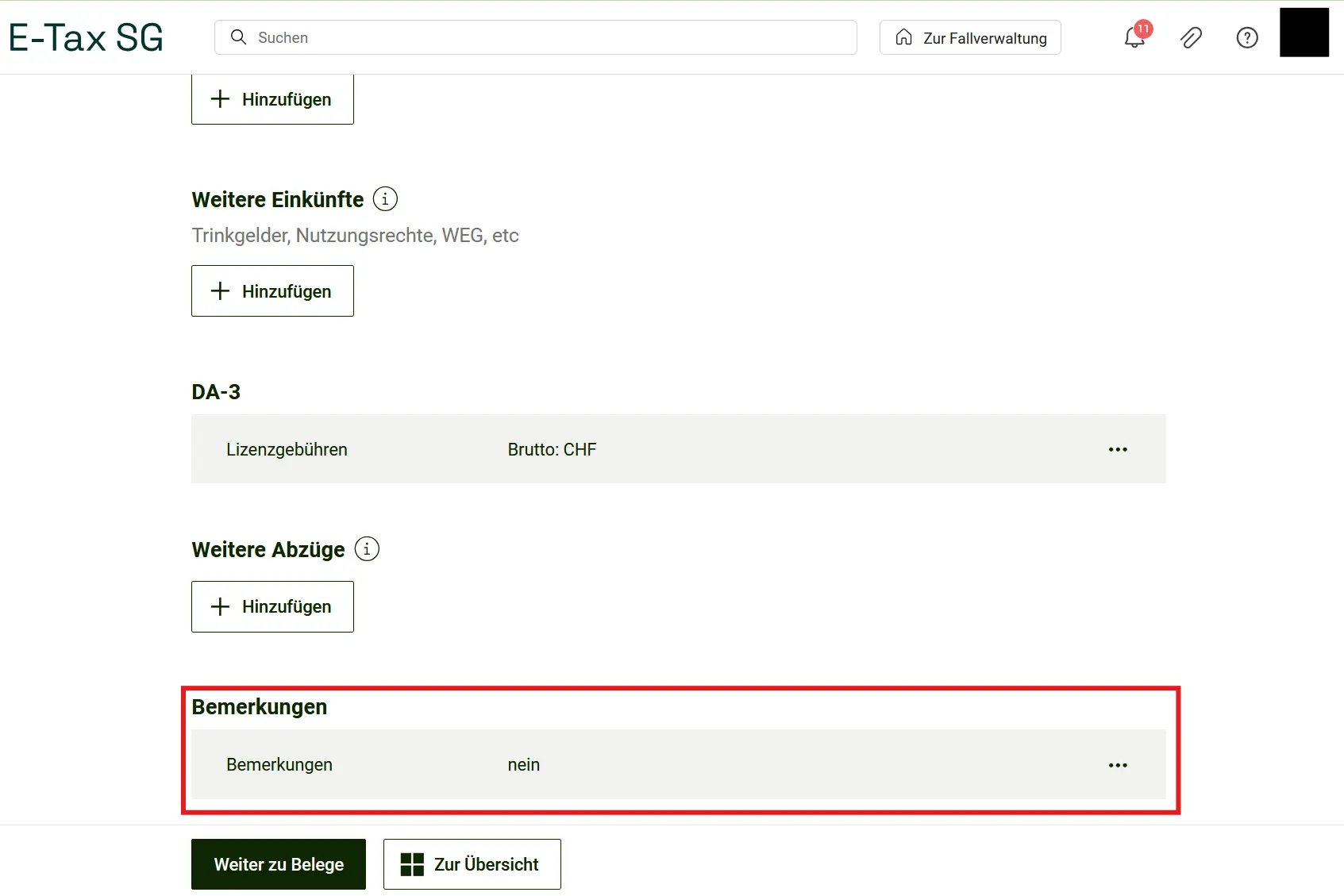
If there’s anything you’d like to tell the tax office, this is the place. Asking for a lower bill won’t help though. What does help is filling everything in carefully and claiming as many deductions as possible.
Submission
Once you’ve uploaded all your receipts, you’re done. But have you thought of everything? The program helps you check!
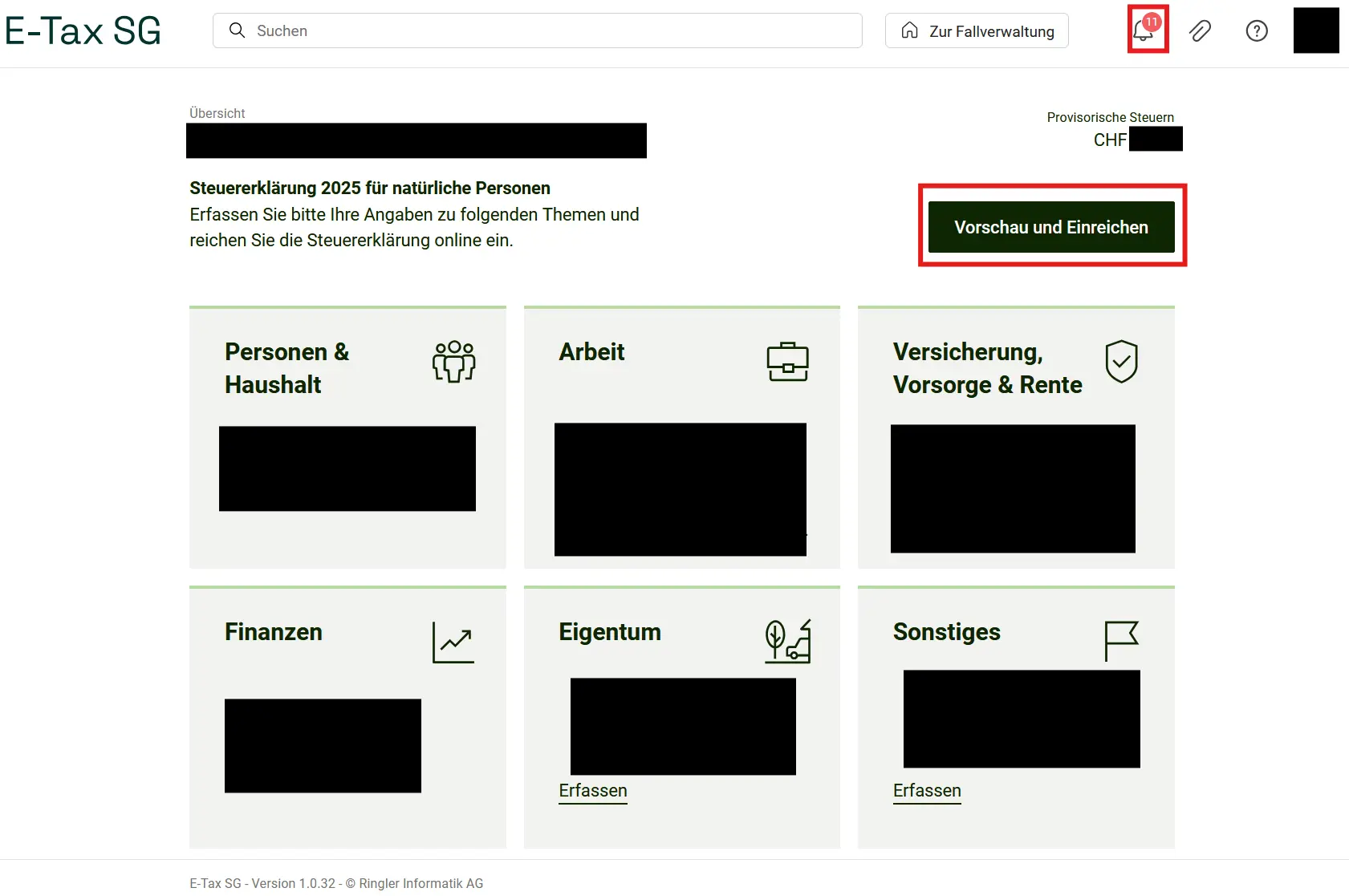
In the top right, you’ll see the bell icon. The number 11 in this case means there are still 11 things missing or that need to be completed. Click on it to see exactly what they are. Then you can work through them one by one.
Once there are no open items left, you can click the “Vorschau und Einreichen” (Preview and submit) button. You’ll now see exactly how much your taxes will be, assuming the tax office assesses everything the way you entered it. All you need to do is press the final button at the very bottom and congratulations, your tax return has been submitted!