
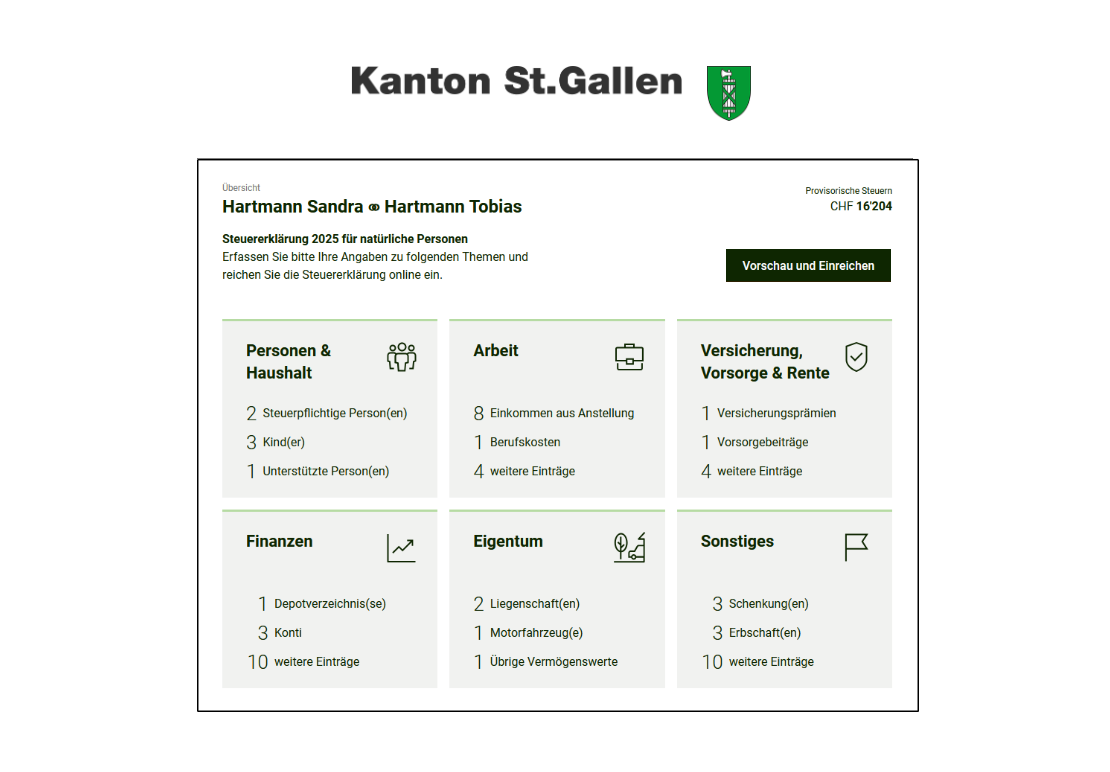
In the first part of the E-Tax SG guide, we set up the AGOV login, got to know the program and filled in the People & Household tile. Now we move on to the next three tiles. Hopefully you’ve got your documents ready, because now things get serious!
Work
Click on the “Work” tile. It looks like this:
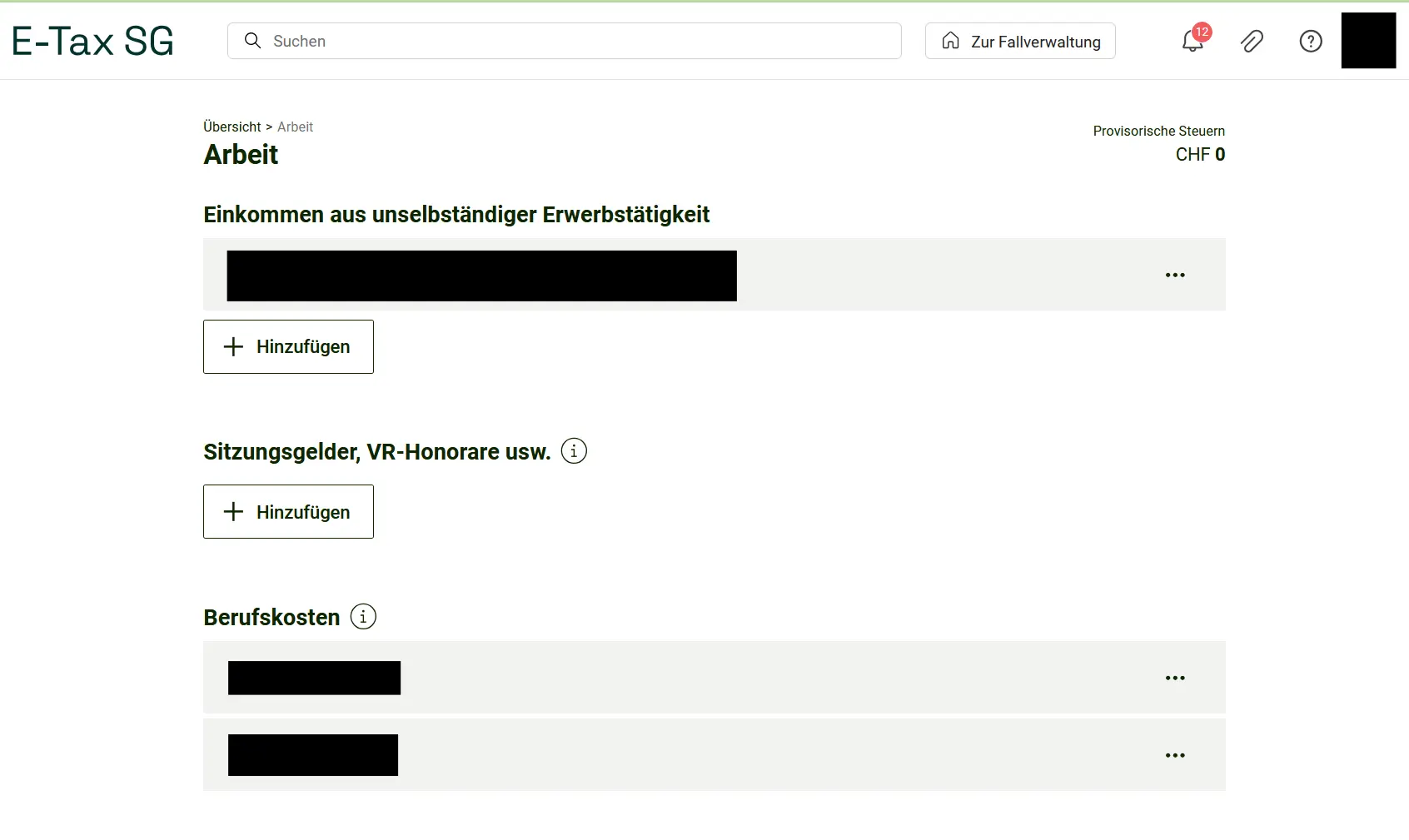
Your employer is probably already listed at the top. Click on it to enter all the details. If you have multiple employers, you need to add each one separately.
If you received attendance fees, board of directors’ fees, etc., you can enter them further down. Remember, you can always click the “i” if you want to know exactly what something means.
Now on to business expenses. Here’s a quick tip:
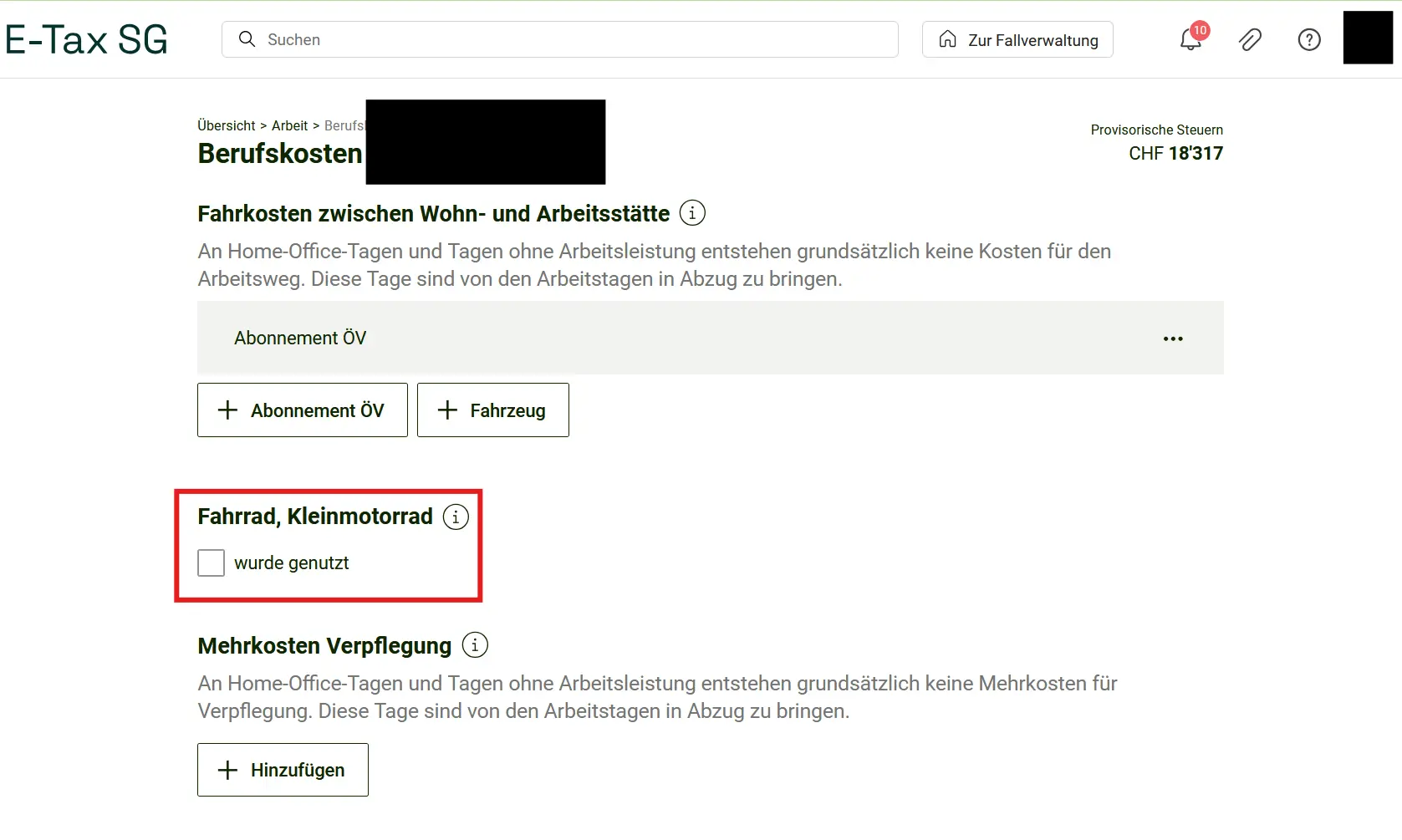
Check whether you can deduct a vehicle or public transport costs. If you choose public transport, make sure to tick the “was used” box for bicycle/moped. This lets you deduct CHF 700 without any proof. After all, you need to get to the train station somehow, right?
Further down, you can deduct meals away from home under “Additional meal costs”. After that, the standard business expense deduction is already applied automatically. If you had higher expenses, you need to document them and can enter them here.
At the very bottom, you can see an overview of your business deductions. If everything looks correct, you’re done here and can click the corresponding button.
Back on the “Work” overview, you’ll see various items like “Self-employment” or “Partnership”. If you need to fill in something here, you probably already know what to do. Otherwise, just skip these.
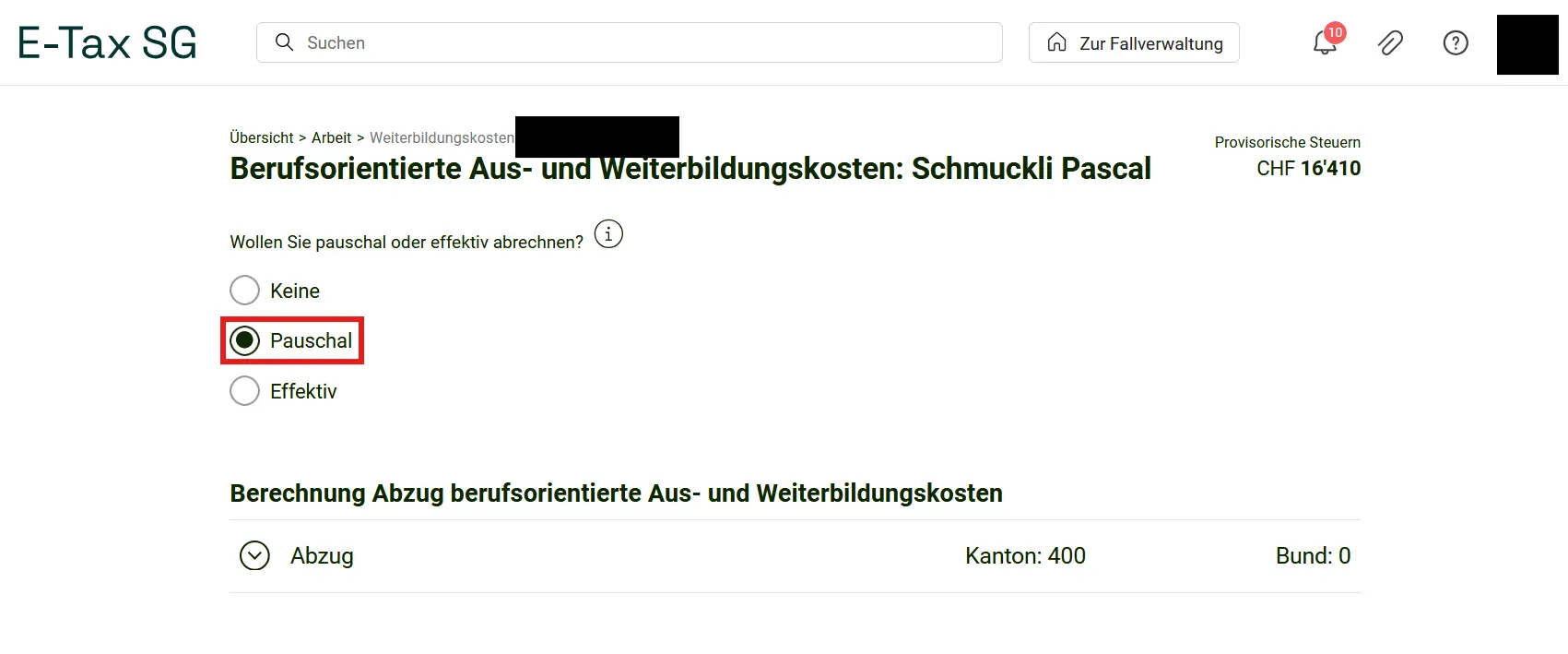
Almost everyone should pay attention to the last item though: “Job-related education and training costs”. Click “Flat-rate” here, as long as you didn’t spend more than CHF 400 in this area. Also choose “Flat-rate” even if you had no expenses at all! You don’t need to submit any receipts for it. By default, this is set to “None”. Make sure to change it, because we want to claim every deduction we can.
Insurance, Pension & Retirement
We’ve already reached the third tile, so we’re almost halfway done. Here’s what it looks like:
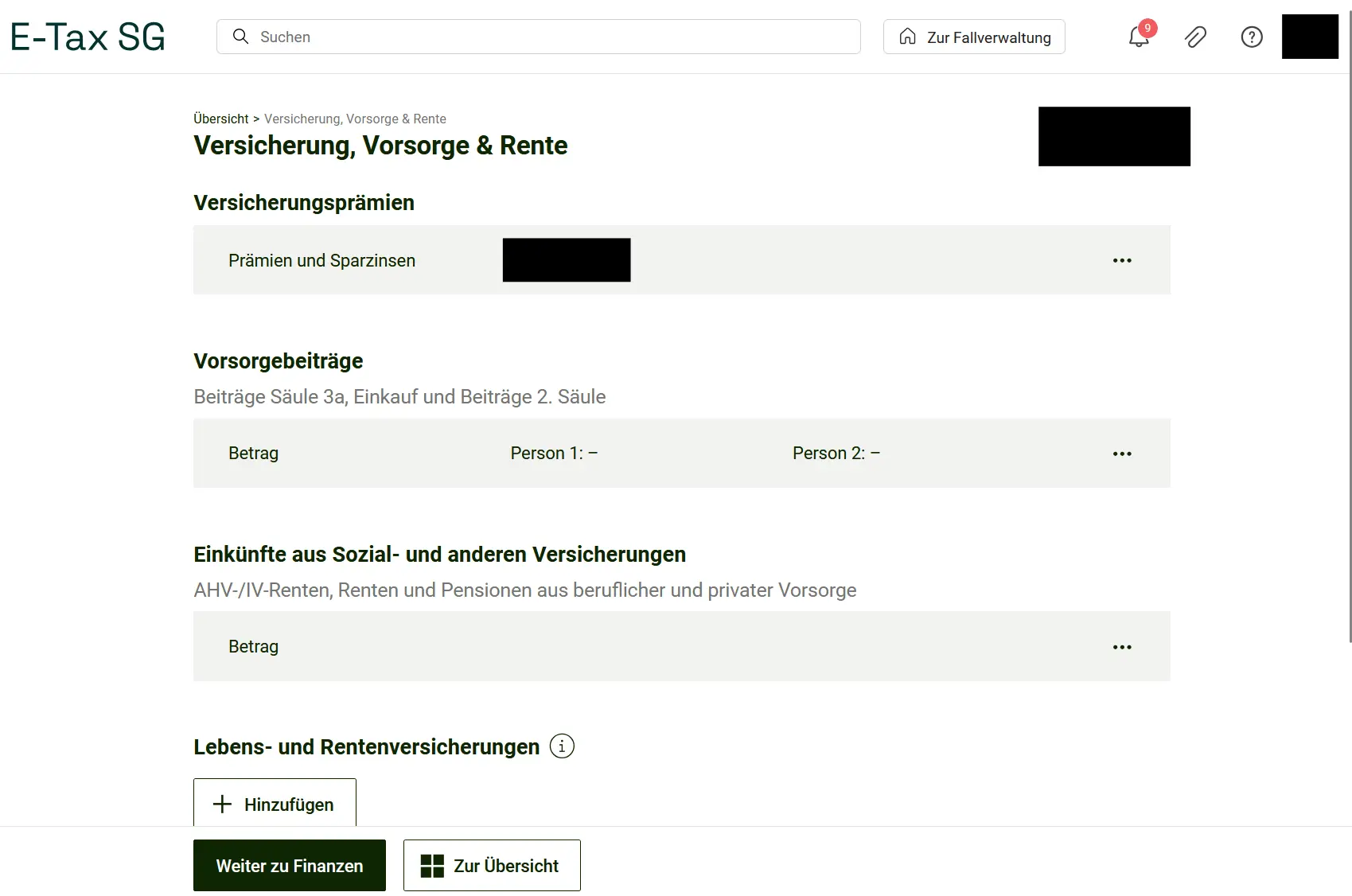
First up are the insurance premiums. Click on it and make sure to fill in your private health insurance costs at the very top. If you’re married and have children, you’ll need to add up these costs yourself. You can also enter your private accident insurance and life insurance (if you have any). If you receive a premium reduction, you need to declare that here too.
As a true Mustachian, you’ve surely made your pillar 3a contributions. Click on the pension contributions section, add the amount you paid in and benefit from further deductions. The maximum deductible amount for 2025 is:
- CHF 7'258 for employees with a pension fund (pillar 2)
- CHF 36'288 for self-employed without a pension fund
Confirm by clicking Done.
The remaining items are self-explanatory. If you’re unsure about something, click the “i” for more information.
You’ll probably be able to deduct something under “Medical and accident costs”. Especially if you have a high deductible, there’s a good chance you had expenses here. So make sure to claim these deductions. You can often find this amount on the annual tax summary from your health insurer, provided you’ve submitted all your receipts.
Finances
Next up is the Finances tile. Depending on which providers you use, this can be very quick or require a few more entries.
The easiest way is if you have so-called eTax statements for your accounts, securities and other assets. Many Swiss banks send these automatically or for a small fee. The advantage: you can simply import the PDF and all relevant data is filled in automatically. Pretty convenient, right?
You can usually recognize an eTax statement by its name and its elongated QR codes. By the way, there are also tools that let you generate such an eTax statement from an IBKR portfolio.
If you have eTax statements, just click the “Hinzufügen” (Add) button:
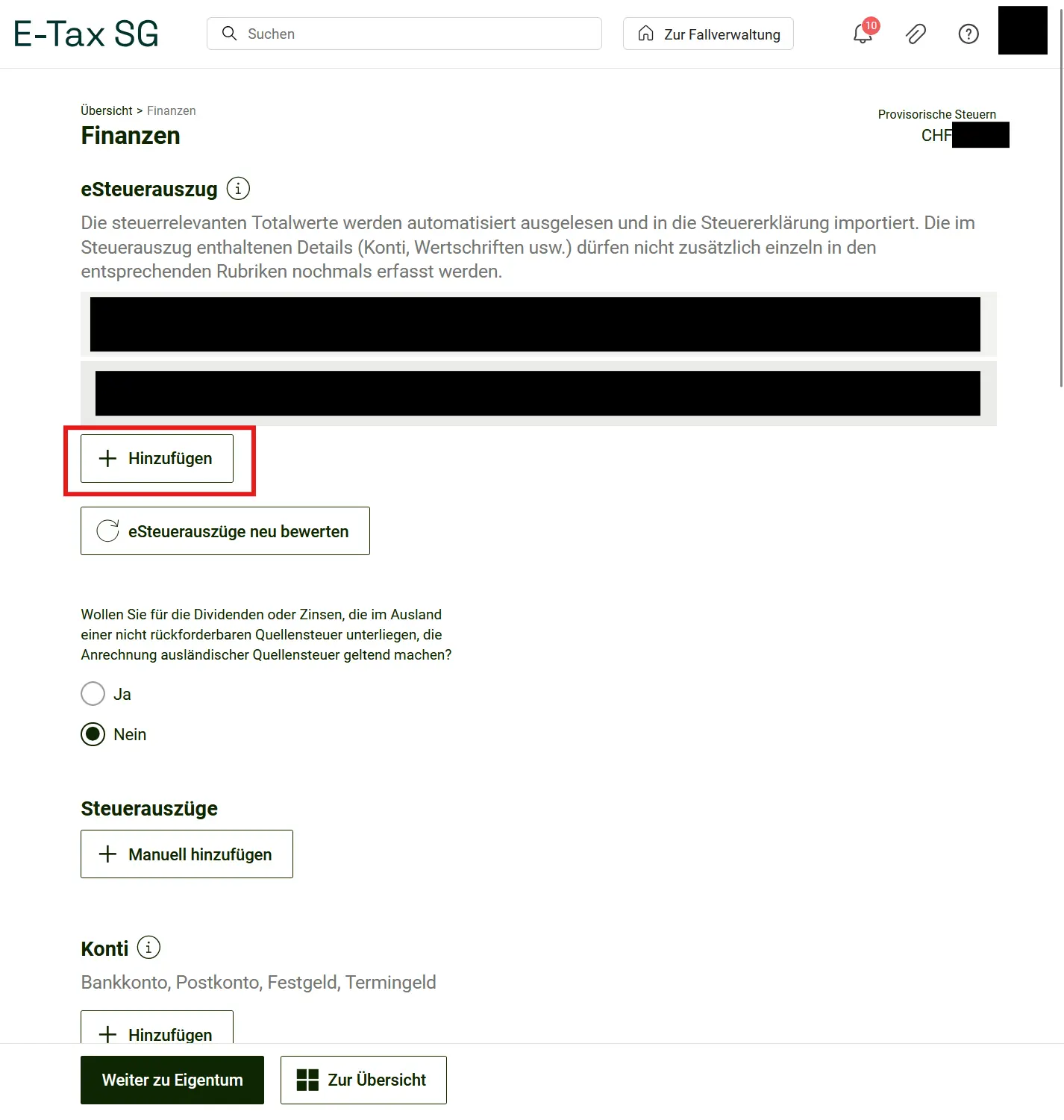
You can upload all your eTax statements there and the data is imported automatically. Done! Just double-check the numbers quickly.
If you don’t have an eTax statement, you’ll need to enter everything manually. But that’s no problem either and only takes a few minutes.
First, choose the type: securities, other assets, cash, lottery winnings, private debts, business debts, asset management costs. As an example, I’ll walk you through securities. Maybe you’ve invested in the VT ETF via IBKR? That’s exactly the example we’ll use.
Click “Hinzufügen” (Add) under “Securities”.
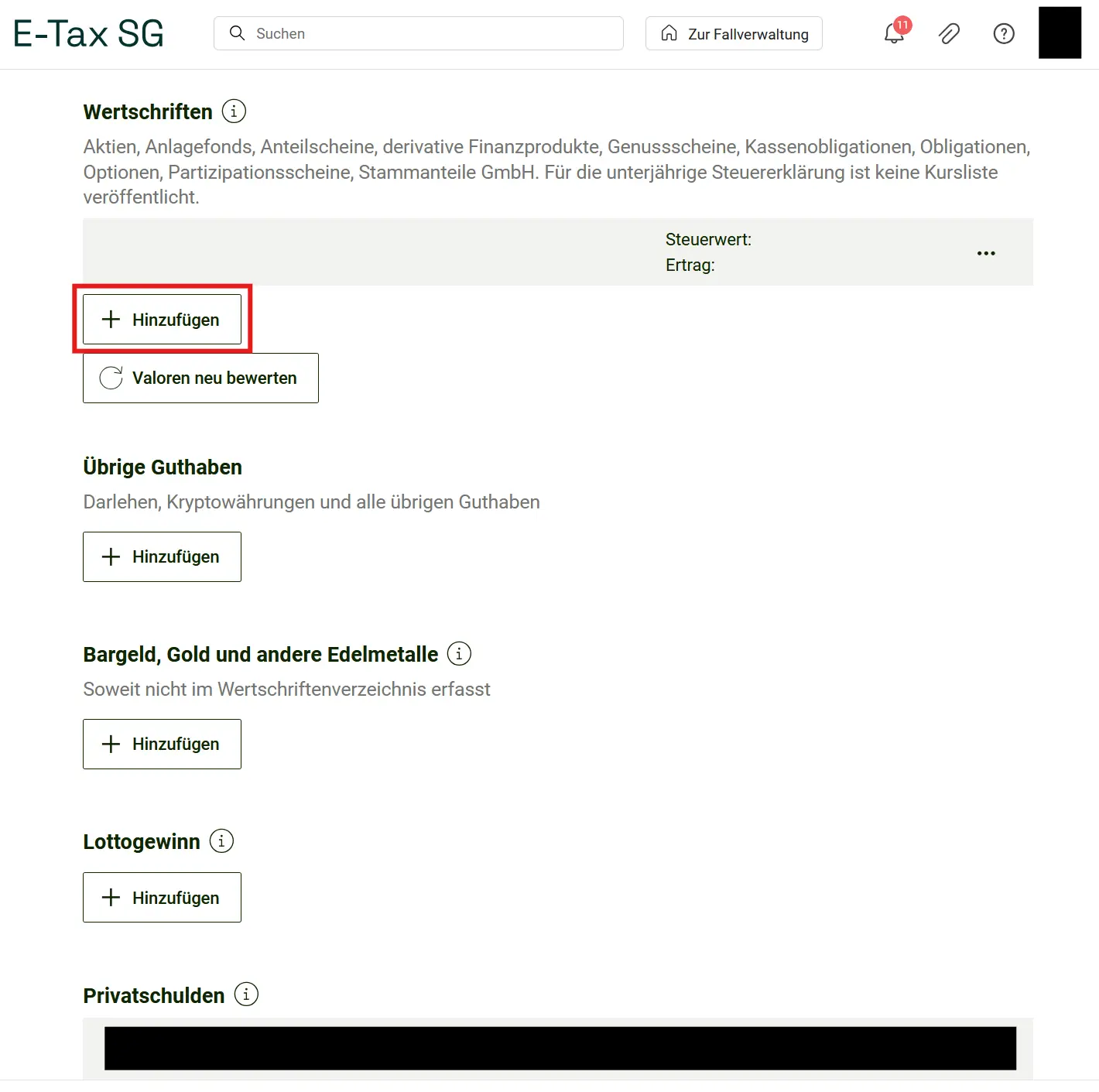
Here you need the ISIN number of your ETF. In our case, that would be US9220427424. Many fields are filled in automatically right away.
What you still need to enter: how many units did you have at the start of the year, and how many did you buy during the year?
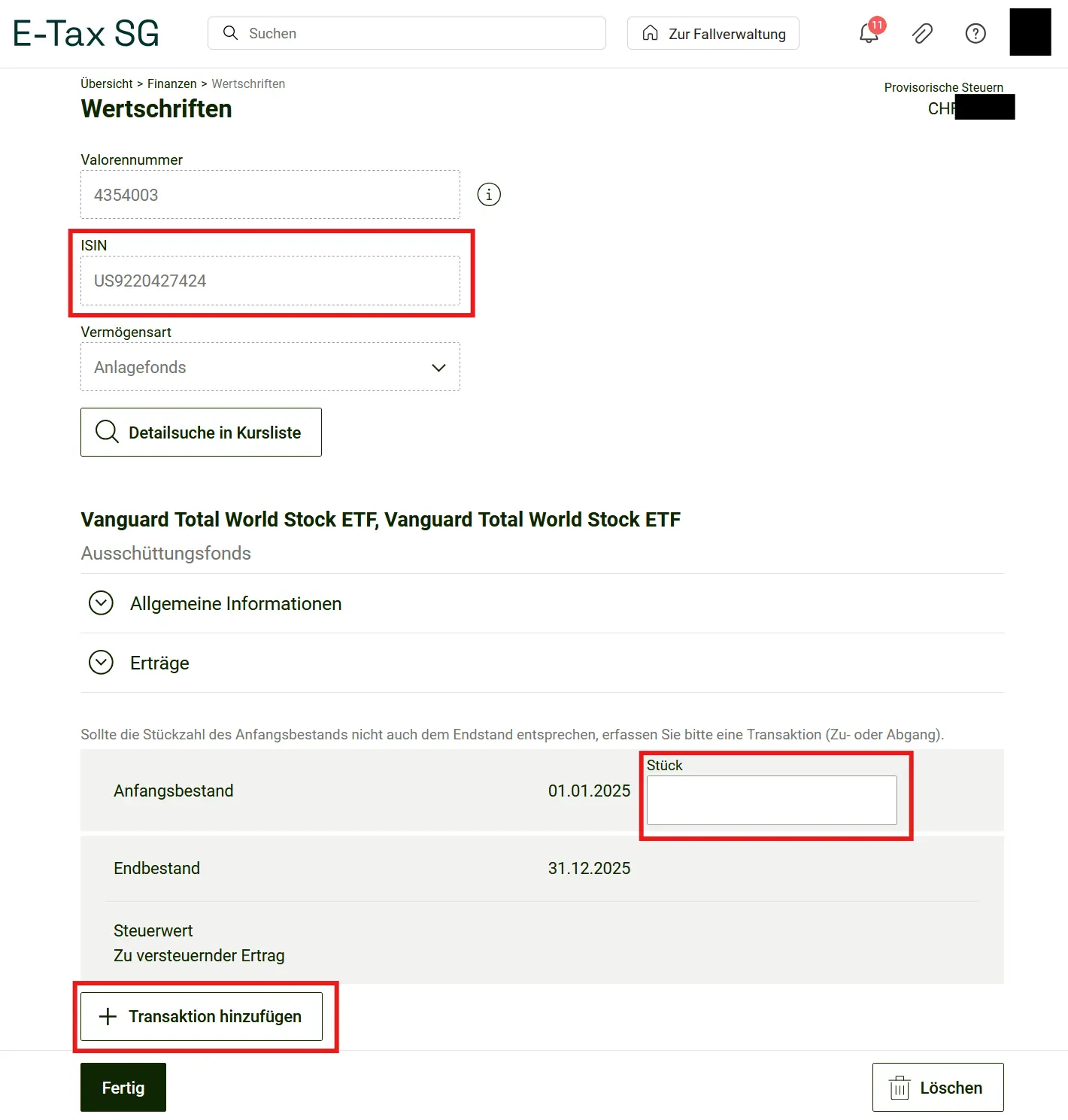
Enter the opening balance in the “Units” field. Then click “Add transaction”. A new field opens where you enter the date and number of units. Repeat this until you’ve recorded all your transactions. Once everything is entered correctly, confirm by clicking Done.
For all other categories, follow the same process. Click Add, enter your data, upload your receipts and click Done.
Next step
In the third part of my E-Tax SG guide for the canton of St. Gallen, we cover property, miscellaneous items and the final submission.