
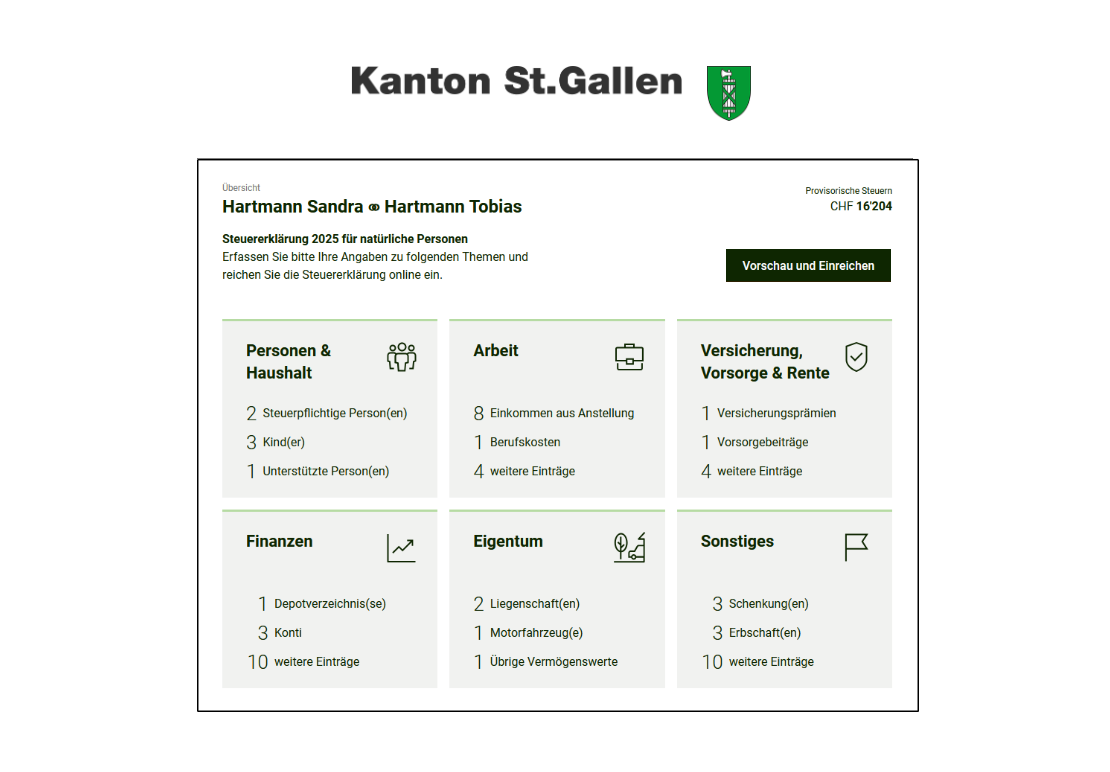
Your tax return lands in the mailbox at the start of the year, as usual. If you were about to fire up the old familiar program in the canton of St. Gallen, you got a surprise: the old software no longer exists! From now on, you need to use the new E-Tax web application.
No installation needed anymore, everything runs directly in your browser. You don’t have to worry about saving regularly either. Every entry is saved automatically, and you can simply pick up where you left off next time. Of course, it takes some getting used to if you’ve been using the old program for years.
You can love it or hate it, it doesn’t matter. For the 2025 tax year, you must use the new software. So let’s get started, because it’s surprisingly simple and modern to use.
AGOV
First, you need to create an AGOV account. This is the only way to fill in your tax return. It’s mainly about security, since you’ll need a second authentication factor.
You should have either your smartphone or a special USB stick handy, though the USB stick needs to be ordered in advance. I recommend the smartphone option.
By the way, you’ll find a well-structured page with FAQs and some tutorial videos directly on the canton’s website. To get started, click the link and then at the very top on “E-Tax SG”. On the next page, click “Jetzt registrieren” (Register). Choose your preferred option there. I recommend downloading the AGOV app. You’ll find the download link right on the page you’re on.
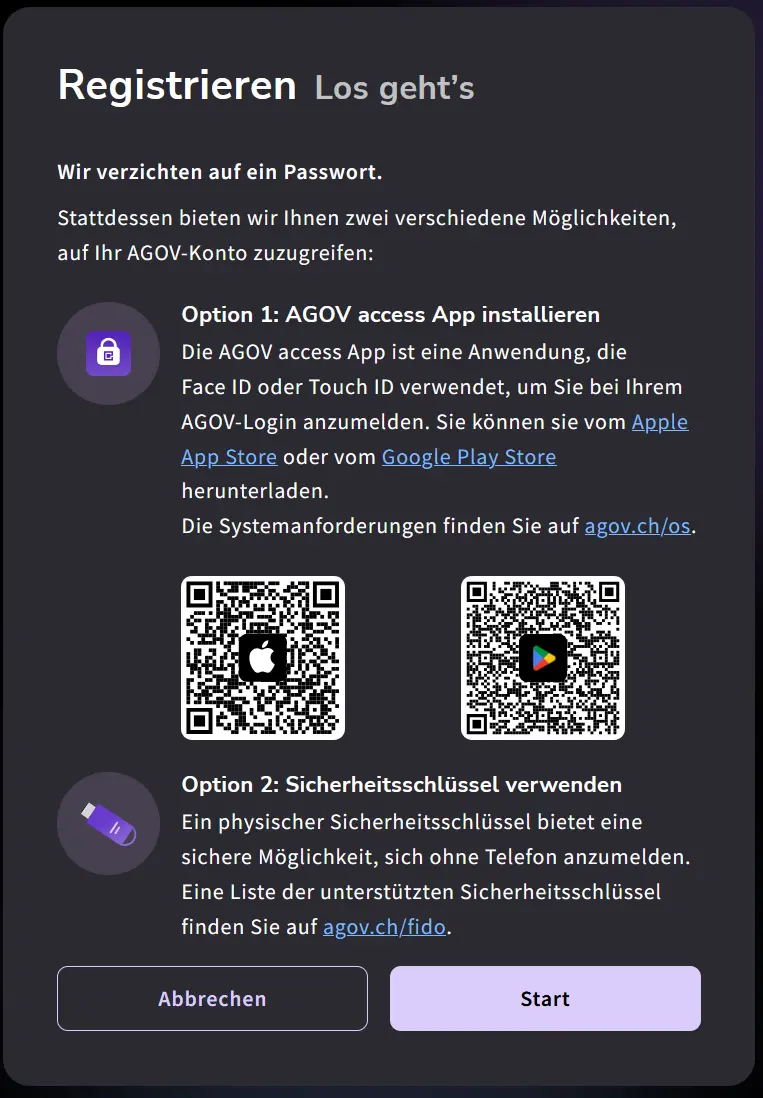
Scan the QR code to download the app, then click Start. You’ll be guided step by step until your login is ready.
Let’s go!
Login
Head back to the E-Tax SG homepage and select “Login”. Open the AGOV app and scan the QR code that appears on the page. Confirm the login on your smartphone, and you’re in!
The registration process was a bit lengthy, but the login process is all the easier for it. If you don’t work through everything in one go, you can log back in anytime and pick up where you left off. Everything is saved automatically.
Now click the green “Neue Steuererklärung” (New tax return) button and enter the registration number and access code. You’ll find both on the front page of the tax return form your municipality sent you by mail.
You’ll then be asked if you’d like to import data from the previous year. Did you fill in your tax return with the old program last year? Then you can upload that file now, it’ll save you a lot of work! If you don’t have the file, you can simply skip this step.
Once that’s done, you’ve opened a new “case” (Steuerfall). The interface looks like this:
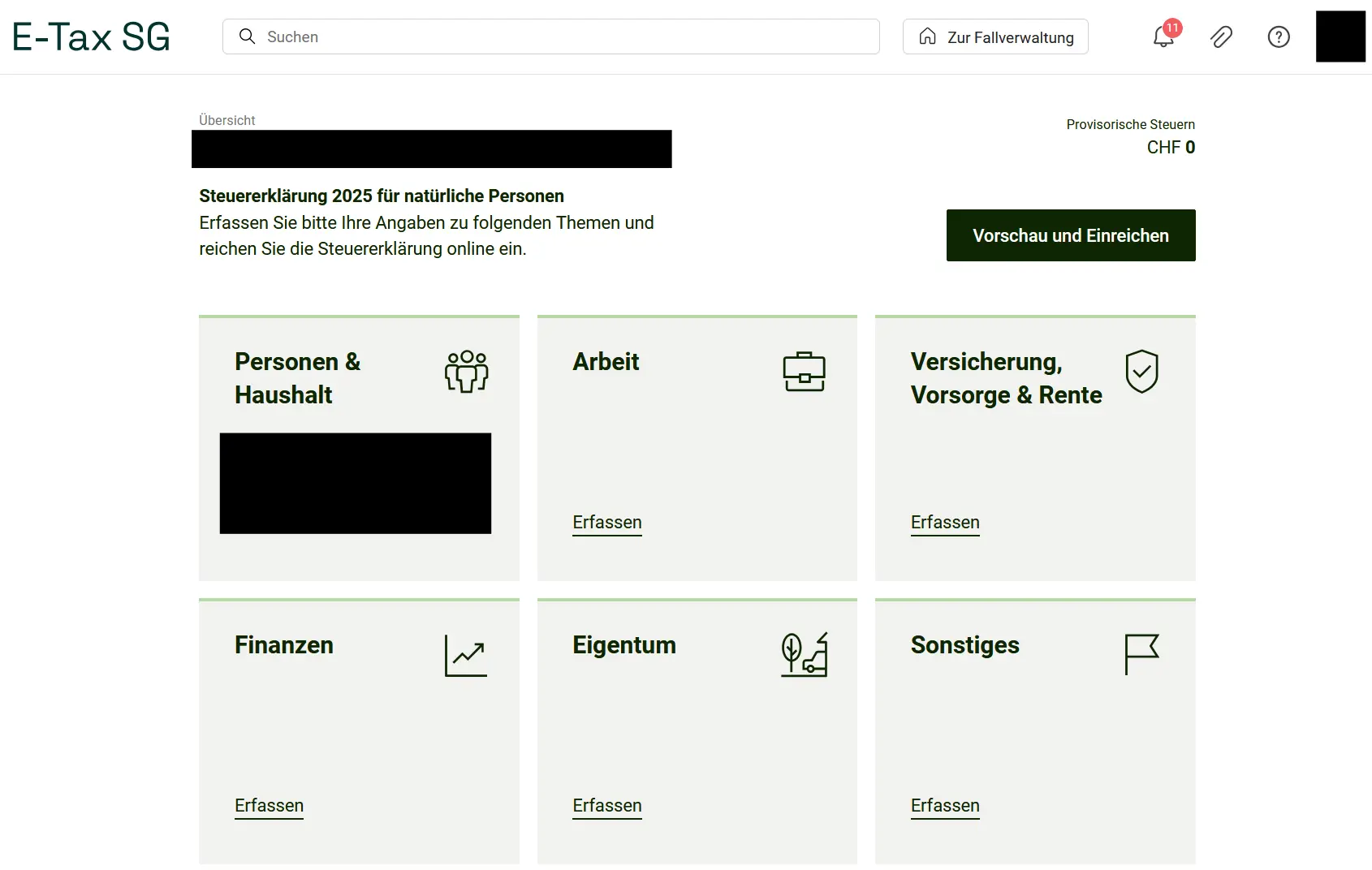
E-Tax SG dashboard with the 6 tiles: People & Household, Work, Insurance, Pension & Retirement, Finances, Property and Miscellaneous
At the top center, you’ll find a search bar. Very handy. This didn’t exist in the old program. If you’re looking for something specific but don’t know which category it’s in, the search helps.
To the right, you can return to the overview via the “Zur Fallverwaltung” (Case management) button. Next comes the bell icon. As long as a number is displayed there, you still have error messages to fix before submitting your return. Click on it to see them listed.
Further right is the paperclip. You can add receipts here: either upload them directly from your computer or scan them with your smartphone. If you want to use your smartphone, you’ll need the Snap.Share app. You can find more information here. Of course, you can also send your receipts by mail like before. There’s no right or wrong way, just do whatever is easiest for you!
I recommend scanning/adding all receipts only at the end. When you click the paperclip at the end, all required receipts are listed. So you can hardly forget any. A really helpful feature. This way, you can focus on filling everything in and scan everything neatly at the end as a final check.
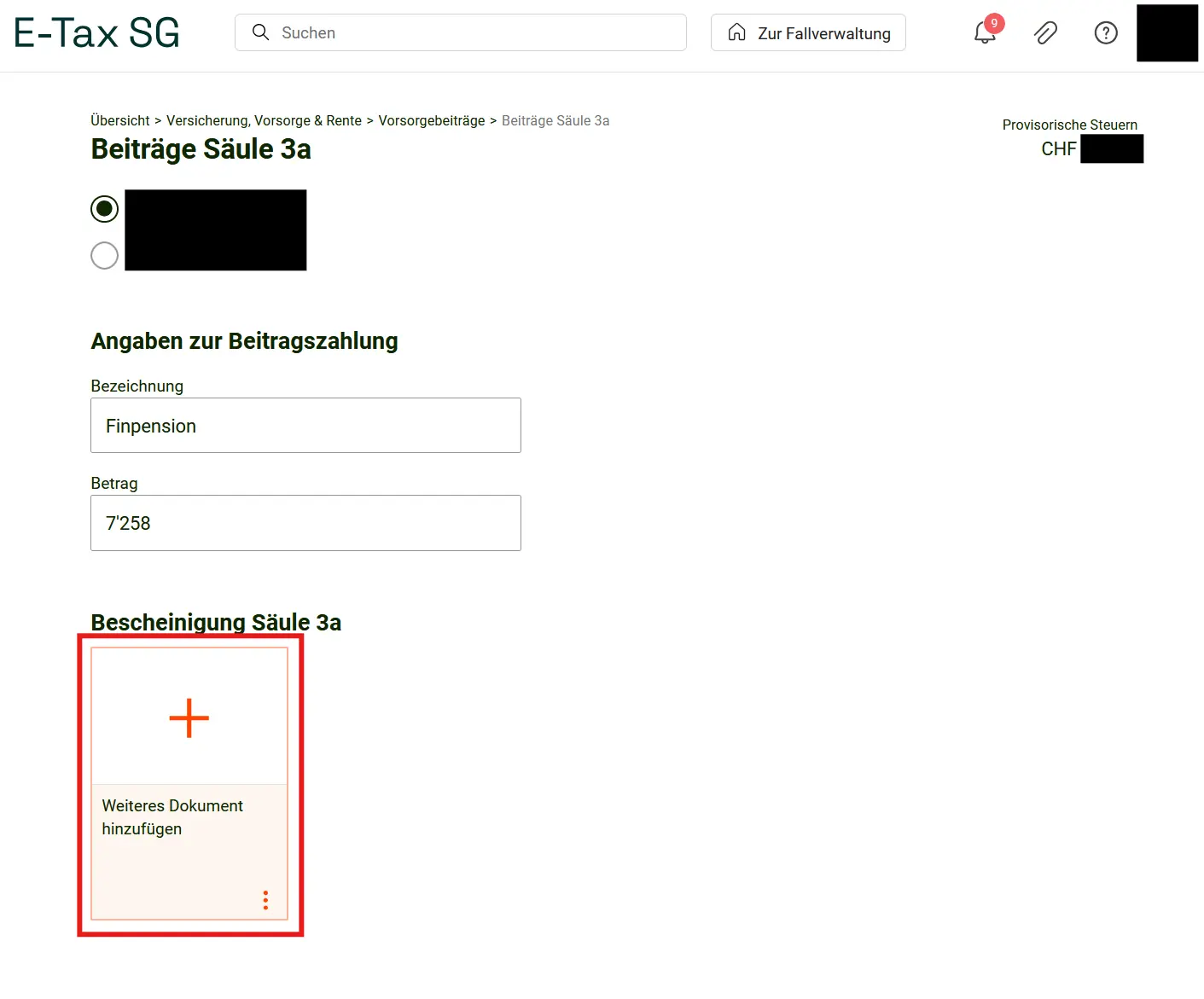
You can also upload the corresponding receipt right when you’re entering the data. To do this, click directly on the button provided, as shown here:
If you want to see an interim calculation or find out at the end how much tax you owe, the “Vorschau und Einreichen” (Preview and submit) button helps. You’ll see a calculation based on the data entered so far, plus a direct comparison with the previous year. It’s a good way to check if you might have forgotten something important.
In the center, you’ll find 6 tiles: People & Household, Work, Insurance, Pension & Retirement, Finances, Property and Miscellaneous. So you know exactly what’s ahead. Let’s start with the first and simplest part: People & Household. Click on the tile.
People & Household
Even if you haven’t imported anything, some of your personal data is already filled in. Click on your name to open the menu where you can enter additional details like your profession and employer. Do that and confirm by clicking the “Fertig” (Done) button.
If you have children, they also need to be entered under “Kinder” (Children). This is also where you enter childcare costs. Click on your child’s name, scroll down to “Kinderbetreuungskosten bei Drittbetreuung” (Third-party childcare costs) and add them.
Do you pay alimony to divorced or separated persons, or do you have dependents? You can also indicate this further down:
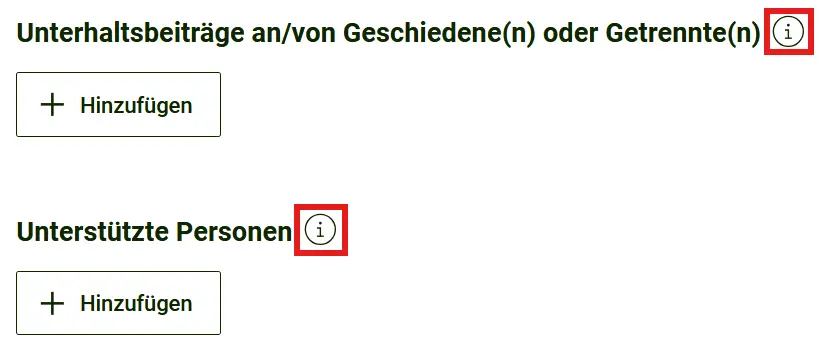
As everywhere, the “Hinzufügen” (Add) button takes you to the menu for entering more details. If you’re not sure what something means, hover over the “i”. It describes exactly what it’s about. When in doubt, just read this information carefully.
The first part is already done. The program’s logic stays the same throughout, which makes it easy to use. In the next part, things get serious: the next 3 tiles are on the agenda.
Next step
In the second part of my E-Tax SG guide for the canton of St. Gallen, we cover work, insurance, pension and finances.