
A reader recently wrote to ask how I import my Bank WIR transactions into YNAB.
He’d read my review of the Bankpaket top where I mentioned that the CSV export was a plus for syncing with YNAB.
Except in real life, Bank WIR’s CSV has a problem: the “Payee” field always starts with “Einkauf Debitkarte” (debit card purchase), followed by the date, the time, and only then the merchant name… Very readable, thanks engineers…
So YNAB can’t automatically recognize the payees.
But I found a simple technique to fix this:
Step 1: download the Excel file from Bank WIR e-banking
Log into Bank WIR e-banking, click on your “Bankpaket top” account, then click “Export to Excel”.

This downloads a file called “Kontobewegungen-30.03.2026.xlsx”.
Step 2: prepare the file in the right CSV format
Two things to do:
- Select all cells in the “Credit” and “Debit” columns and remove the currency formatting (replace it with “Number”) to avoid messing up YNAB later
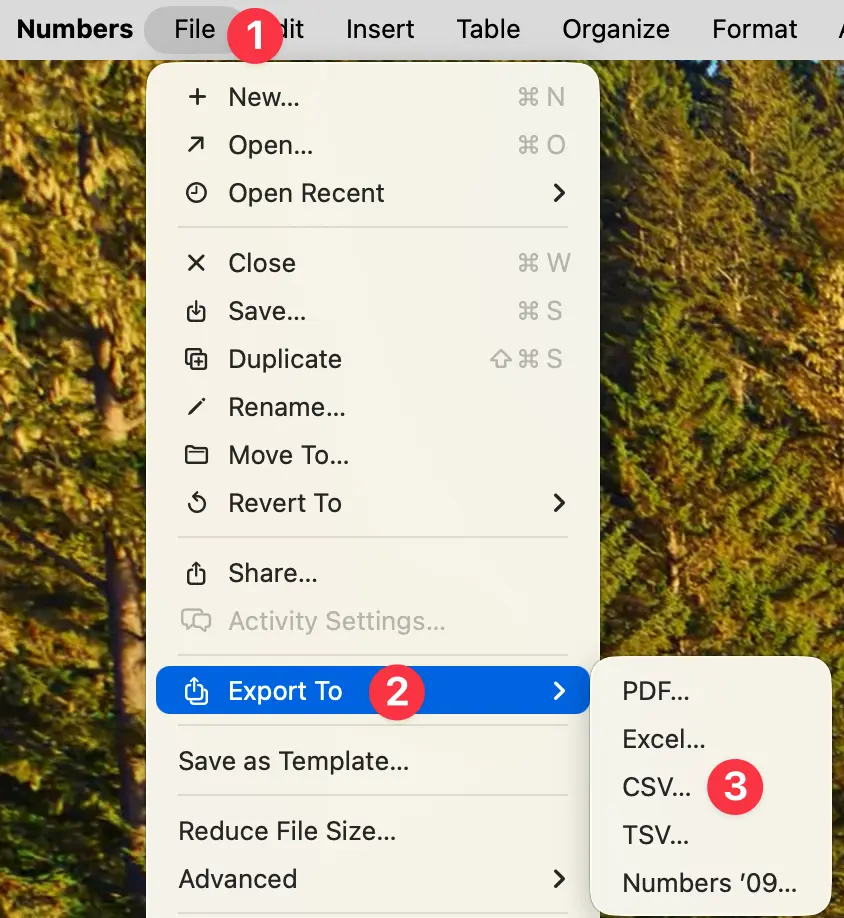
- Save the Excel file as CSV. For example on Mac, I use Apple’s “Numbers” app. I open the Excel file, then go to “File” > “Export” > “CSV”. This avoids format bugs down the line
Step 3: convert the Bank WIR CSV to YNAB format
Next, run the CSV file through the CSV to YNAB converter.
It’s a tool mentioned in the official YNAB documentation, so it’s reliable (and secure since your data stays local and doesn’t get sent to some random server).
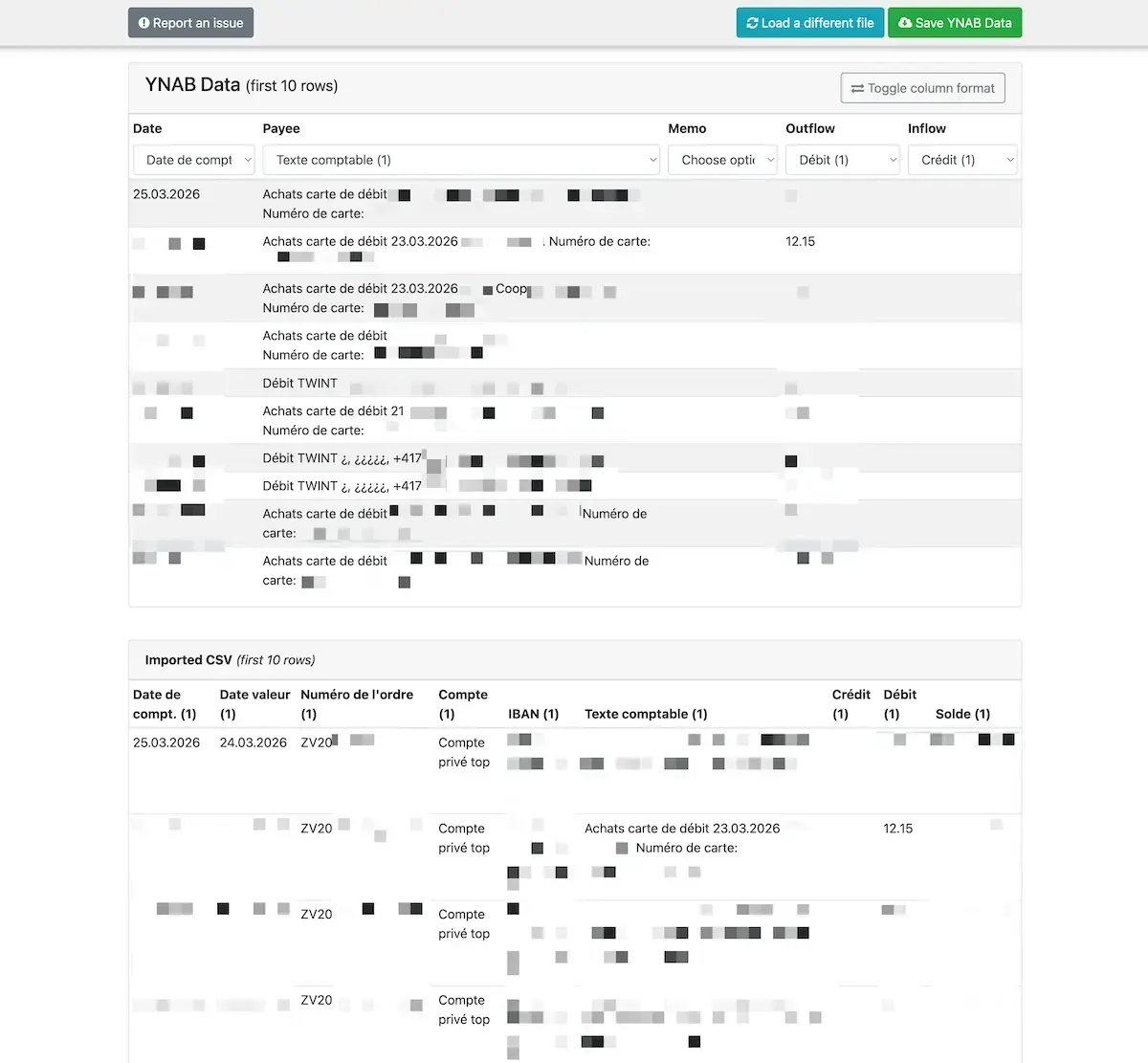
This gives you a clean file formatted for YNAB.
Then you’ll want to remove all previously imported transactions by deleting the rows from the date of your last YNAB import down to the bottom of the file.
Important note: for the date, I use the “Buchungsdatum” (= “Booking date”) column from Bank WIR’s CSV export. You might prefer using the “Valutadatum” (= “Value date”). It doesn’t matter. What matters is being consistent between each import, otherwise it’ll desync your old transactions on future imports if you switch which date column you use.
Step 4: clean up the Payee names with an LLM (Claude or ChatGPT)
Open the converted file in a spreadsheet.
The Payees column looks like this:
Einkauf Debitkarte 07.02.2026 12:34 Bistro GmbH Kartennummer: XXX
Einkauf Debitkarte 08.02.2026 09:15 Migros Zürich Kartennummer: XXX
Thanks a lot, Bank WIR software engineers…
So you copy the entire Payees column (without the “Payee” header), paste it into your favorite LLM (I recommend Claude as of this writing). For pasting, on Mac, use command+option+shift+V to strip the formatting.
Then use my prompt below at the bottom of this article ⬇️.
It’ll return the entire list of cleaned Payees!
Result:
Bistro GmbH
Migros Zürich
Simple, fast, and saves you from cleaning line by line.
Then copy the clean list from your LLM.
In your CSV, place your cursor on the first cell of the “Payee” column, and paste again with command+option+shift+V (to strip formatting).
Step 5: import into YNAB
Import the cleaned CSV file into YNAB as usual. Your Payees are now recognized, and YNAB can do its automatic categorization thing.
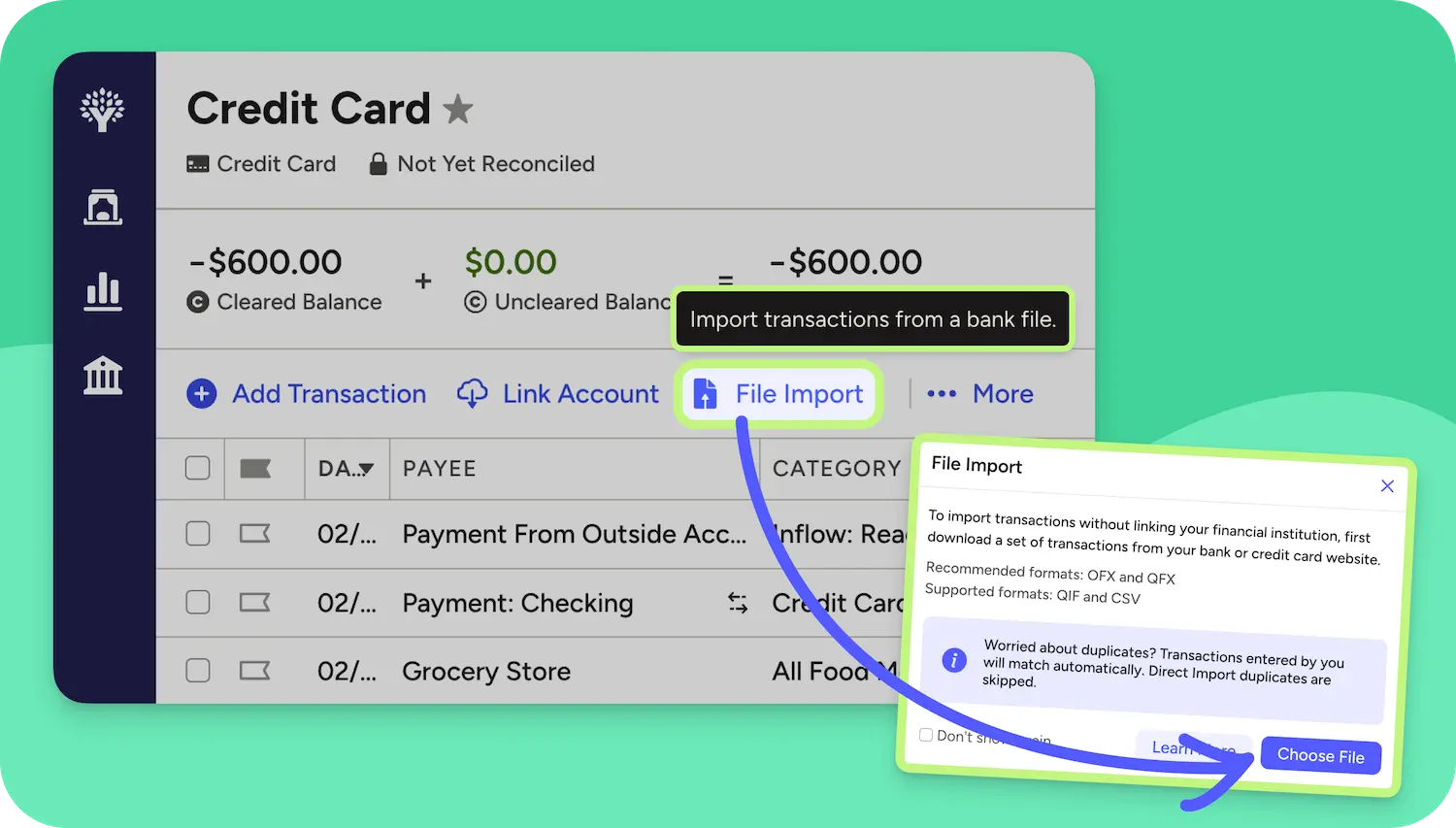
A bit tedious, but it gets the job done. And it’s only once a month on my end, so it’s fine…
Why Bank WIR is worth it despite their so-so CSV
You might be thinking it’s annoying to have to fiddle with the CSV every time you import. I get it. But remember why you chose Bank WIR in the first place:
- Free account (personal AND joint)
- Free Debit Mastercard for each co-holder
- Interbank exchange rate with no markup on all foreign currency payments
- 24 free ATM withdrawals per year, including abroad
No other Swiss bank offers this combo. The 5 minutes of CSV cleanup per month is a price I happily pay to have access to the best Swiss bank.
And if Bank WIR ever improves their CSV export (one can dream!), this step will disappear on its own.
If you see any improvements to my process, I’m all ears ;)
YNAB Payee cleanup prompt (for Bank WIR CSV source):
# Bank transaction cleanup

You are a bank data cleanup assistant. When the user provides a list of transactions, apply the following rules **line by line**, never deleting any line.

---

## Transformation rules

1. **Achats carte de débit** (debit card purchase) — Replace the entire line with the merchant name only (the text after `Achats carte de débit <date>`).

2. **Crédit TWINT** — Keep only: `Crédit TWINT [First Name Last Name] [phone number]`.

3. **Bonification with date/time** (format: `Bonification DD.MM.YYYY HH:MM`) — Replace the entire line with the merchant name only (the text after the date/time).

4. **Débit e-banking** (multi-line block) — Keep only the text from the first line after `Débit e-banking `. Remove subsequent lines in the block.

5. **Bonification entre guillemets** (multi-line block, e.g.: `Bonification "..."`) — Keep only the text from the first line after `Bonification `. Replace `CSS Kranken-Versicherung AG` with `CSS`. Remove subsequent lines in the block.

6. **Votre ordre de paiement** (your payment order, multi-line block) — Keep only the text from the first line after `Votre ordre de paiement `. Remove subsequent lines in the block.

7. **Salaire/rente** (salary/pension, multi-line block) — Keep only the text from the first line after `Salaire/rente `. Remove subsequent lines in the block.

8. **Ordre permanent** (standing order) — Remove all transaction lines following a line containing `Ordre permanent (X transactions)`.

9. **Bancomat** (ATM) — Remove ` Numéro de carte: ...` at the end of the line, keep the rest intact.

10. **Débit TWINT** — Remove unnecessary "¿" characters, and keep only the Swiss phone number, not the long number after it (example: "Débit TWINT ¿, ¿¿¿¿¿, +41791234567 0400123456789098" => "Débit TWINT +41791234567"

---

## Absolute rules

- ❌ You must **never delete any line** — even if a line is identical to a previous one, it is kept and transformed the same way.
- ✅ **One transaction per line**: after each rewrite, add a line break so there is only one transaction per line
- ✅ **Mandatory verification**: after processing, compare the number of input lines and output lines. They must be **strictly identical**. If not, flag the discrepancy before providing the result.

---

## Response format

Return only the cleaned list (with a line break between each transaction), followed by a confirmation line:

✅ Input lines: X — Output lines: X — OK
or
⚠️ Input lines: X — Output lines: Y — DISCREPANCY DETECTED


Last updated: April 9, 2026